
Set up Radial
Connect Radial to your Bolt merchant account.
Connect Radial to Bolt so Bolt can authorize and capture payments through your Radial account.
Step 1: Allowlist Bolt and merchant IPs
If you use a blocklist, allow:
13.57.173.9318.236.33.23034.209.104.17752.36.152.15012.2.150.168/2912.249.26.128/3050.18.19.8
Also add your office IP addresses.
Step 2: Obtain Radial keys
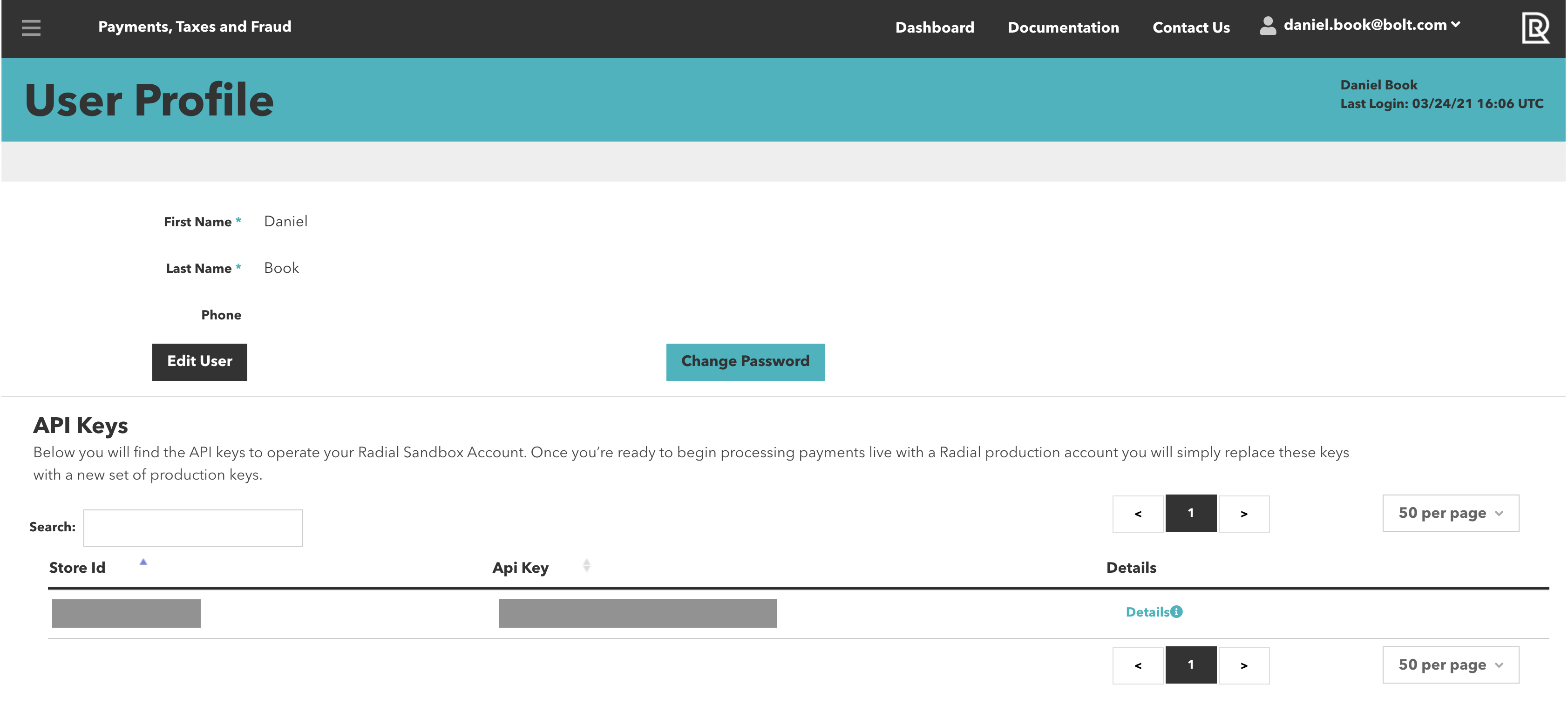
- Go to the Radial Console.
- Go to Profile > API Keys.
- Save Store ID, API Key, and optional Base URL (only if Radial assigned a unique base URL).
Step 3: Add keys and edit payment settings
- Log into the Bolt Merchant Dashboard.
- Go to Settings > Payments.
- Click Set Up Radial.
- Add your Radial keys.
- Click Next.
- Edit payment settings, then click Complete Setup.
Expected result: Radial appears as your active processor under Settings > Payments.
Step 4: Configure Radial risk settings
For saved cards, Bolt does not transmit CVV match data. Use Radial's authorization response codes to allow transactions without card security code (CSC) data.
With Fraud Protection
Allow shipping and billing address mismatches per Radial's AVS guidance.
Without Fraud Protection
Tell your fraud provider that payments through this processor will not include CVV match information.
Step 5: Set up chargeback notifications
Configure Radial communication preferences for digital chargeback notifications.
Chargeback handling
- With Fraud Protection: Radial supports manual dispute submissions.
- Without Fraud Protection: Follow Radial's chargebacks guidance.