

Set up a flat plan
Create a fixed-price plan, place its checkout link, and configure payment recovery.
Follow this after finishing Get started. For what a flat plan is and how it bills, see the flat plans overview.
Create the plan
- In the Commerce section of the left navigation, click Subscriptions.
- On the Products tab, open your product (or click Create Product).
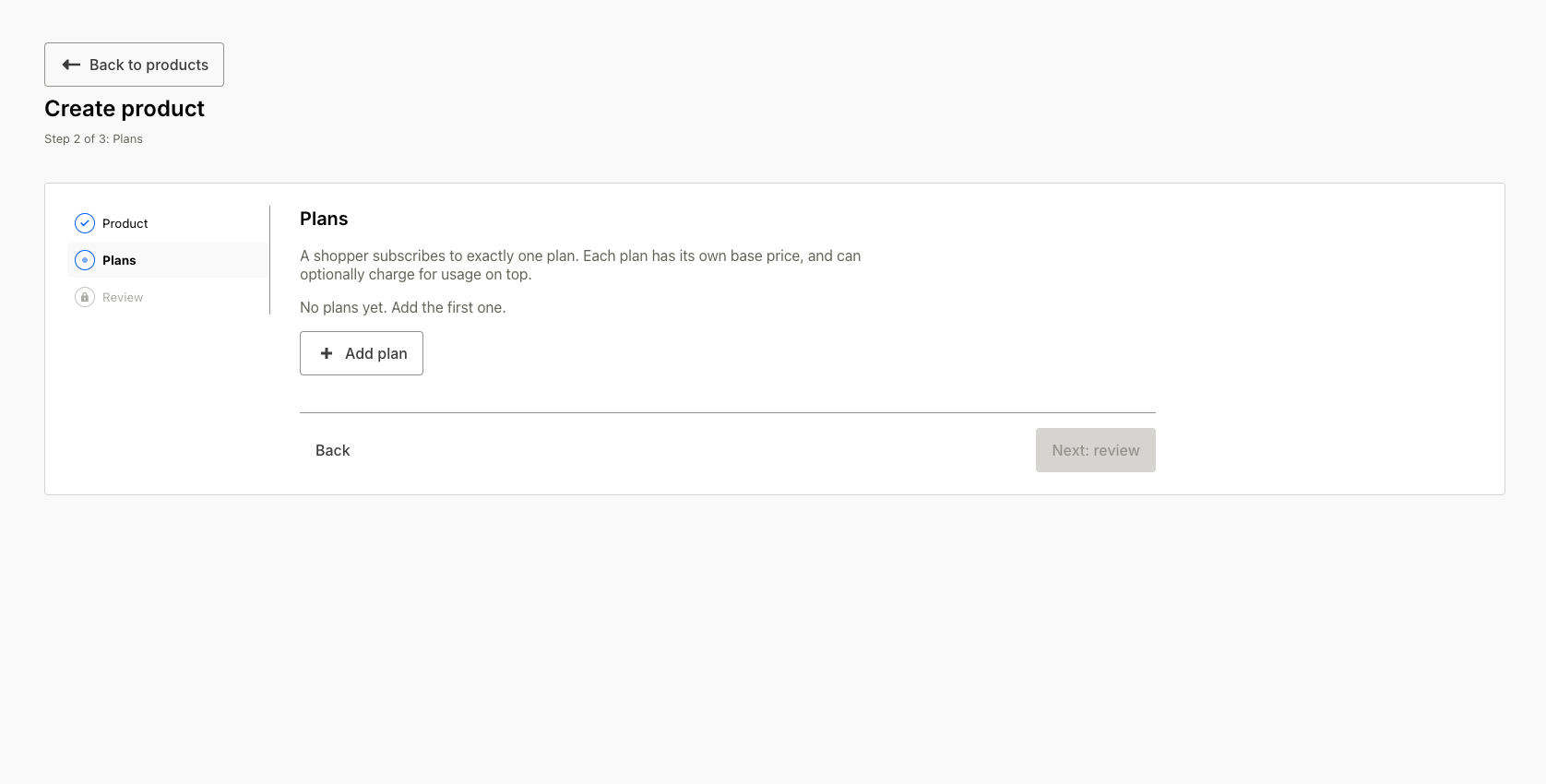
- On the Plans step, click Add plan.
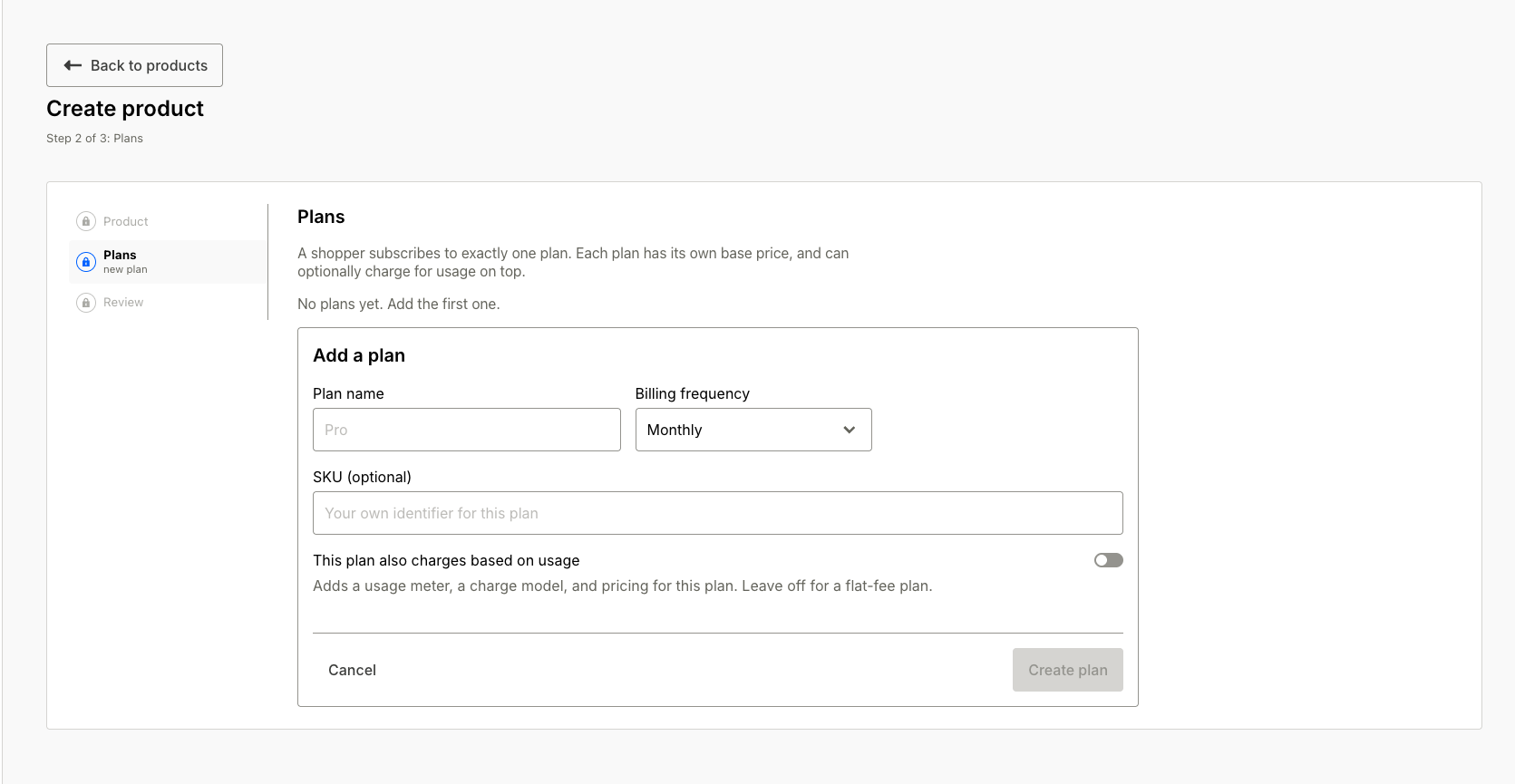
- Set the plan's name, price, and billing frequency. Choose weekly, monthly, or yearly, and use Frequency for anything in between:
Frequency = 3withUnit = monthlyyields a quarterly subscription. - Leave This plan also charges based on usage off, and click Create plan. That toggle turns the plan into a usage-based plan. On Bolt Cart, choose Flat fee instead of Usage-based billing, give the plan a SKU, and optionally add a trial or promotions. Activate the product when you're ready to sell. Once a plan is active, its price can't be edited.
Place the checkout link
Open the plan to copy its Bolt-hosted checkout link and add it wherever shoppers should subscribe. If you run your own checkout instead, set subscription_plan_id to the plan's ID on the cart item.
Configure payment recovery
Bolt retries failed renewal charges and reminds subscribers before each renewal. Tune both on the Payment Recovery tab:
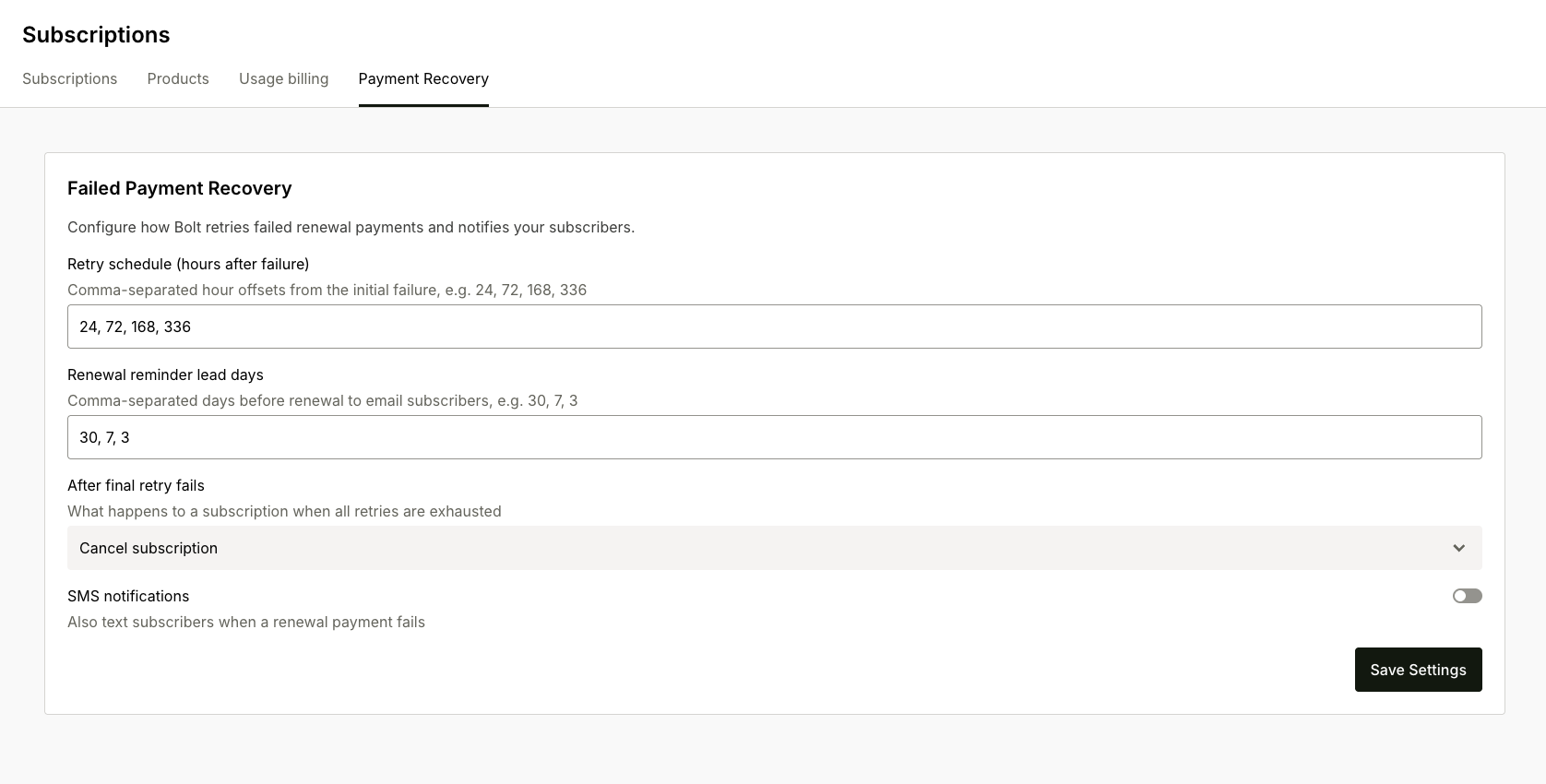
- On the Subscriptions page, click the Payment Recovery tab.
- Set the retry schedule. Up to 10 entries, strictly increasing.
- On Bolt Cart: Retry schedule (days after the first failed charge), for example
1, 3, 7. Each entry is one more charge attempt, at most 90 days. After the final retry, Bolt pauses the subscription, and paying the invoice resumes it. - On other stores: Retry schedule (hours after failure), for example
24, 72, 168, 336. Each entry is at most 2160 hours (90 days).
- On Bolt Cart: Retry schedule (days after the first failed charge), for example
- On other stores, choose After final retry fails: Cancel subscription or Pause subscription, the action Bolt takes once every retry in the schedule has failed.
- To email subscribers before each renewal, turn on Send renewal reminders and set Renewal reminder lead days: a comma-separated list of days before renewal, for example
30, 7, 3. Up to 10 entries, each at most 90 days, no duplicates. - Turn on SMS notifications to also text subscribers when a renewal payment fails, in addition to email.
- Click Save Settings.
Expected result: the settings save and the tab shows your values after a refresh.
If you haven't configured these settings yet, Bolt applies defaults. Retries run 1, 3, and 7 days after the first failed charge on Bolt Cart, or 24, 72, 168, and 336 hours after failure with cancellation as the final action on other stores. Renewal reminders are off until you turn them on, with lead days of 30, 7, and 3.
When a shopper updates their payment method from the failure email, Bolt retries the failed payment immediately. The emails involved are shown in shopper notifications.
Verify
Complete a test checkout through the plan's link, then confirm:
- The subscription appears on the Subscriptions tab with the next scheduled charge.
- The payment appears under Transactions with the expected status.
- The shopper received the subscription created email.