📍
Bolt Help / Products / Bolt Checkout Everywhere / Checkout Links User Guides / Create a Checkout Link
Create a checkout link and QR code.
Checkout Links are generated in the Merchant Dashboard. You must have already follow the proper onboarding procedure for Checkout, Embedded Checkout, or Checkout Everywhere before you can proceed through these steps. Reach out to your Bolt CSM if you have any questions.
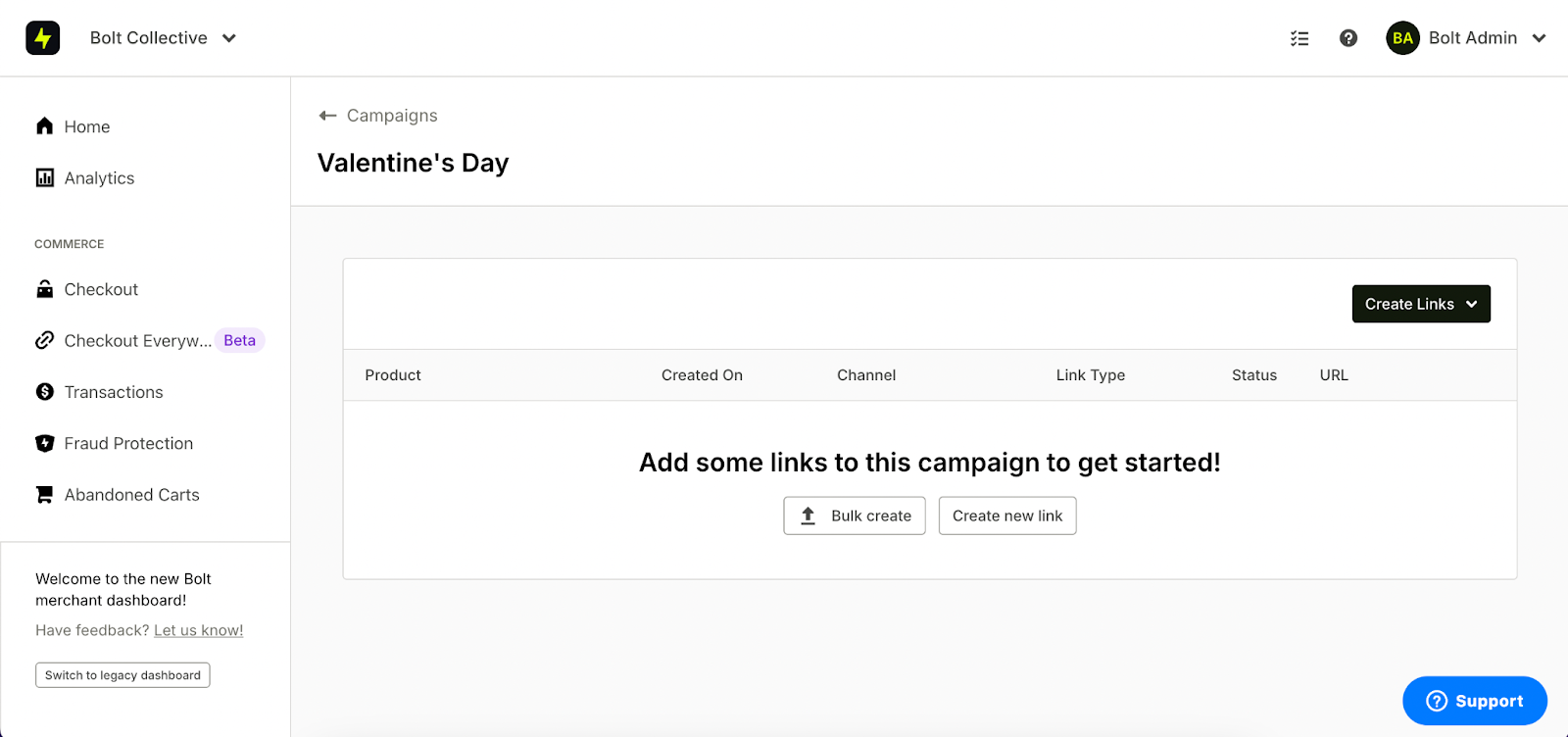
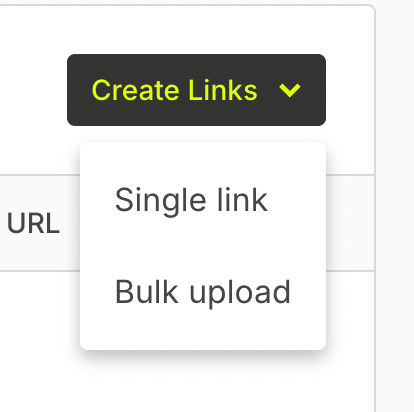
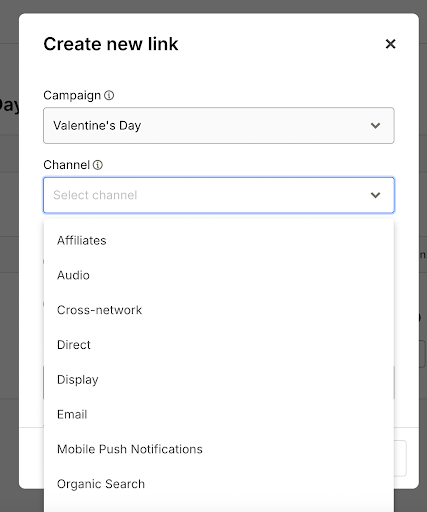
Create a Checkout Link
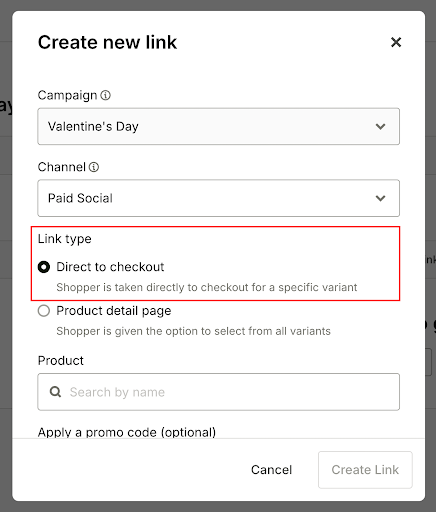
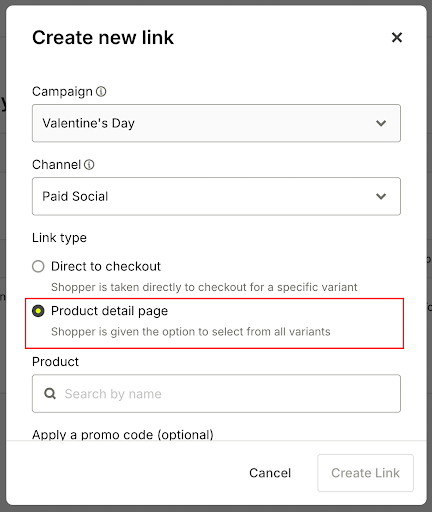
You can choose to create links directly to a specific product variant or to a page where shoppers can customize the product before purchase:
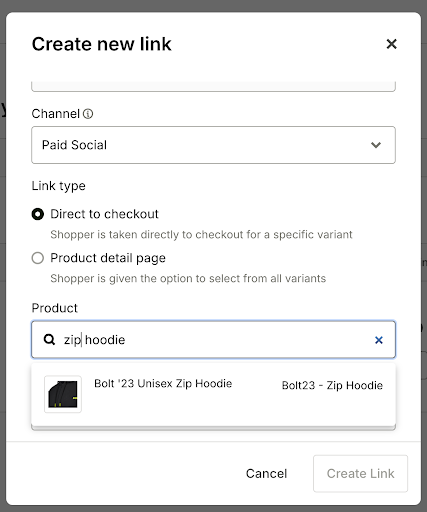
- Direct to Checkout takes a shopper to the checkout page for a specific product variant. This can incluce a pre-selected color or size.
- Product Detail Page takes the shopper to the checkout page for a product, but does not have any variations selected. Shoppers would be able to choose their own size or color before checkout.
Direct to Checkout Link
Product Detail Page
Errors
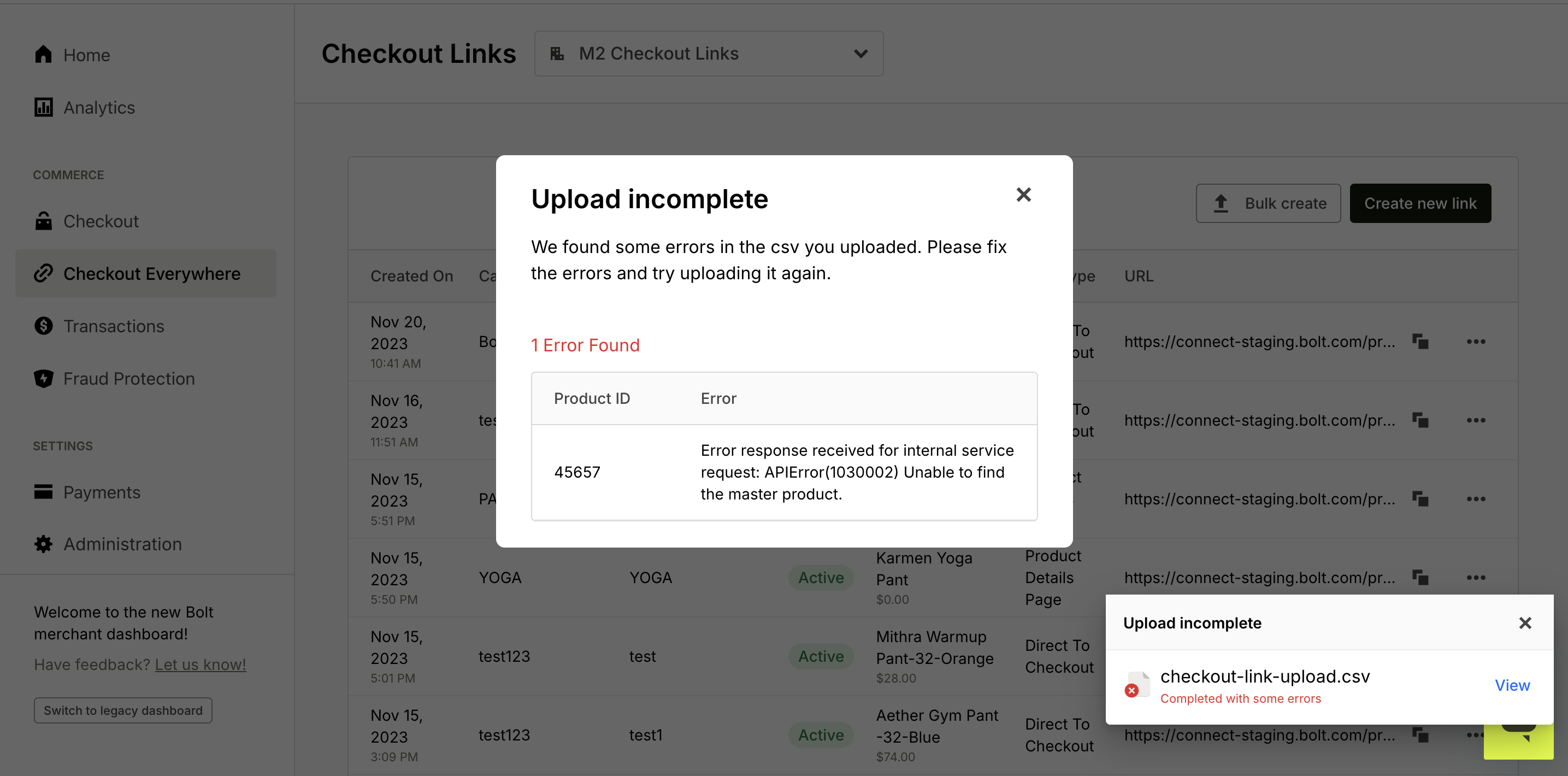
We’ll alert you of any errors during upload with a pop up notification. If you kept “Email csv with checkout links when done” checked, you will also receive an email alert of the error.
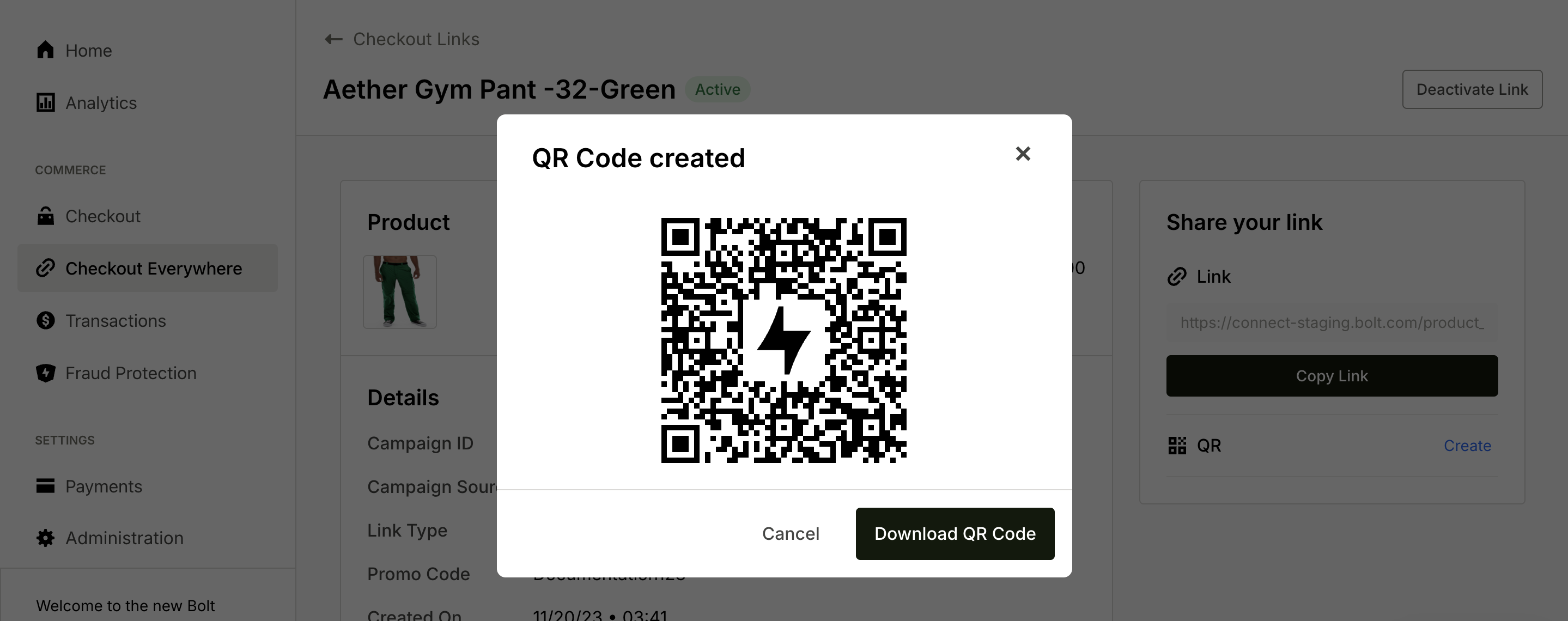
Generate QR Code
To generate a QR code, you must already have a link generated for your product.
- Go to your already generated checkout link.
- Click on the row of the desire link.
- In the “Share your link” block, click Create next to the QR Code icon.
- Click Download QR code to receive the code in
.pngformat.