# Bolt Help
> Bolt's documentation for developers, merchants, and shoppers, as one file: every prose page in navigation order.
>
> 153 pages, 991 KB. Check that against your model's context window before loading the whole file.
>
> The API reference is not here. It is generated from OpenAPI specs and is several times the size of everything else, so each endpoint is published on its own at https://help.boltapp.com/llms/api-reference/... and indexed in https://help.boltapp.com/llms.txt.
# Documentation: Start here
---
# Developers
> Choose how you want to accept payments with Bolt.
Source: https://help.boltapp.com/getting-started/choose-integration
Bolt's fully managed checkout solution.
Keep your checkout, enhanced with Bolt's shopper network.
Checkout links and scannable QR codes with Bolt checkout.
Managed sub-merchant payouts with streamlined onboarding.
## Choose by what you need [#choose-by-what-you-need]
| Your goal | Start here |
| ----------------------------------------------- | ---------------------------------------------------- |
| Let Bolt provide your checkout interface | [Managed Checkout](/products/checkout) |
| Keep your own checkout interface | [Embedded API](/products/embeddable-checkout) |
| Sell through a link or QR code | [Checkout Everywhere](/products/checkout-everywhere) |
| Onboard sellers and manage sub-merchant payouts | [Marketplace Connect](/products/connect) |
| Bill shoppers on a recurring schedule | [Subscriptions](/products/subscriptions) |
**Billing on a recurring schedule?** Bolt Subscriptions prices each plan from a catalog. If your recurring amount is computed per shopper, a rate that varies with seat count or a first period prorated to the signup date, read [How prices are set](/products/subscriptions#how-prices-are-set) before choosing a path.
**Using a commerce platform?** Choose [Shopify, BigCommerce, Adobe Commerce, Salesforce Commerce Cloud, WooCommerce, or Volusion](/use-cases/ecommerce#platform-setup).
Every Bolt product, add-on, and use case in one place.
Client and server libraries, once you know which path you are building.
Markdown: https://help.boltapp.com/llms/getting-started/choose-integration.md
# Documentation: Products
---
# Managed Checkout Quickstart
> Accept one-time payments for physical products in your existing web app.
- **Bolt handles** the checkout interface, shipping details, and payment collection.
- **Your app owns** the cart, pricing, and order records.
Source: https://help.boltapp.com/products/checkout
## Your integration steps [#your-integration-steps]
## Before you begin [#before-you-begin]
Have these ready before starting the estimated integration time.
| Requirement | What you need |
| --------------- | ------------------------------------------------------------------------------------------------------------------------------------------------------------------------------------------------------------------------------------- |
| Existing app | An online store with a cart, customer sign-in, and saved orders. The examples use Node.js 22 and Express. |
| Sandbox account | [Create a merchant account](https://merchant.boltapp.com/onboarding/get-started), accept your sandbox invitation, and ask Bolt for a **custom-cart division** with split shipping/tax callbacks and pre-authorization order creation. |
**Platform support**
This guide works for any custom web app. The examples use Node.js and Express, but every server step is a plain HTTPS call to Bolt with a standard HMAC check that you can write in any language, and the browser steps load Bolt's hosted scripts from any front end. The [Web checkout](/platforms/direct-api) reference documents that browser client. Hosted commerce platforms and native mobile apps use their own guides instead.
JS Embed
iOS
Android
REST API
Python
## 1. Set up [#1-set-up]
1. Open [sandbox Payments](https://merchant-sandbox.boltapp.com/payments), select the Bolt Payments processor, and configure **Immediate Capture** for your USD sandbox division.
2. Open [Administration > API](https://merchant-sandbox.boltapp.com/administration/api-keys#apiKeys). Copy the **API key** and **Publishable key** for that division, then copy the [Signing secret](https://merchant-sandbox.boltapp.com/administration/api-keys#signingSecrets).
3. Open [Administration > Trusted Domains](https://merchant-sandbox.boltapp.com/administration/trusted-domains). Select the same division as your credentials, select **+ Add Domain**, enter your app's public HTTPS address, and select **Update**.
4. Add these values to your app's server environment using its existing secrets configuration:
```bash
BOLT_API_KEY=YOUR_SANDBOX_API_KEY
BOLT_PUBLISHABLE_KEY=YOUR_SANDBOX_PUBLISHABLE_KEY
BOLT_SIGNING_SECRET=YOUR_SANDBOX_SIGNING_SECRET
```
These are names used by this guide's code. Expose only the publishable key through your app's public configuration. Keep the API key and signing secret on the server and out of source control.
### Validate setup [#validate-setup]
* Reopen [sandbox Payments](https://merchant-sandbox.boltapp.com/payments) and confirm **Immediate Capture** is saved.
* Confirm all three credentials belong to the same sandbox division and your HTTPS development origin is saved in Trusted Domains.
* Restart your backend with the updated environment. Check that all three values are present without logging their contents. Do not continue if a value is missing.
## 2. Connect orders [#2-connect-orders]
Connect Bolt to your app's existing order lifecycle. Your backend must price the current cart, save an unpaid order, and use that order's identifier as Bolt's `order_reference`.
For this walkthrough, use one **$10.00 USD** physical item with free shipping, no tax, and no discounts.
### Map your cart and order storage [#map-your-cart-and-order-storage]
Provide an `orders` adapter with these four operations. These are functions you implement using your app's services, not Bolt SDK methods:
| Operation | Required behavior |
| ---------------------------- | ------------------------------------------------------------------------------------------------------------------------------------------------------------------------------------------------------------------------------------------------------------------------------------------- |
| `prepare(req)` | Load the authenticated shopper's cart, calculate its price on the server, and persist an unpaid checkout snapshot. Return that snapshot as `{ id, cart, payment }`, including its current payment if one exists. Reuse the same unpaid snapshot for repeat requests with an unchanged cart. |
| `find(id)` | Return the saved snapshot, or `null`. Use this for signed callbacks and transaction notifications. |
| `findForShopper(id, req)` | Return a snapshot only if it belongs to the requesting shopper, otherwise `null`. |
| `recordPayment(id, payment)` | Persist `{ reference, status }` against that order atomically. Repeated deliveries must update the same payment, never create another order. Reject a different payment reference once a successful payment is recorded. This guide does not implement fulfillment. |
Map your cart fields to this shape. Use your own order identifier and product reference; prices are integers in cents. Store this snapshot before returning it from `prepare`:
```javascript title="JavaScript"
const checkoutSnapshot = {
id: 'YOUR_ORDER_ID',
cart: {
order_reference: 'YOUR_ORDER_ID',
display_id: 'YOUR_ORDER_ID',
currency: 'USD',
total_amount: 1000,
tax_amount: 0,
items: [{
reference: 'YOUR_PRODUCT_ID', name: 'Test product', type: 'physical',
unit_price: 1000, total_amount: 1000, quantity: 1,
}],
},
payment: null,
};
```
The adapter is required application work: implement and validate it before proceeding. The snippets do not provide a database, a cross-tab payment lock, receipt delivery, or fulfillment.
Keep the checkout snapshot immutable while payment is in progress. A changed cart needs a new snapshot and token. Do not accept prices or an arbitrary shopper's order identifier from the browser.
### Add the Bolt handlers [#add-the-bolt-handlers]
Add this module to your backend. It creates an order token, answers checkout callbacks, and records payment only after retrieving the transaction from Bolt. The browser success callback never marks an order paid.
```javascript title="bolt-checkout.mjs"
import { createHmac, timingSafeEqual } from 'node:crypto';
export function createBoltHandlers(orders) {
for (const name of ['BOLT_API_KEY', 'BOLT_PUBLISHABLE_KEY', 'BOLT_SIGNING_SECRET']) {
if (!process.env[name]) throw new Error(`Set ${name} in your server environment`);
}
async function bolt(path, body) {
const response = await fetch(`https://api-sandbox.boltapp.com${path}`, {
method: body ? 'POST' : 'GET',
headers: { 'X-API-Key': process.env.BOLT_API_KEY, 'Content-Type': 'application/json' },
...(body ? { body: JSON.stringify(body) } : {}),
});
if (!response.ok) throw new Error(`Bolt returned HTTP ${response.status}`);
return response.json();
}
function signedBody(req) {
if (!Buffer.isBuffer(req.body)) throw new Error('Bolt routes need the raw request body');
const expected = createHmac('sha256', process.env.BOLT_SIGNING_SECRET)
.update(req.body).digest();
// During rotation, the incoming secret signs the Pending header.
const valid = ['X-Bolt-Hmac-Sha256', 'X-Bolt-Hmac-Sha256-Pending'].some(name => {
const received = Buffer.from(req.get(name) || '', 'base64');
return expected.length === received.length && timingSafeEqual(expected, received);
});
if (!valid) return null;
return JSON.parse(req.body.toString('utf8'));
}
const handle = fn => async (req, res, next) => {
res.set('Cache-Control', 'no-store');
try { await fn(req, res); } catch (error) { next(error); }
};
return {
createOrder: handle(async (req, res) => {
const order = await orders.prepare(req);
if (!order || order.cart.order_reference !== order.id || order.payment?.status === 'completed') {
return res.status(409).json({ error: 'No unpaid checkout snapshot' });
}
const result = await bolt('/v1/merchant/orders', { cart: order.cart, channel: 'browser' });
if (!result.token) throw new Error('No order token returned');
res.json({ id: order.id, token: result.token });
}),
orderStatus: handle(async (req, res) => {
const order = await orders.findForShopper(req.params.id, req);
if (!order) return res.status(404).json({ error: 'Order not found' });
res.json({ id: order.id, payment: order.payment });
}),
callbacks: handle(async (req, res) => {
const message = signedBody(req);
if (!message) return res.status(401).json({ error: 'Invalid signature' });
const { event, data } = message;
let reply;
if (event === 'order.shipping') {
reply = { shipping_options: [{ service: 'Free sandbox shipping', cost: 0,
reference: 'free', signature: 'free-v1' }] };
} else if (event === 'order.tax') {
reply = { tax_result: { subtotal_amount: 0 }, taxes_included: false };
} else if (event === 'order.create') {
const cart = data?.order?.cart;
const order = cart?.order_reference ? await orders.find(cart.order_reference) : null;
if (!order || cart.total_amount?.amount !== order.cart.total_amount ||
cart.currency?.currency !== order.cart.currency) {
return res.status(422).json({ event, status: 'failure', errors: [
{ code: 2001, data: [{ reason: 'Unknown or changed order' }] },
] });
}
reply = { display_id: order.cart.display_id };
} else {
return res.status(422).json({ event, status: 'failure', error: {
code: 2319, message: 'This walkthrough does not enable additional checkout features.',
} });
}
res.json({ event, status: 'success', data: reply });
}),
webhooks: handle(async (req, res) => {
const message = signedBody(req);
if (!message) return res.status(401).json({ error: 'Invalid signature' });
if (message.object === 'transaction' && message.data?.reference) {
const transaction = await bolt(`/v1/merchant/transactions/${encodeURIComponent(message.data.reference)}`);
// This walkthrough accepts card purchases only. Credits/refunds are separate transactions.
if (transaction.type !== 'cc_payment') return res.json({ status: 'success' });
if (transaction.reference !== message.data.reference) throw new Error('Transaction reference mismatch');
const id = transaction.order?.cart?.order_reference;
const order = id ? await orders.find(id) : null;
if (!order) throw new Error('No matching local order for this transaction');
if (transaction.amount?.amount !== order.cart.total_amount ||
transaction.amount?.currency !== order.cart.currency) {
throw new Error('Transaction does not match the saved order');
}
await orders.recordPayment(id, { reference: transaction.reference, status: transaction.status });
}
res.json({ status: 'success' });
}),
};
}
```
Register these routes in your existing Express app. `orders`, `requireShopper`, and `requireCsrf` below refer to your app's adapter, authentication middleware, and CSRF middleware. Connect those existing functions before using this snippet.
```javascript title="JavaScript"
import express from 'express';
import { createBoltHandlers } from './bolt-checkout.mjs';
const bolt = createBoltHandlers(orders);
// Register BEFORE your existing JSON parser and shopper-login middleware.
// Bolt sends signed server requests, without a shopper session or CSRF token.
app.post('/bolt/callbacks', express.raw({ type: 'application/json', limit: '64kb' }), bolt.callbacks);
app.post('/bolt/webhooks', express.raw({ type: 'application/json', limit: '64kb' }), bolt.webhooks);
// Add to your app's authenticated routes after its normal request parsers.
app.post('/api/bolt/order', requireShopper, requireCsrf, bolt.createOrder);
app.get('/api/bolt/orders/:id', requireShopper, bolt.orderStatus);
```
Signature verification needs the original bytes, so [Express's raw body parser](https://expressjs.com/en/5x/api/express/#express.raw) must run before a JSON parser consumes the body. Keep your existing server error handler after these routes. Log failures on the server, return a generic error body to clients, and use non-2xx responses for failed notification processing so Bolt can retry.
### Validate orders [#validate-orders]
1. From your app's authenticated API client, send `POST /api/bolt/order` using its normal CSRF protection. Expect HTTP `200` with a nonempty `id` and `token`.
2. Find that `id` in your order storage. Confirm the saved cart has a total of `1000`, currency `USD`, and no completed payment.
3. Repeat the request with the unchanged cart. Confirm it uses the same local unpaid order rather than creating another one.
4. Request `GET /api/bolt/orders/{id}` as the same shopper. Expect that order's ID and `payment: null`. A different shopper must not receive its details.
Keep this order ID for the checkout test. Stop here if the token request or ownership check fails.
## 3. Add checkout [#3-add-checkout]
Add a checkout container and status message to your **existing cart page**:
```html title="HTML"
```
Run this function once when the cart page mounts and call its returned cleanup function on unmount. Use this module as the only loader for the two Bolt scripts; keep one active checkout mount and one sandbox division per page. Pass the publishable key from your app's public configuration and its existing authenticated JSON request helper. The helper must send the app's CSRF token on POST, reject non-2xx responses, and return parsed JSON. It is application code, not a Bolt SDK method.
```javascript title="JavaScript"
const boltScripts = new Map();
export function mountBoltCheckout({ publishableKey, request }) {
const status = document.querySelector('#bolt-status');
const container = document.querySelector('#bolt-checkout');
const cdn = 'https://connect-sandbox.boltapp.com';
let active = true;
let timer;
function show(message) {
if (active && status.textContent !== message) status.textContent = message;
}
function loadScript(id, src) {
if (!boltScripts.has(id)) {
const promise = new Promise((resolve, reject) => {
const script = document.createElement('script');
script.id = id;
script.src = src;
script.dataset.publishableKey = publishableKey;
script.onload = resolve;
script.onerror = () => {
script.remove();
boltScripts.delete(id);
reject(new Error('Bolt script could not load'));
};
document.head.append(script);
});
boltScripts.set(id, promise);
}
return boltScripts.get(id);
}
async function start() {
show('Preparing checkout…');
try {
const { id, token } = await request('/api/bolt/order', { method: 'POST' });
if (!active) return;
container.dataset.tid = 'instant-bolt-checkout-button';
const button = document.createElement('object');
button.data = `${cdn}/v1/checkout_button?publishable_key=${encodeURIComponent(publishableKey)}`;
button.setAttribute('aria-label', 'Open Bolt Checkout');
container.replaceChildren(button);
await loadScript('bolt-track', `${cdn}/track.js`);
if (!active) return;
await loadScript('bolt-connect', `${cdn}/connect.js`);
if (!active) return;
BoltCheckout.configure({ orderToken: token }, {}, {
success: (_transaction, callback) => {
show('Payment submitted. Waiting for server confirmation. Do not pay again.');
callback();
},
});
show(`Order ${id}: ready for checkout.`);
async function poll() {
try {
const order = await request(`/api/bolt/orders/${encodeURIComponent(id)}`);
if (!active) return;
if (order.payment) {
show(`Order ${id}: ${order.payment.status}. Transaction: ${order.payment.reference}`);
}
if (['completed', 'failed', 'cancelled', 'rejected_irreversible'].includes(order.payment?.status)) return;
timer = setTimeout(poll, 2000);
} catch {
show(`Cannot confirm order ${id} yet. Check this order in your account or contact support before paying again.`);
}
}
poll();
} catch {
if (active) container.replaceChildren();
show('Checkout could not load. Return to your cart and try again.');
}
}
start();
// Returned immediately, so navigation can cancel pending setup as well as polling.
return () => { active = false; clearTimeout(timer); container.replaceChildren(); };
}
```
`track.js` collects fraud signals; `connect.js` launches checkout. The server omits `order_received_url` so the shopper stays in your app and sees the server-verified status. Keep the cart fixed for this first test.
### Validate checkout [#validate-checkout]
1. Open your cart page through its HTTPS development URL. Confirm the Bolt button appears and the status shows your order ID.
2. In browser developer tools, confirm `track.js` and `connect.js` load successfully from `connect-sandbox.boltapp.com`.
3. Check the page source and network responses: only the publishable key may appear, never the private API key or signing secret.
Do not open checkout or submit payment yet. Register its receiving URLs next.
## 4. Connect Bolt [#4-connect-bolt]
Use the same HTTPS development origin that serves your cart and backend. For example, `https://your-app.example` below represents **your own development URL**.
1. Open [Administration > API > Merchant Callbacks](https://merchant-sandbox.boltapp.com/administration/api-keys#merchantCallbacks). Select **Universal API**, enter your development origin followed by `/bolt/callbacks`, and select **Add merchant callback**.
2. Open [Administration > Webhooks](https://merchant-sandbox.boltapp.com/administration/webhooks) and register the same origin followed by `/bolt/webhooks`.
If Universal API or Webhooks is unavailable, ask Bolt to confirm your custom-cart division and settings permissions. Merchant callbacks and transaction webhooks are separate registrations.
### Validate connections [#validate-connections]
1. Reopen the linked settings and confirm the saved domain and both endpoint URLs. Update existing registrations if the development URL changes.
2. Send an unsigned request to each public endpoint. Replace the example origin with yours:
```bash
curl -i https://your-app.example/bolt/callbacks \
-H 'Content-Type: application/json' -d '{"event":"order.shipping","data":{}}'
curl -i https://your-app.example/bolt/webhooks \
-H 'Content-Type: application/json' -d '{"object":"transaction","data":{}}'
```
Both must return HTTP `401` from your handler, without a login redirect or proxy error.
3. Open Bolt checkout from your cart, enter a test email and US shipping address, then choose **Free sandbox shipping**. Confirm your server receives signed `order.shipping` and `order.tax` calls, answers with HTTP `200`, and checkout displays **$10.00 USD**, free shipping, and zero tax. Leave checkout open for the final step.
## 5. Verify payment [#5-verify-payment]
Submit the open checkout using the [Bolt Payments approved test card and card details](/getting-started/test-cards#bolt-payments).
### Validate payment [#validate-payment]
1. Confirm your server receives `order.create`, finds the saved order, and answers successfully. Then confirm `/bolt/webhooks` receives a signed transaction notification and completes the server-side transaction lookup.
2. Wait for your app to show `completed` with a transaction reference. `pending` and `authorized` are not the completion checkpoint.
3. Look up the original order ID in your app's storage. Confirm its payment reference matches the page and its recorded status is `completed`.
4. Open [sandbox Transactions](https://merchant-sandbox.boltapp.com/transactions). Find that reference and confirm the amount is **$10.00 USD** and the order number matches your app.
5. Restart your backend, then reload `GET /api/bolt/orders/{id}` using your authenticated API client. Confirm the result persists. Reprocess the same notification in your development test harness and confirm it updates the existing record without creating another order. The quickstart does not create fulfillment actions or receipts.
**You are done when:** your existing app opens Bolt checkout, completes a sandbox payment, and persists the verified transaction against the correct order.
## If a checkpoint fails [#if-a-checkpoint-fails]
* **No order token:** check the sandbox API key, saved cart totals, and USD payment enablement. Inspect the backend's Bolt HTTP error.
* **Checkout does not open:** confirm the current host is in [Trusted Domains](https://merchant-sandbox.boltapp.com/administration/trusted-domains) and both sandbox scripts loaded.
* **Callbacks fail signature verification:** ensure `express.raw` runs before your JSON parser and the [Signing secret](https://merchant-sandbox.boltapp.com/administration/api-keys#signingSecrets) belongs to the configured division.
* **Payment exists but your app still waits:** check the saved [Webhooks URL](https://merchant-sandbox.boltapp.com/administration/webhooks), server errors, and original order ID. Investigate the existing payment before attempting another purchase.
For callback payloads, token errors, and other setup failures, use [custom-cart troubleshooting](/custom-cart/troubleshooting) and [callback conventions](/api-reference/merchant-callback/conventions).
## After your first payment [#after-your-first-payment]
Run the [Managed Checkout test plan](/products/checkout-test-plan) to check payment failures, recovery, and the experience your app controls. Its first five checks map to the checkpoints in this guide. The scope table identifies which later checks verify these snippets, your required adapters, or additional launch behavior.
Replace the fixed free-shipping and zero-tax responses with your app's shipping and tax calculations. Add safe retry controls, cross-tab payment locking, cart changes, confirmation-page recovery, refunds, and later risk-state changes. The card-only handler acknowledges credit/refund transactions without recording them; implement a separate refund lifecycle before offering refunds. Make payment updates transactional and fulfillment safe to repeat. Review your adapter's behavior for concurrent or out-of-order notifications before launch.
Complete [Bolt Payments onboarding](https://help.boltapp.com/add-ons/bolt-payments/bolt-pay-setup/) with your Bolt representative. Submit company, owner, bank, and verification details through [Payments](https://merchant.boltapp.com/payments) and wait for activation before accepting live payments.
Continue with [production readiness](https://help.boltapp.com/developers/production-readiness-guides/). Use the [transaction lookup reference](/api-reference/endpoints/transactions/gettransactiondetails) for additional operations and [webhook reference](/custom-cart/transaction-webhooks) for later state changes.
Markdown: https://help.boltapp.com/llms/products/checkout.md
---
# Test your Managed Checkout integration
> Verify payments, order state, recovery, and the shopper experience in your app before launch.
Source: https://help.boltapp.com/products/checkout-test-plan
Test the [Managed Checkout quickstart](/products/checkout). Copy these tables into your test report and record evidence against each result. All cases start **Not run**.
## What this plan verifies [#what-this-plan-verifies]
| Coverage | Tests | Implementation being tested |
| -------------------------- | ---------------------------------------------------------------------------- | ---------------------------------------------------------------------------------------------------------------------------------------------------------------------------------------------------------- |
| Quickstart outcome | Q1–Q5 | Follow the five guide checkpoints in order. Real sandbox execution required. |
| Supplied handlers | F8; F10 unhandled events; E3 script/status failure; E4 pending mount cleanup | Signature and transaction checks, non-purchase filtering, generic browser errors, and teardown. Controlled tests can verify these without making a payment. |
| Required app integration | Q2/Q5; F6–F10 storage, access, replay, and restart | Your `orders` adapter, session/CSRF middleware, persistence, and error handler. The guide defines their contract; it does not implement your database or concurrency controls. |
| Additional launch behavior | F1–F5; F7 concurrent ordering; E1–E8 beyond the supplied UI; L1–L4 | Safe retries, payment locking, cart changes, full confirmation/recovery UI, focus behavior, fulfillment, receipts, and enabled features. Implement these in your app before expecting those tests to pass. |
The quickstart verifies a card purchase and a persisted payment. It does not build a fulfillment system, send receipts, or implement refunds. Count those effects only when your launch includes them; record the omission otherwise. Additional launch checks remain required when applicable, but are not evidence that the minimal quickstart already supplies those features.
## Setup and inputs [#setup-and-inputs]
| Input | Value / preparation |
| ------------- | ----------------------------------------------------------------------------------------------------------------------------------------------------------------------------------------------------------------------------------------------------------------------------------------------------------------------------------------------------------------------- |
| Run details | Record build, date, tester, sandbox division, browser/device versions, and enabled features. |
| Configuration | Same division in [API settings](https://merchant-sandbox.boltapp.com/administration/api-keys), [Payments](https://merchant-sandbox.boltapp.com/payments), [Trusted Domains](https://merchant-sandbox.boltapp.com/administration/trusted-domains), and [Webhooks](https://merchant-sandbox.boltapp.com/administration/webhooks). Keep the HTTPS development URL running. |
| Cart | Shopper A: one physical product, **$10.00 USD**, quantity one, free shipping, zero tax, no discounts. Create shopper B for access tests. |
| Evidence | App order/payment records, backend logs, [sandbox Transactions](https://merchant-sandbox.boltapp.com/transactions), and screenshots. If enabled, send fulfillment/emails to test destinations so you can count them. |
| Harness | Ability to delay/fail your endpoints, replay signed notifications, and substitute transaction responses. Use actual sandbox payments for Q1–Q5. |
| Reset | Fresh order per independent case. Preserve order/transaction IDs during retries and recovery. Never repay just to resolve an unknown result. |
| Payment input | Card | Expiration / CVV |
| ------------------------ | ---------------------------------------------------------------------------------------------------------- | ------------------------------ |
| Approved | `4111 1111 1111 1111` | `03/30` / `737` |
| Processor decline | `4111 1111 1111 1012` | Future date / any three digits |
| Pre-auth rejection | `4100 2003 0003 0001` | Future date / any three digits |
| Review / later rejection | Use the [Bolt Payments test-card set](/getting-started/test-cards#bolt-payments) for your onboarding date. | As listed in the reference |
## 1. Quickstart checkpoints [#1-quickstart-checkpoints]
Run Q1–Q5 in order in the real sandbox. Keep the same order through Q2–Q5.
| Test | Input | Steps | Expected output | Result |
| ----------------------- | ------------------------------------------- | -------------------------------------------------------------------------------------------------------------------------------- | --------------------------------------------------------------------------------------------------------------------------------- | ------- |
| **Q1 · Set up** | Sandbox credentials; USD; Immediate Capture | 1. Reopen Payments/API settings. 2. Inspect browser content. | Same division throughout; capture setting and development Trusted Domain saved; no private keys or signing secret in the browser. | Not run |
| **Q2 · Connect orders** | Shopper A’s $10 cart; shopper B | 1. Request a token twice as A. 2. Retrieve A’s order as A, then B. | Token returned; one unpaid order at `1000 USD`; B cannot read it. | Not run |
| **Q3 · Add checkout** | A’s saved cart | 1. Open the cart. 2. Inspect scripts and status without opening checkout. | One button; both sandbox scripts loaded; correct order ID shown; no blocking browser error. | Not run |
| **Q4 · Connect Bolt** | Unsigned requests; US shipping address | 1. POST unsigned bodies to both receivers. 2. Open checkout; verify product/quantity/$10 total. 3. Enter a US address. | Unsigned requests: `401`. Signed shipping/tax callbacks: `200`. Checkout: free shipping, zero tax. | Not run |
| **Q5 · Verify payment** | Approved card; original order ID | 1. Pay. 2. Match app and dashboard records. 3. Restart and retrieve order. | Successful order callback; verified transaction; persisted `completed` payment; matching order/reference and $10 amount. | Not run |
## 2. Payment failures and retries [#2-payment-failures-and-retries]
Use a fresh order per case. Within each retry scenario, retain the original order and check for duplicate charges.
| Test | Input | Steps | Expected output | Result |
| ------------------------- | -------------------------------------------------------- | ------------------------------------------------------------------------------------------ | --------------------------------------------------------------------------------------------------------------------------- | ------- |
| **F1 · Decline** | Decline card, then approved card | 1. Submit decline. 2. Retry through the app. | Decline: unpaid, cart preserved. Retry: one completed purchase, one fulfillment/notification if those features are enabled. | Not run |
| **F2 · Rejection** | Pre-auth rejection card | 1. Submit payment. 2. Check app and order. | Unpaid; no fulfillment or success message; no internal fraud-rule details exposed. | Not run |
| **F3 · Close checkout** | Unpaid checkout; submitted payment awaiting confirmation | 1. Close before payment and reopen. 2. Repeat after payment submission. | Cart survives. After submission, app checks original payment state before allowing another attempt. | Not run |
| **F4 · Repeated actions** | One checkout snapshot; two tabs | 1. Double-click checkout. 2. Reload/open a second tab. 3. Retry after a timeout. | No overlapping payment attempts; at most one successful charge, paid order, and fulfillment for the purchase. | Not run |
| **F5 · Cart changes** | Checkout open in one tab | 1. Change quantity, item, or price in another tab. 2. Resume checkout. | App locks or refreshes the cart visibly. No silent stale charge; new snapshot/token for a changed cart. | Not run |
## 3. Payment delivery and order integrity [#3-payment-delivery-and-order-integrity]
Use your development harness for fault injection. Label manual replays and mocked responses in the evidence.
| Test | Input | Steps | Expected output | Result |
| ------------------------------------ | ------------------------------------------------------------------------------------------------ | ----------------------------------------------------------------------------------------------------------------------------------------------------------------------------------------------------------------- | ---------------------------------------------------------------------------------------------------------------------------------------------------------------------------------------------------------------------------------------------------------------- | ------- |
| **F6 · Delayed confirmation** | Receiver returns `503`; separate transaction-lookup failure | 1. Complete payment. 2. Restore receiver and replay. 3. Repeat with lookup failure. | Before verification: pending, no second payment. Failure: non-2xx. Recovery: original order completes once. | Not run |
| **F7 · Duplicate / old events** | Captured signed notifications | 1. Replay twice. 2. Replay concurrently. 3. Deliver an older event last. | Authoritative state retained; no regression, duplicate order, fulfillment, or success notification. | Not run |
| **F8 · Invalid confirmation** | Bad signature; unknown order; wrong amount/currency/reference; `cc_credit`; browser success only | 1. Submit each invalid fixture. 2. Inspect stored payment and logs. 3. Send a valid shipping callback with only the pending rotation signature, then with valid primary and invalid pending signatures. | Either matching signature accepts the callback; two invalid signatures return 401. Invalid confirmation cannot mark paid. `cc_credit` is acknowledged without replacing the sale. Failed processing is observable; browser success alone cannot confirm payment. | Not run |
| **F9 · Access / price** | A/B sessions; missing authentication/CSRF; modified browser prices | 1. Request another shopper’s order. 2. Submit unauthorized or altered requests. | No leaked order details or unauthorized order creation. Server owns cart prices and shopper identity. | Not run |
| **F10 · Persistence / other events** | Completed order; unrelated signed event | 1. Restart backend. 2. Replay payment. 3. Send an unhandled object type. | Payment persists; no duplicate effects. Deliberately unhandled event gets 2xx without changing payment state. | Not run |
## 4. Merchant-controlled experience [#4-merchant-controlled-experience]
Run on supported desktop browsers and a real mobile device. Include keyboard/screen-reader use and supported in-app browsers. Test merchant-owned screens and transitions; report Bolt-hosted UI defects to Bolt.
| Test | Input | Steps | Expected output | Result |
| ----------------------- | ---------------------------------------------------------- | -------------------------------------------------------------------------------------------------------------------------- | --------------------------------------------------------------------------------------------------------------------------------------------------------- | ------- |
| **E1 · Clear purchase** | Cart, checkout, confirmation | 1. Compare item, quantity, currency, and total. 2. Inspect checkout action. | Values agree; shipping/tax assumptions visible; clearly labeled action, unobscured by merchant overlays. | Not run |
| **E2 · Loading** | Slow network; own endpoints delayed 10 seconds | 1. Delay token creation. 2. Delay payment status. | Visible progress; no duplicate submission; cart preserved. Pending confirmation has a safe next step, not endless spinning. | Not run |
| **E3 · Errors** | Blocked Bolt script; token failure; offline status request | 1. Trigger each failure. 2. Follow recovery action. | Readable message; no stack traces/secrets. Safe retry, or check existing order when payment is uncertain. | Not run |
| **E4 · Navigation** | Open checkout; mobile browser | 1. Navigate away during delayed token/script loading. 2. Remount the cart. 3. Close/reopen and resume on mobile. | No late checkout mount after unmount; no duplicate scripts after remount. Merchant navigation restores cart, controls, and focus without another payment. | Not run |
| **E5 · Accessibility** | Keyboard and screen reader | 1. Reach/open/close checkout. 2. Observe app status and errors. | Named controls; visible focus; useful return focus; status announced without repeated interruptions; color is not the only cue. | Not run |
| **E6 · Mobile layout** | Narrow screen; 200% zoom; on-screen keyboard | 1. Rotate, zoom, and open keyboard. 2. Complete merchant-owned screens. | Totals, actions, and errors remain readable/reachable; no obstructing overlays or horizontal scrolling hiding actions. | Not run |
| **E7 · Confirmation** | Completed order; receipt enabled if offered | 1. Refresh confirmation. 2. Open order/help links. 3. Count receipts. | Persisted, correct order result; clear next step and support route; one receipt matching the order; pending is not complete. | Not run |
| **E8 · Session expiry** | Shopper session expires | 1. Expire before checkout. 2. Repeat during confirmation. 3. Sign in again. | Clear sign-in; original order recoverable; no cross-shopper disclosure or second payment. | Not run |
## 5. Launch features [#5-launch-features]
Run after replacing quickstart fixtures with real behavior. Use Not applicable only for features outside your launch, with a reason.
| Test | Input | Steps | Expected output | Result |
| --------------------------- | -------------------------------------------------------------------------- | ----------------------------------------------------------------------------- | ------------------------------------------------------------------------------------------------------------------------- | ------- |
| **L1 · Real totals** | Offered shipping, tax, quantities, discounts, currencies; unavailable item | 1. Test each supported combination. 2. Attempt unavailable combinations. | App/Bolt totals agree; unsupported purchases blocked with a useful recovery action. | Not run |
| **L2 · Review / rejection** | Account-appropriate review/rejection cards | 1. Pay. 2. Observe initial and later states. | Order/fulfillment follow payment and risk policy. Review is not final success; rejection does not trigger fulfillment. | Not run |
| **L3 · Post-purchase** | Supported refund, void/cancellation, later payment changes | 1. Perform each supported operation. 2. Reconcile records and messages. | Amounts/references, inventory, order state, and messages agree. Refund tracked separately; never mistaken for a new sale. | Not run |
| **L4 · Entry points** | Each supported cart/product/app entry | 1. Run purchase and recovery cases from each entry point. | Same verified order outcome and merchant-experience checks pass; exclusions recorded. | Not run |
## Results and completion [#results-and-completion]
For each result, attach the actual outcome, order/transaction IDs, and redacted evidence. Record an issue, owner, and retest for failures. Duplicate rows for required browser/device runs.
| Result | Meaning |
| -------------- | ------------------------------------------------------------------------------------------------------ |
| Pass | Expected output observed; evidence attached. Label sandbox, mocked, and replayed evidence. |
| Fail | Output differs; issue and owner recorded. Merchant-experience failures count even if payment succeeds. |
| Blocked | Missing access, configuration, or fixtures. Prevents sign-off when required. |
| Not run | Outstanding. Prevents sign-off when required. |
| Not applicable | Feature outside launch scope; reason recorded. |
| Gate | Required output |
| ------------------- | ------------------------------------------------------------------------------------------------------------------------------------------------------------------------------- |
| Quickstart verified | Q1–Q5 pass in the real sandbox, including the required app adapter. Fixed shipping/tax fixtures remain unsuitable for production. |
| Test plan complete | All Q, F, E, and applicable L cases pass. No required Blocked/Not run cases. Technical and merchant-experience owners review evidence and retest fixes. |
| Production review | Test plan complete plus [production readiness](https://help.boltapp.com/developers/production-readiness-guides/). Sandbox tests do not establish live processing or settlement. |
## Test notes [#test-notes]
| Topic | Rule |
| ---------------- | ------------------------------------------------------------------------------------------------------------------------------------------------------------------------------------------------------------------------ |
| Callback failure | Generic custom-cart callback errors may not stop payment. Use the [documented deliberate-decline envelope](/api-reference/merchant-callback/conventions#when-your-endpoint-fails) and verify the actual payment outcome. |
| Replay | Use the helper below for F6/F7/F10. Inspect stored state and downstream counts, not just HTTP responses. Record manual replay separately from actual Bolt retry; no retry schedule is assumed. |
| Timing | E2's 10-second delay is a test input, not a Bolt response-time promise. |
| Test cards | If the intended payment state is not triggered, record Blocked or Fail and investigate; do not mark Pass. |
| Evidence | Never include credentials or shopper personal data. This page is an unexecuted plan, not a passed-test report. |
| Retest | Rerun affected cases after cart, checkout, payment-handler, or shopper-journey changes. |
## Replay a sandbox notification [#replay-a-sandbox-notification]
For F6, F7, and F10, capture a notification received for your own sandbox transaction as `sandbox-notification.json`. Keep its original transaction reference. Load your sandbox signing secret into the server environment and run this helper against your development receiver:
```javascript title="replay-webhook.mjs"
import { readFileSync } from 'node:fs';
import { createHmac } from 'node:crypto';
const [endpoint, file] = process.argv.slice(2);
if (!endpoint || !file || !process.env.BOLT_SIGNING_SECRET) {
throw new Error('Provide a development endpoint, payload file, and sandbox signing secret');
}
const body = readFileSync(file);
const signature = createHmac('sha256', process.env.BOLT_SIGNING_SECRET)
.update(body).digest('base64');
const response = await fetch(endpoint, {
method: 'POST',
headers: { 'Content-Type': 'application/json', 'X-Bolt-Hmac-Sha256': signature },
body,
});
console.log(`Receiver returned HTTP ${response.status}`);
if (!response.ok) process.exitCode = 1;
```
```bash
node replay-webhook.mjs https://your-development-host.example/bolt/webhooks sandbox-notification.json
```
For the concurrent case, start two instances against the same endpoint and payload. For the older-event case, retain an earlier payload and replay it after a newer state is confirmed. A `200` response alone is not a pass: inspect the stored order, transaction reference, fulfillment count, and notification count.
Markdown: https://help.boltapp.com/llms/products/checkout-test-plan.md
---
# Custom cart overview
> Use Bolt-hosted checkout for a cart your application controls, with the same backend integration across web, iOS, and Android.
Source: https://help.boltapp.com/custom-cart/overview
## How checkout works [#how-checkout-works]
At runtime, your client, backend, and Bolt exchange the cart and checkout updates in this order:
## 1. Requirements [#1-requirements]
Before you build, [confirm your merchant account, Custom Cart division, payment processor, sandbox credentials, and Trusted Domains](/custom-cart/prerequisites).
## 2. Orders API [#2-orders-api]
Your backend sends the current cart to Bolt and receives an order token. The client uses that token to open the corresponding cart in Bolt Checkout. Keep the API key on your backend.
[Create an order token](/custom-cart/create-order-token) to start the server integration.
## 3. Merchant Callbacks [#3-merchant-callbacks]
During checkout, Bolt sends synchronous requests to your backend for information such as shipping options, tax, discounts, and final order creation. Checkout waits for these responses.
[Choose and build the callbacks](/api-reference/merchant-callback/overview) your checkout needs.
## 4. Register callback URLs [#4-register-callback-urls]
Register each callback URL for the same division as your publishable key. Registration options depend on the callback type.
[Register your callback URLs](/platforms/how-to-integrate/set-up-hook-urls/) and confirm that Bolt can reach them.
## 5. Transaction webhooks [#5-transaction-webhooks]
Bolt sends asynchronous webhooks when a transaction changes state. Webhooks use a separate endpoint from Merchant Callbacks and do not block checkout.
[Configure transaction webhooks](/custom-cart/transaction-webhooks) for the events your backend processes.
## 6. Checkout client [#6-checkout-client]
Bolt Checkout is the shopper-facing interface. Your web or mobile client receives an order token from your backend and uses it to open checkout.
Install the [web client](/platforms/direct-api), [iOS checkout SDK](/developers/sdks/ios-swift/checkout), or [Android checkout SDK](/developers/sdks/android-kotlin/checkout).
Use [Custom Cart troubleshooting](/custom-cart/troubleshooting) when a step does not produce its expected result.
Markdown: https://help.boltapp.com/llms/custom-cart/overview.md
---
# Prerequisites and readiness
> Confirm that your account, division, processor, credentials, and storefront are ready for a Custom Cart integration.
Source: https://help.boltapp.com/custom-cart/prerequisites
## Readiness checklist [#readiness-checklist]
Complete these requirements in sandbox before writing integration code.
| Requirement | Owner | Ready when |
| ------------------------------------- | ------------ | ---------------------------------------------------------------------------------- |
| Merchant account and sandbox access | You and Bolt | You can sign in to the intended merchant account in sandbox |
| Custom Cart division and capabilities | Bolt | Bolt has confirmed the division and the capabilities required by your flow |
| Payment processor and currencies | Bolt | The processor accepts every currency you will test |
| Sandbox credentials | You | You have an API key, signing secret, and publishable key for the intended division |
| Trusted Domains for web | You | Every host that will open Bolt Checkout is registered |
## Merchant account and sandbox access [#merchant-account-and-sandbox-access]
Sign in to the [Sandbox Merchant Dashboard](https://merchant-sandbox.boltapp.com) and select the merchant account you will use for development. If your company does not have a Bolt merchant account, [start merchant onboarding](https://merchant.boltapp.com/onboarding/get-started).
## Division and processor readiness [#division-and-processor-readiness]
### Custom Cart capabilities [#custom-cart-capabilities]
Ask your Bolt onboarding or Customer Success contact to confirm that the division is configured for Custom Cart and has the capabilities your checkout will use:
* Merchant Callbacks, including the Universal Merchant API if one URL will handle multiple events
* Transaction webhooks
* Split shipping and tax, if you will calculate them with separate callbacks
* Pre-authorization order creation, if your flow requires it
There is no API-key-authenticated endpoint that reports the division's platform or enabled capabilities. Do not infer readiness from an API key or a working sandbox order.
### Processor and currencies [#processor-and-currencies]
Ask your Bolt onboarding contact to confirm that a payment processor is connected to the division and configured for every currency your storefront accepts. A connected processor is not necessarily configured for every purchase currency.
If order creation later returns `currency_not_supported` for a currency Bolt supports, ask Bolt to check the processor configuration before changing your cart.
## Credentials and division ID [#credentials-and-division-id]
Follow [API keys](/getting-started/api-keys) to obtain these values from **Administration > API**:
* **API key:** Authenticates server requests.
* **Signing secret:** Verifies Merchant Callback and transaction webhook requests.
* **Publishable key:** Initializes the web or mobile client and identifies its division.
Keep the API key and signing secret in your backend secret manager. Do not put either secret in browser or mobile code.
### Find your division ID [#find-your-division-id]
The division ID used by later callback and webhook requests is the second dot-separated segment of the publishable key:
```text title="Text"
EXAMPLEKEY01.DIVISIONID01.0123456789abcdef0123456789abcdef
^^^^^^^^^^^^
division ID
```
At this stage, confirm that all three credentials come from sandbox and that the publishable key identifies the intended division. You will verify registered callbacks and webhooks after configuring them in the later server integration guides.
## Trusted Domains [#trusted-domains]
For a web storefront, register every host that will open Bolt Checkout under **Administration > Trusted Domains**. Include staging hosts, CNAMEs, regional domains, and every production host.
Follow [Register Trusted Domains](/dashboard/account/trusted-domains/) for the dashboard steps. Register production domains before launch rather than relying on a checkout that works from a sandbox development host.
## Environments and hostnames [#environments-and-hostnames]
Start in sandbox. Sandbox and production credentials, transactions, and client resources are separate.
| Environment | Dashboard | API | Checkout scripts |
| ----------- | ------------------------------ | ------------------------- | ----------------------------- |
| Sandbox | `merchant-sandbox.boltapp.com` | `api-sandbox.boltapp.com` | `connect-sandbox.boltapp.com` |
| Production | `merchant.boltapp.com` | `api.boltapp.com` | `connect.boltapp.com` |
See [Environments](/api-reference/environments) for the complete environment reference.
## Next [#next]
When every checklist row is ready, [create an order token](/custom-cart/create-order-token) in sandbox.
Markdown: https://help.boltapp.com/llms/custom-cart/prerequisites.md
---
# Create an order token
> Exchange your cart for the order token that Bolt Checkout requires.
Source: https://help.boltapp.com/custom-cart/create-order-token
Bolt Checkout will not open without an order token. Your backend creates one by sending the current cart to `POST /v1/merchant/orders`, then returns only the token to your web or mobile client.
This request is server-side only because it uses your secret API key. Never call the Bolt endpoint directly from browser or mobile application code.
If your backend uses Python, the beta [Bolt Python SDK](https://github.com/BoltApp/Bolt-Python-SDK/blob/main/docs/sdks/orders/README.md#create_order_token) wraps this endpoint as `orders.create_order_token()`. Pin the package version. The TypeScript, Go, and C# generated SDKs target `/v3/orders`, which does not create this Custom Cart token; use the REST request below for those languages.
## Request [#request]
Authenticate with your API key in the `X-API-Key` header. The TypeScript and JavaScript examples run in a server-side Node.js environment. Amounts are integers in the currency's minor units, so `41200` is $412.00.
TypeScript
JavaScript
cURL
```typescript
type OrderTokenResponse = { token: string };
const baseUrl = process.env.BOLT_API_BASE_URL ?? "https://api-sandbox.boltapp.com";
const apiKey = process.env.BOLT_API_KEY;
if (!apiKey) throw new Error("Missing BOLT_API_KEY");
const response = await fetch(`${baseUrl}/v1/merchant/orders`, {
method: "POST",
headers: {
"Content-Type": "application/json",
"X-API-Key": apiKey,
},
body: JSON.stringify({
cart: {
order_reference: "order_100",
display_id: "displayid_100",
currency: "USD",
total_amount: 41200,
tax_amount: 900,
items: [
{
name: "Bolt Coffee Mug",
reference: "sku-mug-01",
sku: "MUG-01",
unit_price: 20150,
total_amount: 40300,
quantity: 2,
image_url: "https://example.com/img/mug.png",
},
],
},
channel: "browser",
}),
});
if (!response.ok) {
throw new Error(`Order token request failed: ${response.status} ${await response.text()}`);
}
const { token } = (await response.json()) as OrderTokenResponse;
```
```javascript
const baseUrl = process.env.BOLT_API_BASE_URL ?? "https://api-sandbox.boltapp.com";
const apiKey = process.env.BOLT_API_KEY;
if (!apiKey) throw new Error("Missing BOLT_API_KEY");
const response = await fetch(`${baseUrl}/v1/merchant/orders`, {
method: "POST",
headers: {
"Content-Type": "application/json",
"X-API-Key": apiKey,
},
body: JSON.stringify({
cart: {
order_reference: "order_100",
display_id: "displayid_100",
currency: "USD",
total_amount: 41200,
tax_amount: 900,
items: [
{
name: "Bolt Coffee Mug",
reference: "sku-mug-01",
sku: "MUG-01",
unit_price: 20150,
total_amount: 40300,
quantity: 2,
image_url: "https://example.com/img/mug.png",
},
],
},
channel: "browser",
}),
});
if (!response.ok) {
throw new Error(`Order token request failed: ${response.status} ${await response.text()}`);
}
const { token } = await response.json();
```
```bash
curl -X POST https://api-sandbox.boltapp.com/v1/merchant/orders \
-H "Content-Type: application/json" \
-H "X-API-Key: $BOLT_API_KEY" \
-d '{
"cart": {
"order_reference": "order_100",
"display_id": "displayid_100",
"currency": "USD",
"total_amount": 41200,
"tax_amount": 900,
"items": [
{
"name": "Bolt Coffee Mug",
"reference": "sku-mug-01",
"sku": "MUG-01",
"unit_price": 20150,
"total_amount": 40300,
"quantity": 2,
"image_url": "https://example.com/img/mug.png"
}
]
},
"channel": "browser"
}'
```
`cart.total_amount` is the amount the shopper will be charged. Bolt does not derive it for you, and it must match the sum of the other cart amounts, which [How the amounts are validated](#how-the-amounts-are-validated) sets out exactly. In this example, the items total `40300` and tax is `900`, so the cart total is `41200`.
### Required on every request [#required-on-every-request]
| Field | Notes |
| ---------------------- | ------------------------------------------------------------------------ |
| `channel` | Where the order originated: `browser` or `mobile_app` |
| `cart.order_reference` | Your identifier for the order. Must be unique per successful transaction |
| `cart.currency` | Three letter ISO code, for example `USD` |
| `cart.total_amount` | Total to charge, in minor units |
`cart.display_id` is optional. If you omit it, Bolt uses `cart.order_reference` as the display ID. Send a separate value only when the order identifier shown to shoppers or support teams should differ from your order reference.
When you send `cart.items`, send these fields on each item:
| Field | Notes |
| ------------------------------------- | ---------------------------------------------------------------- |
| `cart.items[].reference` | Your identifier for the line item |
| `cart.items[].name` | Shopper-facing item name |
| `cart.items[].sku` | Your stock identifier for the item |
| `cart.items[].total_amount` | The line total. This is the figure that has to add up, see below |
| `cart.items[].unit_price`, `quantity` | Price per unit and quantity. Not checked against `total_amount` |
The API contract marks all six required. Today only a missing `name` is actually rejected, so the others can be omitted without an error, but do not build on that: they are required by the contract and the other consumers described below read them.
### How the amounts are validated [#how-the-amounts-are-validated]
Bolt checks the cart total against the sum of everything you sent, and for **line items** it uses each item's `total_amount`. It never multiplies a line item's `unit_price` by its `quantity`.
So there is one arithmetic rule to satisfy:
```text title="Validation rule"
sum(items[].total_amount)
+ sum(items[].gift_option.cost)
+ shipments + in_store_cart_shipments
+ fees
+ tax
- discounts
- gift cards
== cart.total_amount
```
`cart.fees[]` are the exception to the no-multiplication rule: each one contributes `(unit_price + unit_tax_amount) * quantity`, because a fee carries no `total_amount` of its own.
Get that wrong and the request is rejected before any money moves: HTTP `422` with error code `26` on field `cart.total_amount`, whose message ends with `cart provided amount X does not match computed amount Y`. It can arrive alongside other validation errors in the same `errors` array, so read the array rather than only its first entry.
There is one case, applying to every merchant, where the sum is allowed not to match. A cart whose discounts or gift cards come to more than its contents may send `cart.total_amount` of `0`, even though the arithmetic above produces a negative number. A fully gift-carded order is the usual way to reach this.
A line item whose `unit_price` times `quantity` does not equal its `total_amount` is accepted without error or warning, and the shopper is charged your `cart.total_amount` either way.
Do not read that as permission to leave `unit_price` inconsistent. Bolt forwards it to several consumers that do their own arithmetic, Klarna and the PayPal breakdown among them, and none of their failures points back at your cart. Two are worth knowing about in detail.
**Level 3 card data recalculates the line total** as `unit_price` times `quantity`. An inconsistent `unit_price` therefore makes the Level 3 breakdown disagree with the amount actually charged, and because item tax and discount amounts are apportioned from that same figure, they inherit the error.
**PayPal line item breakdowns** are patched only when the discrepancy is under 100 minor units, where Bolt inserts a synthetic adjustment to make PayPal's own check pass. At or above 100 minor units the discrepancy is passed through untouched, and PayPal may reject the order at payment time.
**For an amount that is not really a unit price**, such as a prorated charge, a computed fee, or anything without a per-unit figure behind it, send `quantity: 1` with `unit_price` equal to `total_amount`, and describe the real calculation in `description`. That keeps every downstream consumer consistent. For example, two memberships at `18900` prorated to 17 of 30 days is a single line of `21420`, not `2 x 18900`.
Two more things worth knowing, because neither is rejected at creation time:
* `quantity` is only bounded above, at `15000`. A `0` or negative quantity is accepted, but it is not harmless: it zeroes or drops the line in every consumer described in the warning above, and a zero quantity can corrupt the `unit_price` those consumers compute.
* `unit_price` defaults to `0` when omitted, silently. It is not treated as absent.
Two fields are commonly described as required but are not: `description` and `image_url`. Omitting them is valid, and omitting `image_url` is the simplest way to work around the restriction below during local development.
For digital goods, set `cart.items[].type` to `digital` explicitly. The contract also accepts `physical`, `bundled`, and `unknown`. Do not rely on an undocumented default to choose the checkout experience.
Every URL in the cart, including `image_url`, must be resolvable from the public internet. A cart pointing at `localhost` is rejected at the edge before it reaches the API, and the response is an HTML error page rather than JSON, so clients that expect JSON fail with a parse error instead of a Bolt error code. In local development, either omit `image_url` or serve images through a tunnel.
## Response [#response]
The token is what you need. `cart` echoes back what Bolt stored.
```json title="Response"
{
"token": "9c8e1f3a2b7d4e5f6a0b1c2d3e4f5a6b",
"cart": {
"order_reference": "order_100",
"display_id": "displayid_100",
"currency": { "currency": "USD", "currency_symbol": "$" },
"total_amount": { "amount": 41200, "currency": "USD", "currency_symbol": "$" },
"tax_amount": { "amount": 900, "currency": "USD", "currency_symbol": "$" },
"items": [
{
"name": "Bolt Coffee Mug",
"reference": "sku-mug-01",
"sku": "MUG-01",
"unit_price": { "amount": 20150, "currency": "USD", "currency_symbol": "$" },
"total_amount": { "amount": 40300, "currency": "USD", "currency_symbol": "$" },
"quantity": 2
}
]
}
}
```
The response is not the request. Amounts you sent as integers come back as objects of `amount`, `currency`, and `currency_symbol`, and the `currency` string comes back as an object too. A single type reused for both directions will fail to deserialize the response.
The same split applies to the Merchant Callback events, where which form you receive depends on the event. See [Merchant Callback conventions](/api-reference/merchant-callback/conventions#amounts-and-currency).
## Next [#next]
Return `token` to the web or mobile client. Next, [choose and build the Merchant Callback events](/api-reference/merchant-callback/overview) that your checkout needs for order creation, shipping, tax, and discounts.
Markdown: https://help.boltapp.com/llms/custom-cart/create-order-token.md
---
# Register callback URLs
> Register the Merchant Callback endpoints that Bolt calls during checkout.
Source: https://help.boltapp.com/platforms/how-to-integrate/set-up-hook-urls
Register each callback only after its endpoint returns the envelope described in [Merchant Callback conventions](/api-reference/merchant-callback/conventions).
Merchant Callbacks and transaction webhooks use separate URLs. Complete this page under **Administration > API > Merchant Callbacks**. Configure transaction webhooks in the next server-integration task.
## Register callback URLs [#register-callback-urls]
1. Sign in to the Bolt Merchant Dashboard for the environment you are testing.
2. Go to **Administration > API** and find **Merchant Callbacks**.
3. Select the division used by your publishable key.
4. Select **Add Callback**, then choose the callback type for the endpoint you implemented.
5. Enter the public HTTPS URL and save it.
6. Repeat for each callback your checkout needs.
The dashboard shows only the callback types enabled for the selected division. If a type you need is missing, ask Bolt to confirm the division's callback configuration.
## Choose a registration method [#choose-a-registration-method]
Use one of the methods available for your division:
* **Universal Merchant API:** Register one URL for every Merchant Callback. Route each request using its top-level `event` value.
* **Individual callbacks:** Register a separate URL for **Create Order**, **Shipping**, **Tax**, or another callback type exposed for the division.
In either case, verify the HMAC signature over the raw request body and return the matching `{ event, status, data }` envelope.
### Universal API URL [#universal-api-url]
When **Universal Merchant API** is available, one public HTTPS URL can receive all Merchant Callback events. The public callback API identifies this registration type as `universal_merchant_api`.
The combined shipping-and-tax URL is different. It is a legacy division setting exposed as **Shipping and Tax** in the dashboard. The public `POST /v1/merchant/callbacks` contract does not accept `shipping_and_tax`, and `GET /v1/merchant/callbacks` does not return it. Configure and verify that URL in the dashboard.
If your backend uses Python, the beta [Bolt Python SDK](https://github.com/BoltApp/Bolt-Python-SDK/blob/main/docs/sdks/configuration/README.md#set_merchant_callbacks) wraps the standard callback API as `configuration.set_merchant_callbacks()` and `configuration.get_merchant_callbacks()`. It cannot configure or retrieve the combined shipping-and-tax URL because that URL is outside the public callback API.
## Verify registration [#verify-registration]
1. Send a test request to each public endpoint and confirm it returns the expected response envelope.
2. Confirm signature verification uses the raw request body and your signing secret.
3. Call `GET /v1/merchant/callbacks` with the division ID and confirm each standard callback URL appears.
4. For a combined shipping-and-tax URL, confirm the saved value in the dashboard instead.
The [prerequisites guide](/custom-cart/prerequisites#find-your-division-id) explains how to find the division ID and query the registered callbacks.
Markdown: https://help.boltapp.com/llms/platforms/how-to-integrate/set-up-hook-urls.md
---
# Transaction webhooks
> Receive asynchronous transaction notifications and tell them apart from Merchant Callbacks.
Source: https://help.boltapp.com/custom-cart/transaction-webhooks
Merchant Callbacks tell Bolt what to do during checkout. Transaction webhooks tell your server what happened afterwards. They are configured in different places and do not share a URL.
## Callbacks are not webhooks [#callbacks-are-not-webhooks]
| | Merchant Callbacks | Transaction webhooks |
| ------------- | --------------------------------------------- | ------------------------------------------ |
| Direction | Bolt asks, checkout waits for your answer | Bolt informs, nothing waits |
| Timing | Synchronous, blocking | Asynchronous, retried |
| Failure | Can break the checkout | Retried until acknowledged |
| Configured at | **Administration > API > Merchant Callbacks** | **Administration > Developers > Webhooks** |
| Stored as | Callback URLs on the division | Webhook subscriptions |
They are stored separately, so a webhook endpoint does not fall back to your Universal Merchant API URL. Configuring callbacks and expecting webhooks to arrive at the same URL results in a checkout that works and an order record that never appears.
Do not look for transaction webhooks under **Administration > API > Merchant Callbacks**. The callback type dropdown there has no transaction webhook option. Webhooks live under **Administration > Developers > Webhooks**.
## If you cannot see the Webhooks page [#if-you-cannot-see-the-webhooks-page]
The page is filtered out of navigation rather than returning an error, so an account without access sees nothing at all rather than a permission message. Three things restrict it:
* Write access to webhook settings. Without it the navigation item is hidden.
* Marketplace sub-merchant accounts cannot configure webhooks.
* Without the v2 webhooks capability a division is limited to a single endpoint.
If the controls your integration needs are missing, ask Bolt to confirm the webhook capabilities for the division. See [prerequisites and readiness](/custom-cart/prerequisites).
## Choose the events for an endpoint [#choose-the-events-for-an-endpoint]
In the Merchant Dashboard, subscribe an endpoint to all events or select the events it should receive. When using the API, provide exactly one of `event_group` or `events`. An endpoint subscribed to all events must switch on **both** the notification type and the object it concerns, and acknowledge events it does not process.
| Category | Public event types |
| --------------- | ---------------------------------------------------------------------------------------------------------------------------------------------------------------------------- |
| Transaction | `payment`, `credit`, `capture`, `void`, `auth`, `pending`, `rejected_irreversible`, `rejected_reversible`, `failed_payment`, `risk_insights` |
| Shopper account | `newsletter_subscription`, `credit_card_deleted` |
| Subscription | `subscription_created`, `subscription_renewed`, `subscription_canceled`, `subscription_payment_failed`, `subscription_paused`, `subscription_unpaused`, `subscription_ended` |
These values come from the public webhook contract. Subscribe only to events your integration understands, or use `event_group: "all"` and make the handler tolerate new event types. Return HTTP 200 after accepting a delivery. An unacknowledged delivery is retried, so processing must be idempotent.
## Configuring over the API [#configuring-over-the-api]
Webhooks can be created without the dashboard:
If your backend uses Python, the beta [Bolt Python SDK](https://github.com/BoltApp/Bolt-Python-SDK/blob/main/docs/sdks/webhooks/README.md#create_webhook) wraps these endpoints as `webhooks.create_webhook()`, `query_webhooks()`, `get_webhook()`, and `delete_webhook()`. It does not receive or process webhook deliveries; that handler remains part of your application.
```bash title="Request"
curl -X POST https://api-sandbox.boltapp.com/v1/webhooks \
-H "Content-Type: application/json" \
-H "X-API-Key: $BOLT_API_KEY" \
-d '{
"division_id": "'"$BOLT_DIVISION_ID"'",
"url": "https://example.com/bolt/webhooks",
"event_group": "all"
}'
```
List what is registered with `GET /v1/webhooks`, and callbacks with `GET /v1/merchant/callbacks`. Both require `division_id`, which is the second segment of your publishable key. See [prerequisites](/custom-cart/prerequisites#find-your-division-id).
`POST /v1/merchant/callbacks` can set a callback URL but cannot clear one. An empty URL is rejected rather than treated as a removal, so recovering from a bad callback URL means overwriting it with a working one or using the dashboard. Webhook subscriptions are not affected by this.
## Verifying webhooks [#verifying-webhooks]
Webhooks are signed the same way callbacks are. See [verifying the request came from Bolt](/api-reference/merchant-callback/conventions#verifying-the-request-came-from-bolt).
## Verify the completed integration [#verify-the-completed-integration]
Complete a sandbox checkout and confirm that:
1. The client opens checkout with a token created by your backend.
2. Bolt reaches the Merchant Callback endpoints needed by the checkout.
3. Your webhook endpoint receives the events you subscribed to.
4. Replaying a delivery does not create a duplicate update in your system.
If one of these checks fails, continue to [Custom cart troubleshooting](/custom-cart/troubleshooting).
Markdown: https://help.boltapp.com/llms/custom-cart/transaction-webhooks.md
---
# Web checkout
> Load Bolt Checkout on a web storefront and open it with an order token from your backend.
Source: https://help.boltapp.com/platforms/direct-api
Your storefront loads Bolt's hosted browser runtime and requests a fresh order token from your backend when a shopper opens checkout.
## Before you add the client [#before-you-add-the-client]
You need:
| Requirement | Where it belongs |
| ---------------------------------------------------------------- | ------------------ |
| Publishable key for the selected division and environment | Browser |
| An endpoint in your application that returns a fresh order token | Your backend |
| The storefront host registered as a Trusted Domain | Merchant Dashboard |
Complete [prerequisites and readiness](/custom-cart/prerequisites) and [create an order token](/custom-cart/create-order-token) before connecting a real cart.
Never put a Bolt API key or signing secret in browser code. The browser calls your backend for an order token; your backend calls Bolt with the API key.
## Load the hosted scripts [#load-the-hosted-scripts]
Add both scripts to pages that can open checkout. Use the hosts for the same environment as your publishable key.
Sandbox
Production
```html
```
```html
```
Keep `async` and `defer` off the `connect.js` tag and load it before the application code that calls Bolt. The script creates `window.BoltCheckout` before the browser continues to the next script. `track.js` can remain asynchronous because checkout does not call it directly.
## Open checkout from your button [#open-checkout-from-your-button]
Add a button that your application owns:
```html title="HTML"
```
The example below verifies that the hosted script initialized, requests a token from your backend, configures checkout once for that attempt, and opens the modal.
```javascript title="JavaScript"
async function initializeBoltButton() {
const checkoutButton = document.querySelector("#bolt-checkout-button");
const BoltCheckout = window.BoltCheckout;
if (!BoltCheckout?.configure) {
throw new Error("Bolt Checkout did not load");
}
checkoutButton.disabled = false;
checkoutButton.addEventListener("click", async () => {
checkoutButton.disabled = true;
try {
const response = await fetch("/api/checkout/order-token", {
method: "POST",
headers: { "Content-Type": "application/json" },
body: JSON.stringify({ cartId: "CURRENT_CART_ID" }),
});
if (!response.ok) {
throw new Error(`Order token request failed: ${response.status}`);
}
const { token } = await response.json();
const configuredCheckout = BoltCheckout.configure(
{ orderToken: token },
{},
{
success: (_transaction, complete) => complete(),
},
);
if (!configuredCheckout?.open) {
throw new Error("Bolt Checkout could not be configured");
}
configuredCheckout.open();
} finally {
checkoutButton.disabled = false;
}
});
}
initializeBoltButton().catch(console.error);
```
`/api/checkout/order-token` is an endpoint in your application, not a Bolt URL. It should build the current cart and call `POST /v1/merchant/orders` from your server as shown in [Create an order token](/custom-cart/create-order-token).
The browser `success` callback is useful for interface updates, but it is not a trusted payment record. Reconcile orders from your verified server-side callback and webhook handling.
## Browser callback behavior [#browser-callback-behavior]
The callback object passed to `configure` is optional. If you provide `success`, call its completion function after your client-side work finishes so checkout can continue. [Frontend events](/developers/frontend-events#bolt-checkout) lists every callback, when Bolt calls it, and the `onNotify` events checkout sends.
Do not make the browser callback your only record of an order. When an `order.create` Merchant Callback response contains `order_received_url`, Bolt redirects the shopper there and the browser `success` and `close` callbacks do not run. Use server-side callbacks and webhooks for durable processing.
## Verify the web client [#verify-the-web-client]
In sandbox:
1. Load the page and confirm `track.js` and `connect.js` return successfully.
2. Select your checkout button and confirm your backend returns an order token.
3. Confirm the Bolt modal opens and its total matches the cart sent by your backend.
4. Complete a checkout with a [sandbox test card](/getting-started/test-cards), then confirm your Merchant Callback handlers receive the expected events.
If the modal does not open or reports `cart_error`, continue to [Custom cart troubleshooting](/custom-cart/troubleshooting).
## SDK boundaries [#sdk-boundaries]
The web client does not install an npm package. In particular:
* `@boltpay/bolt-js` supports Bolt Gaming payment-link flows, not this Custom Cart integration.
* `@boltpay/bolt-typescript-sdk` is a server-side generated API client. Its Orders API is not the Custom Cart `POST /v1/merchant/orders` order-token contract.
Use the hosted scripts above for the browser and keep the Custom Cart REST call on your backend.
Markdown: https://help.boltapp.com/llms/platforms/direct-api.md
---
# iOS checkout
> Open Bolt Checkout from an iOS app with an order token from your backend.
Source: https://help.boltapp.com/developers/sdks/ios-swift/checkout
## Before you begin [#before-you-begin]
Complete [steps 1 through 5 of the Custom Cart integration](/custom-cart/overview#1-requirements). Your app also needs:
* The [iOS SDK installed and initialized](/developers/sdks/ios-swift#installation) with the publishable key, division, and environment for this integration.
* An application backend endpoint that returns a fresh order token for the current cart.
Never call `POST /v1/merchant/orders` or put a Bolt API key in the app. Follow [Create an order token](/custom-cart/create-order-token) for the server implementation.
## 1. Get an order token [#1-get-an-order-token]
When the shopper selects checkout, send the current cart identifier to your backend. Wait for your backend to return the `token` from Bolt before opening checkout.
Create a new order token when the cart changes or the shopper starts another checkout attempt.
## 2. Open checkout [#2-open-checkout]
The completion handler works from UIKit and SwiftUI without requiring a presenting view controller:
```swift title="Swift"
import BoltCheckoutSDK
func openBoltCheckout(orderToken: String) {
let config = BoltCheckoutConfig(orderToken: orderToken)
BoltCheckout.shared.startCheckout(config: config) { outcome in
switch outcome {
case .success(let result):
print("Bolt transaction: \(result.reference)")
case .canceled:
// Return the shopper to the cart.
break
case .failed(let errorReason):
// Show a retry action and record the error.
print("Bolt Checkout failed: \(errorReason)")
}
}
}
```
The app callback controls client-side state only. Use verified Merchant Callbacks and transaction webhooks as the source of truth for order and payment state.
### Choose another presentation method [#choose-another-presentation-method]
These are alternatives to the completion handler.
| Method | Use it when |
| --------------- | -------------------------------------------------- |
| Delegate | A coordinator or view model owns checkout results. |
| View controller | UIKit code must control presentation directly. |
#### Delegate [#delegate]
Implement the three required `BoltSimpleCheckoutDelegate` methods, then pass the delegate when checkout starts:
```swift title="Swift"
import BoltCheckoutSDK
final class CheckoutCoordinator: BoltSimpleCheckoutDelegate {
func open(orderToken: String) {
let config = BoltCheckoutConfig(orderToken: orderToken)
BoltCheckout.shared.startCheckout(config: config, delegate: self)
}
func onCheckoutSuccess(result: BoltCheckoutResult) {
print("Bolt transaction: \(result.reference)")
}
func onCheckoutError(errorReason: String) {
print("Bolt Checkout failed: \(errorReason)")
}
func onCheckoutCancel() {
// Return the shopper to the cart.
}
}
```
#### View controller [#view-controller]
Present `BoltCheckoutViewController` with the same configuration and delegate:
```swift title="Swift"
let config = BoltCheckoutConfig(orderToken: orderToken)
let checkout = BoltCheckoutViewController(config: config, delegate: delegate)
present(checkout, animated: true)
```
### Prefill shopper details [#prefill-shopper-details]
Pass optional hints when your app already has shopper information:
```swift title="Swift"
let hints = Bolt.HintsBuilder()
.withFirstName("Ada")
.withLastName("Lovelace")
.withEmail("ada@example.com")
.withCountry("US")
.build()
let config = BoltCheckoutConfig(orderToken: orderToken, hints: hints)
```
Do not send placeholder or stale values. The shopper can review the information in checkout.
## 3. Verify the iOS client [#3-verify-the-ios-client]
In sandbox:
1. Start checkout from a cart and confirm your backend returns a new order token.
2. Confirm Bolt Checkout opens and shows the same items and total as the cart.
3. Complete a purchase with a [sandbox test card](/getting-started/test-cards).
4. Confirm the app receives a success result and your backend receives the expected callback and webhook events.
5. Cancel another attempt and confirm the app returns the shopper to the cart without treating it as a completed order.
If checkout does not open or the cart does not match, continue to [Custom Cart troubleshooting](/custom-cart/troubleshooting).
Markdown: https://help.boltapp.com/llms/developers/sdks/ios-swift/checkout.md
---
# Android checkout
> Open Bolt Checkout from an Android app with an order token from your backend.
Source: https://help.boltapp.com/developers/sdks/android-kotlin/checkout
## Before you begin [#before-you-begin]
Complete [steps 1 through 5 of the Custom Cart integration](/custom-cart/overview#1-requirements). Your app also needs:
* The [Android SDK installed and initialized](/developers/sdks/android-kotlin#installation) with the publishable key and environment for this integration.
* An application backend endpoint that returns a fresh order token for the current cart.
Never call `POST /v1/merchant/orders` or put a Bolt API key in the app. Follow [Create an order token](/custom-cart/create-order-token) for the server implementation.
## 1. Get an order token [#1-get-an-order-token]
When the shopper selects checkout, send the current cart identifier to your backend. Wait for your backend to return the `token` from Bolt before opening checkout.
Create a new order token when the cart changes or the shopper starts another checkout attempt.
## 2. Register the result launcher [#2-register-the-result-launcher]
Register an `ActivityResultLauncher` while the activity is being created. The delegate handles the three terminal results:
```kotlin title="Kotlin"
import android.content.Intent
import android.os.Bundle
import androidx.activity.ComponentActivity
import androidx.activity.result.ActivityResultLauncher
import com.bolt.checkout.BoltCheckout
import com.bolt.checkout.intl.BoltCheckoutDelegate
import com.bolt.checkout.intl.BoltCheckoutResult
class MainActivity : ComponentActivity() {
private lateinit var checkoutLauncher: ActivityResultLauncher
override fun onCreate(savedInstanceState: Bundle?) {
super.onCreate(savedInstanceState)
checkoutLauncher = BoltCheckout.get().getBoltCheckoutActivityResultLauncher(
activity = this,
boltCheckoutDelegate = object : BoltCheckoutDelegate {
override fun onCheckoutSuccess(result: BoltCheckoutResult) {
println("Bolt transaction: ${result.transactionReference}")
}
override fun onCheckoutError(errorReason: String) {
println("Bolt Checkout failed: $errorReason")
}
override fun onCheckoutCancel() {
// Return the shopper to the cart.
}
},
)
}
}
```
The app callback controls client-side state only. Use verified Merchant Callbacks and transaction webhooks as the source of truth for order and payment state.
### Register from a fragment [#register-from-a-fragment]
Use the fragment overload when a `Fragment` owns the checkout result:
```kotlin title="Kotlin"
checkoutLauncher = BoltCheckout.get().getBoltCheckoutActivityResultLauncher(
fragment = this,
boltCheckoutDelegate = checkoutDelegate,
)
```
## 3. Open checkout [#3-open-checkout]
After your backend returns the order token, configure checkout and pass the registered launcher:
```kotlin title="Kotlin"
import com.bolt.checkout.model.BoltCheckoutConfig
fun openBoltCheckout(orderToken: String) {
val config = BoltCheckoutConfig(orderToken = orderToken)
BoltCheckout.get().startCheckout(
checkoutConfig = config,
context = this,
checkoutActivityResultLauncher = checkoutLauncher,
)
}
```
### Prefill shopper details [#prefill-shopper-details]
Pass optional hints when your app already has shopper information:
```kotlin title="Kotlin"
import com.bolt.checkout.model.BoltCheckoutConfig
import com.bolt.checkout.model.BoltMerchantHints
val hints = BoltMerchantHints(
firstName = "Ada",
lastName = "Lovelace",
email = "ada@example.com",
country = "US",
)
val config = BoltCheckoutConfig(orderToken = orderToken, hints = hints)
```
Do not send placeholder or stale values. The shopper can review the information in checkout.
## 4. Verify the Android client [#4-verify-the-android-client]
In sandbox:
1. Start checkout from a cart and confirm your backend returns a new order token.
2. Confirm Bolt Checkout opens and shows the same items and total as the cart.
3. Complete a purchase with a [sandbox test card](/getting-started/test-cards).
4. Confirm the app receives a success result and your backend receives the expected callback and webhook events.
5. Cancel another attempt and confirm the app returns the shopper to the cart without treating it as a completed order.
If checkout does not open or the cart does not match, continue to [Custom Cart troubleshooting](/custom-cart/troubleshooting).
Markdown: https://help.boltapp.com/llms/developers/sdks/android-kotlin/checkout.md
---
# Troubleshooting
> Diagnose a custom cart integration from the symptom you can actually see.
Source: https://help.boltapp.com/custom-cart/troubleshooting
## Start here [#start-here]
| What you see | Check first |
| ----------------------------------------------------- | -------------------------------------------------------------- |
| Order-token request returns an error | HTTP status and response body from `POST /v1/merchant/orders` |
| Checkout does not open | Hosted scripts, your order-token endpoint, and Trusted Domains |
| `cart_error` or `undefined_cart` | The token or cart passed to `BoltCheckout.configure` |
| Checkout cannot calculate shipping, tax, or discounts | The corresponding Merchant Callback request and response |
| Payment succeeds but your system has no order | The `order.create` callback and transaction webhook logs |
| Transaction webhooks do not arrive | Webhook registration, subscribed events, and response status |
Work from the first failing stage. A browser error can hide a more specific response from your backend or a Bolt API.
## Order-token request fails [#order-token-request-fails]
Call `POST /v1/merchant/orders` from your backend and record its HTTP status and response body. Do not diagnose this request only from the browser.
Check these items in order:
1. Confirm the request uses the sandbox API key with `api-sandbox.boltapp.com`, or the production API key with `api.boltapp.com`.
2. Confirm the request includes `X-API-Key` and that the key belongs to the intended merchant account.
3. Compare the payload with [Create an order token](/custom-cart/create-order-token), including cart totals, item totals, currency, and required fields.
4. Confirm every URL in the cart is reachable from the public internet. During local development, omit optional image URLs or serve them from a public host.
A successful request returns HTTP 200 and an order token.
If the response says `Merchant Primary Processor not found`, ask Bolt to confirm that a payment processor is connected to the division.
### Order creation fails with an unsupported currency [#order-creation-fails-with-an-unsupported-currency]
If the response contains `currency_not_supported`, confirm that `cart.currency` is a three-letter ISO currency code. If it is valid, ask Bolt to confirm that the division's processor accepts that purchase currency. A connected processor might not support every currency.
See [prerequisites and readiness](/custom-cart/prerequisites#division-and-processor-readiness).
## Checkout does not open [#checkout-does-not-open]
Use your browser's developer tools to check the client in this order:
1. Confirm `track.js` and `connect.js` load successfully from the same environment as the publishable key.
2. Confirm your application's order-token endpoint returns a fresh token without exposing the Bolt API key to the browser.
3. Confirm the storefront host is registered under **Administration > Trusted Domains**.
4. Confirm your code calls `BoltCheckout.configure` with the returned token before calling `open()`.
Compare the implementation with [Web checkout](/platforms/direct-api). For iOS or Android, confirm the app uses the same environment for SDK initialization and order creation.
### Modal does not open in production but worked in sandbox [#modal-does-not-open-in-production-but-worked-in-sandbox]
Confirm every production host is registered under **Administration > Trusted Domains**, including CNAMEs, regional domains, and alternate storefront hosts. Then confirm the production page uses production scripts and a production publishable key. See [Register Trusted Domains](/dashboard/account/trusted-domains/).
## `cart_error` names no cause [#cart_error-names-no-cause]
`cart_error` means checkout could not load the configured cart. Inspect your application's order-token request and the underlying Bolt API response before changing the browser integration.
`undefined_cart` means checkout did not receive a cart. Confirm that the token returned by your backend reaches `BoltCheckout.configure` and that you configure checkout after the token request succeeds.
### Check that every URL in the cart is publicly reachable [#check-that-every-url-in-the-cart-is-publicly-reachable]
If an optional `image_url` points to `localhost` or a private host, remove it and create a new token. If checkout then opens, host the image at a public URL before restoring the field.
## Callbacks never arrive [#callbacks-never-arrive]
Confirm the callbacks registered for the division:
```bash title="Request"
curl -G https://api-sandbox.boltapp.com/v1/merchant/callbacks \
-H "X-API-Key: $BOLT_API_KEY" \
--data-urlencode "division_id=$BOLT_DIVISION_ID"
```
Then check that:
1. The expected callback type points to the correct public HTTPS endpoint.
2. Your application logs the incoming request and its response.
3. The handler returns a 2xx response with the required response envelope.
4. The handler verifies the Bolt signature before processing the request.
The division ID is the second segment of your publishable key. See [Find your division ID](/custom-cart/prerequisites#find-your-division-id) and [Merchant Callback conventions](/api-reference/merchant-callback/conventions).
If the URL is registered but Bolt never sends the expected event, ask Bolt to confirm the callback capabilities enabled for the division.
### Check your callbacks are succeeding [#check-your-callbacks-are-succeeding]
For shipping, tax, and discount failures, find the request in your server logs and inspect the exact response your handler returned. Confirm the event name, HTTP status, JSON syntax, and required `data` object against the event's API reference.
## Payment succeeded and no order was created [#payment-succeeded-and-no-order-was-created]
Check whether your server received `order.create`, what it returned, and whether a transaction webhook arrived for the same order reference. Fix any non-2xx response or invalid response envelope from the callback.
Do not use the browser `success` callback as your only order record. Log Merchant Callback requests and responses, and reconcile orders with verified transaction webhooks.
See [browser callback behavior](/platforms/direct-api#browser-callback-behavior) and [Transaction webhooks](/custom-cart/transaction-webhooks).
## Webhooks never arrive [#webhooks-never-arrive]
Confirm the webhook subscriptions registered for the division:
```bash title="Request"
curl -G https://api-sandbox.boltapp.com/v1/webhooks \
-H "X-API-Key: $BOLT_API_KEY" \
--data-urlencode "division_id=$BOLT_DIVISION_ID"
```
Confirm that the returned subscription has the expected URL and includes the event you are testing. Then check that your handler logs the delivery, verifies its signature, and returns HTTP 200 after accepting it.
Check that you registered the endpoint under **Administration > Developers > Webhooks** and not under Merchant Callbacks, which is a separate system. See [transaction webhooks](/custom-cart/transaction-webhooks).
If the subscription is correct and no delivery appears in your logs, ask Bolt to confirm webhook access for the division.
## Sandbox hostnames look inconsistent [#sandbox-hostnames-look-inconsistent]
Use `api-sandbox.boltapp.com` for API requests and `connect-sandbox.boltapp.com` for checkout scripts, as shown throughout this guide. Bolt client resources can report a corresponding `bolt.com` hostname in browser messages; this alone does not indicate an environment mismatch.
## Contact support [#contact-support]
If the checks above do not identify the failure, [contact Bolt Support](/support) with:
* Sandbox or production environment
* Division ID and your order reference
* Approximate timestamp and time zone
* Failing stage and steps to reproduce it
* HTTP status and sanitized response body
* Relevant browser, callback, or webhook logs
Remove API keys, signing secrets, payment details, and shopper personal information before sharing logs.
Markdown: https://help.boltapp.com/llms/custom-cart/troubleshooting.md
---
# Embedded API Quickstart
> Accept card payments inside your existing checkout page.
- **Bolt handles** secure card fields and payment processing.
- **Your app owns** the checkout layout, cart totals, and order records.
Source: https://help.boltapp.com/products/embeddable-checkout
## Your integration steps [#your-integration-steps]
**This flow:** browser JavaScript, Node.js 22 / Express, and a guest payment through the v1 direct-payment API with Bolt Payments. Shopper login and saved cards are follow-on work.
## Before you begin [#before-you-begin]
Have these ready before the estimate starts.
| Requirement | What you need |
| --------------- | ------------------------------------------------------------------------------------------------------------------------------------------------------------------------------------------------------- |
| Existing app | Your own checkout page, customer sessions, and saved orders. The examples use Node.js 22 and Express. |
| Sandbox account | Ask Bolt to confirm that your division supports **v1 direct payments with Bolt Payments**. This path requires enablement; do not substitute v3 endpoints. Account setup is separate from this estimate. |
**Platform support**
This guide works for any custom web checkout. The examples use Node.js and Express, but the server steps are plain HTTPS calls to Bolt that you can write in any language, and the browser steps load Bolt's hosted embed script from any front end. Native mobile apps and Salesforce Commerce Cloud use their own guides instead.
JS Embed
React Native
REST API
Python
Salesforce
## 1. Set up [#1-set-up]
1. Open [sandbox Payments](https://merchant-sandbox.boltapp.com/payments) and confirm Bolt Payments is configured for USD test payments.
2. Open [Administration > API](https://merchant-sandbox.boltapp.com/administration/api-keys#apiKeys). Copy the **API key**, **Publishable key**, and **Merchant Division Public ID** from the same division.
3. Open [Trusted Domains](https://merchant-sandbox.boltapp.com/administration/trusted-domains) and save your app's HTTPS origin for that division.
4. Add these values to your existing server secrets configuration:
```bash title="Server environment"
BOLT_API_KEY=YOUR_SANDBOX_API_KEY
BOLT_PUBLISHABLE_KEY=YOUR_SANDBOX_PUBLISHABLE_KEY
BOLT_DIVISION_ID=YOUR_MERCHANT_DIVISION_PUBLIC_ID
```
These names configure this example, not the SDK. Only the publishable key belongs in browser configuration.
### Validate setup [#validate-setup]
Confirm the keys and domain belong to the enabled sandbox division. Restart the backend and check that all three values are available without logging them. Stop if Bolt has not confirmed this payment path for your account.
## 2. Connect orders [#2-connect-orders]
Use your existing order service to save an unpaid checkout snapshot. For this first test, use one **$10.00 USD digital item**, no tax, and no discounts. Prices below are cents. Replace the order ID with your app's unique, saved order ID:
```javascript title="Checkout snapshot"
const order = {
id: 'YOUR_SAVED_ORDER_ID',
cart: {
order_reference: 'YOUR_SAVED_ORDER_ID', display_id: 'YOUR_SAVED_ORDER_ID',
currency: 'USD', total_amount: 1000, tax_amount: 0,
items: [{ reference: 'test-download', name: 'Test download', type: 'digital',
quantity: 1, unit_price: 1000, total_amount: 1000 }],
},
billing: {
first_name: 'Test', last_name: 'Shopper', email: 'shopper@example.com',
phone: '+14155550199', street_address1: '535 Mission St',
locality: 'San Francisco', region: 'CA', country_code: 'US', postal_code: '94105',
},
payment: null,
};
```
The `orders` adapter below is your application code. Implement these operations before continuing:
| Operation | Required behavior |
| ------------------------------ | ----------------------------------------------------------------------------------------------------------------------------------------------------------------------------------------------------------------------- |
| `findForShopper(id, req)` | Return the saved order only for its owning session, otherwise `null`. Read prices and billing details from server-validated storage. |
| `claim(id)` | Atomically reserve the order's only payment attempt. Return `false` if already claimed or paid. Keep this reservation across restarts and uncertain network failures. |
| `saveReference(id, reference)` | Persist the returned reference as `order.payment.reference` (for example, `payment: { reference }`) so `findForShopper` returns it. Preserve other payment fields and reject a different existing reference atomically. |
| `recordPayment(id, payment)` | Atomically persist `{ reference, status }`. Never overwrite a completed payment with a different reference or an older state. |
Keep the snapshot unchanged during payment. A new cart needs a new snapshot. These snippets do not implement your database, sessions, fulfillment, or safe resubmission after an uncertain payment.
Add these handlers to your backend:
```javascript title="embedded-payments.mjs"
export function createEmbeddedHandlers(orders) {
for (const key of ['BOLT_API_KEY', 'BOLT_PUBLISHABLE_KEY', 'BOLT_DIVISION_ID']) {
if (!process.env[key]) throw new Error(`Missing server configuration: ${key}`);
}
async function bolt(path, body, id) {
const response = await fetch(`https://api-sandbox.boltapp.com${path}`, {
method: body ? 'POST' : 'GET',
headers: {
'X-API-Key': process.env.BOLT_API_KEY,
'X-Publishable-Key': process.env.BOLT_PUBLISHABLE_KEY,
'Content-Type': 'application/json',
...(id ? { 'Idempotency-Key': `embedded-${id}` } : {}),
},
...(body ? { body: JSON.stringify(body) } : {}),
});
if (!response.ok) throw new Error(`Bolt HTTP ${response.status}`);
return response.json();
}
const handle = fn => async (req, res, next) => {
res.set('Cache-Control', 'no-store');
try { await fn(req, res); } catch (error) { next(error); }
};
return {
pay: handle(async (req, res) => {
const order = await orders.findForShopper(req.params.id, req);
if (!order) return res.status(404).json({ error: 'Order not found' });
const card = req.body;
if (!['token', 'bin', 'last4', 'expiration'].every(k =>
typeof card?.[k] === 'string' && card[k].length > 0)) {
return res.status(400).json({ error: 'Card token required' });
}
if (order.cart.order_reference !== order.id || !await orders.claim(order.id)) {
return res.status(409).json({ error: 'Check the existing payment before trying again' });
}
const address = order.billing;
const result = await bolt('/v1/merchant/transactions/authorize', {
division_id: process.env.BOLT_DIVISION_ID, source: 'direct_payments',
auto_capture: true, create_bolt_account: false,
user_identifier: { email: address.email, phone: address.phone },
user_identity: { first_name: address.first_name, last_name: address.last_name },
cart: { ...order.cart, billing_address: address },
credit_card: { token: card.token, bin: card.bin, last4: card.last4,
expiration: card.expiration, postal_code: address.postal_code,
token_type: 'bolt', billing_address: address, save: false },
}, order.id);
if (!result.transaction?.reference) throw new Error('Missing payment reference');
await orders.saveReference(order.id, result.transaction.reference);
res.status(202).json({ id: order.id });
}),
status: handle(async (req, res) => {
const order = await orders.findForShopper(req.params.id, req);
if (!order) return res.status(404).json({ error: 'Order not found' });
const reference = order.payment?.reference;
if (!reference) return res.json({ id: order.id, status: 'unconfirmed' });
const transaction = await bolt(`/v1/merchant/transactions/${encodeURIComponent(reference)}`);
if (transaction.reference !== reference || transaction.type !== 'cc_payment' ||
transaction.order?.cart?.order_reference !== order.id ||
transaction.amount?.amount !== order.cart.total_amount ||
transaction.amount?.currency !== order.cart.currency) {
throw new Error('Payment does not match the saved order');
}
await orders.recordPayment(order.id, { reference, status: transaction.status });
res.json({ id: order.id, reference, status: transaction.status });
}),
};
}
```
Register the handlers after your existing JSON parser and before your error handler. Connect your session and CSRF middleware; these identifiers are app-owned, not Bolt APIs:
```javascript title="Express routes"
import { createEmbeddedHandlers } from './embedded-payments.mjs';
const embedded = createEmbeddedHandlers(orders);
app.post('/api/embedded/orders/:id/pay', requireShopper, requireCsrf, embedded.pay);
app.get('/api/embedded/orders/:id', requireShopper, embedded.status);
```
Return generic browser errors from your error handler; keep diagnostic details in server logs without card tokens or credentials. A timeout after submission is uncertain, not permission to submit another charge.
### Validate orders [#validate-orders]
1. Save the test snapshot under your shopper's session. Expose its ID to that shopper's checkout page.
2. Request `GET /api/embedded/orders/{id}` through the app. Expect `unconfirmed`.
3. Repeat as another shopper. Expect `404`, with no order details.
4. Verify `claim` permits only one concurrent attempt and survives a restart before connecting payment submission.
## 3. Add fields [#3-add-fields]
Load the sandbox embed script once in your existing page shell. Replace the publishable key:
```html title="Page shell"
```
Add these elements inside your existing payment section. Keep your app's price and billing-address display visible:
```html title="Payment section"
```
Call this function on page mount, with the saved `orderId`, public key, and your authenticated JSON `request` helper. The helper must send CSRF protection on POST, reject non-2xx responses, and parse JSON. Call the returned cleanup on unmount; keep one active payment component per page.
```javascript title="embedded-checkout.js"
export function mountEmbeddedPayment({ orderId, publishableKey, request }) {
const pay = document.querySelector('#embedded-pay');
const refresh = document.querySelector('#embedded-refresh');
const status = document.querySelector('#embedded-status');
const script = document.querySelector('#bolt-embed');
const path = `/api/embedded/orders/${encodeURIComponent(orderId)}`;
let active = true, fields, submitted = false;
const show = text => { if (active && status.textContent !== text) status.textContent = text; };
const check = async () => {
try {
const result = await request(path);
if (result.status === 'completed') {
submitted = true; pay.disabled = true;
show(`Order ${orderId} paid. Payment ${result.reference}.`);
} else show(`Order ${orderId}: ${result.status}. Check again before paying again.`);
} catch { show('Cannot confirm payment. Check this order with support before paying again.'); }
};
async function start() {
if (!active) return;
try {
Bolt.initialize(publishableKey);
fields = Bolt.create('credit_card_input');
await fields.mount('#embedded-fields');
if (!active) { await fields.unmount(); return; }
pay.disabled = submitted;
show('Enter your test card.');
} catch { show('Payment fields could not load. Reload this page to try again.'); }
}
pay.onclick = async () => {
if (submitted || pay.disabled) return;
pay.disabled = true;
try {
const card = await fields.tokenize();
if (!active) return;
if (!card.token) { show('Check your card details.'); pay.disabled = false; return; }
submitted = true;
show('Submitting payment…');
await request(`${path}/pay`, { method: 'POST',
headers: { 'Content-Type': 'application/json' }, body: JSON.stringify(card) });
await check();
} catch {
show(submitted ? 'Payment is unconfirmed. Check its status before trying again.' : 'Check your card details.');
if (active) pay.disabled = submitted;
}
};
refresh.onclick = check;
const loadFailed = () => show('Payment fields could not load. Reload this page to try again.');
if (window.Bolt) start();
else { script.addEventListener('load', start, { once: true }); script.addEventListener('error', loadFailed, { once: true }); }
return () => {
active = false; pay.onclick = null; refresh.onclick = null;
script.removeEventListener('load', start); script.removeEventListener('error', loadFailed);
if (fields) Promise.resolve(fields.unmount()).catch(() => {});
};
}
```
### Validate fields [#validate-fields]
Open checkout and confirm the card fields load inside Bolt-hosted frames. The Pay button enables after mounting. Confirm the page includes only the publishable key, and card numbers do not pass through your app's inputs or backend.
## 4. Take payment [#4-take-payment]
1. Confirm the order is **$10.00 USD** and the displayed billing ZIP is `94105`.
2. Enter `4111 1111 1111 1111`, expiration `03/30`, and CVV `737` in the hosted fields.
3. Select **Pay $10.00** once. The browser sends a token to your backend, not the card number.
4. Use **Check payment status** while capture is pending. Automatic capture is asynchronous.
### Validate submission [#validate-submission]
The pay route returns `202` and your saved order has one transaction reference. `authorized`, `pending`, and `unconfirmed` are not completed payments. If submission fails after it starts, check that order in the dashboard before attempting another payment.
## 5. Verify order [#5-verify-order]
1. Select **Check payment status** until the backend reports `completed`.
2. Reopen the order in your app's storage. Confirm its payment reference and completed status survived a page refresh.
3. Open [sandbox Transactions](https://merchant-sandbox.boltapp.com/transactions). Match the order ID, reference, **$10.00 USD**, and completed payment.
### Validate completion [#validate-completion]
You are done when your checkout collects card details through Bolt fields and your server verifies and stores the matching payment. The guest is not enrolled in Bolt and no card is saved by this sample.
## Test before launch [#test-before-launch]
Run the [Embedded API test plan](/products/embedded-api-test-plan). Before production, add asynchronous payment reconciliation using [verified webhooks](/api-reference/guides/verify-webhooks), safe recovery for uncertain payments, and your order confirmation/fulfillment behavior. Add [shopper login and saved-card flows](/api-reference/guides/embeddable-checkout) as separate, explicitly enabled work; this guest-payment quickstart does not implement them.
Markdown: https://help.boltapp.com/llms/products/embeddable-checkout.md
---
# Test your Embedded API integration
> Verify the quickstart, failure recovery, and the experience your app or store controls.
Source: https://help.boltapp.com/products/embedded-api-test-plan
Run these cases against the [Embedded API quickstart](/products/embeddable-checkout). Copy the tables into your test report and attach redacted evidence. Every case starts **Not run**.
## Scope and setup [#scope-and-setup]
| Scope | What is covered |
| ---------------------- | ------------------------------------------------------------------------------------------------------------------------------------------------------------------------------------------------------------------------ |
| Quickstart | Hosted fields, one payment attempt per claimed order, server transaction lookup, and status display. |
| Merchant integration | Session/CSRF enforcement, immutable pricing, atomic claim, reference persistence, monotonic payment updates. |
| Additional launch work | Webhooks/background reconciliation, safe retry policy, full recovery/confirmation, fulfillment, receipts, and optional shopper login/saved cards. |
| Inputs | One saved $10.00 USD digital-item order, no tax/discounts; shopper A and unrelated shopper B; billing ZIP 94105. Use the guide’s Bolt Payments sandbox division. |
| Evidence | Record build/date, tester, sandbox division, device/browser, case result, order/transaction/seller or link IDs as applicable, and redacted logs/screenshots. Never attach tokens, credentials, or personal banking data. |
Use real sandbox execution for Q cases. Label controlled response substitutions, outages, and replay tests separately; mocks do not establish live payment acceptance. Use a fresh order for each payment test and reset store/fixture changes afterward. Do not retry an uncertain payment until it is reconciled.
## 1. Quickstart checkpoints [#1-quickstart-checkpoints]
| Test | Input | Steps | Expected output | Result |
| ------------------- | ------------------------------- | -------------------------------------------------------------------------------------- | ---------------------------------------------------------------------------------------------------------- | ------- |
| Q1 · Set up | Enabled v1 sandbox division | 1. Confirm Bolt Payments and credentials. 2. Reopen Trusted Domains. | All settings belong to the same enabled division; private key stays server-side. | Not run |
| Q2 · Connect orders | Shopper A/B; saved order | 1. GET the order as A. 2. Repeat as B. 3. Exercise two concurrent claim calls. | A gets unconfirmed; B gets 404; exactly one claim succeeds and survives restart. | Not run |
| Q3 · Add fields | Existing checkout page | 1. Open payment section. 2. Inspect loaded scripts/frames. | Hosted fields mount; Pay enables; only the publishable key is exposed; no raw card fields in merchant DOM. | Not run |
| Q4 · Take payment | 4111 1111 1111 1111; 03/30; 737 | 1. Enter card and ZIP 94105. 2. Select Pay once. | POST returns 202; one transaction reference is saved; no claim of completion while capture is pending. | Not run |
| Q5 · Verify order | Saved reference | 1. Check status until completed. 2. Refresh/restart app. 3. Compare Bolt Transactions. | Same order/reference, $10.00 USD, and completed payment in app storage and Bolt. | Not run |
## 2. Functional integrity [#2-functional-integrity]
| Test | Input | Steps | Expected output | Result |
| ------------------------- | ---------------------------------------------------------------------------------- | ------------------------------------------------------------------------------ | --------------------------------------------------------------------------------------------------------------------------- | ------- |
| F1 · Incomplete card | Missing card fields | 1. Submit incomplete fields. 2. Correct them. | Readable correction; no authorization request before tokenization succeeds; submission can then continue. | Not run |
| F2 · Duplicate submission | Same order; two simultaneous requests | 1. Submit from two tabs. 2. Refresh checkout and submit again. | At most one authorization attempt; later claims return 409. Merchant adapter enforces this atomically. | Not run |
| F3 · Price tampering | Browser payload with changed amount | 1. Add amount/currency fields to the pay request. 2. Inspect outbound request. | Server uses the saved snapshot; browser-supplied prices have no effect. | Not run |
| F4 · Transaction mismatch | Controlled Bolt response: other order, amount, currency, reference, or refund type | 1. Substitute each response at transaction lookup. 2. Request status. | No completed state saved; safe error. A credit/refund never becomes a new purchase. | Not run |
| F5 · Uncertain submission | Drop authorization response after Bolt accepts it | 1. Submit. 2. Reload and attempt again. 3. Reconcile via dashboard. | Claim remains reserved; no second charge; app directs shopper to status/support. Recovery requires merchant implementation. | Not run |
| F6 · Capture pending | Controlled authorized/pending response | 1. Check status. 2. Change response to completed and check again. | Pending is not shown as paid; only verified completion updates the order. | Not run |
| F7 · Access and CSRF | Other shopper; missing/invalid CSRF token | 1. Try GET as B. 2. POST without valid session/CSRF. | Access rejected before a Bolt request; no order data disclosed. | Not run |
## 3. Merchant-owned experience [#3-merchant-owned-experience]
| Test | Input | Steps | Expected output | Result |
| ------------------------- | ----------------------------------------- | --------------------------------------------------------------------------- | ------------------------------------------------------------------------------------------------------------------------ | ------- |
| E1 · Clear purchase | Checkout total and digital product | 1. Review checkout before paying. | Product, $10.00 USD, billing details, and Pay action are clear; hosted fields fit the merchant layout. | Not run |
| E2 · Load/recovery | Block embed.js; reload | 1. Block script. 2. Restore it and reload. | Pay stays disabled on load failure; helpful message; successful reload mounts one component. | Not run |
| E3 · Navigation | Slow script/tokenization; unmount | 1. Navigate away during setup and tokenization. 2. Return. | No late payment submission after leaving; no duplicate controls/listeners; hosted fields clean up. | Not run |
| E4 · Accessibility/mobile | Keyboard, screen reader, 390px, 200% zoom | 1. Tab through merchant controls. 2. Trigger errors/status. 3. Rotate/zoom. | Visible focus, named controls, useful announcements, no inaccessible actions. Record Bolt-owned frame issues separately. | Not run |
| E5 · Unavailable status | Fail GET after submission | 1. Check payment status. 2. Follow the recovery message. | No false success or raw exception; shopper can recover the existing order without another payment. | Not run |
## 4. Additional launch requirements [#4-additional-launch-requirements]
| Test | Input | Steps | Expected output | Result |
| ----------------------- | ------------------------------------------- | ------------------------------------------------------------------------------------------------ | ----------------------------------------------------------------------------------------------------- | ------- |
| L1 · Background updates | Shopper closes page after payment | 1. Complete payment then close browser. 2. Process authenticated notification or reconciliation. | Order eventually updates without an open page; duplicate notifications do not duplicate fulfillment. | Not run |
| L2 · Lifecycle | Decline/review; refund; receipt/fulfillment | 1. Run configured failure and post-purchase flows. 2. Reconcile records. | Correct risk/payment states and exactly-once business effects; refunds separate from sales. | Not run |
| L3 · Expanded checkout | Real totals; saved cards/login if offered | 1. Exercise each offered flow. 2. Confirm consent and pricing. | Enabled features pass their own cases; guest baseline does not claim account creation or saved cards. | Not run |
## Completion gates [#completion-gates]
| Gate | Required evidence |
| ----------------------- | ------------------------------------------------------------------------------------------------------------------------------------------------------------ |
| Quickstart verified | All Q cases pass in the real sandbox, including merchant-owned integration work. |
| Ready for launch review | All Q, F, E and applicable L cases pass; no required Blocked or Not run cases. Record exclusions with a reason and obtain technical/experience-owner review. |
| Failed or blocked case | Record actual output, issue/owner, and retest evidence. A successful payment does not excuse a broken shopper or seller experience. |
Use **Pass**, **Fail**, **Blocked**, **Not run**, or **Not applicable** with a reason. A build or mocked test result does not verify production processing, delivery, or settlement.
Markdown: https://help.boltapp.com/llms/products/embedded-api-test-plan.md
---
# Add shopper accounts to your checkout
> Extend a working Embedded API integration with Bolt login and saved shopper details.
Source: https://help.boltapp.com/api-reference/guides/embeddable-checkout
Start with the [Embedded API quickstart](/products/embeddable-checkout) to verify a guest payment. Account login, consent, and saved payment methods are additional integration work.
## Plan the account flow [#plan-the-account-flow]
| Task | Integration reference |
| ------------------------------------------- | ---------------------------------------------------------------------------------------------------------------------------------- |
| Prompt the shopper to sign in | [Login modal](https://help.boltapp.com/products/checkout/embeddable-checkout/api-implementation/components/login-modal/) |
| React to login, logout, and account checks | [Frontend events](/developers/frontend-events#embedded-api) |
| Exchange the login result on your server | [Bolt OAuth](https://help.boltapp.com/developers/bolt-oauth/) |
| Retrieve and update authorized shopper data | [Embeddable API v1](/api-embedded/) |
| Collect account-creation consent | [Account checkbox](https://help.boltapp.com/products/checkout/embeddable-checkout/api-implementation/components/account-checkbox/) |
| Add fields within your checkout | [Payment fields](https://help.boltapp.com/products/checkout/embeddable-checkout/api-implementation/components/payment-fields/) |
Confirm the enabled API version and account features with Bolt. Use the v1 contracts for this documentation path; a v3 payload is not interchangeable with the v1 payment example.
## Keep account and payment state separate [#keep-account-and-payment-state-separate]
* Exchange authorization codes on your backend and associate tokens with the correct shopper session.
* Obtain consent before creating an account or saving a card. The guest quickstart sets `create_bolt_account: false` and `save: false`.
* For payments made as a logged-in Bolt shopper, include that shopper's OAuth access token as required by the authorization API. Never reuse one shopper's token for another session.
* Continue to verify payment on your server; successful sign-in does not mean an order was paid.
## Verify the extension [#verify-the-extension]
Add cases to your [Embedded API test plan](/products/embedded-api-test-plan) for existing/new shoppers, declined consent, expired sessions, login cancellation, saved-card selection, and logout. Verify that another shopper cannot access the previous shopper's data.
Markdown: https://help.boltapp.com/llms/api-reference/guides/embeddable-checkout.md
---
# Checkout Everywhere Quickstart
> Sell a product from a checkout link or a scannable QR code.
- **Bolt handles** the checkout page and payment collection.
- **Your store owns** the product catalog, order records, and fulfillment.
Source: https://help.boltapp.com/products/checkout-everywhere
## Your integration steps [#your-integration-steps]
**This flow:** BigCommerce test store and Bolt Payments sandbox.
## Before you begin [#before-you-begin]
Have these ready before the estimated integration time begins.
| Requirement | What you need |
| --------------- | ---------------------------------------------------------------------------------------------------------------------------------------------------------------------------------------------------- |
| Test store | BigCommerce administrator access and one available physical product with a single variant. |
| Sandbox account | A [Bolt merchant account](https://merchant.boltapp.com/onboarding/get-started) with Checkout Everywhere and Bolt Payments enabled for sandbox testing. Account setup is separate from this estimate. |
**Platform support**
The checkout link, QR code, and order verification steps work the same for any store. The store connection steps use BigCommerce; other platforms are linked below, and a store without a supported platform uses the [Custom API setup](https://help.boltapp.com/products/checkout-everywhere/set-up/custom-api/).
Shopify
WooCommerce
Adobe Commerce
Salesforce
## 1. Connect store [#1-connect-store]
1. In your BigCommerce test store, open **Settings > Store-level API accounts > Create API Account**. Select **V2/V3 API Token** and name it **Bolt sandbox**.
2. Give it **Carts: modify**, **Orders: modify**, and **Products: read-only** access, then save. Copy the **Access Token** and the store hash from the API path. Keep the token private.
3. Open [Bolt sandbox Integrations](https://merchant-sandbox.boltapp.com/integrations), select **BigCommerce**, and enter that store hash and access token.
4. Select **Connect BigCommerce** and wait for the product catalog to import.
The store hash is the value after `/stores/` in BigCommerce's API path. See [BigCommerce API accounts](https://docs.bigcommerce.com/developer/docs/overview/api-fundamentals/api-accounts) for account permissions.
### Validate connection [#validate-connection]
Confirm the catalog count increases and your test product is available. Check that you connected the test store, not your live store. If the catalog stays empty, correct the connection before creating a link.
## 2. Configure checkout [#2-configure-checkout]
1. Open [sandbox Payments](https://merchant-sandbox.boltapp.com/payments). Select **Bolt Payments** and configure **Immediate Capture** for the product's currency.
2. Open [Business Information](https://merchant-sandbox.boltapp.com/administration/business-info). Save the shopper support email and phone number under **Support Contact Information**.
3. Open [Checkout settings](https://merchant-sandbox.boltapp.com/checkout/configuration), add your store logo, and publish the change.
4. In BigCommerce, confirm your product is in stock and can ship to your test address. Record its price, currency, and expected shipping/tax amounts.
### Validate settings [#validate-settings]
Reopen Payments and confirm Immediate Capture is saved. Confirm the support details and logo belong to the test store. Do not continue if Bolt Payments or the product currency is unavailable for your division.
## 3. Create link [#3-create-link]
1. Open [Checkout Everywhere](https://merchant-sandbox.boltapp.com/checkout-everywhere) and select **Create Campaign**.
2. Name it **Sandbox quickstart** and select **Create campaign**.
3. Inside that campaign, select **Create Links**. Select the campaign and your intended channel.
4. Choose **Direct to checkout**, search for the test product, and select its variant. Leave promotional codes and optional tracking fields empty for this first test.
5. Select **Create Link** and copy the generated URL from its table row.
### Validate link [#validate-link]
Open the copied link in a new tab. Confirm the product, variant, quantity, price, currency, branding, and support details. Keep the generated URL unchanged and private while testing.
## 4. Create QR [#4-create-qr]
1. Return to the campaign and open your link's row.
2. Under **Share your link**, select **Create** beside the QR code icon.
3. Select **Download QR code** to save the PNG.
4. Scan it with a phone camera and open the destination.
### Validate QR [#validate-qr]
The scan must open the same product and variant as the copied link. Try the QR code at its intended display size; confirm it is readable without zooming. Keep this checkout open for the next step.
## 5. Verify order [#5-verify-order]
1. In the checkout opened from the QR code, enter your test shopper's details and supported shipping address.
2. Check the shipping, tax, currency, and final total against the store's settings.
3. Use the [Bolt Payments approved test card](/getting-started/test-cards#bolt-payments): `4111 1111 1111 1111`, expiration `03/30`, CVV `737`. Submit one payment and save the confirmation details.
4. Open [sandbox Transactions](https://merchant-sandbox.boltapp.com/transactions). Find the purchase and confirm its completed payment, amount, currency, and order number.
5. Open **Orders** in BigCommerce. Find the matching order and compare the product, variant, quantity, shopper, and total.
### Validate purchase [#validate-purchase]
You are done when the link and QR code reach the correct checkout, the payment completes, and the matching order exists in BigCommerce. A generated link or checkout confirmation alone is not enough. If payment exists but the store order is missing, investigate that transaction before trying another purchase.
## Test before sharing [#test-before-sharing]
Run the [Checkout Everywhere test plan](/products/checkout-everywhere-test-plan). To disable a test link, open its row, select **Deactivate Link**, and confirm; test both the copied URL and QR code afterward.
Before a real campaign, configure your production store and Bolt Payments account, generate production links/QR codes, and complete [production readiness](https://help.boltapp.com/developers/production-readiness-guides/). Sandbox links do not establish live payment or fulfillment readiness.
Markdown: https://help.boltapp.com/llms/products/checkout-everywhere.md
---
# Test your Checkout Everywhere integration
> Verify the quickstart, failure recovery, and the experience your app or store controls.
Source: https://help.boltapp.com/products/checkout-everywhere-test-plan
Run these cases against the [Checkout Everywhere quickstart](/products/checkout-everywhere). Copy the tables into your test report and attach redacted evidence. Every case starts **Not run**.
## Scope and setup [#scope-and-setup]
| Scope | What is covered |
| ---------------------- | ------------------------------------------------------------------------------------------------------------------------------------------------------------------------------------------------------------------------ |
| Quickstart | Dashboard workflow to connect the store, configure checkout, generate a direct link/QR, and verify a store order. |
| Merchant integration | Store catalog, stock, shipping/tax settings, support details, and the installed connector’s order permissions. |
| Additional launch work | Live campaign destinations, printed QR assets, fulfillment, receipts, refunds, and reporting. |
| Inputs | BigCommerce test store, one available physical product/variant, one sandbox campaign and link, downloaded QR PNG, test phone, and expected shipping/tax totals. |
| Evidence | Record build/date, tester, sandbox division, device/browser, case result, order/transaction/seller or link IDs as applicable, and redacted logs/screenshots. Never attach tokens, credentials, or personal banking data. |
Use real sandbox execution for Q cases. Label controlled response substitutions, outages, and replay tests separately; mocks do not establish live payment acceptance. Use a fresh order for each payment test and reset store/fixture changes afterward. Do not retry an uncertain payment until it is reconciled.
## 1. Quickstart checkpoints [#1-quickstart-checkpoints]
| Test | Input | Steps | Expected output | Result |
| ----------------------- | ------------------------------------------- | --------------------------------------------------------------------------------- | ---------------------------------------------------------------------------------------------------- | ------- |
| Q1 · Connect store | BigCommerce test hash/token | 1. Connect the test store with the documented scopes. 2. Locate the product. | Catalog imports from the intended store; no live store connected by mistake. | Not run |
| Q2 · Configure checkout | Bolt Payments; store branding/support | 1. Reopen payment settings. 2. Inspect logo and contact details. | Immediate Capture and correct currency saved; store identity/support correct. | Not run |
| Q3 · Create link | Sandbox quickstart campaign; chosen variant | 1. Create Direct to checkout link. 2. Open copied URL. | Correct product, variant, quantity, price, and currency; no unexpected promotion. | Not run |
| Q4 · Create QR | Downloaded PNG; phone camera | 1. Scan at intended size. 2. Compare with copied link. | Same checkout/product/variant; readable scan and usable mobile destination. | Not run |
| Q5 · Verify order | 4111 1111 1111 1111; 03/30; 737 | 1. Pay once from QR destination. 2. Match Bolt transaction and BigCommerce order. | Completed payment and matching product, shopper, amount, currency, and order number in both systems. | Not run |
## 2. Functional integrity [#2-functional-integrity]
| Test | Input | Steps | Expected output | Result |
| ------------------------- | ------------------------------------------------------- | ------------------------------------------------------------------------------- | ---------------------------------------------------------------------------------------------------- | ------- |
| F1 · Disabled destination | Deactivate test link | 1. Open old URL. 2. Scan saved QR. 3. Reactivate and repeat. | Inactive destination cannot complete a new purchase; reactivation restores the intended destination. | Not run |
| F2 · Product availability | Make test variant unavailable | 1. Update store availability. 2. Wait for catalog sync. 3. Open link. | Unavailable item cannot be sold; restore inventory after the test. Record observed sync delay. | Not run |
| F3 · Store totals | Supported shipping/tax address | 1. Compare final checkout total with store configuration. 2. Complete purchase. | Shipping/tax included consistently in payment and store order. | Not run |
| F4 · Payment/order gap | Missing or delayed connector order in a controlled test | 1. Observe paid transaction without store order. 2. Follow recovery process. | Support can identify and reconcile the original transaction; no blind repeat charge. | Not run |
| F5 · Cancellation | Close checkout before payment | 1. Start from link. 2. Close. 3. Reopen. | No paid order from abandonment; correct variant remains available when reopened. | Not run |
## 3. Merchant-owned experience [#3-merchant-owned-experience]
| Test | Input | Steps | Expected output | Result |
| --------------------- | ---------------------------------------------- | -------------------------------------------------------------------- | --------------------------------------------------------------------------------------------------------- | ------- |
| E1 · Campaign promise | Actual email/post/QR artwork | 1. Compare copy, price, and variant with destination. | Campaign promise matches what the shopper can buy; no misleading price or product. | Not run |
| E2 · QR readability | Intended printed/display size and lighting | 1. Scan with supported phones. 2. Try at normal viewing distance. | Reliable scan without cropping; destination clear and usable. Record asset dimensions. | Not run |
| E3 · Branding/support | Checkout logo/contact details | 1. Review on desktop and phone. 2. Follow support route. | Recognizable merchant and reachable support; no test placeholder branding. | Not run |
| E4 · Accessibility | Merchant campaign page; keyboard/screen reader | 1. Reach link and read campaign. 2. Use text-link alternative to QR. | Descriptive accessible link and readable layout; QR is not the only way to reach checkout. | Not run |
| E5 · Confirmation | Completed order | 1. Read confirmation. 2. Find order/support details. | Clear purchase result, expected delivery, and recovery/support route without requiring a second purchase. | Not run |
## 4. Additional launch requirements [#4-additional-launch-requirements]
| Test | Input | Steps | Expected output | Result |
| ---------------------- | ---------------------------------------- | --------------------------------------------------------------------- | -------------------------------------------------------------------------------------- | ------- |
| L1 · Live destinations | Production campaign and final artwork | 1. Confirm production store/payment setup. 2. Scan every final asset. | Each asset uses the intended production URL; no sandbox destinations distributed. | Not run |
| L2 · Order lifecycle | Receipt, inventory, fulfillment, refund | 1. Run each supported operation. 2. Reconcile store/Bolt records. | Business effects occur once; refund and inventory behavior agree with merchant policy. | Not run |
| L3 · Decline/review | Account-appropriate failure/review cards | 1. Complete sandbox scenarios. 2. Check store and payment states. | No fulfillment on an unapproved/unpaid purchase; merchant-owned recovery is clear. | Not run |
## Completion gates [#completion-gates]
| Gate | Required evidence |
| ----------------------- | ------------------------------------------------------------------------------------------------------------------------------------------------------------ |
| Quickstart verified | All Q cases pass in the real sandbox, including merchant-owned integration work. |
| Ready for launch review | All Q, F, E and applicable L cases pass; no required Blocked or Not run cases. Record exclusions with a reason and obtain technical/experience-owner review. |
| Failed or blocked case | Record actual output, issue/owner, and retest evidence. A successful payment does not excuse a broken shopper or seller experience. |
Use **Pass**, **Fail**, **Blocked**, **Not run**, or **Not applicable** with a reason. A build or mocked test result does not verify production processing, delivery, or settlement.
Markdown: https://help.boltapp.com/llms/products/checkout-everywhere-test-plan.md
---
# Manage checkout-link campaigns
> Expand a verified checkout link into campaigns, bulk links, and reporting.
Source: https://help.boltapp.com/api-reference/guides/checkout-everywhere
Start with the [Checkout Everywhere quickstart](/products/checkout-everywhere) to connect a store and verify one link, QR code, and order.
## Choose the next task [#choose-the-next-task]
| Task | Guide |
| -------------------------------------------- | -------------------------------------------------------------------------------------------------------------- |
| Organize links by campaign | [Create and manage campaigns](https://help.boltapp.com/products/checkout-everywhere/checkout-links/campaigns/) |
| Let shoppers choose product variants | [Product detail page links](https://help.boltapp.com/products/checkout-everywhere/checkout-links/single-link/) |
| Create many links | [Bulk links](https://help.boltapp.com/products/checkout-everywhere/checkout-links/bulk-links/) |
| Disable or reactivate destinations | [Manage links](https://help.boltapp.com/products/checkout-everywhere/checkout-links/manage-links/) |
| Inspect campaign performance | [Analytics](https://help.boltapp.com/products/checkout-everywhere/checkout-links/analytics/) |
| Supply products/orders from your own backend | [Custom API integration](https://help.boltapp.com/products/checkout-everywhere/set-up/custom-api/) |
## Verify campaign changes [#verify-campaign-changes]
Run the relevant [Checkout Everywhere tests](/products/checkout-everywhere-test-plan) after changing a destination, product, promotion, or QR asset. Match campaign copy to the product, price, variant, and availability at checkout. Test both the copied link and downloaded QR code; they share a destination.
Markdown: https://help.boltapp.com/llms/api-reference/guides/checkout-everywhere.md
---
# Marketplace Connect Quickstart
> Onboard a seller and accept a payment for their product in your marketplace.
- **Bolt handles** seller onboarding, checkout, and payment processing.
- **Your app owns** seller identities, product assignments, and order records.
Source: https://help.boltapp.com/products/connect
## Your integration steps [#your-integration-steps]
**This flow:** an existing JavaScript / Node.js marketplace, Bolt Connect SDK 2.0.0 or later, Bolt Payments sandbox, and one seller with zero commission.
## Before you begin [#before-you-begin]
Have these ready before the estimated integration time begins. Seller review and account provisioning are separate.
| Requirement | What you need |
| -------------------- | ------------------------------------------------------------------------------------------------------------------------------------------------------------------------------------------------------------------------------ |
| Existing marketplace | Seller sign-in, a buyer cart, and saved seller/order records. The examples use Node.js 22 and Express. |
| Sandbox access | Ask Bolt to enable Marketplace Connect, Bolt Payments, custom-cart callbacks, and seller splits. Obtain approved sandbox onboarding details for one seller; do not use invented identity or bank information to bypass review. |
**Platform support**
This guide is written for a JavaScript marketplace. The examples use Node.js and Express. The order, callback, and webhook steps are plain HTTPS calls to Bolt that you can write in any language, but the seller onboarding steps use the Bolt Connect SDK for JavaScript in both the browser and the server; another server language onboards sellers through the [Merchant Onboarding API](/api-merchant-onboarding/). Sellers who take payments on their own storefronts use [Bolt Connect checkout](https://help.boltapp.com/products/bolt-connect/set-up-bolt-connect-sdk/bolt-connect-checkout/).
Bolt Connect
REST API
Python
## 1. Set up [#1-set-up]
1. Open [sandbox API settings](https://merchant-sandbox.boltapp.com/administration/api-keys#apiKeys) for your **marketplace division**. Copy its API key, publishable key, and [signing secret](https://merchant-sandbox.boltapp.com/administration/api-keys#signingSecrets).
2. In [sandbox Payments](https://merchant-sandbox.boltapp.com/payments), configure Bolt Payments for USD with **Immediate Capture**.
3. Save your app's public HTTPS address in [Trusted Domains](https://merchant-sandbox.boltapp.com/administration/trusted-domains).
4. Install the SDK in your existing app and backend package:
```bash title="Terminal"
npm install @boltpay/bolt-connect-sdk@^2.0.0
```
Configure the server using your existing secrets setup:
```bash title="Server environment"
BOLT_API_KEY=YOUR_SANDBOX_MARKETPLACE_API_KEY
BOLT_PUBLISHABLE_KEY=YOUR_SANDBOX_MARKETPLACE_PUBLISHABLE_KEY
BOLT_SIGNING_SECRET=YOUR_SANDBOX_MARKETPLACE_SIGNING_SECRET
```
### Validate setup [#validate-setup]
Confirm the installed version is `2.0.0` or later, the credentials belong to the marketplace division, and that division has Bolt Payments and seller splits enabled. Only the publishable key may reach the browser.
## 2. Onboard seller [#2-onboard-seller]
Choose one saved seller in your app. Reuse that seller's stable ID throughout onboarding and checkout. The SDK calls it `marketplaceSubMerchantID`; order payloads call it `seller_id`.
Connect these two app-owned adapter operations:
| Operation | Required behavior |
| ------------------------------------ | ------------------------------------------------------------------------------------------------------------ |
| `sellers.current(req)` | Return the authenticated seller's saved `{ id }`. Never accept another seller ID from the browser. |
| `sellers.saveOnboarding(id, status)` | Persist the server-retrieved status against that seller. Do not treat the browser success event as approval. |
Add this authenticated route to your backend. `requireSeller` is your seller-session middleware:
```javascript title="Seller route"
import { CheckoutHelpers } from '@boltpay/bolt-connect-sdk';
app.get('/api/marketplace/seller', requireSeller, async (req, res, next) => {
res.set('Cache-Control', 'no-store');
try {
const seller = await sellers.current(req);
if (!seller) return res.status(404).json({ error: 'Seller not found' });
const info = await CheckoutHelpers.getSellerInfo({
publishableKey: process.env.BOLT_PUBLISHABLE_KEY,
marketplaceSubMerchantID: seller.id, isTestEnv: true,
});
await sellers.saveOnboarding(seller.id, info.onboardingStatus);
res.json({ sellerId: seller.id, status: info.onboardingStatus,
marketplaceKey: process.env.BOLT_PUBLISHABLE_KEY });
} catch (error) { next(error); }
});
```
Add an onboarding button and status message to your existing seller settings page:
```html title="Seller settings"
```
Call this function on page mount with your authenticated JSON `request` helper; call its returned cleanup on unmount. The helper rejects non-2xx responses and returns parsed JSON. Keep one seller onboarding session per page.
```javascript title="seller-onboarding.js"
import { Onboarding } from '@boltpay/bolt-connect-sdk';
export function mountSellerOnboarding({ request }) {
const button = document.querySelector('#seller-onboard');
const refresh = document.querySelector('#seller-refresh');
const status = document.querySelector('#seller-status');
let active = true, configured = false;
const show = text => { if (active && status.textContent !== text) status.textContent = text; };
const check = async () => {
try {
const seller = await request('/api/marketplace/seller');
if (!active) return;
if (!configured) {
Onboarding.configure({ publishableKey: seller.marketplaceKey,
marketplaceSubMerchantID: seller.sellerId, isTestEnv: true }, {
onSuccess: () => { if (active) check(); },
onFailure: () => { show('Onboarding could not finish. Check your status before reopening it.'); },
onNotify: () => { show('Follow the instructions in the onboarding form.'); },
});
configured = true;
}
button.disabled = seller.status !== 'unconfigured';
show(seller.status === 'completed' ? 'Seller onboarding complete.' :
seller.status === 'under_review' ? 'Seller is under review. Check again after review.' :
'Set up payments to continue.');
} catch { show('Cannot retrieve seller status. Try checking again.'); }
};
button.onclick = async () => {
button.disabled = true;
try { await Onboarding.start(); }
catch { show('Onboarding could not open. Check your status and try again.'); }
};
refresh.onclick = check;
check();
return () => {
active = false; button.onclick = null; refresh.onclick = null;
if (configured) Onboarding.end();
};
}
```
### Validate seller [#validate-seller]
1. Sign in as your test seller and select **Set up payments**. Complete the sandbox form with the details supplied by Bolt.
2. Select **Check onboarding status**. Confirm your backend saves `completed` for that same seller ID.
3. If the result is `under_review`, wait for review. Do not force it to `completed`. A second seller must not receive this seller's record.
## 3. Connect orders [#3-connect-orders]
Save one unpaid order for a **$10.00 USD physical item**, free shipping, no tax, and no discounts. Assign the item's `seller_id` from your catalog's seller record, not a browser-supplied value:
```javascript title="Checkout snapshot"
const order = {
id: 'YOUR_SAVED_ORDER_ID', sellerId: 'YOUR_ONBOARDED_SELLER_ID', payment: null,
cart: {
order_reference: 'YOUR_SAVED_ORDER_ID', display_id: 'YOUR_SAVED_ORDER_ID',
currency: 'USD', total_amount: 1000, tax_amount: 0,
items: [{ reference: 'test-mug', name: 'Test mug', type: 'physical',
seller_id: 'YOUR_ONBOARDED_SELLER_ID', quantity: 1, unit_price: 1000, total_amount: 1000 }],
},
};
```
Implement the `orders` adapter using your existing store. These are app functions, not SDK methods:
| Operation | Required behavior |
| ---------------------------- | ---------------------------------------------------------------------------------------------------------------------------------------------------------------------------- |
| `prepare(req)` | Load the buyer's cart, price it on the server, resolve its seller from your catalog, and save the snapshot above. Reuse an unchanged unpaid snapshot. |
| `find(id)` | Return that saved snapshot, or `null`, for signed callbacks. |
| `findForShopper(id, req)` | Return it only for its owning buyer, otherwise `null`. |
| `recordPayment(id, payment)` | Atomically save `{ reference, status }`. Replays update the same record; reject another reference for a completed payment and prevent stale state from replacing completion. |
Keep the seller and cart fixed during checkout. The example below uses the **marketplace publishable key**, with the seller assigned through `seller_splits`. Do not replace that key with the seller's storefront key. Zero commission and fixed totals are fixtures, not a production fee policy.
```javascript title="marketplace-checkout.mjs"
import { CheckoutHelpers } from '@boltpay/bolt-connect-sdk';
import { createHmac, timingSafeEqual } from 'node:crypto';
export function createMarketplaceHandlers(orders) {
for (const name of ['BOLT_API_KEY', 'BOLT_PUBLISHABLE_KEY', 'BOLT_SIGNING_SECRET']) {
if (!process.env[name]) throw new Error(`Set ${name} in your server environment`);
}
async function bolt(path, body) {
const response = await fetch(`https://api-sandbox.boltapp.com${path}`, {
method: body ? 'POST' : 'GET',
headers: { 'X-API-Key': process.env.BOLT_API_KEY, 'Content-Type': 'application/json' },
...(body ? { body: JSON.stringify(body) } : {}),
});
if (!response.ok) throw new Error(`Bolt returned HTTP ${response.status}`);
return response.json();
}
function signedBody(req) {
if (!Buffer.isBuffer(req.body)) throw new Error('Bolt routes need the raw request body');
const expected = createHmac('sha256', process.env.BOLT_SIGNING_SECRET)
.update(req.body).digest();
// During rotation, the incoming secret signs the Pending header.
const valid = ['X-Bolt-Hmac-Sha256', 'X-Bolt-Hmac-Sha256-Pending'].some(name => {
const received = Buffer.from(req.get(name) || '', 'base64');
return expected.length === received.length && timingSafeEqual(expected, received);
});
if (!valid) return null;
return JSON.parse(req.body.toString('utf8'));
}
const handle = fn => async (req, res, next) => {
res.set('Cache-Control', 'no-store');
try { await fn(req, res); } catch (error) { next(error); }
};
return {
createOrder: handle(async (req, res) => {
const order = await orders.prepare(req);
if (!order || order.cart.order_reference !== order.id || order.payment?.status === 'completed') {
return res.status(409).json({ error: 'No unpaid checkout snapshot' });
}
if (!order.sellerId || order.cart.items.some(item => item.seller_id !== order.sellerId)) {
return res.status(409).json({ error: 'Order must belong to one seller' });
}
const seller = await CheckoutHelpers.getSellerInfo({
publishableKey: process.env.BOLT_PUBLISHABLE_KEY,
marketplaceSubMerchantID: order.sellerId, isTestEnv: true,
});
if (seller.onboardingStatus !== 'completed') {
return res.status(409).json({ error: 'Seller onboarding is not complete' });
}
const result = await bolt('/v1/merchant/orders', {
cart: order.cart, channel: 'browser',
seller_splits: [{ seller_id: order.sellerId,
amounts: { merchant_subtotal: order.cart.total_amount, discount_total: 0,
shipping_total: 0, tax_total: 0, gross_total: order.cart.total_amount },
marketplace_commission_fee: { bps: 0, flat_cents: 0 } }],
});
if (!result.token) throw new Error('No order token returned');
res.json({ id: order.id, token: result.token });
}),
orderStatus: handle(async (req, res) => {
const order = await orders.findForShopper(req.params.id, req);
if (!order) return res.status(404).json({ error: 'Order not found' });
res.json({ id: order.id, payment: order.payment });
}),
callbacks: handle(async (req, res) => {
const message = signedBody(req);
if (!message) return res.status(401).json({ error: 'Invalid signature' });
const { event, data } = message;
let reply;
if (event === 'order.shipping') {
reply = { shipping_options: [{ service: 'Free sandbox shipping', cost: 0,
reference: 'free', signature: 'free-v1' }] };
} else if (event === 'order.tax') {
reply = { tax_result: { subtotal_amount: 0 }, taxes_included: false };
} else if (event === 'order.create') {
const cart = data?.order?.cart;
const order = cart?.order_reference ? await orders.find(cart.order_reference) : null;
if (!order || cart.total_amount?.amount !== order.cart.total_amount ||
cart.currency?.currency !== order.cart.currency) {
return res.status(422).json({ event, status: 'failure', errors: [
{ code: 2001, data: [{ reason: 'Unknown or changed order' }] },
] });
}
reply = { display_id: order.cart.display_id };
} else {
return res.status(422).json({ event, status: 'failure', error: {
code: 2319, message: 'This walkthrough does not enable additional checkout features.',
} });
}
res.json({ event, status: 'success', data: reply });
}),
webhooks: handle(async (req, res) => {
const message = signedBody(req);
if (!message) return res.status(401).json({ error: 'Invalid signature' });
if (message.object === 'transaction' && message.data?.reference) {
const transaction = await bolt(`/v1/merchant/transactions/${encodeURIComponent(message.data.reference)}`);
// This walkthrough accepts card purchases only. Credits/refunds are separate transactions.
if (transaction.type !== 'cc_payment') return res.json({ status: 'success' });
if (transaction.reference !== message.data.reference) throw new Error('Transaction reference mismatch');
const id = transaction.order?.cart?.order_reference;
const order = id ? await orders.find(id) : null;
if (!order) throw new Error('No matching local order for this transaction');
if (transaction.amount?.amount !== order.cart.total_amount ||
transaction.amount?.currency !== order.cart.currency) {
throw new Error('Transaction does not match the saved order');
}
await orders.recordPayment(id, { reference: transaction.reference, status: transaction.status });
}
res.json({ status: 'success' });
}),
};
}
```
Register the signed endpoints before your JSON parser or buyer-login middleware. Register the buyer endpoints after your normal parsers; `requireShopper` and `requireCsrf` are your app's protections:
```javascript title="Express routes"
import express from 'express';
import { createMarketplaceHandlers } from './marketplace-checkout.mjs';
const marketplace = createMarketplaceHandlers(orders);
app.post('/marketplace/callbacks', express.raw({ type: 'application/json', limit: '64kb' }), marketplace.callbacks);
app.post('/marketplace/webhooks', express.raw({ type: 'application/json', limit: '64kb' }), marketplace.webhooks);
app.post('/api/marketplace/order', requireShopper, requireCsrf, marketplace.createOrder);
app.get('/api/marketplace/orders/:id', requireShopper, marketplace.orderStatus);
```
Keep your error handler last: log diagnostic details without secrets, send generic browser errors, and return non-2xx for failed notification processing. Raw-body HMAC checks require the original request bytes.
### Validate orders [#validate-orders]
1. From your authenticated buyer session, request `POST /api/marketplace/order`. Expect an order ID and token, with the seller saved against the order.
2. Confirm the outgoing payload assigns both the item and the split to the onboarded seller. The split is `1000` cents gross with zero commission.
3. Use an unconfigured test seller: expect `409` and no order request to Bolt. As a different buyer, request the saved order status: expect `404`.
## 4. Add checkout [#4-add-checkout]
Add a container and status message to your existing buyer cart page:
```html title="Buyer checkout"
```
Mount this code with the **marketplace** publishable key and your authenticated JSON request helper. The helper sends CSRF protection for POST and rejects failed responses. Use this as the only Bolt script loader, with one active checkout per page. Call the returned cleanup on unmount:
```javascript title="marketplace-browser.js"
const boltScripts = new Map();
export function mountMarketplaceCheckout({ publishableKey, request }) {
const status = document.querySelector('#bolt-status');
const container = document.querySelector('#bolt-checkout');
const cdn = 'https://connect-sandbox.boltapp.com';
let active = true;
let timer;
function show(message) {
if (active && status.textContent !== message) status.textContent = message;
}
function loadScript(id, src) {
if (!boltScripts.has(id)) {
const promise = new Promise((resolve, reject) => {
const script = document.createElement('script');
script.id = id;
script.src = src;
script.dataset.publishableKey = publishableKey;
script.onload = resolve;
script.onerror = () => {
script.remove();
boltScripts.delete(id);
reject(new Error('Bolt script could not load'));
};
document.head.append(script);
});
boltScripts.set(id, promise);
}
return boltScripts.get(id);
}
async function start() {
show('Preparing checkout…');
try {
const { id, token } = await request('/api/marketplace/order', { method: 'POST' });
if (!active) return;
container.dataset.tid = 'instant-bolt-checkout-button';
const button = document.createElement('object');
button.data = `${cdn}/v1/checkout_button?publishable_key=${encodeURIComponent(publishableKey)}`;
button.setAttribute('aria-label', 'Open Bolt Checkout');
container.replaceChildren(button);
await loadScript('bolt-track', `${cdn}/track.js`);
if (!active) return;
await loadScript('bolt-connect', `${cdn}/connect.js`);
if (!active) return;
BoltCheckout.configure({ orderToken: token }, {}, {
success: (_transaction, callback) => {
show('Payment submitted. Waiting for server confirmation. Do not pay again.');
callback();
},
});
show(`Order ${id}: ready for checkout.`);
async function poll() {
try {
const order = await request(`/api/marketplace/orders/${encodeURIComponent(id)}`);
if (!active) return;
if (order.payment) {
show(`Order ${id}: ${order.payment.status}. Transaction: ${order.payment.reference}`);
}
if (['completed', 'failed', 'cancelled', 'rejected_irreversible'].includes(order.payment?.status)) return;
timer = setTimeout(poll, 2000);
} catch {
show(`Cannot confirm order ${id} yet. Check this order in your account or contact support before paying again.`);
}
}
poll();
} catch {
if (active) container.replaceChildren();
show('Checkout could not load. Return to your cart and try again.');
}
}
start();
// Returned immediately, so navigation can cancel pending setup as well as polling.
return () => { active = false; clearTimeout(timer); container.replaceChildren(); };
}
```
1. Open [Merchant Callbacks](https://merchant-sandbox.boltapp.com/administration/api-keys#merchantCallbacks), select **Universal API**, and register your HTTPS origin followed by `/marketplace/callbacks`.
2. Open [Webhooks](https://merchant-sandbox.boltapp.com/administration/webhooks) and register that origin followed by `/marketplace/webhooks`.
3. Open the buyer cart and select the Bolt checkout button.
### Validate checkout [#validate-checkout]
Confirm the modal shows the expected item, **$10.00 USD**, free shipping, and zero tax. Confirm signed shipping/tax/order callbacks reach your server without shopper-session or CSRF errors. No private API key or signing secret may appear in the browser.
## 5. Verify payment [#5-verify-payment]
1. Pay once with `4111 1111 1111 1111`, expiration `03/30`, and CVV `737`.
2. Wait for the app's server-verified completed payment, not just the browser success event.
3. Open [sandbox Transactions](https://merchant-sandbox.boltapp.com/transactions). Match the transaction reference, order ID, amount, and currency.
4. In your order storage, confirm the same order still belongs to the seller from step 2 and contains the completed payment. Reload the buyer page and inspect that saved record again.
### Validate completion [#validate-completion]
You are done when your marketplace onboards one seller, assigns that seller to the order, and persists a verified card payment. This proves the checkout integration, **not settlement into the seller's bank account**. Confirm payout configuration, fees, and settlement separately before launch.
## Test before launch [#test-before-launch]
Run the [Marketplace Connect test plan](/products/connect-test-plan). Your app still needs production fee/tax/shipping rules, concurrency controls, recovery, fulfillment, and refund handling. Confirm seller review, bank-account setup, and payout reconciliation with Bolt before [production readiness](https://help.boltapp.com/developers/production-readiness-guides/).
Markdown: https://help.boltapp.com/llms/products/connect.md
---
# Test your Marketplace Connect integration
> Verify the quickstart, failure recovery, and the experience your app or store controls.
Source: https://help.boltapp.com/products/connect-test-plan
Run these cases against the [Marketplace Connect quickstart](/products/connect). Copy the tables into your test report and attach redacted evidence. Every case starts **Not run**.
## Scope and setup [#scope-and-setup]
| Scope | What is covered |
| ---------------------- | ------------------------------------------------------------------------------------------------------------------------------------------------------------------------------------------------------------------------ |
| Quickstart | SDK onboarding/status, single-seller order payload, signed callbacks, card-payment verification, and buyer status display. |
| Merchant integration | Seller/session ownership, immutable catalog-to-seller assignment, order persistence, monotonic payment updates, and concurrency controls. |
| Additional launch work | Seller eligibility enforcement, real commission/tax/shipping, refunds, fulfillment, payout setup and settlement reconciliation. |
| Inputs | Enabled marketplace sandbox; seller A with Bolt-provided onboarding details; unconfigured seller B; buyer A/B; one $10.00 USD item assigned to A, free shipping/tax, zero commission. |
| Evidence | Record build/date, tester, sandbox division, device/browser, case result, order/transaction/seller or link IDs as applicable, and redacted logs/screenshots. Never attach tokens, credentials, or personal banking data. |
Use real sandbox execution for Q cases. Label controlled response substitutions, outages, and replay tests separately; mocks do not establish live payment acceptance. Use a fresh order for each payment test and reset store/fixture changes afterward. Do not retry an uncertain payment until it is reconciled.
## 1. Quickstart checkpoints [#1-quickstart-checkpoints]
| Test | Input | Steps | Expected output | Result |
| ------------------- | ----------------------------------- | -------------------------------------------------------------------------------------- | --------------------------------------------------------------------------------------------------------------------- | ------- |
| Q1 · Set up | Marketplace credentials; SDK 2.0.0+ | 1. Confirm division enablement, payments, and Trusted Domains. | Marketplace key and signing secret configured; SDK installed; seller splits enabled. | Not run |
| Q2 · Onboard seller | Seller A sandbox details | 1. Complete onboarding. 2. Check status through backend. 3. Inspect seller record. | Same stable seller ID saved with server-retrieved completed status; no approval inferred from browser callback alone. | Not run |
| Q3 · Connect orders | A’s item; B not onboarded | 1. Request order for A. 2. Inspect item/split seller IDs and amounts. 3. Repeat for B. | A gets token; both seller IDs match A; gross 1000 and commission 0. B receives 409 before Bolt order creation. | Not run |
| Q4 · Add checkout | Buyer page; registered signed URLs | 1. Open checkout. 2. Observe shipping/tax/order callbacks. | Correct item and $10.00 USD total; callbacks authenticate; no secrets in browser. | Not run |
| Q5 · Verify payment | 4111 1111 1111 1111; 03/30; 737 | 1. Pay once. 2. Match app/Bolt records. 3. Reload and inspect saved seller. | Verified completed payment remains attached to the original seller/order. No claim of bank settlement. | Not run |
## 2. Functional integrity [#2-functional-integrity]
| Test | Input | Steps | Expected output | Result |
| ------------------------- | --------------------------------------------------------------- | ----------------------------------------------------------------------------------------------------------------------------------------------------------------------------------------- | ---------------------------------------------------------------------------------------------------------------------------------- | ------- |
| F1 · Seller isolation | Seller A session; guessed seller B ID | 1. Request onboarding/config as A with B’s ID appended. | Server resolves A from session; never returns or changes B’s record. | Not run |
| F2 · Review gate | under\_review or unconfigured status fixture | 1. Request a new buyer order. | 409; no checkout token generated for a seller who has not completed onboarding. | Not run |
| F3 · Seller tampering | Browser cart assigns different seller | 1. Tamper with seller ID. 2. Inspect saved/outgoing cart. | Server-owned catalog assignment wins; mixed/mismatched seller carts rejected. | Not run |
| F4 · Signed callbacks | Invalid signature; rotation headers; altered order amount | 1. Send invalid raw signature. 2. Send signed order.create with wrong total. 3. Send a shipping callback with a valid pending signature and invalid primary signature, then reverse them. | Either matching signature accepts the callback; 401 when neither matches; failure for changed order; no payment or order mutation. | Not run |
| F5 · Verified transaction | Controlled wrong reference/order/amount/currency; credit/refund | 1. Replay a signed transaction notification against each response. | Mismatch never marks order paid; non-card-purchase transactions ignored by this sample. | Not run |
| F6 · Replay/restart | Same signed payment notification twice | 1. Deliver twice. 2. Restart backend. 3. Read order. | One persisted payment reference and original seller assignment; no duplicate business effects. | Not run |
| F7 · Buyer isolation | Buyer B; invalid CSRF | 1. Read A’s order as B. 2. Request token without valid CSRF/session. | 404 or authorization rejection; no unauthorized token or order disclosure. | Not run |
## 3. Merchant-owned experience [#3-merchant-owned-experience]
| Test | Input | Steps | Expected output | Result |
| ---------------------- | ---------------------------------------- | -------------------------------------------------------------------------- | -------------------------------------------------------------------------------------------------- | ------- |
| E1 · Seller progress | Onboarding success/review/failure | 1. Exercise each state. 2. Check status and retry controls. | Plain-language state and safe next action; under review is not presented as ready. | Not run |
| E2 · Buyer clarity | Single-seller cart | 1. Review product, merchant identity, totals, and confirmation. | Correct seller/product throughout; payment status is server-backed. | Not run |
| E3 · Navigation | Delayed seller/status/script response | 1. Leave during onboarding/setup. 2. Return. | No late UI updates or duplicate active checkout; seller form cleans up and can reopen safely. | Not run |
| E4 · Access/mobile | Keyboard, screen reader, narrow viewport | 1. Open/close seller form and buyer checkout. 2. Verify merchant controls. | Usable focus, status announcements, and recovery controls; record Bolt-owned UI issues separately. | Not run |
| E5 · Uncertain payment | Fail buyer status endpoint after payment | 1. Observe error. 2. Recover the existing order. | No false success, raw exception, or invitation to blindly pay again. | Not run |
## 4. Additional launch requirements [#4-additional-launch-requirements]
| Test | Input | Steps | Expected output | Result |
| -------------------------- | -------------------------------------------------------------- | ---------------------------------------------------------------------------------------------------------- | ---------------------------------------------------------------------------------------------------------- | ------- |
| L1 · Fees/allocations | Real commissions, shipping, discounts, multi-seller if offered | 1. Run offered combinations. 2. Reconcile allocations. | Seller and marketplace amounts match the approved fee policy; fixture-only sample is not launch evidence. | Not run |
| L2 · Payout settlement | Approved bank setup and agreed payout schedule | 1. Confirm seller eligibility and payout configuration with Bolt. 2. Reconcile actual settlement evidence. | Expected seller receives the expected net amount; payment completion alone does not pass this test. | Not run |
| L3 · Lifecycle/concurrency | Two simultaneous checkouts; refund/void; fulfillment | 1. Exercise each supported operation. 2. Reconcile buyer, seller, and marketplace records. | No duplicate charges/fulfillment; refunds and fees settle to the correct parties; merchant recovery works. | Not run |
## Completion gates [#completion-gates]
| Gate | Required evidence |
| ----------------------- | ------------------------------------------------------------------------------------------------------------------------------------------------------------ |
| Quickstart verified | All Q cases pass in the real sandbox, including merchant-owned integration work. |
| Ready for launch review | All Q, F, E and applicable L cases pass; no required Blocked or Not run cases. Record exclusions with a reason and obtain technical/experience-owner review. |
| Failed or blocked case | Record actual output, issue/owner, and retest evidence. A successful payment does not excuse a broken shopper or seller experience. |
Use **Pass**, **Fail**, **Blocked**, **Not run**, or **Not applicable** with a reason. A build or mocked test result does not verify production processing, delivery, or settlement.
Markdown: https://help.boltapp.com/llms/products/connect-test-plan.md
---
# Install Bolt Connect SDK
> Seller onboarding with Bolt Connect APIs.
Source: https://help.boltapp.com/api-reference/guides/connect-onboarding
For the complete integration, start with the [Marketplace Connect quickstart](/products/connect). Use this page to look up SDK methods and options.
Install the SDK using one of the following methods:
npm
pnpm
yarn
bun
```bash
npm install @boltpay/bolt-connect-sdk
```
```bash
pnpm add @boltpay/bolt-connect-sdk
```
```bash
yarn add @boltpay/bolt-connect-sdk
```
```bash
bun add @boltpay/bolt-connect-sdk
```
#### Direct download from npm registry [#direct-download-from-npm-registry]
Alternatively, you can download the package directly from the npm registry:
**Package info**: `https://registry.npmjs.org/@boltpay/bolt-connect-sdk`
## Quick Start [#quick-start]
Follow these steps to onboard sellers using the Bolt Connect SDK.
The SDK ships TypeScript definitions, so types resolve automatically in a TypeScript
project. The examples below are plain JavaScript and run unchanged in both.
### Step 1: Import the SDK [#step-1-import-the-sdk]
```javascript title="JavaScript"
import { Onboarding, CheckoutHelpers } from '@boltpay/bolt-connect-sdk'
```
### Step 2: Configure Onboarding [#step-2-configure-onboarding]
#### API Reference [#api-reference]
```typescript title="Signature"
Onboarding.configure(clientProps, eventHandlers): void
```
**Description**\
Set up the onboarding configuration with your credentials and event callbacks.
**Parameters**
| Parameter | Type | Required | Description |
| ----------------------------- | ---------------------------------------- | -------- | ----------------------------------------------------------------------------- |
| **clientProps (ClientProps)** | | | Object containing client-specific configuration parameters. |
| `publishableKey` | `string` | ✅ | Your Bolt publishable key. You can find this value in the Merchant Dashboard. |
| `marketplaceSubMerchantID` | `string` | ✅ | The identifier of the seller in your platform. |
| `isTestEnv` | `boolean` | ❌ | `true` for sandbox; `false` for production (default `false`). |
| **eventHandlers** | | | Object containing optional callback functions. |
| `onSuccess` | `() => void` | ❌ | Triggered when onboarding completes successfully. |
| `onFailure` | `(payload: { message: string }) => void` | ❌ | Triggered when onboarding fails. |
| `onNotify` | `(payload: { message: string }) => void` | ❌ | Triggered for status updates during onboarding. |
**Example**
```javascript title="JavaScript"
Onboarding.configure(
{
publishableKey: 'your-publishable-key',
marketplaceSubMerchantID: 'your-sub-merchant-id',
isTestEnv: true, // Set to false for production
},
{
onSuccess: () => {
console.log('Onboarding completed successfully!')
// Handle successful onboarding (e.g., redirect, show success message)
},
onFailure: payload => {
console.error('Onboarding failed:', payload.message)
// Handle onboarding failure (e.g., show error message)
},
onNotify: payload => {
console.log('Onboarding notification:', payload.message)
// Handle notifications during onboarding process
},
}
)
```
### Step 3: Start Onboarding [#step-3-start-onboarding]
#### API Reference [#api-reference-1]
```typescript title="Signature"
Onboarding.start(): Promise
```
**Description**\
Starts the onboarding form as a full-page iframe within your site.
**Example**
```javascript title="JavaScript"
// Start the onboarding process
const startOnboarding = async () => {
try {
await Onboarding.start()
// The iframe will be displayed full-screen
} catch (error) {
console.error('Failed to start onboarding:', error)
}
}
// Attach to a button click
document
.getElementById('onboarding-button')
?.addEventListener('click', startOnboarding)
```
### Step 4: Get Seller Information and Onboarding Status [#step-4-get-seller-information-and-onboarding-status]
#### API Reference [#api-reference-2]
```typescript title="Signature"
CheckoutHelpers.getSellerInfo(params): Promise
```
**Description**\
Fetches seller information and current onboarding status.
**Parameters**
| Parameter | Type | Required | Description |
| -------------------------- | --------- | -------- | ----------------------------------------------------------------------------- |
| **GetSellerInfoParams** | | | Parameters used to retrieve seller information. |
| `publishableKey` | `string` | ✅ | Your Bolt publishable key. You can find this value in the Merchant Dashboard. |
| `marketplaceSubMerchantID` | `string` | ✅ | The identifier of the seller in your platform. |
| `isTestEnv` | `boolean` | ❌ | `true` for sandbox; `false` for production (default `false`). |
**Returns**
| Name | Type | Description |
| ---------------------- | -------- | ------------------------------------------------------------------- |
| **SellerInfoResponse** | | The response object containing seller information. |
| `publishableKey` | `string` | The publishable key of the seller, to be used to initiate checkout. |
| `onboardingStatus` | `string` | The onboarding status: `completed`, `unconfigured`, `under_review`. |
**Example**
```javascript title="JavaScript"
// Fetch seller information
const getSellerInfo = async () => {
try {
const sellerInfo = await CheckoutHelpers.getSellerInfo({
publishableKey: 'your-publishable-key',
marketplaceSubMerchantID: 'your-sub-merchant-id',
isTestEnv: true // Set to false for production
})
console.log('Seller info:', sellerInfo)
// sellerInfo.onboardingStatus: 'completed' | 'unconfigured' | 'under_review'
} catch (error) {
console.error('Failed to fetch seller info:', error)
}
}
```
## Caching [#caching]
The SDK includes intelligent caching to improve performance:
* Seller information is cached for improving performance.
## Error Handling [#error-handling]
The SDK provides comprehensive error handling:
```javascript title="JavaScript"
try {
await Onboarding.start()
} catch (error) {
console.error('Onboarding error:', error)
}
try {
const sellerInfo = await CheckoutHelpers.getSellerInfo(params)
} catch (error) {
console.error('API error:', error)
}
```
## Browser Support [#browser-support]
The SDK supports all modern browsers with ES6+ support:
* Chrome 60+
* Firefox 55+
* Safari 12+
* Edge 79+
Markdown: https://help.boltapp.com/llms/api-reference/guides/connect-onboarding.md
---
# Transfer funds to a seller
> Pay sellers on your own schedule with the Transfers API, independently of any order.
Source: https://help.boltapp.com/api-reference/guides/transfers
The Transfers API moves funds between your marketplace account and a seller's, without tying the
movement to an order or a payment. Use it to pay sellers after fulfilment, after a returns window,
or on a weekly payout run.
Sellers are identified by the seller ID you registered with Bolt when you onboarded them, the same
value you pass as `X-Bolt-Connect-Seller-Id` and in `seller_splits`.
For the full endpoint reference, see [Create a transfer](/api-reference/transfers/transfers/createtransfer)
and the rest of the Transfers reference.
## When to use Transfers [#when-to-use-transfers]
Bolt offers two ways to move money to a seller. They differ in what triggers the movement.
| | Seller splits at checkout | Transfers API |
| ----------- | ---------------------------------------- | ---------------------------------------------------- |
| Trigger | A shopper payment | Your own API call, at any time |
| Amount | Fixed at authorization, tied to one cart | Any amount within the seller's per-transfer limit |
| Timing | Follows the order's capture | Whenever you decide to pay |
| Use it when | The split is part of paying for a cart | The payment to the seller is independent of any cart |
Use seller splits when a seller's share is decided at checkout. Use Transfers when you decide later
what a seller is owed.
## Before you begin [#before-you-begin]
Three things must be true before a transfer is accepted. All three are checked on every create, and
none are self-serve.
| Requirement | What you need |
| --------------------------------- | ------------------------------------------------------------------------------------------------------------------------------------------------------------------------------------------------------------------------------------------------ |
| Transfers enabled for the seller | Enable transfers for each seller in the Bolt Merchant Dashboard, with an optional per-transfer limit. Permissions are **directional**: enabling payouts to a seller does not enable collections from that seller. Ask for both if you need both. |
| Both accounts set up for payments | An account Bolt cannot pay out cannot receive a transfer. |
| A shared settlement currency | There is no currency conversion. A transfer must be in a currency both sides settle in. |
Enabling transfers for a new seller is a Bolt-side step with a lead time. Raise the sellers you need
early. You can build and test the integration while provisioning is in progress.
## Choose a direction [#choose-a-direction]
Your marketplace account is always one side of a transfer. The `direction` field says which way the
money moves.
| `direction` | Money moves | Use it for |
| ------------ | ------------------------------- | ------------------------------------------------------ |
| `payout` | From your account to the seller | Paying a seller what they are owed |
| `collection` | From the seller to your account | Recovering an overpayment or a chargeback you absorbed |
`direction` is required and has no default. An implied direction on a money movement is a costly
thing to get wrong, so the API asks you to say it every time.
## Pay a seller [#pay-a-seller]
Send the direction, the seller ID, the amount, and your own `reference`.
```bash title="Request"
curl -X POST https://api-sandbox.boltapp.com/v3/transfers \
-H "X-API-Key: $BOLT_API_KEY" \
-H "X-Publishable-Key: $BOLT_PUBLISHABLE_KEY" \
-H "Content-Type: application/json" \
-d '{
"direction": "payout",
"seller_id": "seller_4471",
"amount": { "units": 4000, "currency": "USD" },
"reference": "payout-2026-10-14-seller4471",
"transfer_group": "PAYOUT_2026_10_W2",
"description": "October payout, orders 95 to 112"
}'
```
```json title="Response"
{
"id": "trf_9f8e7d6c5b",
"created_at": "2026-10-14T17:32:28Z",
"updated_at": "2026-10-14T17:32:28Z",
"status": "pending",
"direction": "payout",
"seller_id": "seller_4471",
"reference": "payout-2026-10-14-seller4471",
"amount": { "units": 4000, "currency": "USD" },
"amount_reversed": { "units": 0, "currency": "USD" },
"reversed": false,
"description": "October payout, orders 95 to 112",
"transfer_group": "PAYOUT_2026_10_W2",
"payout_reference": null,
"failure_reason": null,
"reversals": [],
"metadata": {}
}
```
**Expected result:** a `200` with `status: "pending"`. The funds are committed against your balance
and are waiting for the seller's next payout. The seller does not have the money yet.
`reference` is required, and it is what stops a retry from paying a seller twice. Reusing a
`reference` returns the transfer you already created instead of creating a second one, and that
protection does not expire.
Derive it from something stable in your own system, such as the payout run and the seller:
```javascript title="Node.js"
const reference = `payout-${payoutRunId}-${sellerId}`
```
If a request times out and you do not know whether it landed, retry with the same `reference`, or
look the transfer up:
```bash title="Terminal"
curl -G https://api-sandbox.boltapp.com/v3/transfers \
-H "X-API-Key: $BOLT_API_KEY" \
-H "X-Publishable-Key: $BOLT_PUBLISHABLE_KEY" \
-d reference=payout-2026-10-14-seller4471
```
The `Idempotency-Key` header also works on every `POST` and `PATCH`, but it expires after 24 hours.
Use `reference` as the real safeguard.
A transfer passes through these states.
| Status | What it means | Can cancel | Can reverse |
| ------------ | -------------------------------------------------------------------------------- | ---------- | ----------- |
| `pending` | Accepted and committed against your balance, waiting for the next payout. | Yes | No |
| `in_transit` | Included in a payout and sent to the bank. | No | No |
| `paid` | The funds have arrived. | No | Yes |
| `failed` | The bank rejected the payout and the funds were returned to your balance. Final. | No | No |
| `cancelled` | Withdrawn before it was sent. Final. | No | No |
Subscribe to webhooks rather than polling. Payout timing follows the **seller's** payout cycle, not
yours, so do not assume a fixed delay.
| Event | Fires when |
| -------------------- | ---------------------------------------------------- |
| `transfer_created` | A transfer is created. |
| `transfer_paid` | The funds have arrived. |
| `transfer_failed` | The payout was rejected and the funds were returned. |
| `transfer_cancelled` | A transfer is cancelled before it is sent. |
| `transfer_reversed` | A reversal is created, full or partial. |
| `transfer_updated` | The `description` or `metadata` changed. |
**Expected result:** a `transfer_paid` delivery carrying the transfer with `status: "paid"` and a
`payout_reference` you can reconcile against your statement.
A `200` on create means the transfer was accepted, not that the seller was paid. Marking a seller
paid on the create response will overstate what you have sent them. Wait for `transfer_paid`.
A transfer can reach `failed` if the bank rejects the payout, for example when the seller's account
has been closed. The funds return to your balance and `failure_reason` says what happened.
```json title="Response"
{
"id": "trf_9f8e7d6c5b",
"status": "failed",
"direction": "payout",
"seller_id": "seller_4471",
"amount": { "units": 4000, "currency": "USD" },
"payout_reference": "po_20261015_0031",
"failure_reason": "account_closed"
}
```
`failed` is final. There is nothing to reverse, because nothing reached the seller. Once the
underlying problem is resolved, create a new transfer with a new `reference`. Reusing the old
`reference` returns the failed transfer rather than creating a new one.
Treat the set of `failure_reason` values as open, and handle an unrecognized value as a generic
failure.
**Expected result:** a `transfer_failed` delivery, and your balance restored by the transfer amount.
## Group a payout run [#group-a-payout-run]
Set the same `transfer_group` on every transfer in a run, then retrieve the whole run in one call.
`transfer_group` cannot be changed after creation.
```bash title="Request"
curl -G https://api-sandbox.boltapp.com/v3/transfers \
-H "X-API-Key: $BOLT_API_KEY" \
-H "X-Publishable-Key: $BOLT_PUBLISHABLE_KEY" \
-d transfer_group=PAYOUT_2026_10_W2 \
-d page_size=100
```
```json title="Response"
{
"transfers": [
{ "id": "trf_9f8e7d6c5b", "status": "paid", "seller_id": "seller_4471" },
{ "id": "trf_1c2d3e4f5a", "status": "pending", "seller_id": "seller_5512" }
],
"pagination": { "page": 1, "page_size": 100, "total_count": 2 }
}
```
Each entry is a complete transfer object. The response above is shortened for readability.
Create one transfer per seller. There is no batch create endpoint.
## Take money back [#take-money-back]
How you undo a transfer depends on where it is in its lifecycle.
### Cancel a transfer that has not been sent [#cancel-a-transfer-that-has-not-been-sent]
While a transfer is `pending`, cancel it. This releases the hold on your balance and nothing ever
reaches the seller.
```bash title="Request"
curl -X POST https://api-sandbox.boltapp.com/v3/transfers/trf_1c2d3e4f5a/cancel \
-H "X-API-Key: $BOLT_API_KEY" \
-H "X-Publishable-Key: $BOLT_PUBLISHABLE_KEY"
```
**Expected result:** a `200` with `status: "cancelled"`.
If the transfer has already moved on, you get `transfer_not_cancelable` and the message names the
current status. Once a transfer is `paid`, reverse it instead.
### Reverse a transfer that has been paid [#reverse-a-transfer-that-has-been-paid]
Once a transfer is `paid`, create a reversal. Omit `amount` to reverse the full remaining amount, or
supply one to reverse part of it. You can reverse in several steps, up to the transfer's unreversed
remainder.
```bash title="Request"
curl -X POST https://api-sandbox.boltapp.com/v3/transfers/trf_9f8e7d6c5b/reversals \
-H "X-API-Key: $BOLT_API_KEY" \
-H "X-Publishable-Key: $BOLT_PUBLISHABLE_KEY" \
-H "Content-Type: application/json" \
-d '{
"amount": { "units": 1500, "currency": "USD" },
"reference": "reversal-return-8831",
"description": "Partial return, 1 of 3 items"
}'
```
```json title="Response"
{
"id": "trr_4a3b2c1d0e",
"created_at": "2026-10-20T11:02:44Z",
"transfer_id": "trf_9f8e7d6c5b",
"status": "pending",
"amount": { "units": 1500, "currency": "USD" },
"reference": "reversal-return-8831",
"description": "Partial return, 1 of 3 items",
"payout_reference": null,
"metadata": {}
}
```
**Expected result:** a `200` with the reversal in `pending`. A reversal is a money movement in its
own right: it goes out on a payout and settles like any transfer, so it is not instantaneous.
A transfer in `in_transit` can be neither cancelled nor reversed. Wait for `paid`.
A reversal moves money between you and the seller. It does not refund the shopper. Refunding a
shopper is a credit against the original transaction, and the two are separate operations. A
customer return usually needs both.
## Collect from a seller [#collect-from-a-seller]
To bring funds back from a seller outside of a specific transfer, for example to recover an
overpayment, create a transfer with `direction` set to `collection`.
```bash title="Request"
curl -X POST https://api-sandbox.boltapp.com/v3/transfers \
-H "X-API-Key: $BOLT_API_KEY" \
-H "X-Publishable-Key: $BOLT_PUBLISHABLE_KEY" \
-H "Content-Type: application/json" \
-d '{
"direction": "collection",
"seller_id": "seller_4471",
"amount": { "units": 2500, "currency": "USD" },
"reference": "recovery-2026-10-14-seller4471"
}'
```
A collection follows the same lifecycle as a payout, in the opposite direction.
Collections need their own permission. Enabling payouts to a seller does not enable collections from
that seller.
## Handle errors [#handle-errors]
Validation failures return `invalid_input_parameter` with a `field` naming the problem. Branch on
`.tag` and `field`, not on the message text.
| `field` | What to fix |
| ---------------------- | -------------------------------------------------------------------------------------------------------- |
| `transfer_permissions` | Transfers are not enabled for this seller in this direction. Enable them in the Bolt Merchant Dashboard. |
| `seller_id` | The seller is not one of yours, cannot be paid out, or does not settle in the currency. |
| `direction` | Missing, or not `payout` or `collection`. |
| `amount` | The amount is not greater than zero, or is above the per-transfer limit set for the seller. |
| `amount.currency` | The currency is not supported, or is not one both sides settle in. |
| `reference` | Missing, or longer than 255 characters. |
State errors use their own tags.
| `.tag` | What it means |
| ----------------------------------- | ------------------------------------------------------------------------------------------- |
| `transfer_not_cancelable` | The transfer is past `pending`. Reverse it instead once it is `paid`. |
| `transfer_not_reversible` | The transfer is not `paid`. Cancel it, or wait. A `failed` transfer has nothing to reverse. |
| `transfer_already_reversed` | The transfer has been reversed in full. |
| `reversal_amount_exceeds_remaining` | The reversal is larger than the unreversed remainder. |
**Retry only `409`, `429`, and `5xx`**, with backoff and the original `reference`. Every `400`,
`401`, `403`, `404`, and `422` is deterministic: an identical retry fails in exactly the same way.
## Next steps [#next-steps]
Every endpoint, field, and error in the Transfers API.
Onboard a seller and take your first marketplace payment.
How the `Idempotency-Key` header behaves across Bolt APIs.
Check the `X-Bolt-Hmac-Sha256` signature before acting on a delivery.
Markdown: https://help.boltapp.com/llms/api-reference/guides/transfers.md
---
# Sell subscriptions with Bolt Subscriptions
> Generate checkout links for recurring billing and digital product subscriptions.
Source: https://help.boltapp.com/products/subscriptions
Use **Bolt Subscriptions** to let shoppers purchase or subscribe to digital products through hosted checkout links.
## Who this is for [#who-this-is-for]
Merchants selling digital goods, memberships, or recurring plans who want Bolt-hosted subscription checkout without building billing infrastructure.
## How it works [#how-it-works]
1. Create subscription products and plans via the Subscriptions API.
2. Bolt returns checkout links for each product variant.
3. Shoppers complete purchase or subscribe through the hosted link.
4. Manage subscriptions and view transactions in the Merchant Dashboard.
## How prices are set [#how-prices-are-set]
Bolt Subscriptions is catalog-shaped. You create a product with a fixed `unit_price`, give it one or more plans, and each plan sets a billing frequency. The price belongs to the product rather than the plan, so a monthly plan and a yearly plan on the same product bill the same amount. Bolt returns a checkout link per plan, and every shopper who buys through it pays that price, less any discount you attach to the plan. Changing a product's `unit_price` later sets the price for new subscribers only: each renewal is billed from a copy of that subscriber's last successful order, so existing subscribers keep the amount they signed up at.
That fits a published price list: tiers, memberships sold at a set rate, digital plans. The documented API has no field that sets a different recurring amount for one shopper, so a rate that varies with seat count, a first period prorated to the signup date, or usage billed in arrears does not fit the catalog. `initial_period` sets how long the first period lasts, not what it costs.
### If your price is computed [#if-your-price-is-computed]
You can still take recurring payments through Bolt. Charge the first period through [Custom Cart](/custom-cart/overview), which accepts any cart total. Then charge each renewal against the shopper's saved card using the `merchant_credit_card_authorization_recharge` flow in [Delayed capture](/api-reference/guides/delayed-capture), passing the `consumer_id` and `credit_card_id` from the first transaction together with a cart carrying that period's amount.
Set `processing_initiator` to `stored_merchant_initiated` on each renewal charge. That is what marks the payment as merchant-initiated against a stored credential, and it is not inferred from the request: leave it out and the charge goes to the networks unflagged, which costs you authorization rates and the chargeback protection a correctly flagged recurring payment carries. Bolt finds the original transaction to chain it to, so you do not have to pass one.
Bolt takes every payment. You own the schedule and the retry policy, and you do not get the rest of Bolt Subscriptions: plan management, the renewal engine, and subscription records in your dashboard.
## Get started [#get-started]
1. [Create a merchant account](https://merchant.boltapp.com/onboarding/get-started)
2. Copy API and publishable keys from **Administration** > **API** in the dashboard
3. Follow the [Subscriptions integration guide](/api-reference/guides/subscriptions)
4. Create products with `POST /v1/subscriptions/products`
## API and configuration [#api-and-configuration]
| Task | Link |
| --------------------- | ----------------------------------------------------------------------------------------------------- |
| Implementation guide | [Guide](/api-reference/guides/subscriptions) |
| Subscriptions API | [API reference](/api-reference/endpoints/subscriptions/getsubscriptions) |
| Manage subscriptions | [Subscriptions setup](/products/bolt-subscriptions/subscriptions-setup/) |
| Shopper notifications | [Confirmation emails](/products/bolt-subscriptions/subscriptions-setup/#review-shopper-notifications) |
## Verify in dashboard [#verify-in-dashboard]
After a test subscription, open **Transactions** in the [Merchant Dashboard](https://merchant.boltapp.com) and confirm the payment appears with the expected status.
## Related [#related]
* [Checkout Everywhere](/products/checkout-everywhere): one-time checkout links
* [Bolt Checkout](/products/checkout): storefront checkout replacement
* [Webhooks](/api-reference/guides/webhooks): subscription events
* [API keys](/getting-started/api-keys)
Markdown: https://help.boltapp.com/llms/products/subscriptions.md
---
# Bolt Subscriptions Setup
> Set up Bolt Subscriptions in your Merchant Dashboard.
Source: https://help.boltapp.com/products/bolt-subscriptions/subscriptions-setup
Use Bolt Subscriptions to sell digital goods on a recurring basis, from an external storefront or inside your app or game.
## Prerequisites [#prerequisites]
Create a [Bolt Merchant account](https://merchant.boltapp.com/onboarding/get-started) and finish onboarding first.
## Quickstart [#quickstart]
To get started with Bolt Subscriptions, complete the following steps:
1. [Create and activate your Bolt Merchant account](#create-and-activate-your-bolt-merchant-account)
2. [Complete Merchant Dashboard setup](#complete-merchant-dashboard-setup)
3. [Configure products and plans](#configure-products-and-plans)
4. [Get checkout links](#get-checkout-links)
5. [Manage subscriptions](#manage-subscriptions)
6. [Configure failed payment recovery](#configure-failed-payment-recovery)
7. [Review shopper notifications](#review-shopper-notifications)
8. [Configure a tax provider](#configure-a-tax-provider)
## Create and Activate Your Bolt Merchant Account [#create-and-activate-your-bolt-merchant-account]
1. Create a [Bolt Merchant account](https://merchant.boltapp.com/onboarding/get-started).
2. Provide your company **Website URL**.
3. Provide your company and personal details.
4. Accept the terms and submit the form.
5. Open the activation email from Bolt and follow the link to complete your setup.
After activation, sign in to your [Bolt Merchant account](https://merchant.boltapp.com/).
## Complete Merchant Dashboard Setup [#complete-merchant-dashboard-setup]
Sign in to your [Bolt Merchant account](https://merchant.boltapp.com/) and finish the remaining setup tasks in the dashboard.
### Upload a logo [#upload-a-logo]
1. Go to **Checkout** settings.
2. Under **Configuration**, click **Browse Files** to upload your logo.
### Provide Customer Support Contact [#provide-customer-support-contact]
1. Go to **Administration** settings.
2. Select **Business Info**.
3. Find the **Shopper Support Contact Information** section and enter your support contact info.
## Configure Products and Plans [#configure-products-and-plans]
To enable a digital subscription:
1. In the **Commerce** section of the left navigation, click **Subscriptions**.
2. Click the **Products** tab, then click **Create Product**.
3. Fill in the product form and select at least one plan.
The form collects information about the product you will sell and the subscription plans you want to offer. Each product can have multiple plans (for example, monthly and yearly), but at least one plan is required.
You can choose weekly, monthly, or yearly subscriptions. Changing the Frequency value allows extra flexibility; for example, `Frequency = 3` and `Unit = monthly` yields a quarterly subscription.
## Get Checkout Links [#get-checkout-links]
After creating a product:
1. Open the **Product** view to see all plans associated with it.
2. Navigate to each **Plan** to get the Bolt checkout link for the subscription.
3. Add those checkout links to buttons wherever shoppers should subscribe.
## Manage Subscriptions [#manage-subscriptions]
Subscriptions appear on the **Subscriptions** tab. The table shows active and canceled subscriptions across products.
* Use the search box to find a specific subscription.
* Click a subscription to view details, orders, and the next scheduled charge.
The subscription view shows all orders associated with the subscription, including the next scheduled charge.
### Cancel a Subscription [#cancel-a-subscription]
1. Open the subscription details.
2. Click **Cancel Subscription** and confirm.
## Configure Failed Payment Recovery [#configure-failed-payment-recovery]
Bolt automatically retries failed renewal payments and reminds subscribers before each renewal. Configure this from the **Payment Recovery** tab:
1. In the **Commerce** section of the left navigation, click **Subscriptions**.
2. Click the **Payment Recovery** tab .
3. Set **Retry schedule (hours after failure)**: a comma-separated list of hour offsets from the initial payment failure, for example `24, 72, 168, 336`. Up to 10 entries, strictly increasing, each at most 2160 hours (90 days).
4. Set **Renewal reminder lead days**: a comma-separated list of days before renewal to email subscribers, for example `30, 7, 3`. Up to 10 entries, each at most 90 days, no duplicates.
5. Choose **After final retry fails**: **Cancel subscription** or **Pause subscription**, the action Bolt takes once every retry in the schedule has failed.
6. Turn on **SMS notifications** to also text subscribers when a renewal payment fails, in addition to email.
7. Click **Save Settings**.
If you haven't configured these settings yet, Bolt applies defaults: retries at 24, 72, 168, and 336 hours after failure, reminders at 30, 7, and 3 days before renewal, and cancellation as the final action.
## Review Shopper Notifications [#review-shopper-notifications]
Bolt sends transactional emails for subscription events (created, renewed, canceled). See examples below.
### Subscription Created Email [#subscription-created-email]
### Subscription Renew Email [#subscription-renew-email]
### Subscription Payment Update Email [#subscription-payment-update-email]
When a shopper updates their payment method using the link in this email, Bolt retries the failed payment immediately.
### Subscription Cancel Email [#subscription-cancel-email]
## Configure a Tax Provider [#configure-a-tax-provider]
The instructions below apply only for digital goods and subscriptions:
1. In your [Bolt Merchant account](https://merchant.boltapp.com/), go to **Integrations**.
2. In **Tax Compliance Provider**, choose your provider and enter provider credentials:
* **TaxJar**: API Key
* **Avalara**: Account ID and License Key
3. Click **Update credentials** to save and activate tax calculations.
Ensure your account with the selected provider is active and properly configured before connecting.
## Related [#related]
* [Bolt Subscriptions](/products/subscriptions)
* [Subscriptions integration guide](/api-reference/guides/subscriptions)
* [API keys](/getting-started/api-keys)
Markdown: https://help.boltapp.com/llms/products/bolt-subscriptions/subscriptions-setup.md
---
# Steps to Implement Bolt Subscriptions
> Subscriptions API implementation guide.
Source: https://help.boltapp.com/api-reference/guides/subscriptions
## 1. Get Keys [#1-get-keys]
1. Log in to the [sandbox Merchant Dashboard](https://merchant-sandbox.boltapp.com/) for the sandbox keys these examples use, or the [Bolt Merchant Dashboard](https://merchant.boltapp.com/) for production keys. See [Environments](/api-reference/environments)
2. Navigate to **Administration** → **API**.
3. Copy the following:
* Api Key
* Publishable Key
* The publishable key is a long string of lower and upper case letters and numbers that consists of three sections.
Every endpoint in this guide requires **both** keys, including the ones you call from your server. They do different jobs. The API key identifies your merchant account; the publishable key selects which **division** of that account the call operates on. It is also not only a credential: the product endpoints copy it into the checkout links they return, so it is data that ends up inside the response. Authentication fails if it is missing, and equally if it belongs to a different merchant or to a division that is not active.
The examples below use the sandbox host, `https://api-sandbox.boltapp.com`. Switch to `https://api.boltapp.com` when you go live, and use the keys that belong to the environment you are calling. A key from the wrong environment fails authentication.
If either key is missing or invalid, these endpoints return `401` with error code `63` and the message `Unauthorized`. The response does not say which key was at fault, so check both.
Go to the Integrations tab on Merchant Dash to find more information on how to use Bolt Subscriptions APIs
We leverage Bolt Subscriptions APIs to generate checkout links that allow shoppers to purchase or subscribe to digital products seamlessly.
## 2. Creating a New Product [#2-creating-a-new-product]
```bash title="Request"
curl --request POST 'https://api-sandbox.boltapp.com/v1/subscriptions/products' \
--header 'Content-Type: application/json' \
--header 'X-API-Key: YOUR_API_KEY' \
--header 'X-Publishable-Key: YOUR_PUBLISHABLE_KEY' \
--data '{
"name": "Bolt+ Membership",
"description": "Get All the money",
"brand": "Bolt",
"sku": "BOLTPLUS",
"images": [
"https://user-images.githubusercontent.com/40345645/229246491-bb572a18-7e09-4457-ac20-b51e0fb05923.png"
],
"plans": [
{
"sku": "BOLTPLUSMIN",
"name": "Bolt+ membership - monthly",
"frequency": 3,
"frequency_unit": "month",
"unit_price": 999,
"images": [
"https://user-images.githubusercontent.com/40345645/229246491-bb572a18-7e09-4457-ac20-b51e0fb05923.png"
]
},
{
"sku": "BOLTPLUSWEEK",
"name": "Bolt+ membership - 1 year",
"frequency": 1,
"frequency_unit": "year",
"unit_price": 6999,
"images": [
"https://user-images.githubusercontent.com/40345645/229246491-bb572a18-7e09-4457-ac20-b51e0fb05923.png"
]
}
]
}'
```
### Request Parameters [#request-parameters]
* **POST**: Specifies that the request method is POST.
* **application/json'**: Specifies that the request body will be sent as JSON.
* **YOUR\_API\_KEY'**: Replace **YOUR\_API\_KEY** with the API key provided by Bolt.
* **YOUR\_PUBLISHABLE\_KEY'**: Replace **YOUR\_PUBLISHABLE\_KEY** with the publishable key provided by Bolt.
* **`data-raw '{ ... }'`**: Specifies the JSON payload containing product details such as **name, description, brand, SKU, images, and associated subscription plans with pricing and frequency.**
```json title="Response"
{
"id": 52,
"name": "Bolt+ Membership",
"description": "Get All the monies",
"created_at": "2025-04-15T22:35:45.723863Z",
"updated_at": "2025-04-15T22:35:45.723863Z",
"plans": [
{
"id": 86,
"name": "Bolt+ membership - monthly",
"created_at": "2025-04-15T22:35:45.725395Z",
"updated_at": "2025-04-15T22:35:45.725395Z",
"frequency": 3,
"product_id": 52,
"frequency_unit": "month",
"unit_price": 999,
"images": [
"https://user-images.githubusercontent.com/40345645/229246491-bb572a18-7e09-4457-ac20-b51e0fb05923.png"
],
"checkout_link": "https://test-bolt.c.boltapp.com/g?merchant_product_id=52&merchant_variant_id=86&publishable_key=HjztBWNROK5B.v5RNH2UWU-lQ.5aabe855e3674df5fcace9f5ac812c9ccb6e46d1626df6afeef178447a6a8c0c"
},
{
"id": 87,
"name": "Bolt+ membership - 1 year",
"created_at": "2025-04-15T22:35:45.726496Z",
"updated_at": "2025-04-15T22:35:45.726496Z",
"frequency": 1,
"product_id": 52,
"frequency_unit": "year",
"unit_price": 6999,
"images": [
"https://user-images.githubusercontent.com/40345645/229246491-bb572a18-7e09-4457-ac20-b51e0fb05923.png"
],
"checkout_link": "https://test-bolt.c.boltapp.com/g?merchant_product_id=52&merchant_variant_id=87&publishable_key=HjztBWNROK5B.v5RNH2UWU-lQ.5aabe855e3674df5fcace9f5ac812c9ccb6e46d1626df6afeef178447a6a8c0c"
}
],
"images": [
"https://user-images.githubusercontent.com/40345645/229246491-bb572a18-7e09-4457-ac20-b51e0fb05923.png"
]
}
```
**NOTE**: The checkout links returned in the response can be embedded anywhere a shopper needs to complete their purchase, serving as a universal checkout point for each product.
**More Info: [Subscriptions API](https://help.boltapp.com/api-subscriptions/)**
## 3. The checkout link directs you to Bolt Checkout to complete your order [#3-the-checkout-link-directs-you-to-bolt-checkout-to-complete-your-order]
## 4. Once the checkout is completed, you should see [#4-once-the-checkout-is-completed-you-should-see]
* [Transaction](/products/bolt-subscriptions/subscriptions-setup/#manage-subscriptions) on Merchant Dashboard
* **Get a subscription** Endpoint Retrieves the Subscription by its ID and its Status.
* Shopper Receive a [confirmation email](/products/bolt-subscriptions/subscriptions-setup/#review-shopper-notifications) with the purchase and subscription details
## Other Useful Endpoints [#other-useful-endpoints]
### Get all Products [#get-all-products]
Retrieves a list of all products.
```bash title="Request"
curl --location 'https://api-sandbox.boltapp.com/v1/subscriptions/products' \
--header 'X-API-Key: YOUR_API_KEY' \
--header 'X-Publishable-Key: YOUR_PUBLISHABLE_KEY'
```
```json title="Response"
[
{
"id": 33,
"name": "Test Wework",
"description": "Come here",
"created_at": "2025-04-14T16:55:35.827132Z",
"updated_at": "2025-04-14T16:55:35.827132Z",
"plans": [
{
"id": 63,
"name": "Monthly",
"created_at": "2025-04-14T16:55:35.833266Z",
"updated_at": "2025-04-14T16:55:35.833266Z",
"frequency": 5,
"product_id": 33,
"frequency_unit": "month",
"unit_price": 777,
"images": [
"https://img.tipser.com/image/fetch/t_medium/https://api.dev.tipser.com/image/i/67f6a562e3290a22691f8726/eOM%252Br0B%252FxJHOVFcdH1rHFqau5tT%252FyaAO801Hy%252FRmpUtZEjtTEMlosMOO1iMYeoajQ1FWgUmTHACbDEJGeV2%252FnJ5u9Sx%252BrOOzFCVnDJDPKfscPgDbi3toPU12nQVUv3SOP6%252FdFXJ8mTq4sTov5t%252FBPw%253D%253D"
],
"checkout_link": "https://test-bolt.c.boltapp.com/g?merchant_product_id=33&merchant_variant_id=63&publishable_key=HjztBWNROK5B.v5RNH2UWU-lQ.5aabe855e3674df5fcace9f5ac812c9ccb6e46d1626df6afeef178447a6a8c0c"
}
],
"images": [
"https://img.tipser.com/image/fetch/t_medium/https://api.dev.tipser.com/image/i/67f6a562e3290a22691f8726/eOM%252Br0B%252FxJHOVFcdH1rHFqau5tT%252FyaAO801Hy%252FRmpUtZEjtTEMlosMOO1iMYeoajQ1FWgUmTHACbDEJGeV2%252FnJ5u9Sx%252BrOOzFCVnDJDPKfscPgDbi3toPU12nQVUv3SOP6%252FdFXJ8mTq4sTov5t%252FBPw%253D%253D"
]
}
]
```
### Get a Product [#get-a-product]
Retrieves a product by its ID.
```bash title="Request"
curl --location 'https://api-sandbox.boltapp.com/v1/subscriptions/products/{product_id}' \
--header 'X-API-Key: YOUR_API_KEY' \
--header 'X-Publishable-Key: YOUR_PUBLISHABLE_KEY'
```
```json title="Response"
[
{
"id": 10,
"name": "Test Streamlabs",
"description": "This product does everything",
"created_at": "2025-04-11T12:24:54.801497Z",
"updated_at": "2025-04-11T12:24:54.801497Z",
"plans": [
{
"id": 31,
"name": "Monthly",
"created_at": "2025-04-11T12:24:54.810461Z",
"updated_at": "2025-04-11T12:24:54.810461Z",
"frequency": 1,
"product_id": 10,
"frequency_unit": "month",
"unit_price": 450,
"images": null,
"checkout_link": "https://test-bolt.c.boltapp.com/g?merchant_product_id=10&merchant_variant_id=31&publishable_key=HjztBWNROK5B.v5RNH2UWU-lQ.5aabe855e3674df5fcace9f5ac812c9ccb6e46d1626df6afeef178447a6a8c0c"
}
],
"images": [
"https://img.tipser.com/image/fetch/t_medium/https://api.dev.tipser.com/image/i/67f6a562e3290a22691f8726/eOM%252Br0B%252FxJHOVFcdH1rHFqau5tT%252FyaAO801Hy%252FRmpUtZEjtTEMlosMOO1iMYeoajQ1FWgUmTHACbDEJGeV2%252FnJ5u9Sx%252BrOOzFCVnDJDPKfscPgDbi3toPU12nQVUv3SOP6%252FdFXJ8mTq4sTov5t%252FBPw%253D%253D"
]
}
]
```
### Get a Subscription [#get-a-subscription]
Retrieves a subscription by its ID.
```bash title="Request"
curl --location 'https://api-sandbox.boltapp.com/v1/subscriptions/{subscription_id}' \
--header 'X-API-Key: YOUR_API_KEY' \
--header 'X-Publishable-Key: YOUR_PUBLISHABLE_KEY'
```
```json title="Response"
{
"id": 38,
"created_at": "2025-04-16T20:02:04.380541Z",
"updated_at": "2025-04-16T20:02:04.380541Z",
"consumer_id": 14598189,
"subscription_plan_id": 90,
"quantity": 1,
"status": "active",
"plan": {
"id": 90,
"name": "BoltPremium membership - months",
"created_at": "2025-04-16T19:56:59.365954Z",
"updated_at": "2025-04-16T19:56:59.365954Z",
"frequency": 2,
"product_id": 54,
"frequency_unit": "month",
"unit_price": 999
}
}
```
### Get All Subscription [#get-all-subscription]
Retrieves a list of all subscriptions.
```bash title="Request"
curl --location 'https://api-sandbox.boltapp.com/v1/subscriptions' \
--header 'X-API-Key: YOUR_API_KEY' \
--header 'X-Publishable-Key: YOUR_PUBLISHABLE_KEY'
```
```json title="Response"
[
{
"id": 9,
"created_at": "2025-04-12T13:08:50.867688Z",
"updated_at": "2025-04-12T13:08:50.867688Z",
"consumer_id": 25817508,
"subscription_plan_id": 34,
"quantity": 1,
"status": "canceled",
"plan": {
"id": 34,
"name": "Bolt Member - Monthly",
"created_at": "2025-04-11T12:42:16.145519Z",
"updated_at": "2025-04-11T12:42:16.145519Z",
"frequency": 1,
"product_id": 13,
"frequency_unit": "month",
"unit_price": 700
}
},
{
"id": 38,
"created_at": "2025-04-16T20:02:04.380541Z",
"updated_at": "2025-04-16T20:02:04.380541Z",
"consumer_id": 14598189,
"subscription_plan_id": 90,
"quantity": 1,
"status": "active",
"plan": {
"id": 90,
"name": "BoltPremium membership - months",
"created_at": "2025-04-16T19:56:59.365954Z",
"updated_at": "2025-04-16T19:56:59.365954Z",
"frequency": 2,
"product_id": 54,
"frequency_unit": "month",
"unit_price": 999
}
}
]
```
### Cancel a Subscription [#cancel-a-subscription]
Cancels a subscription by its ID
```bash title="Request"
curl --request POST 'https://api-sandbox.boltapp.com/v1/subscriptions/{subscription_id}/cancel' \
--header 'X-API-Key: YOUR_API_KEY' \
--header 'X-Publishable-Key: YOUR_PUBLISHABLE_KEY'
```
```json title="Response"
{
"success": true
}
```
**More Info: [Subscriptions API](https://help.boltapp.com/api-subscriptions/)**
Markdown: https://help.boltapp.com/llms/api-reference/guides/subscriptions.md
---
# Introduction To Bolt Gaming
> Introduction To Bolt Gaming
Source: https://help.boltapp.com/gaming/guide/bolt-introduction
We are [Bolt Gaming](https://www.boltapp.com/gaming), the future of **Web Checkout for Gaming**.
Our mission is to help developers maximize revenue, reduce costs, and deliver seamless checkout experiences for game players.
## Bolt for Game Developers [#bolt-for-game-developers]
Bolt uses a transparent pricing model of **2.1% + $0.30 per transaction**. Unlike traditional app stores that charge up to 30% of revenue, Bolt’s approach ensures developers retain more control over their earnings, set sustainable pricing models, and reinvest directly into their games and communities.
Info
Bolt’s fees are subject to change but will remain highly competitive. For the latest rates, see [Bolt Pricing](https://www.boltapp.com/pricing). For details, review the [End User Terms and Conditions](https://www.boltapp.com/end-user-terms).
## The Power of Web: Epic Games vs. Apple [#the-power-of-web-epic-games-vs-apple]
The **Epic Games vs. Apple** ruling marked a significant shift for game developers:
* **Freedom of Choice** – U.S. courts barred Apple from preventing developers from linking to external payment systems, removing the mandatory 30% App Store commission on external purchases.
* **Stricter Oversight** – Apple was found to have willfully violated a prior injunction, resulting in stronger enforcement measures.
* **Developer Control** – Developers can now direct users to external stores or webshops, retain more revenue, set flexible pricing, and design custom payment flows.
* **Open Ecosystem** – The decision reduces Apple’s gatekeeping power and supports a more competitive marketplace, enabling greater earnings and direct player engagement.
As a result, developers gain **payment flexibility, lower fees, more control, and greater leverage** in the in-app purchase ecosystem. [Learn more here](https://www.boltapp.com/gaming).
## Quickstart [#quickstart]
Ready to build? Start with the [Checkout Quickstart](/gaming/guide/quickstart) to create a sandbox account, a payment link, and a webhook.
Markdown: https://help.boltapp.com/llms/gaming/guide/bolt-introduction.md
---
# Checkout Quickstart
> Set up Bolt checkout links in your game in 15 minutes.
Source: https://help.boltapp.com/gaming/guide/quickstart
⏱️ 15-minute integration
This Quickstart helps you set up Bolt Checkout Links in a flash ⚡
By the end of this guide you will be able to process payment links anywhere in your app.
Sections should take no more than a few minutes:
* [Create a Bolt Sandbox Account](/gaming/guide/quickstart#create-a-bolt-sandbox-account)
* [Install an SDK](/gaming/guide/quickstart#install-an-sdk)
* [Get Your API Keys](/gaming/guide/quickstart#get-your-api-keys)
* [Create a Payment Link](/gaming/guide/quickstart#create-a-payment-link)
* [Enable Webhooks](/gaming/guide/quickstart#enable-webhooks)
Review the [Process Flow Overview](/gaming/guide/process-flow-overview) page to see how the overall end-to-end integration flow works.
## Create a Bolt Sandbox Account [#create-a-bolt-sandbox-account]
If you don't have one, create a [Bolt Merchant Sandbox account](https://merchant-sandbox.boltapp.com/onboarding/get-started/gaming) by completing the following steps:
* **Enter your company website URL** – Use the public website for your game studio or company.
* **Provide company details** – Add your legal business name, address, and contact information.
* **Add sandbox user information** – Create a user profile for yourself (and optionally register additional team member).
* **Review and confirm** – Check that all details are correct, confirm the pricing information, and select **Submit**.
* **Activate your account** – Open the activation email from Bolt and follow the link to complete setup.
After activation, you can access your sandbox account here: [Bolt Merchant Sandbox](https://merchant-sandbox.boltapp.com/).
## Install an SDK [#install-an-sdk]
We provide lightweight SDKs to help you get started:
* [Unity SDK](/gaming/platforms/unity/intro/overview) · [GitHub](https://github.com/BoltApp/bolt-unity-sdk)
* [JavaScript SDK](/gaming/platforms/javascript/intro/overview) · [GitHub](https://github.com/BoltApp/bolt-frontend-sdk)
More SDKs are coming soon.
## Get Your API Keys [#get-your-api-keys]
Once you create a [Bolt Merchant account](https://merchant-sandbox.boltapp.com/), [sign in](https://merchant-sandbox.boltapp.com/) and navigate to:
* In the left-side menu, **Administration** → **API**.
Copy the following into your request headers:
* **API Key** - for authentication
* **Publishable Key** - for identifying your public-facing integration
```bash title="Bash"
--header 'X-API-KEY: YOUR_API_KEY' \
--header 'X-PUBLISHABLE-KEY: YOUR_PUBLISHABLE_KEY' \
```
## Create a Payment Link [#create-a-payment-link]
A **Payment Link** is a hosted checkout page for your item.
POST /v1/gaming/payment\_linksYou can create a payment link by providing the following parameters:
* **Item details** - name, price, currency, and optionally an image
* **Game identifiers** - your game\_id and user\_id
* **Redirect URL** - a redirect\_url for post-checkout
* **Metadata** (optional) - custom values
The example below shows a minimal request payload in the **Sandbox** environment. For complete request and response examples, see [Create Payment Link](/gaming/guide/bolt-api/create-payment-link) in the Bolt API.
```bash title="Request"
curl --location 'https://api-sandbox.boltapp.com/v1/gaming/payment_links' \
--header 'X-API-KEY: YOUR_API_KEY' \
--header 'X-PUBLISHABLE-KEY: YOUR_PUBLISHABLE_KEY' \
--header 'Content-Type: application/json' \
--data '{
"game_id": "YOUR_GAME_ID",
"user_id": "USER_ID",
"redirect_url": "bubble-merge://bolt-webcheckout/success",
"item": {
"price": 699,
"name": "Gems Pack",
"image_url": "https://yourcdn.com/image.png",
"currency": "USD"
},
"metadata": {
"beamable_id": "9876543210",
"greeting": "Hello World!"
}
}'
```
## Enable Webhooks [#enable-webhooks]
To receive transaction updates in your backend, configure a webhook endpoint in your [Bolt Merchant account](https://merchant-sandbox.boltapp.com/):
* In the left-side menu, go to **Administration** → **Webhooks**.
* Enter the URL of the endpoint that will receive Bolt webhook requests.
See how to [Validate Webhook Authenticity](/gaming/guide/bolt-webhooks/validate-authenticity) in the Bolt Webhooks.
## Next Steps [#next-steps]
You now have a working sandbox environment, an SDK installed, and your first payment link configured. Next, you can:
* [Check payment link status](/gaming/guide/bolt-api/check-payment-link)
* [Consume payment link](/gaming/guide/bolt-api/consume-payment-link)
* [Check transaction status](/gaming/guide/bolt-api/check-transaction)
**Production** When you are done with your testing you need to get ready for production.
* [Create a Production Merchant Account](https://merchant.boltapp.com/onboarding/get-started/gaming)
* Swap your API keys for your production build
* Test and start accepting payments with Bolt web checkout!
Markdown: https://help.boltapp.com/llms/gaming/guide/quickstart.md
---
# Process Flow Overview
> End-to-end Bolt Gaming checkout link flow from payment link to webhook.
Source: https://help.boltapp.com/gaming/guide/process-flow-overview
After completing the [Checkout Quickstart](/gaming/guide/quickstart), review the end-to-end integration flow.
## Steps [#steps]
1. **Create payment link**: Your web server calls `POST /v1/gaming/payment_links` with item, `game_id`, `user_id`, and `redirect_url`.
2. **Open checkout**: The game opens the returned URL in a browser or web view.
3. **Complete payment**: The shopper pays on Bolt Checkout.
4. **Webhook**: Bolt notifies your server; validate authenticity before fulfilling.
5. **Deep link**: Return the player to the game with transaction metadata.
## Related [#related]
* [Web server setup](/gaming/guide/web-server/setup)
* [Create payment link](/gaming/guide/bolt-api/create-payment-link)
* [Validate webhooks](/gaming/guide/bolt-webhooks/validate-authenticity)
Markdown: https://help.boltapp.com/llms/gaming/guide/process-flow-overview.md
---
# Interactive Ads Quickstart
> Interactive Ads Quickstart
Source: https://help.boltapp.com/gaming/guide/interactive-ads/quickstart
⏱️ 15-minute integration
Bolt Gaming has partnered with [ToffeePay](https://docs.toffee.com/) to deliver the future of **Ads for Gaming**. You will likely see some co-branding throughout the integration.
This Quickstart helps you set up Bolt Interactive Ads in a flash ⚡
By the end of this guide you will be able to fetch and display personalized offers to users in your app.
Sections should take no more than a few minutes:
* [Create a Bolt Sandbox Account](/gaming/guide/interactive-ads/quickstart#create-a-bolt-sandbox-account)
* [Install an SDK](/gaming/guide/interactive-ads/quickstart#install-an-sdk)
* [Get Your API Keys](/gaming/guide/interactive-ads/quickstart#get-your-api-keys)
* [Create Personalized Ad Offer](/gaming/guide/interactive-ads/quickstart#create-personalized-ad-offer)
* [Enable Webhooks](/gaming/guide/interactive-ads/quickstart#enable-webhooks)
Review the [Process Flow Overview](/gaming/guide/process-flow-overview) page to see how the overall end-to-end integration flow works.
## Create a Bolt Sandbox Account [#create-a-bolt-sandbox-account]
If you don't have one, create a [Bolt Merchant Sandbox account](https://merchant-sandbox.boltapp.com/onboarding/get-started/gaming) by completing the following steps:
* **Enter your company website URL** – Use the public website for your game studio or company.
* **Provide company details** – Add your legal business name, address, and contact information.
* **Add sandbox user information** – Create a user profile for yourself (and optionally register additional team member).
* **Review and confirm** – Check that all details are correct, confirm the pricing information, and select **Submit**.
* **Activate your account** – Open the activation email from Bolt and follow the link to complete setup.
After activation, you can access your sandbox account here: [Bolt Merchant Sandbox](https://merchant-sandbox.boltapp.com/).
## Install an SDK [#install-an-sdk]
We provide lightweight SDKs to help you get started:
* [JavaScript SDK](/gaming/platforms/javascript/intro/overview) · [GitHub](https://github.com/BoltApp/bolt-frontend-sdk)
More SDKs are coming soon for Unity and other platforms.
### Usage [#usage]
Use the SDK to display interactive ads with `BoltSDK.gaming.openAd()`. Here's a sample implementation:
```javascript title="JavaScript"
// Initialize the Bolt SDK
BoltSDK.initialize({
gameId: 'your-game-id',
publishableKey: 'YOUR_PUBLISHABLE_KEY'
});
// Open an interactive ad. openAd takes options only; the ad link comes back in the result.
const adOfferResult = await BoltSDK.gaming.openAd({
onClaim: () => {
// fires when the player claims the reward
}
});
// Handle the result
if (adOfferResult.status === 'success') {
// TODO – validate the ad offer in the backend for a secure confirmation
// now you can display a success modal
console.log('Ad displayed successfully:', adOfferResult.data.adLink);
} else {
// user exited early – display a failure modal
console.error('Failed to display ad:', adOfferResult.error);
}
```
**Sample Link for Testing:** Use this sample link to test the integration: [https://show.sandbox.toffee.com/offer\_01k5y8wdbk5b390mmwdz5ja7cd](https://show.sandbox.toffee.com/offer_01k5y8wdbk5b390mmwdz5ja7cd)
## Get Your API Keys [#get-your-api-keys]
Once you create a [Bolt Merchant account](https://merchant-sandbox.boltapp.com/), [sign in](https://merchant-sandbox.boltapp.com/) and navigate to:
* In the left-side menu, **Administration** → **API**.
Copy the following into your request headers:
* **API Key** - for authentication
* **Publishable Key** - for identifying your public-facing integration
```bash title="Bash"
--header 'X-API-KEY: YOUR_API_KEY' \
--header 'X-PUBLISHABLE-KEY: YOUR_PUBLISHABLE_KEY' \
```
## Create Personalized Ad Offer [#create-personalized-ad-offer]
To get personalized ads for your users you will need to hit the Bolt API.
Note: these apis are still in beta. For now the api will always return a static result but by mid October it will generate unique ad offers per request. Thanks for your patience while we production-ize our new ad tech technology.
```bash title="Request"
curl --location 'https://api-sandbox.boltapp.com/v1/gaming/beta/ad_offer' \
--header 'X-API-KEY: YOUR_API_KEY' \
--header 'X-PUBLISHABLE-KEY: YOUR_PUBLISHABLE_KEY' \
--header 'Content-Type: application/json' \
--data '{
"user_id": "user-123"
}'
```
```json title="Response"
{
"id": "offer_01k6gs6gxv08j8zm9zmwcq9spm",
"url": "https://show.sandbox.toffee.com/offer_01k6gs6gxv08j8zm9zmwcq9spm",
"status": "available",
"image": "https://cdn.toffee.com/offers/example.png",
"expires": 3600
}
```
#### Metadata [#metadata]
Optionally you can include a user\_metadata field to be permanently associated with this ad offer.
Bolt does not rely on this field but it can be useful if you have external IDs you use for analytics. It will be returned on all future requests for this ad offer.
```bash title="Request"
curl --location 'https://api-sandbox.boltapp.com/v1/gaming/beta/ad_offer' \
--header 'X-API-KEY: YOUR_API_KEY' \
--header 'X-PUBLISHABLE-KEY: YOUR_PUBLISHABLE_KEY' \
--header 'Content-Type: application/json' \
--data '{
"user_id": "user-123",
"user_metadata": {
"google-analytic-id": "your-example-id",
"offer-placement": "game-over-screen",
"user-tier": "free-user",
"reward_type": "bolt-buckaroos",
"reward_amount": "500"
}
}'
```
```json title="Response"
{
"id": "offer_01k6gs6gxv08j8zm9zmwcq9spm",
"url": "https://show.sandbox.toffee.com/offer_01k6gs6gxv08j8zm9zmwcq9spm",
"status": "available",
"image": "https://cdn.toffee.com/offers/example.png",
"expires": 3600
}
```
## Verify an Ad Offer [#verify-an-ad-offer]
Once an ad is completed by the user, you will need to do a server verification before issuing a reward. You can do this by checking the status of the ad offer.
```bash title="Request"
curl --location GET 'https://api-sandbox.boltapp.com/v1/gaming/beta/ad_offer/YOUR_AD_OFFER_ID' \
--header 'X-API-KEY: YOUR_API_KEY' \
--header 'X-PUBLISHABLE-KEY: YOUR_PUBLISHABLE_KEY'
```
You will get a response with status marked redeemed if the ad was completed by the user. This means the reward is ready to be issued to the user:
```json title="Response"
{
"ad_offer_properties": {
"id": "offer_01k6gs6gxv08j8zm9zmwcq9spm",
"url": "https://show.sandbox.toffee.com/offer_01k6gs6gxv08j8zm9zmwcq9spm",
"status": "redeemed",
"metadata": {
"google-analytic-id": "your-example-id",
"offer-placement": "game-over-screen",
"user-tier": "free-user",
"reward_type": "bolt-buckaroos",
"reward_amount": "500"
},
"image": "https://cdn.toffee.com/offers/example.png"
}
}
```
If the status code comes back as available or expired then a reward should not be issued. The user did not complete the ad offer. See the possible status codes for reference.
**Possible status codes**
* available: ad offer is ready to go and not yet completed
* expired: ad offers automatically expire after 24hrs and can no longer be viewed
* redeemed: user finished the ad and you should issue a reward
* consumed: reward has been issued to the user
Once an ad offer is finished by the user it will automatically be marked as redeemed by our system. It will stay in that state until consumed (see next section on how to do that). Redeemed ad offers cannot expire so you can rely on that status to know when to issue rewards to the user.
## Consume an Ad Offer [#consume-an-ad-offer]
When an ad offer comes back as redeemed it means it's time to issue the reward to the user. You are expected to keep track of the reward type and amount. It's recommended to put this into the user\_metadata object for easy reference.
```bash title="Request"
curl --location --request PUT 'https://api-sandbox.boltapp.com/v1/gaming/beta/ad_offer/consume/YOUR_AD_OFFER_ID' \
--header 'X-API-KEY: YOUR_API_KEY' \
--header 'X-PUBLISHABLE-KEY: YOUR_PUBLISHABLE_KEY'
```
```json title="Response"
{
"ad_offer_properties": {
"id": "offer_01k6gs6gxv08j8zm9zmwcq9spm",
"url": "https://show.sandbox.toffee.com/offer_01k6gs6gxv08j8zm9zmwcq9spm",
"status": "consumed",
"image": "https://cdn.toffee.com/offers/example.png"
}
}
```
You can only consume redeemed ad offers. You will get an error if you try to consume an offer with any other status. Ensure you mark an offer as consumed only after issuing the reward to the user. There is no way to set the status back.
## Enable Webhooks [#enable-webhooks]
To receive transaction updates in your backend, configure a webhook endpoint in your [Bolt Merchant account](https://merchant-sandbox.boltapp.com/):
* In the left-side menu, go to **Administration** → **Webhooks**.
* Enter the URL of the endpoint that will receive Bolt webhook requests.
See how to [Validate Webhook Authenticity](/gaming/guide/bolt-webhooks/validate-authenticity) in the Bolt Webhooks.
## Next Steps [#next-steps]
You now have a working sandbox environment, an SDK installed, and your first ad integration configured.
### Production [#production]
When you are done with your testing you need to get ready for production.
* [Create a Production Merchant Account](https://merchant.boltapp.com/onboarding/get-started/gaming)
* Set up your production ToffeePay account
* Swap your API keys for your production build
* Test and start accepting payments with interactive ads!
Markdown: https://help.boltapp.com/llms/gaming/guide/interactive-ads/quickstart.md
---
# Web Server Setup
> Set up a trusted backend to create gaming payment links and handle webhooks.
Source: https://help.boltapp.com/gaming/guide/web-server/setup
Your game needs a backend service to connect securely with the Bolt API. The web server is a trusted intermediary between your game client and Bolt.
## Requirements [#requirements]
Your web server should:
* **Authenticate with Bolt**: Use server-side API keys (never expose the signing secret in the client).
* **Create payment links**: Call `POST /v1/gaming/payment_links` on behalf of the game.
* **Persist transactions**: Store transaction data in your game schema.
* **Handle webhooks**: Accept transaction status updates from Bolt.
* **Validate authenticity**: Verify webhook signatures before fulfilling purchases.
## Payment link flow [#payment-link-flow]
The game requests a payment link from your web server. Your server calls `POST /v1/gaming/payment_links` and returns the `payment_link` URL to the client.
See [Create Payment Link](/gaming/guide/bolt-api/create-payment-link) for request and response details.
## Reference implementation [#reference-implementation]
* [Bolt Game Server Sample](https://github.com/BoltApp/bolt-gameserver-sample/tree/main): complete web server example
* [Demo storefront](https://gaming.staging-boltapp.com/store): try the checkout flow
## Related [#related]
* [Checkout quickstart](/gaming/guide/quickstart)
* [Validate webhooks](/gaming/guide/bolt-webhooks/validate-authenticity)
Markdown: https://help.boltapp.com/llms/gaming/guide/web-server/setup.md
---
# Validate Webhook Authenticity
> Validate Webhook Authenticity
Source: https://help.boltapp.com/gaming/guide/bolt-webhooks/validate-authenticity
## 1. Configure a Webhook Endpoint [#1-configure-a-webhook-endpoint]
In your [Bolt Merchant account](https://merchant-sandbox.boltapp.com/):
* In the left-side menu, go to **Administration** → **Webhooks**.
* Enter the URL of the endpoint on your server that will receive webhook requests.
## 2. Get Your Signing Secret [#2-get-your-signing-secret]
In your [Bolt Merchant account](https://merchant-sandbox.boltapp.com/):
* In the left-side menu, go to **Administration** → **API**.
* Copy the **Signing Secret**. You will need it to validate requests.
## 3. Validate Incoming Webhooks [#3-validate-incoming-webhooks]
Each webhook request includes a signature in the X-Bolt-Hmac-Sha256 header. To verify the request:
* Take the raw request body.
* Hash it with your **Signing Secret** using HMAC + SHA-256.
* Base64-encode the result.
* Compare it to the signature in the header. If they match, the webhook is valid.
TypeScript
JavaScript
Python
PHP
```typescript
import { createHmac, timingSafeEqual } from "node:crypto";
export function isFromBolt(
rawBody: Buffer,
headerValue: string,
signingSecret: string,
): boolean {
const expected = createHmac("sha256", signingSecret).update(rawBody).digest("base64");
const a = Buffer.from(expected);
const b = Buffer.from(headerValue);
// timingSafeEqual throws unless both buffers are the same length.
return a.length === b.length && timingSafeEqual(a, b);
}
```
```javascript
const { createHmac, timingSafeEqual } = require("node:crypto");
function isFromBolt(rawBody, headerValue, signingSecret) {
const expected = createHmac("sha256", signingSecret).update(rawBody).digest("base64");
const a = Buffer.from(expected);
const b = Buffer.from(headerValue);
// timingSafeEqual throws unless both buffers are the same length.
return a.length === b.length && timingSafeEqual(a, b);
}
```
```python
import base64, hashlib, hmac
def is_from_bolt(raw_body: bytes, header_value: str, signing_secret: str) -> bool:
digest = hmac.new(signing_secret.encode(), raw_body, hashlib.sha256).digest()
expected = base64.b64encode(digest).decode()
return hmac.compare_digest(expected, header_value)
```
```php
Pass the raw request body exactly as received. Parsing and re-serializing the JSON first changes the bytes, and the signature will not match. `headerValue` is the value of the `X-Bolt-Hmac-Sha256` header; read it the way your framework exposes headers, which is usually lowercased.
See more information about [Bolt Webhooks](https://help.boltapp.com/developers/webhooks/) for additional information.
Markdown: https://help.boltapp.com/llms/gaming/guide/bolt-webhooks/validate-authenticity.md
---
# Unity Overview
> Unity Overview
Source: https://help.boltapp.com/gaming/platforms/unity/intro/overview
Bolt offers native Unity support for Bolt-powered web checkout. Use the guides below to install the SDK, connect your backend, and handle checkout in your game.
## Guides [#guides]
* [Installation](/gaming/platforms/unity/intro/installation): Add the Bolt Unity SDK to your project
* [Unity + Node.js full guide](/gaming/guide/unity/nodejs): End-to-end sample with a Node.js backend
* [Purchase & checkout](/gaming/platforms/unity/web-checkout/purchase-checkout): Open a payment link from Unity
* [Transaction events](/gaming/platforms/unity/events/lifecycle): Lifecycle callbacks from the SDK
* [iOS deep links](/gaming/platforms/unity/deep-links/ios): Return players to your game after checkout
Markdown: https://help.boltapp.com/llms/gaming/platforms/unity/intro/overview.md
---
# Installation
> Installation
Source: https://help.boltapp.com/gaming/platforms/unity/intro/installation
## Prerequisites [#prerequisites]
To get started, you will need the following three requirements:
* Unity Game or Application
* Backend Web Server with an accessible API
* Bolt Merchant Dashboard
To read about how this all comes together with a Node.js web server, [you can check out this scenario we've put together.](/gaming/guide/unity/nodejs)
## Install the SDK [#install-the-sdk]
### Option #1 - Using the Unity manifest.json (Recommended) [#option-1---using-the-unity-manifestjson-recommended]
* Open your Unity project
* Navigate to the Packages folder in your project root
* Open the manifest.json file in a text editor
* Add the Bolt SDK dependency to the dependencies section:
```json title="manifest.json"
{
"dependencies": {
"com.bolt.sdk": "https://github.com/BoltApp/bolt-unity-sdk.git#main"
}
}
```
* ***Save the file*** - Unity will automatically download and import the package
### Option 2: Using Package Manager UI [#option-2-using-package-manager-ui]
* Open Package Manager in Unity (Window > Package Manager)
* Click the "+" button in the top-left corner
* Select "Add package from git URL"
* Enter the repository URL: [https://github.com/BoltApp/bolt-unity-sdk.git](https://github.com/BoltApp/bolt-unity-sdk.git)
* Click "Add"
Markdown: https://help.boltapp.com/llms/gaming/platforms/unity/intro/installation.md
---
# Unity | Node.js | Getting Started
> Unity | Node.js | Getting Started
Source: https://help.boltapp.com/gaming/guide/unity/nodejs
## Full Guide with Unity & Node.js [#full-guide-with-unity--nodejs]
⏱️ 45-minute integration
Sample integration between the frontend and backend. If you use a different language the concepts here should still apply and easy to follow.
### Getting Started [#getting-started]
In this scenario, we will be using the following stack:
* **Unity** as our game engine
* **Node.js** for our backend web server
### Prerequisites [#prerequisites]
Before we get started here, let's cover some requirements that are need to get going. Don't worry, we go over each step here in detail. Feel free to skip around using the aside navigation.
* Minimum Unity version: "unity": "2021.3"
* Bolt [Sandbox Account](#your-bolt-sandbox-dashboard)
Make sure to check your **spam folder** for the verification email
* This is where you'll get your **API Key** for your web server integration!
* [Bolt Unity SDK](#unity-sdk)
* Your Game's Backend [Web Server Integration](#web-server-integration)
* [Deep Links Enabled](#deep-links) for your iOS Build
💹 Do You Like Diagrams?
We've got a high-level IAP sequence diagram that we will be updating as we iterate on our release(s). [You can check that out over here!](/gaming/guide/process-flow-overview)
### Your Bolt Sandbox Dashboard [#your-bolt-sandbox-dashboard]
Head on over to [the Bolt Sandbox Dashboard](https://merchant-sandbox.boltapp.com/onboarding/get-started) and sign up for your **Sandbox Account.**
Once you're in, finish up the on-boarding steps to make sure you get a *production-esque* experience.
#### Getting through the Tasks (Tax Compliance) [#getting-through-the-tasks-tax-compliance]
⚠️ Setup Tax Compliance Provider
We are currently working on automating or bypassing the ***Tax Setup*** in Sandbox accounts. For now, we need to manually flag this as complete.
If you have any issues with on-boarding completion, **please contact us directly and we will assist you with the configuration step.** *Thank you!*
#### Your API Key [#your-api-key]
Go into your **Administration** section to access you API key(s) and secret(s).
⚠️ Protect Your Keys!
When building out your web service integration, be sure to securely store your API key(s) in a non-public .env. Here is a helpful **Strapi** [article touching upon that](https://strapi.io/blog/how-to-store-API-keys-securely).
You will also need your Publishabke Key to generate your Payment URL.
#### Webhooks [#webhooks]
It's also important to get *at least one* webhook registered for your game studio.
#### Your First Payment Link! [#your-first-payment-link]
Here is an example cURL request to dynamically generate a Payment URL:
```bash title="Request"
curl --location 'https://api-sandbox.boltapp.com/v1/gaming/payment_links' \
--header 'x-api-key: {BOLT_API_KEY}' \
--header 'x-publishable-key: {BOLT_PUBLISHABLE_KEY}' \
--header 'Content-Type: application/json' \
--data '{
"game_id": "{YOUR_GAME_ID}",
"user_id": "USER_ID",
"redirect_url": "bubble-merge://bolt-webcheckout/success",
"item": {
"price": 699,
"name": "Gems Pack",
"currency": "USD"
},
"metadata": {
"beamable_id": "9876543210",
"greeting": "Hello World!"
}
}'
```
```json title="Response"
{
"id": "8PFm6ZzP7hX22vpeEwGoXs",
"link": "https://knights-of-valor-bolt.c-staging.boltapp.com/c?u=Fv8ZMmDmRb86C4XRiB92x2&publishable_key=_Kq5XZXqaLiS.3TOhnz9Wmacb.9c59b297d066e94294895dd8617ad5d9d8ffc530fe1d36f8ed6d624a4f7855ae"
}
```
For more information on generating Payment URLs from your web server using the Bolt API, [please dig in here](/gaming/guide/bolt-api/create-payment-link).
### Unity SDK [#unity-sdk]
If you're a Unity pro, you can just skip right through this and [go source dive our GitHub repo](https://github.com/BoltApp/bolt-unity-sdk). Otherwise, take your time and follow this guide and corresponding links to get better acquainted with the Bolt Unity SDK.
* Download and install the Bolt Unity SDK [\[Read More\]](/gaming/platforms/unity/intro/installation)
* Set up an HTTP client (or use your existing one) within Unity for communicating with your web server [\[Read More\]](/gaming/platforms/unity/intro/overview)
* Implement the method calls to initate and open the native browser with **Web Checkout via Bolt Payment URL's** [\[Read More\]](/gaming/platforms/unity/web-checkout/purchase-checkout#integrating-your-payment-url)
* Enable deep links within your iOS build (Android coming soon)
* Hook into the Bolt Unity SDK event loop to handle success/failures from the browser; we have some [raw source code with deep link integration examples here.](https://github.com/BoltApp/bolt-unity-sdk/blob/main/Samples~/DeepLinkIntegration/BoltDeepLinkExample.cs)
* Test, deploy, and ***game on!***
### Web Server Integration [#web-server-integration]
We are going to be using Node.js as our backend server. It's imperative that we have a minimal of two endpoints for this to work:
* **Payment URL Endpoint** - This is the endpoint that your game will call to get a Payment URL from Bolt [using the Bolt API.](/gaming/guide/bolt-api/create-payment-link)
* **Transaction Webhook** - This is the endpoint that Bolt will call to notify your game of a transaction's status.
🔥 Example Game Web Server
We have [an entire GitHub repo showcasing how to set up a game's web server.](https://github.com/BoltApp/bolt-gameserver-sample/tree/main)
#### Payment URL Endpoint [#payment-url-endpoint]
Here is an example using Node.js and the fetch() [API approach](https://nodejs.org/en/learn/getting-started/fetch) to get a checkout link from Bolt using the Bolt API.
⚠️ Important
The fetch() API is only available in Node.js 18.0.0 or higher.
```javascript title="Node.js"
require('dotenv').config()
const bodyPayload = {
game_id: 'game-01234567890',
user_id: 'user-9876543210',
return_url: 'bubble-merge://bolt-webcheckout/success',
item: {
title: 'Gems',
price: 999,
currency: 'USD'
},
metadata: {
beamable_id: '9876543210',
greeting: 'Hello World!'
}
}
// Because these just don't exist in your repo, right?
const boltKey = process.env.BOLT_API_KEY
const boltPublishKey = process.env.BOLT_PUBLISH_KEY
const response = await fetch('https://api-sandbox.boltapp.com/v1/gaming/payment_links', {
method: 'POST',
headers: {
'Content-Type': 'application/json',
'X-API-Key': `${boltKey}`,
'X-Publishable-Key': `${boltPublishKey}`
},
body: JSON.stringify(bodyPayload)
})
const data = await response.json()
```
#### Example Response [#example-response]
🥚 Stub Out a Reponse?
If you are wanting to stub out the checkout link to get started in your game's code base while development on your backend is in progress, you can use a test/no-expiry link from our Bolt treasure chest. See below.
```json title="Response"
{
"id": "RsT4cu4KoeF7rbZjxVajy6",
"link": "https://bolt.c-staging.boltapp.com/o?order_token=4c3e736d0e5020df4bfddabbdef7f00c5ac54b752d7d883256588351265e2e96"
}
```
### Deep Links [#deep-links]
Deep links are a way to open your game from a URL, specifically the return\_url that you provide to Bolt in your API call. This is a requirement for Bolt's Unity SDK to work on iOS.
⚠️ Tip
We pass back the metadata that you provide to Bolt in your API call as a base64 encoded query parameter in the return\_url.
### Testing Purchases [#testing-purchases]
Go ahead and do the above, then test with a fake credit card:
4111 1111 1111 1111
Markdown: https://help.boltapp.com/llms/gaming/guide/unity/nodejs.md
---
# Purchase & Checkout in Unity
> Purchase & Checkout in Unity
Source: https://help.boltapp.com/gaming/platforms/unity/web-checkout/purchase-checkout
## Purchase & Checkout in Unity [#purchase--checkout-in-unity]
### Integrating Your Payment URL [#integrating-your-payment-url]
Once you have [requested and received your Payment URL from your web server API](/gaming/guide/web-server/setup#payment-link-flow), you can now use the URL within the product purchasing flow within your Unit code base.
#### Example [#example]
Here is a pseudo-code mock up of getting your game to trigger the web browser kick-off through the Unity SDK.
```csharp title="C#"
string checkoutLink = YourClient.getPaymentUrlByProductId(sku);
BoltSDK.OpenCheckout(checkoutLink);
```
Markdown: https://help.boltapp.com/llms/gaming/platforms/unity/web-checkout/purchase-checkout.md
---
# Transaction Events in Unity
> Transaction Events in Unity
Source: https://help.boltapp.com/gaming/platforms/unity/events/lifecycle
This page is in progress. Event documentation will be expanded soon.
You can see the available [events that you can subscribe to in our sample code here.](https://github.com/BoltApp/bolt-unity-sdk/tree/main/Samples~)
* onTransactionComplete
* onTransactionFailed
* onWebLinkOpen
Markdown: https://help.boltapp.com/llms/gaming/platforms/unity/events/lifecycle.md
---
# Deep Links in Unity for iOS Builds
> Deep Links in Unity for iOS Builds
Source: https://help.boltapp.com/gaming/platforms/unity/deep-links/ios
INFO
Please refer to the Unity docs: [Deep Links in iOS](https://docs.unity3d.com/6000.1/Documentation/Manual/deep-linking-ios.html)
Markdown: https://help.boltapp.com/llms/gaming/platforms/unity/deep-links/ios.md
---
# Bolt JavaScript SDK
> Open Bolt checkout links and reward ads from a web game built with React, Vue, or plain JavaScript.
Source: https://help.boltapp.com/gaming/platforms/javascript/intro/overview
`@boltpay/bolt-js` is the browser client for Bolt Gaming. Your backend creates a payment link, and the SDK opens it for the player without sending them away from your game. It also opens reward ads.
This package is for games. It does not provide the browser client for [Custom Cart](/custom-cart/overview), which loads Bolt's hosted scripts instead.
## What you need [#what-you-need]
* A web game or web app built with React, Vue, Angular, or plain JavaScript.
* Your own backend server, in any language, to create payment links and receive webhooks.
* A Bolt merchant account with gaming enabled. Create a [sandbox account](https://merchant-sandbox.boltapp.com/onboarding/get-started/gaming) to build against.
## What it does [#what-it-does]
Call `BoltSDK.initialize({ gameId, publishableKey, environment })` once before anything else. `BoltSDK` is the package's only export.
| Capability | Call | Use it for |
| ---------- | ------------------------------------------- | ---------------------------------------------------------------------------------------------------------------- |
| Checkout | `BoltSDK.gaming.openCheckout(checkoutLink)` | Opening a payment link you created on your backend. Resolves with a `PaymentLinkSession`. |
| Reward ads | `BoltSDK.gaming.openAd({ onClaim })` | Showing an ad and granting a reward when the player claims it. Resolves with a `status` of `success` or `error`. |
The SDK does not create payment links. That is a server call your backend makes with your API key. See [Create payment link](/gaming/guide/bolt-api/create-payment-link).
## Next steps [#next-steps]
* [JavaScript SDK quickstart](/gaming/platforms/javascript/intro/quickstart): install the package and open your first checkout link.
* [Checkout quickstart](/gaming/guide/quickstart): create the sandbox account, API keys, payment link, and webhook your client depends on.
* [bolt-frontend-sdk on GitHub](https://github.com/BoltApp/bolt-frontend-sdk): source, sample integration, and release history.
Markdown: https://help.boltapp.com/llms/gaming/platforms/javascript/intro/overview.md
---
# JavaScript SDK quickstart
> Install @boltpay/bolt-js and open a Bolt checkout link from your web game.
Source: https://help.boltapp.com/gaming/platforms/javascript/intro/quickstart
Install the SDK, open a payment link your backend created, and read the transaction reference the player's purchase returns.
## Prerequisites [#prerequisites]
* A web game or web app built with React, Vue, Angular, or plain JavaScript.
* A backend server that can call the Bolt Gaming API with your secret API key.
* A sandbox merchant account and API keys. Follow [Checkout quickstart](/gaming/guide/quickstart) first if you do not have them.
## 1. Install the SDK [#1-install-the-sdk]
npm
pnpm
yarn
bun
```bash
npm install @boltpay/bolt-js
```
```bash
pnpm add @boltpay/bolt-js
```
```bash
yarn add @boltpay/bolt-js
```
```bash
bun add @boltpay/bolt-js
```
**Expected result:** `@boltpay/bolt-js` appears in your dependencies. The package ships TypeScript definitions, so no separate types package is needed.
## 2. Create a payment link on your backend [#2-create-a-payment-link-on-your-backend]
The SDK opens a link; it does not create one. Your backend calls `POST /v1/gaming/payment_links` with your secret API key and returns the `link` value to your client. Never put the API key in browser code.
```bash title="Request"
curl --location 'https://api-sandbox.boltapp.com/v1/gaming/payment_links' \
--header 'X-API-KEY: YOUR_API_KEY' \
--header 'X-PUBLISHABLE-KEY: YOUR_PUBLISHABLE_KEY' \
--header 'Content-Type: application/json' \
--data '{
"game_id": "YOUR_GAME_ID",
"user_id": "USER_ID",
"redirect_url": "yourgame://bolt-webcheckout/success",
"item": {
"price": 699,
"name": "Gems Pack",
"image_url": "https://yourcdn.example.com/gems.png",
"currency": "USD"
}
}'
```
The response carries the URL your client opens:
```json title="Response"
{
"id": "CyzZV9Zh45t2rLE3ubG75x",
"link": "https://your-store.c-sandbox.boltapp.com/o?order_token=...&payment_link_id=...&publishable_key=..."
}
```
See [Create payment link](/gaming/guide/bolt-api/create-payment-link) for every parameter.
## 3. Open checkout from your app [#3-open-checkout-from-your-app]
Initialize the SDK once when your app starts. `gameId` and `publishableKey` come from the sandbox dashboard:
```ts title="TypeScript"
import { BoltSDK } from '@boltpay/bolt-js'
await BoltSDK.initialize({
gameId: 'YOUR_GAME_ID',
publishableKey: 'YOUR_PUBLISHABLE_KEY',
environment: 'sandbox',
})
```
Then pass the `link` value to `BoltSDK.gaming.openCheckout()`. It resolves with a `PaymentLinkSession` carrying the link's `paymentLinkId` and `status`.
React
Vue
JavaScript
```tsx
import { BoltSDK } from '@boltpay/bolt-js'
import { useState } from 'react'
function CheckoutButton({ checkoutUrl }: { checkoutUrl: string }) {
const [loading, setLoading] = useState(false)
const handlePayment = async () => {
setLoading(true)
try {
const session = await BoltSDK.gaming.openCheckout(checkoutUrl)
console.log('Checkout session:', session?.paymentLinkId, session?.status)
} finally {
setLoading(false)
}
}
return (
)
}
```
```vue
```
```js
import { BoltSDK } from '@boltpay/bolt-js'
async function buyItem(checkoutUrl) {
const session = await BoltSDK.gaming.openCheckout(checkoutUrl)
console.log('Checkout session:', session?.paymentLinkId, session?.status)
// The purchase is confirmed by the webhook your backend received.
// Re-read the player's entitlements from your backend rather than
// granting them in the browser.
await syncPlayerData()
}
document.getElementById('buy-button')?.addEventListener('click', async () => {
const checkoutUrl = await fetchCheckoutUrlFromYourBackend()
await buyItem(checkoutUrl)
})
```
**Expected result:** Bolt checkout opens over your game. On completion the promise resolves with a transaction object.
## 4. Grant the purchase from your backend [#4-grant-the-purchase-from-your-backend]
`openCheckout()` resolves with a `PaymentLinkSession`:
```ts title="TypeScript"
import type { PaymentLinkSession } from '@boltpay/bolt-js'
interface PaymentLinkSession {
paymentLinkId: string
paymentLinkUrl: string
status: 'pending' | 'successful' | 'expired' | 'abandoned'
createdAt: Date
updatedAt: Date
completedAt?: Date
}
```
Treat the session as a client-side record to display or log, not as proof of payment. Bolt sends a transaction webhook to your backend, so grant items there and have the client re-read the player's state. See [Validate webhook authenticity](/gaming/guide/bolt-webhooks/validate-authenticity).
## 5. Verify the flow [#5-verify-the-flow]
1. Run your app against a sandbox payment link and complete a purchase.
**Expected result:** The promise resolves and your console logs the payment link id and status.
2. Open **Transactions** in the [sandbox Merchant Dashboard](https://merchant-sandbox.boltapp.com/).
**Expected result:** The transaction appears with the item and amount from your payment link.
3. Confirm your backend received the transaction webhook and granted the item.
## Show a reward ad [#show-a-reward-ad]
The SDK can also open an ad and tell you when the player claims the reward.
```tsx title="React"
import { BoltSDK } from '@boltpay/bolt-js'
function AdButton() {
const handleAdDisplay = async () => {
await BoltSDK.gaming.openAd({
onClaim: () => {
console.log('Reward claimed')
},
})
}
return
}
```
## Next steps [#next-steps]
* [Check payment link status](/gaming/guide/bolt-api/check-payment-link)
* [Consume payment link](/gaming/guide/bolt-api/consume-payment-link)
* [Check transaction status](/gaming/guide/bolt-api/check-transaction)
Markdown: https://help.boltapp.com/llms/gaming/platforms/javascript/intro/quickstart.md
---
# Authenticate shoppers with Bolt ID
> Checkout-native identity that unites authentication, trust signals, and one-click checkout across the Bolt network.
Source: https://help.boltapp.com/products/bolt-id
**Bolt ID** is the identity layer for commerce: it unites identity intelligence, authentication, and checkout so merchants get stronger trust and higher conversion while shoppers get a faster path to purchase.
## Who this is for [#who-this-is-for]
Merchants who want passwordless login, cross-site shopper recognition, and identity signals built into checkout instead of bolting on a separate auth stack.
## How it works [#how-it-works]
1. Shoppers sign in with one-time codes, passkeys, or linked store accounts.
2. Bolt ID verifies the shopper against the Bolt network and your store policies.
3. Saved addresses and payment methods prefill at checkout.
4. Identity and risk signals feed fraud review without extra integration work.
## Get started [#get-started]
| Task | Link |
| ----------------------------------- | ---------------------------------------------------- |
| Passwordless SSO on your storefront | [SSO Commerce](/products/add-ons/sso-commerce) |
| Biometric login on mobile | [Passkeys](/products/add-ons/passkeys) |
| Link existing store accounts | [Account Linking](/products/add-ons/account-linking) |
| Auth in a custom UI | [Embeddable Checkout](/products/embeddable-checkout) |
## Related [#related]
* [Check-In](/products/check-in): one-click sign-in at checkout
* [User Network](/products/user-network): recognized shoppers across Bolt merchants
* [Bolt Checkout](/products/checkout)
Markdown: https://help.boltapp.com/llms/products/bolt-id.md
---
# Sign in shoppers with Check-In
> Turn every sign-in into a one-click, passwordless experience at checkout and across your storefront.
Source: https://help.boltapp.com/products/check-in
**Check-In** replaces long login forms and forgotten passwords with a one-click sign-in flow built for checkout and repeat purchases.
## Who this is for [#who-this-is-for]
Merchants who want faster account access at checkout and across the storefront without maintaining password infrastructure.
## How it works [#how-it-works]
1. Shoppers enter an email or phone number at sign-in or checkout.
2. Bolt sends a secure one-time code or prompts for a passkey.
3. Bolt ID verifies the shopper and loads saved profile data.
4. Returning shoppers complete checkout in fewer steps on your store and across the Bolt network.
## Get started [#get-started]
| Task | Link |
| --------------------------------------- | ---------------------------------------------- |
| Enable passwordless login on your store | [SSO Commerce](/products/add-ons/sso-commerce) |
| Add biometric login on mobile | [Passkeys](/products/add-ons/passkeys) |
| Shopper account overview | [Shop with Bolt](/shoppers/shop-with-bolt) |
| Identity layer details | [Bolt ID](/products/bolt-id) |
## Related [#related]
* [Bolt ID](/products/bolt-id)
* [User Network](/products/user-network)
* [Bolt Checkout](/products/checkout)
Markdown: https://help.boltapp.com/llms/products/check-in.md
---
# Convert with the User Network
> Recognize millions of Bolt shoppers instantly for one-click checkout, saved profiles, and higher conversion.
Source: https://help.boltapp.com/products/user-network
The **User Network** is Bolt's cross-merchant shopper graph: recognized users check out faster with saved addresses, payment methods, and preferences wherever Bolt is enabled.
## Who this is for [#who-this-is-for]
Merchants who want network effects from Bolt's shopper base: fewer form fields, higher returning-shopper conversion, and identity you do not have to build yourself.
## How it works [#how-it-works]
1. A shopper creates or links a Bolt account at any network store.
2. Bolt ID recognizes them on your storefront or embedded checkout.
3. Profile, address, and payment data prefill when the shopper opts in.
4. Fraud and identity signals improve with network-wide purchase history.
## Get started [#get-started]
| Task | Link |
| ----------------------------- | ---------------------------------------------------- |
| Full hosted checkout | [Checkout](/products/checkout) |
| Custom UI with network login | [Embeddable Checkout](/products/embeddable-checkout) |
| Passwordless storefront login | [SSO Commerce](/products/add-ons/sso-commerce) |
| Identity product overview | [Bolt ID](/products/bolt-id) |
## Related [#related]
* [Check-In](/products/check-in)
* [Checkout 2.0](/products/add-ons/checkout-2)
* [Shop with Bolt](/shoppers/shop-with-bolt)
Markdown: https://help.boltapp.com/llms/products/user-network.md
---
# Bolt Payments
> Implement Bolt Payments as your payment facilitator with consolidated reporting and settlement.
Source: https://help.boltapp.com/products/payments
**Bolt Payments** is an all-in-one payment solution for major card brands and alternative payment methods, with simplified reporting, reconciliation, settlement, and fee structures.
## Who this is for [#who-this-is-for]
US-based merchants who want Bolt to act as payment facilitator instead of maintaining a separate PSP relationship.
## Payment models [#payment-models]
Bolt offers two models:
* **Bolt Payments**: Bolt supports card brands and APMs, handles PSP and acquiring relationships, and provides consolidated reporting and settlement.
* **Payment gateway**: You keep your PSP relationship. Bolt transmits transaction data for processing. See [payment processors](https://help.boltapp.com/integrations/payment-processors/).
## Key benefits [#key-benefits]
* Support for 30+ currencies and major APMs (Affirm, Afterpay, Amazon Pay, Apple Pay, Google Pay, Klarna, PayPal, Sezzle, and more)
* PCI Level 1 compliance with tokenized payment data
* Consolidated reporting and fee deduction at time of sale
* Optional [Fraud Protection](/products/add-ons/fraud-protection) with chargeback guarantee
Bolt Payments is available for merchants with US-based accounts.
## Platform support [#platform-support]
| Product | Supported |
| ------------------- | --------- |
| Bolt Checkout | Yes |
| Embeddable Checkout | No |
| Checkout Everywhere | No |
## Get started [#get-started]
| Task | Link |
| --------------------------- | -------------------------------------------------------------------------------- |
| Setup guide | [Bolt Pay setup](https://help.boltapp.com/add-ons/bolt-payments/bolt-pay-setup/) |
| Alternative payment methods | [APM integrations](https://help.boltapp.com/integrations/alternative-payments/) |
| Financials | [Statements and settlements](https://help.boltapp.com/financials/) |
| Processor comparison | [Payment processors](https://help.boltapp.com/integrations/payment-processors/) |
## Related [#related]
* [Bolt Checkout](/products/checkout)
* [Fraud Protection](/products/add-ons/fraud-protection)
* [Payout schedule](https://help.boltapp.com/financials/payout-schedule/)
Markdown: https://help.boltapp.com/llms/products/payments.md
---
# Build custom checkout with Checkout OS
> Composable APIs for identity, payments, fraud, tax, and subscriptions when you control the checkout experience.
Source: https://help.boltapp.com/products/checkout-os
**Checkout OS** is Bolt's modular checkout platform: pick the APIs you need for identity, payments, fraud, and subscriptions without rebuilding billing infrastructure from scratch.
## Who this is for [#who-this-is-for]
SaaS companies, app developers, and headless commerce teams that own the checkout UI and need production-ready payment and identity APIs.
## How it works [#how-it-works]
1. Choose modules: identity, payments, fraud review, subscriptions, or the full stack.
2. Integrate Bolt APIs and embedded components into your checkout flow.
3. Bolt handles PCI scope, network shopper recognition, and payment routing.
4. Configure products, webhooks, and dashboard settings as you scale.
## Get started [#get-started]
| Task | Link |
| ---------------------------------------------- | ---------------------------------------------------------------------- |
| Payment fields and shopper accounts in your UI | [Embeddable Checkout](/products/embeddable-checkout) |
| Embeddable API guide | [Embeddable checkout guide](/api-reference/guides/embeddable-checkout) |
| Recurring billing APIs | [Subscriptions](/products/subscriptions) |
| Choose an integration path | [Choose an integration](/getting-started/choose-integration) |
## Related [#related]
* [Custom Payments](/products/custom-payments)
* [Bolt for SaaS](/use-cases/saas)
* [Bolt for App Developers](/use-cases/app-developers)
Markdown: https://help.boltapp.com/llms/products/checkout-os.md
---
# Configure custom payment flows
> Plug in your processor, add payment methods, and adapt checkout as your business grows.
Source: https://help.boltapp.com/products/custom-payments
**Custom Payments** lets you choose how money moves: keep your existing processor through Bolt's gateway, use Bolt as payment facilitator, or mix methods as you scale.
## Who this is for [#who-this-is-for]
Merchants and developers who need flexible payment routing, multiple processors, or alternative payment methods without replacing the rest of the Bolt stack.
## How it works [#how-it-works]
1. Choose **Bolt Payments** (Bolt as facilitator) or **payment gateway** (keep your PSP).
2. Connect processors and APMs in the Merchant Dashboard.
3. Bolt routes transactions and surfaces unified reporting where configured.
4. Add fraud review, subscriptions, or network checkout on top of your payment model.
## Payment models [#payment-models]
| Model | Best for |
| ---------------------------------------------------- | ------------------------------------------------------ |
| [Bolt Payments](/products/payments) | US merchants who want Bolt to handle PSP and acquiring |
| Payment gateway | Merchants keeping an existing processor relationship |
| [Embeddable Checkout](/products/embeddable-checkout) | Custom UI with Bolt payment components |
See [Payment processors](https://help.boltapp.com/integrations/payment-processors/) for processor-specific setup.
## Get started [#get-started]
1. [Create a merchant account](https://merchant.boltapp.com/onboarding/get-started)
2. Connect your processor in **Settings** > **Payments**
3. Run a test transaction and confirm it in the [Merchant Dashboard](https://merchant.boltapp.com)
## Related [#related]
* [Checkout OS](/products/checkout-os)
* [Fully Managed Fraud](/products/add-ons/fraud-protection)
* [Stablecoins](/products/stablecoins)
Markdown: https://help.boltapp.com/llms/products/custom-payments.md
---
# Accept stablecoin payments
> Borderless stablecoin checkout and payouts with faster settlement and lower cross-border fees.
Source: https://help.boltapp.com/products/stablecoins
**Stablecoins** on Bolt give merchants and shoppers a digital payment option with faster settlement, lower fees, and simpler cross-border payouts.
## Who this is for [#who-this-is-for]
Marketplaces, global merchants, and platforms that want crypto-native checkout and payout rails alongside cards and alternative payment methods.
## How it works [#how-it-works]
1. Enable stablecoin payments through your Bolt merchant or Connect configuration.
2. Shoppers pay at checkout without traditional card or bank requirements where supported.
3. Bolt routes and settles funds through Bolt's payment infrastructure.
4. Platforms using [Bolt Connect](/products/connect) can offer stablecoin payouts to sellers.
## Get started [#get-started]
| Task | Link |
| ------------------------------ | --------------------------------------------- |
| Marketplace and seller payouts | [Connect](/products/connect) |
| Payment methods and processors | [Custom Payments](/products/custom-payments) |
| Contact sales for availability | [sales@boltapp.com](mailto:sales@boltapp.com) |
Stablecoin availability varies by merchant type, region, and product configuration. Contact your Bolt account team to confirm eligibility.
## Related [#related]
* [Bolt Connect](/products/connect)
* [Custom Payments](/products/custom-payments)
* [Checkout 2.0](/products/add-ons/checkout-2)
Markdown: https://help.boltapp.com/llms/products/stablecoins.md
---
# Protect orders with Fraud Protection
> Bolt's fraud product and review process with scoring methodology and chargeback indemnification.
Source: https://help.boltapp.com/products/add-ons/fraud-protection
**Bolt Fraud Protection** flags risky orders for manual review and indemnifies transactions that charge back as fraudulent.
## Who this is for [#who-this-is-for]
Merchants on Bolt Checkout or Embeddable Checkout who want chargeback guarantee and outsourced fraud review.
## How it works [#how-it-works]
* Bolt scores every card transaction using network-wide fraud models.
* Risky orders are flagged for manual review by Bolt's in-house analysts.
* Approved transactions that later charge back as fraud are indemnified.
* View risk scores and fraud tools in the [Merchant Dashboard](https://merchant.boltapp.com).
## Platform support [#platform-support]
| Product | Supported |
| ------------------- | --------- |
| Bolt Checkout | Yes |
| Embeddable Checkout | Yes |
| SSO Commerce | No |
| Checkout Everywhere | No |
Contact your Customer Success Manager (CSM) to enable Fraud Protection.
## Get started [#get-started]
| Task | Link |
| ------------------------ | ------------------------------------------------------------------------------- |
| Fraud review process | [Fraud review guide](https://help.boltapp.com/add-ons/bolt-fraud/fraud-review/) |
| Order rejection settings | [Order rejection](https://help.boltapp.com/add-ons/bolt-fraud/order-rejection/) |
| Dashboard fraud tools | [Fraud & risk ops](https://help.boltapp.com/fraud/) |
| View risk scores | [View risk scores](/dashboard/risk-scores) |
## Related [#related]
* [Risk Assessment Scoring](/products/add-ons/risk-assessment-scoring): scores without indemnification
* [Bolt Payments](/products/payments): integrated risk and chargeback services
* [Bolt Checkout](/products/checkout)
Markdown: https://help.boltapp.com/llms/products/add-ons/fraud-protection.md
---
# Assess transaction risk with Risk Assessment Scoring
> Identify and assess risk for transactions that are not indemnified by Bolt Fraud Protection.
Source: https://help.boltapp.com/products/add-ons/risk-assessment-scoring
**Risk Assessment Scoring** provides fraud signals at the transaction level. Use it with [Fraud Protection](/products/add-ons/fraud-protection) for transparency, or alone if you do not need chargeback indemnification.
## Who this is for [#who-this-is-for]
Merchants who want per-transaction risk scores and factor breakdowns in the dashboard, with or without full Fraud Protection.
## How it works [#how-it-works]
Each merchant-liable card transaction includes a risk score and breakdown of influencing factors from the same models that power Fraud Protection. Bolt identifies the factors with the highest impact on each score.
Bolt only provides risk scoring for card transactions. Alternative payment method transactions are not assessed.
## Benefits [#benefits]
**Without Fraud Protection:**
* Understand what makes a transaction risky
* Gain insight into chargeback patterns
* Reduce fraud losses through better manual reviews
**With Fraud Protection:**
* See how Bolt's team evaluates transaction risk
* Understand indemnification decisions per transaction
## Platform support [#platform-support]
Contact your Customer Success Manager (CSM) to enable Risk Assessment Scoring.
## Get started [#get-started]
| Task | Link |
| ------------------------------ | --------------------------------------------------------------------- |
| View risk scores | [View risk scores](/dashboard/risk-scores) |
| Dashboard risk scores (legacy) | [Risk scores guide](https://help.boltapp.com/fraud/view-risk-scores/) |
| Fraud Protection | [Fraud Protection](/products/add-ons/fraud-protection) |
## Related [#related]
* [Fraud Protection](/products/add-ons/fraud-protection)
* [Bolt Checkout](/products/checkout)
* [Investigate transactions](/dashboard/investigate-transactions)
Markdown: https://help.boltapp.com/llms/products/add-ons/risk-assessment-scoring.md
---
# Let shoppers track orders
> Confirmation page, order tracking page, and SMS updates for post-purchase visibility.
Source: https://help.boltapp.com/products/add-ons/order-tracking
**Bolt Order Tracking** gives shoppers post-purchase visibility through a confirmation page, branded tracking page, and SMS status updates.
## Who this is for [#who-this-is-for]
Merchants on Bolt Checkout who want shoppers to opt into tracking, view order status, and receive SMS updates.
## Suite features [#suite-features]
| Feature | Description |
| -------------------------------------------------------------------------------------------- | ----------------------------------------------------------------------------- |
| [Confirmation page](https://help.boltapp.com/add-ons/bolt-order-tracking/confirmation-page/) | Post-checkout landing page where shoppers choose tracking options |
| [SMS updates](https://help.boltapp.com/add-ons/bolt-order-tracking/sms-updates/) | Real-time shipping and delivery notifications with links to the tracking page |
| [Tracking page](https://help.boltapp.com/add-ons/bolt-order-tracking/tracking-page/) | Mobile-friendly page with order summary, contact info, and status |
Checkout customizations (logos, colors) also apply to the order tracking page.
## Couriers [#couriers]
Bolt uses **AfterShip** by default. See their [courier list](https://www.aftership.com/couriers/). If your courier is unsupported, Bolt can use [EasyPost](https://www.easypost.com/carriers).
## Get started [#get-started]
| Task | Link |
| ----------------------- | -------------------------------------------------------------------------------------------- |
| Installation | [Enable Order Tracking](https://help.boltapp.com/add-ons/bolt-order-tracking/installation/) |
| Confirmation page setup | [Confirmation page](https://help.boltapp.com/add-ons/bolt-order-tracking/confirmation-page/) |
| SMS setup | [SMS updates](https://help.boltapp.com/add-ons/bolt-order-tracking/sms-updates/) |
Contact your CSM to enable Order Tracking.
## Related [#related]
* [Bolt Checkout](/products/checkout)
* [SSO Commerce](/products/add-ons/sso-commerce)
* [Shopper Assistant](/products/add-ons/shopper-assistant)
Markdown: https://help.boltapp.com/llms/products/add-ons/order-tracking.md
---
# Unify logins with SSO Commerce
> Link Bolt Accounts with your storefront for passwordless login and one-click checkout.
Source: https://help.boltapp.com/products/add-ons/sso-commerce
**SSO Commerce** connects your store accounts with the Bolt Shopper Network so shoppers get passwordless login, saved payment data, and one-click checkout across Bolt Network stores.
## Who this is for [#who-this-is-for]
Merchants who want shoppers to log in once and check out fast, with Bolt handling account creation and PCI-scoped authentication.
## Key features [#key-features]
**For merchants:**
* Passkey biometric sign-in on mobile ([Passkeys](/products/add-ons/passkeys))
* Automatic store account creation when shoppers save checkout data
* Linked accounts for existing store customers
* Higher conversion for first-time Bolt Network shoppers
**For shoppers:**
* Saved address and payment information
* OTP and passkey login without passwords
* One-click checkout across Bolt Network retailers
* Tokenized payment data in a central vault
SSO Commerce also unlocks [Embedded Shopper Accounts Editing](https://help.boltapp.com/add-ons/sso-commerce/embedded-shopper-accounts-editing/) and [Global Consent Collection](https://help.boltapp.com/add-ons/sso-commerce/global-consent-collection/).
## Get started [#get-started]
Bolt Accounts are supported natively by Bolt Checkout with no extra setup. For Embeddable Checkout:
| Task | Link |
| --------------------- | --------------------------------------------------------------------------------------- |
| Installation | [SSO installation](https://help.boltapp.com/add-ons/sso-commerce/installation/) |
| SSO FAQ | [SSO FAQ](https://help.boltapp.com/add-ons/sso-commerce/sso-faq/) |
| Mobile SSO | [SSO for mobile app](https://help.boltapp.com/add-ons/sso-commerce/sso-for-mobile-app/) |
| Shopper account setup | [Shopper account guide](https://help.boltapp.com/shoppers/account/) |
## Related [#related]
* [Embeddable Checkout](/products/embeddable-checkout)
* [Account Linking](/products/add-ons/account-linking): email-based account linking
* [Frontend events](/developers/frontend-events#sso-sign-in-modal): sign-in events from `account.js`
* [Passkeys](/products/add-ons/passkeys)
* [Order Tracking](/products/add-ons/order-tracking)
Markdown: https://help.boltapp.com/llms/products/add-ons/sso-commerce.md
---
# Engage shoppers with Shopper Assistant
> A floating widget that delivers cart, order, and recommendation experiences across your storefront.
Source: https://help.boltapp.com/products/add-ons/shopper-assistant
**Shopper Assistant** is a floating module on every storefront page that guides shoppers to orders, recommendations, and checkout.
## Who this is for [#who-this-is-for]
BigCommerce and Adobe Commerce (Magento 2) merchants who want to capture intent earlier and convert guest shoppers to logged-in shoppers.
Shopper Assistant is currently available for BigCommerce and Magento 2 / Adobe Commerce only.
## Merchant benefits [#merchant-benefits]
* Increase conversion with sign-up discounts
* Increase retention with a personalized experience
* Capture intent earlier in the shopper journey
## Widget tabs [#widget-tabs]
| Tab | Description |
| --------------- | ---------------------------------------------------------- |
| Your Orders | Order history, tracking status, reorder, and track actions |
| Recently Viewed | Products the shopper viewed for quick repurchase |
| Buy It Again | Add recently purchased items to cart (BigCommerce) |
## Platform feature parity [#platform-feature-parity]
| Feature | BigCommerce | Magento 2 / Adobe Commerce |
| ------------------ | ----------- | -------------------------- |
| Bolt Account login | Yes | Yes |
| View past orders | Yes | No |
| Reorder | Yes | No |
| Buy it again | Yes | No |
| Customization | Yes | No |
## Get started [#get-started]
| Task | Link |
| ----------------- | -------------------------------------------------------------------------------------------------- |
| Installation | [Shopper Assistant installation](https://help.boltapp.com/add-ons/shopper-assistant/installation/) |
| Settings | [Settings guide](https://help.boltapp.com/add-ons/shopper-assistant/settings/) |
| Add to storefront | [Add assistant](https://help.boltapp.com/add-ons/shopper-assistant/add/) |
## Related [#related]
* [SSO Commerce](/products/add-ons/sso-commerce)
* [Order Tracking](/products/add-ons/order-tracking)
* [Bolt Checkout](/products/checkout)
Markdown: https://help.boltapp.com/llms/products/add-ons/shopper-assistant.md
---
# Link store accounts to Bolt Accounts
> Connect existing store accounts to Bolt Accounts and register new shoppers with a simple checkbox.
Source: https://help.boltapp.com/products/add-ons/account-linking
**Account Linking** lets merchants tap into Bolt Shopper Accounts and link them with store accounts using the shopper's email address.
## Who this is for [#who-this-is-for]
Developers who have implemented [Embeddable Checkout](/products/embeddable-checkout) and want shoppers to check out with Bolt without logging into the store separately.
## Prerequisites [#prerequisites]
* [Embeddable Checkout](/products/embeddable-checkout) implemented on your storefront
* OAuth flow configured with `openid` scope
## How it works [#how-it-works]
1. Shopper enters email on your storefront.
2. Bolt identifies whether a Bolt Account exists and prompts OTP login.
3. After authorization, Bolt returns an ID token via OAuth.
4. Your backend validates the email from the ID token against store accounts and logs the shopper in.
## Implementation overview [#implementation-overview]
| Step | Task |
| ---- | ---------------------------------------------------------------------------------------------------------------------------------------------------------------------- |
| 1 | Exchange authorization code for ID token via [OAuth token endpoint](https://help.boltapp.com/api-bolt/#tag/OAuth/operation/OAuthToken) with `scope` including `openid` |
| 2 | Fetch Bolt's RSA public key from `/.well-known/openid-configuration` |
| 3 | Parse the ID token to get the Bolt Account email |
| 4 | Match email to a store account and trigger store login |
When you set up Bolt Accounts, require shoppers to input their email when logging into your store account.
For the full OAuth and JWT validation flow, see the [Account Linking guide](https://help.boltapp.com/add-ons/account-linking/) and [access shopper data](https://help.boltapp.com/products/checkout/embeddable-checkout/api-implementation/endpoints/access-shopper-data/).
## Related [#related]
* [Embeddable Checkout](/products/embeddable-checkout)
* [SSO Commerce](/products/add-ons/sso-commerce): full single sign-on vs email linking
* [Authentication](/api-reference/authentication)
* [OpenID Connect](https://help.boltapp.com/developers/bolt-oauth/)
Markdown: https://help.boltapp.com/llms/products/add-ons/account-linking.md
---
# Recover abandoned carts
> Enable one-click checkout from automated notifications when shoppers abandon their cart.
Source: https://help.boltapp.com/products/add-ons/abandoned-carts
**Abandoned Carts** sends automated notifications that bring shoppers back to complete their purchase. Manage emails and view analytics in the Merchant Dashboard.
## Who this is for [#who-this-is-for]
Merchants on Bolt Checkout who want to recover revenue from shoppers who leave before completing checkout.
## How it works [#how-it-works]
When a shopper with a Bolt account abandons a cart, Bolt logs the cart and device. After a waiting period (to rule out accidental closes), Bolt sends abandoned cart notifications. Bolt adheres to **CAN-SPAM** regulations.
Typical flow: shopper abandons cart on desktop, email sent after 2 hours, follow-up email after 24 hours.
After enabling the feature, view [Abandoned Carts Analytics](https://help.boltapp.com/dashboard/analytics/abandoned-carts/).
## Message statuses [#message-statuses]
| Status | Description |
| --------- | ----------------------------------------------- |
| New | Notification queued to send |
| Skipped | Not sent due to duplication or shopper returned |
| Emailed | Notification sent |
| Recovered | Notification converted to completed checkout |
## Get started [#get-started]
1. Log in to the [Merchant Dashboard](https://merchant.boltapp.com)
2. Click **Abandoned Carts** in the left navigation
3. Click **Get Started Today**. A Bolt representative enables the feature
After enablement, open **Merchant Dashboard** > **Abandoned Carts** to review abandon rate, recovered rate, and per-cart details.
## Related [#related]
* [Bolt Checkout](/products/checkout)
* [Shopper Assistant](/products/add-ons/shopper-assistant)
* [Dashboard tour](/dashboard/dashboard-tour)
Markdown: https://help.boltapp.com/llms/products/add-ons/abandoned-carts.md
---
# Enable passkey login for shoppers
> Let shoppers log into Bolt on your store using mobile biometric passkeys with no extra setup.
Source: https://help.boltapp.com/products/add-ons/passkeys
**Passkeys** let shoppers sign into your store using biometric data from a face or fingerprint scan instead of a password or one-time code.
## Who this is for [#who-this-is-for]
Merchants using Bolt Checkout, Embeddable Checkout, or SSO Commerce who want faster mobile login.
## Set up [#set-up]
No additional implementation is required. Passkeys become available after you implement one of:
* [Embeddable Checkout](/products/embeddable-checkout)
* [Bolt Checkout](/products/checkout)
* [SSO Commerce](/products/add-ons/sso-commerce)
## Shopper experience [#shopper-experience]
Shoppers opt into Passkeys when logging into your storefront. They complete setup in the Bolt Shopper Dashboard, then sign in quickly on subsequent mobile visits.
Passkeys are currently only available on mobile devices.
## Related [#related]
* [SSO Commerce](/products/add-ons/sso-commerce)
* [Embeddable Checkout](/products/embeddable-checkout)
* [Shopper passkeys guide](https://help.boltapp.com/shoppers/account/passkeys/)
* [One-time codes](https://help.boltapp.com/shoppers/security-privacy/one-time-code/)
Markdown: https://help.boltapp.com/llms/products/add-ons/passkeys.md
---
# Optimize checkout with Checkout 2.0
> AI-powered checkout orchestration that personalizes payment ranking and product recommendations.
Source: https://help.boltapp.com/products/add-ons/checkout-2
**Bolt Checkout 2.0** is an AI-powered checkout orchestration platform that personalizes the checkout experience per shopper in real time based on behavior, device, cart contents, and customer history.
## Who this is for [#who-this-is-for]
Existing or new Bolt merchants who want intelligent checkout optimization beyond standard Bolt Checkout.
## Key features [#key-features]
* **Payment method ranking**: surfaces payment methods based on shopper purchase history (e.g., preferred card brand first)
* **Product recommendations**: suggests complementary items at checkout (e.g., pillows with a mattress)
The Bolt team is actively developing additional Checkout 2.0 features.
## Get started [#get-started]
**Existing merchants:** Contact your Bolt Account Executive to request an upgrade. The Bolt team completes the upgrade.
**New merchants:** Complete [onboarding](https://merchant.boltapp.com/onboarding/smart-checkout) or contact [sales@boltapp.com](mailto:sales@boltapp.com).
See [Checkout 2.0 pricing](https://www.boltapp.com/pricing) for plan details.
## Related [#related]
* [Bolt Checkout](/products/checkout)
* [Bolt Payments](/products/payments)
* [Choose an integration](/getting-started/choose-integration)
Markdown: https://help.boltapp.com/llms/products/add-ons/checkout-2.md
# Documentation: Commerce platforms
---
# Move your integration to boltapp.com
> Bolt is moving its services from bolt.com to boltapp.com. Review the breaking changes, then upgrade your cart platform plugin and update anything on your side that names a bolt.com host.
Source: https://help.boltapp.com/platforms/boltapp-domain-migration
## Overview [#overview]
Bolt is moving its services from `bolt.com` to `boltapp.com`. Every Bolt host your store talks to gets a `boltapp.com` twin: `api.boltapp.com`, `connect.boltapp.com`, `account.boltapp.com`, and `merchant.boltapp.com`, with the same `-sandbox` variants as before. The [Environments](/api-reference/environments) page lists the current sandbox and production URLs.
The `boltapp.com` hosts serve all Bolt traffic. Anything still pointing at a `bolt.com` host stops working once that host is deprecated. Older Bolt plugins have the `bolt.com` hosts built in, so the fix for most stores is a plugin upgrade.
**`boltapp.com` is Bolt's permanent domain.** Bolt's own site has already moved, and `api.bolt.com`, `connect.bolt.com`, and every other `bolt.com` sub-domain will be deprecated. Once they are, a store that still uses `bolt.com` hosts loses the Bolt button, checkout, and the plugin's calls to the Bolt API. Upgrade now to the version listed for your platform under [Choose your platform](#choose-your-platform) to move your store to `boltapp.com`.
## What is changing [#what-is-changing]
| Area | Before | After | What breaks if you do nothing |
| -------------------------------------------------- | ----------------------------------------------------- | ---------------------------------------------------- | ---------------------------------------------------------------------------------------------------------------------------- |
| Bolt API your plugin calls | `api.bolt.com`, `api-sandbox.bolt.com` | `api.boltapp.com`, `api-sandbox.boltapp.com` | Order creation, authorization, refunds, and every other server call from the plugin fail whenever `bolt.com` is unavailable. |
| Checkout scripts on your storefront | `connect.bolt.com/track.js`, `connect.js`, `embed.js` | `connect.boltapp.com/...` | The Bolt button and checkout modal stop loading. |
| Shopper accounts | `account.bolt.com` | `account.boltapp.com` | Shopper login, one-click checkout, and SSO Commerce stop working. |
| Merchant Dashboard | `merchant.bolt.com` | [merchant.boltapp.com](https://merchant.boltapp.com) | Bookmarks and links in older plugin admin screens stop resolving. |
| Emails from Bolt | `@bolt.com` senders | `@boltapp.com` senders | Mail rules that only allow `@bolt.com` drop Bolt notifications. |
| User-Agent on calls Bolt makes to your store | `Bolt - https://www.bolt.com` | `Bolt - https://www.boltapp.com` | Firewall or bot rules that match the old string block Bolt's webhook and shipping calls. |
| Webhook URL you registered in your payment gateway | Bolt webhook URL on a `bolt.com` host | The same URL on a `boltapp.com` host | Bolt stops receiving transaction updates from your processor. |
## What is not changing [#what-is-not-changing]
* **Your API keys, signing secret, and publishable keys.** Upgrading does not change your credentials. Keep the same values in the plugin.
* **Your callback URLs.** The webhook, shipping, tax, and create-order URLs under **Administration > API > Merchant Callbacks** are on your domain, so they stay as they are.
* **Bolt's outbound IP addresses.** If you allowlist Bolt's IPs for callbacks or a payment processor, that list is the same. See the processor setup pages under [Payment processors](/integrations/payment-processors).
* **Your SSO signing keys, audience, and shopper claims.** Only the `iss` claim varies by domain, and code that validates it needs to accept both. See [Changes that affect every store](#changes-that-affect-every-store).
* **Your Trusted Domains.** The storefront domains you registered with Bolt are your own domains and need no change.
## Changes that affect every store [#changes-that-affect-every-store]
Work through these regardless of platform. Do them before the plugin upgrade so the new hosts are reachable the moment the plugin switches.
If your storefront sends a `Content-Security-Policy` header, you must add the `boltapp.com` hosts next to the existing `bolt.com` entries. A policy that only names `bolt.com` blocks the upgraded plugin's scripts and API calls. Keep both domains until Bolt confirms `bolt.com` is retired.
| Directive | Add |
| ------------- | ---------------------------------------------------------------------------------------------------------- |
| `script-src` | `connect.boltapp.com`, `connect-sandbox.boltapp.com`, `account.boltapp.com`, `account-sandbox.boltapp.com` |
| `frame-src` | `connect.boltapp.com`, `connect-sandbox.boltapp.com`, `account.boltapp.com`, `account-sandbox.boltapp.com` |
| `connect-src` | `api.boltapp.com`, `api-sandbox.boltapp.com`, `connect.boltapp.com`, `connect-sandbox.boltapp.com` |
| `img-src` | `img.boltapp.com`, `img-sandbox.boltapp.com`, `assets.boltapp.com` |
A wildcard `*.boltapp.com` entry in each directive is a simpler alternative and is what Bolt's Salesforce Composable guide uses.
**Expected result:** the browser console shows no CSP violations for `boltapp.com` after the plugin upgrade.
If your servers restrict outbound HTTPS, allow `api.boltapp.com` and `api-sandbox.boltapp.com` alongside the current `api.bolt.com` hosts.
**Expected result:** `curl -I https://api.boltapp.com` from your web server returns an HTTP response instead of a timeout.
If a WAF or bot rule identifies Bolt by its User-Agent, match on `Bolt - https://www.boltapp.com` as well as the old value. Bolt's IP addresses have not changed, so IP-based rules need no edit.
**Expected result:** the webhook and shipping calls Bolt makes to your store keep returning 2xx in your server logs.
If your code checks the `iss` claim on Bolt SSO or OpenID Connect tokens, accept all four values. A token can name either domain as its issuer, so keep the `bolt.com` values even after your store moves to `boltapp.com`:
```text title="Accepted iss values"
https://bolt.com
https://api.bolt.com
https://boltapp.com
https://api.boltapp.com
```
Bolt's own plugins do this; the Magento 2 patch widens the check the same way. Apply the same rule to any regular expression or allowlist that matches Bolt URLs so a `boltapp.com` host is not rejected.
**Expected result:** a shopper signs in with Bolt and your code accepts the token no matter which domain issued it.
If you registered a Bolt webhook URL in your payment processor's dashboard, that URL is a Bolt host and it moves with the migration. Open **Settings > Payments > Manage** your processor in the [Merchant Dashboard](https://merchant.boltapp.com), copy the webhook URL shown there, and paste it into your processor's webhook configuration. The setup page for your processor under [Payment processors](/integrations/payment-processors) shows where each one keeps that setting.
**Expected result:** a test event from your processor reaches Bolt, and the transaction status updates in the Merchant Dashboard.
This applies only if you registered your own Google Pay merchant ID rather than using Bolt's. The Google Pay console lists the websites allowed to show the Google Pay button, and checkout served from `connect.boltapp.com` is a different origin from `connect.bolt.com`. Add `connect.boltapp.com` to your integration in the [Google Pay and Wallet Console](https://pay.google.com/business/console), and keep the existing `connect.bolt.com` entry until Bolt retires it.
**Expected result:** the Google Pay button renders in Bolt checkout served from `connect.boltapp.com`.
Allow `@boltapp.com` senders in any mail rule that currently allows only `@bolt.com`. Update saved links to the Merchant Dashboard to [merchant.boltapp.com](https://merchant.boltapp.com) and [merchant-sandbox.boltapp.com](https://merchant-sandbox.boltapp.com).
## Choose your platform [#choose-your-platform]
Work through [Changes that affect every store](#changes-that-affect-every-store) first. Then follow the section for your platform. Each one lists the versions in use, what carries `boltapp.com`, and the steps to get there.
* [Adobe Commerce and Magento 2](#adobe-commerce-and-magento-2)
* [BigCommerce](#bigcommerce)
* [Salesforce Commerce Cloud](#salesforce-commerce-cloud)
* [WooCommerce](#woocommerce)
* [Shopify](#shopify)
* [SAP Commerce Cloud, Solidus, and Volusion](#sap-commerce-cloud-solidus-and-volusion)
* [Direct API and custom carts](#direct-api-and-custom-carts)
### Adobe Commerce and Magento 2 [#adobe-commerce-and-magento-2]
The `boltpay/bolt-magento2` plugin has the Bolt hosts compiled into `Helper/Config.php`. Every release up to and including 2.27.8 points at `bolt.com`. Version 3.0.0 and later already point at `boltapp.com` and need no change.
For each earlier version in the table below, Bolt publishes a patch file in the [patches/boltapp-domains](https://github.com/BoltApp/bolt-magento2/tree/master/patches/boltapp-domains) folder of the plugin repository. The patch keeps you on the version you run today. You apply it with the `patch` command, following Adobe's [command-line method for applying patches](https://experienceleague.adobe.com/en/docs/commerce-operations/upgrade-guide/patches/apply#command-line). If Composer manages the plugin, you also register the patch with the [cweagans/composer-patches](https://github.com/cweagans/composer-patches) plugin, so that Composer applies it again whenever it reinstalls the plugin.
Every edit in the patch belongs to the move to `boltapp.com`. It adds the `boltapp.com` hosts to `csp_whitelist.xml` next to the existing `bolt.com` entries and accepts SSO tokens from both domains, so the plugin keeps working on either domain during the transition. It also accepts `boltapp.com` custom URLs and updates the `bolt.com` link in the copyright header of every plugin file, which is why the patch touches several hundred files. Version 2.13.0 predates the plugin's CSP policy and its SSO support, so its patch carries neither of those changes.
**Plugin versions in use and their boltapp.com patch**
Find the version you run today and use the patch file on its row. Each patch is built for that version alone, and another version's patch fails its dry run.
| Version in use | Patch file |
| -------------- | -------------------------------------------- |
| 2.27.8 | `bolt-magento2-2.27.8-boltapp-domains.patch` |
| 2.27.7 | `bolt-magento2-2.27.7-boltapp-domains.patch` |
| 2.27.5 | `bolt-magento2-2.27.5-boltapp-domains.patch` |
| 2.27.4 | `bolt-magento2-2.27.4-boltapp-domains.patch` |
| 2.27.3 | `bolt-magento2-2.27.3-boltapp-domains.patch` |
| 2.27.2 | `bolt-magento2-2.27.2-boltapp-domains.patch` |
| 2.27.1 | `bolt-magento2-2.27.1-boltapp-domains.patch` |
| 2.26.4 | `bolt-magento2-2.26.4-boltapp-domains.patch` |
| 2.26.1 | `bolt-magento2-2.26.1-boltapp-domains.patch` |
| 2.25.2 | `bolt-magento2-2.25.2-boltapp-domains.patch` |
| 2.24.1 | `bolt-magento2-2.24.1-boltapp-domains.patch` |
| 2.24.0 | `bolt-magento2-2.24.0-boltapp-domains.patch` |
| 2.13.0 | `bolt-magento2-2.13.0-boltapp-domains.patch` |
If your version is not in the table, upgrade to 3.0.0. If `composer show` reports a `dev-` version, such as `dev-2.27.8.yourstore`, your store runs a build Bolt made for it, and the patch for its base version may not fit. [Contact Bolt support](/support) before you patch it.
**Which steps you need**
* **Composer installed the plugin**, so it lives in `vendor/boltpay/bolt-magento2`: every step. Step 2 checks that the patch fits and patches the plugin right away. Step 3 has Composer apply the patch again each time it reinstalls the plugin, which keeps the change in place and carries it to production.
* **You installed the plugin by hand**, so it lives in `app/code/Bolt/Boltpay`: every step except step 3. Composer never replaces `app/code`, so committing the patched files keeps the change.
From your Magento root:
```bash title="Terminal"
composer show boltpay/bolt-magento2 | grep versions
```
A version in the output means Composer installed the plugin under `vendor/boltpay/bolt-magento2`. If Composer reports that the package is not found, the plugin was installed by hand under `app/code/Bolt/Boltpay`: read the version from `composer.json` in that folder. You can also read the version in **Stores > Configuration > Sales > Payment Methods > Bolt Pay**.
**Expected result:** you know your version and where the plugin is installed.
From your Magento root, download the patch for your version, dry run it, then apply it in maintenance mode and rebuild the store. Replace `VERSION` with your version:
```bash title="Terminal"
# Download the patch for your version, if you do not have it yet
curl -fLO https://raw.githubusercontent.com/BoltApp/bolt-magento2/master/patches/boltapp-domains/bolt-magento2-VERSION-boltapp-domains.patch
# Check that the patch applies, without changing any file
patch --dry-run -p1 -d vendor/boltpay/bolt-magento2 < bolt-magento2-VERSION-boltapp-domains.patch
# Enable maintenance mode
php bin/magento maintenance:enable
# Apply the patch
patch -p1 -d vendor/boltpay/bolt-magento2 < bolt-magento2-VERSION-boltapp-domains.patch
# Run upgrade, compilation, and static deployment
php bin/magento setup:upgrade
php bin/magento setup:di:compile
php bin/magento setup:static-content:deploy -f en_US
php bin/magento cache:clean
# Disable maintenance mode after all steps succeed
php bin/magento maintenance:disable
```
If the plugin is under `app/code/Bolt/Boltpay`, use that path after `-d` in both `patch` commands. Keep `-p1` and `-d`: the patch file names paths inside the plugin, such as `Helper/Config.php`, so Adobe's plain `patch < FILE` from the Magento root cannot find the files and asks `File to patch:` for each one.
Go past the dry run only if every line it prints starts with `checking file`. Anything else means the patch does not fit as it stands, and `patch` changes every file it can, so applying it would leave the plugin partly patched. If the dry run stops at a question, press Ctrl+C. Then:
* `File to patch:` means the folder after `-d` is not your plugin folder.
* A line containing `FAILED` means the patch does not match your version, or a plugin file it changes has local edits. Compare that file with the patch.
* `Reversed (or previously applied) patch detected!` means the patch is already applied. Skip the apply command.
`setup:static-content:deploy -f en_US` deploys the `en_US` locale only. If your storefronts or admin users work in other locales, list them all, for example `en_US fr_FR`, or leave the list out to deploy every locale in use.
**Expected result:** the first line of the downloaded file names your plugin version, `grep api.boltapp.com vendor/boltpay/bolt-magento2/Helper/Config.php` prints the production API URL, the storefront renders the Bolt button, and the browser network tab shows calls to `connect.boltapp.com`.
This step applies when Composer manages the plugin. Composer treats `vendor/` as its own: whenever it installs the plugin again, it unpacks the original release over your patched files. That happens whenever `vendor/` is built from scratch, as most deployment pipelines and every new server do, and each time it does, the store goes back to the `bolt.com` hosts without any error. Register the patch with the composer-patches plugin, and Composer applies it, with the same `patch` command as the previous step, every time it installs the plugin. If the plugin is under `app/code/Bolt/Boltpay`, skip this step and commit the patched files to your repository instead.
From your Magento root, install composer-patches and move the patch file into your project:
```bash title="Terminal"
composer require cweagans/composer-patches:^1.7
mkdir -p patches
mv bolt-magento2-VERSION-boltapp-domains.patch patches/
```
When Composer asks whether to trust `cweagans/composer-patches`, answer `y`. Then add the patch to the `extra` section of your root `composer.json`, next to the keys already there:
```json title="composer.json"
"extra": {
"composer-exit-on-patch-failure": true,
"patches": {
"boltpay/bolt-magento2": {
"Move Bolt hosts to boltapp.com": "patches/bolt-magento2-VERSION-boltapp-domains.patch"
}
}
}
```
Apply it through Composer and record the change in `composer.lock`:
```bash title="Terminal"
composer install
composer update --lock
```
`composer install` removes the plugin, installs it again, and applies the patch. The plugin files end up the same as after the previous step, so you do not need to rebuild the store again. `composer-exit-on-patch-failure` makes Composer stop with an error if the patch ever fails to apply, instead of leaving the plugin on `bolt.com`. Commit `composer.json`, `composer.lock`, and the `patches` folder so that every environment applies the same patch.
The `^1.7` constraint keeps composer-patches on its 1.x line, which works with every PHP and Composer version these plugin releases support. If your project already uses composer-patches 2.x, keep it: skip `composer require`, add the same `patches` entry, and run `composer patches-relock`, `composer patches-repatch`, and `composer update --lock` instead of the two commands above.
When you later upgrade the plugin, for example to 3.0.0, remove the `patches` entry in the same change. The patch fits only the version it was made for, so Composer stops with an error otherwise.
**Expected result:** `composer install` prints `Applying patches for boltpay/bolt-magento2` followed by the patch file, and `grep api.boltapp.com vendor/boltpay/bolt-magento2/Helper/Config.php` still prints the production API URL.
From 2.25.2 on, the patch points the Magento integration record at `api.boltapp.com`. Open **Stores > Configuration > Sales > Payment Methods > Bolt Pay > Advanced Options** and choose **Create and send API keys to Bolt** again so Magento re-authorizes the connection. Versions 2.24.1, 2.24.0, and 2.13.0 have no Bolt integration, so skip this step on them.
**Expected result:** the integration under **System > Integrations** shows **Active**, and a sandbox test order syncs back to Magento.
If a developer previously set `payment/boltpay/custom_api`, `custom_cdn`, `custom_account`, or `custom_merchant_dash` to a `bolt.com` host, clear them or point them at the `boltapp.com` equivalent:
```bash title="Terminal"
php bin/magento config:show payment/boltpay/custom_api
php bin/magento config:set payment/boltpay/custom_api ""
```
Most stores never set these, and the admin form hides the fields, so read them from the command line rather than looking for them in the UI. Note that the admin form's own validation still only accepts `bolt.me` URLs, so set any replacement value with `bin/magento config:set` instead of typing it into the admin.
Place a sandbox order with a [test card](/getting-started/test-cards) and confirm it appears in the sandbox Merchant Dashboard. Then repeat the change in production during a low-traffic window. Release the committed files through your normal deployment; with composer-patches, its `composer install` applies the patch. Then run the Magento commands from the apply step between `maintenance:enable` and `maintenance:disable`, and place a low-value live order.
If you maintain your own `csp_whitelist.xml`, add the `boltapp.com` hosts from the table above. The patched plugin's own policy already includes both domains.
The [Adobe Commerce setup guide](/platforms/adobe) covers the full configuration if you need to reinstall.
**Magento 1 is not covered.** The separate `bolt-magento1` plugin ended at 2.10.0 and is no longer maintained, so there is no `boltapp.com` release and no patch for it. If your store still runs Bolt on Magento 1, [contact Bolt support](/support) before the cutover to plan a move to a supported platform.
### BigCommerce [#bigcommerce]
Bolt runs the BigCommerce app itself, so there is no plugin package to upgrade. Three things on your side can still reference `bolt.com`: Bolt's tracking script, Bolt scripts you added in Script Manager, and Bolt script tags in your theme.
**Plugin versions in use and their boltapp.com patch**
Bolt hosts the BigCommerce app, so there is no plugin version to track. The only versioned Bolt code on your side is the Bolt script tags you added, in Script Manager or in your theme.
| Component | Version | Action |
| ---------------------------------------------- | ------------------------------- | ----------------------------------------------- |
| Bolt app (BigCommerce App Marketplace) | Always current, managed by Bolt | None. |
| Bolt scripts you added in Script Manager | Whatever each script references | Point them at `connect.boltapp.com`, see below. |
| Theme script tags (`connect-bigcommerce.js`) | Whatever your theme references | Point them at `connect.boltapp.com`, see below. |
| Bolt Checkout for BigCommerce WordPress plugin | 1.0.0 | No update exists. Contact Bolt. |
Bolt installs `track.js` into your store through the BigCommerce Script Manager as an entry named `bolt-track`. New installs already point at `connect.boltapp.com`. Stores installed before the migration keep the old script until Bolt re-installs it. Bolt runs this update for all stores; you do not need to act, but you can confirm the host under **Storefront > Script Manager**.
**Expected result:** the `bolt-track` entry in Script Manager references `connect.boltapp.com`.
Bolt updates only its own `bolt-track` entry. If you or your developer added a Bolt script through Script Manager, such as `connect-bigcommerce.js` or your own `track.js` tag, it keeps loading from `bolt.com` until you change it.
Open **Storefront > Script Manager** and check every entry other than `bolt-track`. For each one whose **Script URL** or **Script contents** names a `bolt.com` host, select **Edit**, replace the host with the same name on `boltapp.com`, and select **Save**. For example, `connect.bolt.com` becomes `connect.boltapp.com` and `connect-sandbox.bolt.com` becomes `connect-sandbox.boltapp.com`.
**Expected result:** no entry in Script Manager names a `bolt.com` host, and the browser's network tab shows those scripts loading from `boltapp.com`.
If you followed the [BigCommerce installation guide](/platforms/bigcommerce-full) and pasted a `connect-bigcommerce.js` tag into your Cornerstone theme files, open **Storefront > My Themes > Advanced > Edit Theme Files** and change any `src` that reads `connect.bolt.com` or `connect-sandbox.bolt.com` to the `boltapp.com` host:
```html title="Theme template"
```
If you pasted a `track.js` tag into a template yourself, change its host the same way. Bolt updates only its own `bolt-track` entry in Script Manager.
Check `cart.html`, `product.html`, the mini-cart template, and the **Footer Scripts** section.
**Expected result:** the Bolt button renders on the cart page and the browser's network tab shows the scripts loading from `connect.boltapp.com`.
If you run BigCommerce on WordPress with the **Bolt Checkout for BigCommerce** WordPress plugin, that plugin is version 1.0.0 from 2019 and has `bolt.com` built in with no update available. [Contact Bolt support](/support) before the cutover to plan a replacement.
### Salesforce Commerce Cloud [#salesforce-commerce-cloud]
Every Bolt cartridge has the hosts compiled into cartridge code. Site preferences only select the environment, and the `bolt.http` service has no URL in its credential, so the only way to move a Salesforce Commerce Cloud (SFCC) storefront is to deploy an updated cartridge. Metadata imports and service definitions do not need to change.
**Plugin versions in use and their boltapp.com patch**
The cartridges do not report their version to Bolt, so these rows come from the cartridge releases rather than from traffic. Read the version from `package.json` in the cartridge or from **Administration > Site Development > Code Deployment**.
| Integration | Repository | Release line in use | Version with boltapp.com | Release tag | Action |
| ------------------------------- | -------------------------- | ------------------- | ------------------------ | -------------------------- | ------------------------------------------------------------- |
| SFRA V2 (managed checkout) | `bolt-demandware-managed` | 25.1.x and older | 26.6.0 | `bolt-sfcc-managed-26.6.0` | Deploy 26.6.0. |
| Embeddable Checkout | `bolt-demandware-embedded` | 23.5.x and older | 23.6.1 | `release-23.6.1` | Deploy 23.6.1. |
| Legacy SiteGenesis or SFRA 21.x | `bolt-demandware` | 21.4.x | None planned | Move to SFRA V2 | This repository is deprecated. Contact Bolt to plan the move. |
Fetch the tags from the repository for your integration, check out the release tag from the table, install dependencies, and build. Do not pull the head of the default branch; it may contain unreleased changes.
For managed checkout (`bolt-demandware-managed`):
```bash title="Terminal"
git clone https://github.com/BoltApp/bolt-demandware-managed.git
cd bolt-demandware-managed
git fetch --tags
git checkout bolt-sfcc-managed-26.6.0
npm install
npm run build
```
For Embeddable Checkout (`bolt-demandware-embedded`):
```bash title="Terminal"
git clone https://github.com/BoltApp/bolt-demandware-embedded.git
cd bolt-demandware-embedded
git fetch --tags
git checkout release-23.6.1
npm install
npm run build
```
If you already have a clone, skip the `git clone` and `cd` lines and run the rest from the repository root. If you carry custom changes on top of the Bolt cartridge, create a branch from the release tag and reapply your changes there.
**Expected result:** `git describe --tags` prints the release tag, the build completes, and the cartridge folders contain the compiled client scripts.
Point `dw.json` at your sandbox, upload, then activate the new code version in **Administration > Site Development > Code Deployment**:
```bash title="Terminal"
npm run upload:all
```
If you upload under a new code version name, re-import the Bolt metadata and re-add the cartridges to the cartridge path as described in the [SFCC setup guide](/platforms/salesforce).
**Expected result:** **Administration > Operations > Service Status** shows `bolt.http` healthy and the Bolt button renders on the cart page.
Script tags are rendered into cached pages, so a storefront can keep serving the old `connect.bolt.com` tag after activation. Invalidate the page cache under **Administration > Sites > Manage Sites > your site > Cache**.
**Expected result:** view-source on the cart page shows `connect.boltapp.com` in the Bolt script tags.
For a Composable Storefront, update the `helmet` directives in `app/ssr.js` so every directive that lists `*.bolt.com` also lists `*.boltapp.com`, as shown in the [Composable Storefront guide](/platforms/salesforce/sfcc-sfra-v2/sfcc-composable/). For an SFRA storefront, update any CSP configured at your CDN or in `httpHeadersConf.json`.
Deploy the same code version through your normal release process, activate it, invalidate the cache, and place a low-value order.
### WooCommerce [#woocommerce]
The **Bolt Checkout for WooCommerce** plugin is distributed through the WordPress plugin directory. Upgrading to 2.23.1 or newer is the whole fix, with one caveat for the companion extension plugin.
**Plugin versions in use and their boltapp.com patch**
Find the version you run today under **WP Admin > Plugins**, then upgrade to 2.23.1. There are no patch releases for older lines.
| Version in use | Version to install | Action |
| ---------------- | ------------------ | ---------------------------------------------------------------------------------------- |
| 2.23.0 | 2.23.1 | Upgrade to 2.23.1. 2.23.0 already uses `boltapp.com`, but it can reject Bolt SSO logins. |
| 2.22.x and older | 2.23.1 | Upgrade to 2.23.1. |
In **WP Admin > Plugins**, find **Bolt Checkout for WooCommerce** and note the version. Anything below 2.23.1 needs the update, including 2.23.0. The current release is listed on the plugin's directory page at [wordpress.org](https://wordpress.org/plugins/bolt-checkout-woocommerce/).
In **WP Admin > Dashboard > Updates**, select **Bolt Checkout for WooCommerce** and choose **Update Plugins**. If your host disables updates, download the current release from the plugin directory and install it under **Plugins > Add New > Upload Plugin**.
**Expected result:** the plugin row shows version 2.23.1, and Bolt still appears as a payment gateway under **WooCommerce > Settings > Payments**.
If your store also runs a **WooCommerce Bolt Checkout Extensions** plugin built for your store, install the matching new build. Running a new core plugin with an old extension plugin breaks checkout features. Delete the old extension plugin, install the new one, and activate it.
Toggle **Bolt Sandbox Mode** on, place an order with a [test card](/getting-started/test-cards), then turn sandbox mode off and repeat the update on production. If your store uses Bolt SSO, also sign in with a Bolt account and confirm the login completes.
### Shopify [#shopify]
Bolt hosts the Shopify integration, so there is no app package to upgrade. Check the snippet you pasted into your theme.
**Plugin versions in use and their boltapp.com patch**
Bolt hosts the Shopify integration, so there is no plugin version to track.
| Component | Version | Action |
| -------------------------------------- | ------------------------------- | ------------------------------------------------- |
| Bolt Checkout Everywhere app | Always current, managed by Bolt | None. |
| Theme snippet in `layout/theme.liquid` | Whatever your theme references | Confirm it loads from `c.boltapp.com`, see below. |
Open `layout/theme.liquid` and find the Bolt `` and `
```
If either still reads `bolt.com`, change it to `boltapp.com`.
**Expected result:** the Bolt button renders and opens checkout on a `.c.boltapp.com` host.
### SAP Commerce Cloud, Solidus, and Volusion [#sap-commerce-cloud-solidus-and-volusion]
These integrations are delivered by your Bolt customer success manager rather than through a public package registry.
**Plugin versions in use and their boltapp.com patch**
These integrations are not published to a package registry, so Bolt does not track a release line for them.
| Platform | Release line in use | Patch release with boltapp.com | Action |
| ------------------ | --------------------------- | ------------------------------ | ---------------------------------------------------------- |
| SAP Commerce Cloud | Build delivered by Bolt | Next build from Bolt | Request the current `boltbackoffice` and `boltocc` build. |
| Solidus | Bolt gems in your `Gemfile` | Next gem release | Update the gems and run `bundle update`. |
| Volusion | Files in `vspfiles` | Next file set from Bolt | Request the current plugin files and edit the script tags. |
* **SAP Commerce Cloud (hybris):** request the current `boltbackoffice` and `boltocc` extension build from Bolt, deploy it through your normal hybris release process, and update any `bolt.com` host in your Spartacus environment configuration. See [Set up Bolt on SAP Commerce Cloud](/platforms/sap).
* **Solidus:** update the Bolt gems in your `Gemfile` to the current release and run `bundle update`, then check any initializer that sets a Bolt API host. See [Set up Bolt on Solidus](/platforms/solidus).
* **Volusion:** the plugin lives in your store's `vspfiles` folder and the script tags are in your template. Request the current plugin files from Bolt, upload them over sFTP, and edit the `track.js` and `connect.js` tags in your template so they load from `connect.boltapp.com` or `connect-sandbox.boltapp.com`. See [Set up Bolt on Volusion](/platforms/volusion).
### Direct API and custom carts [#direct-api-and-custom-carts]
If you call the Bolt API directly, you control every host, so no plugin upgrade applies.
**Plugin versions in use and their boltapp.com patch**
Not applicable. You call the Bolt API directly, so there is no Bolt plugin or release line on your side. The hosts you need to change are listed in the steps below.
Set your API base URL to `https://api.boltapp.com` for production and `https://api-sandbox.boltapp.com` for sandbox. If you use the environment variable pattern from the [Environments](/api-reference/environments) page, update `BOLT_API_BASE_URL`.
**Expected result:** a call your integration already makes, such as creating an order token, succeeds against the new host and returns the same data as before.
Update the `track.js` and `connect.js` tags described in the [Direct API guide](/platforms/direct-api) so they load from `connect.boltapp.com` or `connect-sandbox.boltapp.com`.
If you verify Bolt SSO or OpenID Connect tokens, accept the `iss` values for both domains as listed in [Changes that affect every store](#changes-that-affect-every-store). Fetch signing keys from the discovery document on your API base URL rather than a hardcoded JWKS URL so they follow the host change automatically.
## Verify the migration [#verify-the-migration]
After upgrading, confirm each of these on your live store:
1. The browser's network tab shows Bolt scripts loading from `connect.boltapp.com`, with no CSP errors in the console.
2. A low-value order completes and appears under **Transactions** in the [Merchant Dashboard](https://merchant.boltapp.com).
3. Your server logs show the order webhook from Bolt arriving with a 2xx response.
4. A shopper can log in with a Bolt account, if you use SSO Commerce or one-click checkout.
## If something goes wrong [#if-something-goes-wrong]
Roll back to the previous plugin version, then [contact Bolt support](/support) with your merchant ID, platform, and the plugin versions you moved between. A rollback puts your store back on `bolt.com` hosts, which Bolt is deprecating. Treat it as a stopgap and move forward to `boltapp.com` as soon as Bolt support helps you fix the problem.
Markdown: https://help.boltapp.com/llms/platforms/boltapp-domain-migration.md
---
# Shopify Quickstart
> Accept a sandbox payment from a checkout link for a product in your Shopify store.
- **Bolt handles** hosted checkout and payment collection.
- **Your store owns** products, inventory, shipping settings, and order records.
Source: https://help.boltapp.com/platforms/shopify
## Your integration steps [#your-integration-steps]
**This flow:** a Shopify test store, Checkout Everywhere, and Bolt Payments sandbox.
## Before you begin [#before-you-begin]
Have these ready before the estimated integration time begins. Account provisioning, app approval and distribution setup are separate; the estimate has not been measured in a live walkthrough.
| Requirement | What you need |
| ------------ | ------------------------------------------------------------------------------------------------------------------------------------ |
| Test store | Shopify admin access to create and install an app, with any required app scopes/distribution approved for this store. |
| Test product | One available physical product and a shipping address your test store serves. |
| Bolt sandbox | Checkout Everywhere and Bolt Payments enabled for your division. Confirm Shopify test-store connectivity with Bolt before beginning. |
**Platform support**
This guide is for Shopify. Supporting guides for this platform: [Managed Checkout theme installation](/platforms/shopify-installation) and the [app connection reference](/platforms/shopify-checkout-everywhere). Checkout links on BigCommerce are covered by the [Checkout Everywhere quickstart](/products/checkout-everywhere). Other platforms and custom web apps have their own quickstarts.
## 1. Create app [#1-create-app]
1. In your Shopify admin, open **Apps > Develop apps > Build apps in Dev Dashboard**.
2. Select **Create app**, name it **Bolt sandbox**, and select **Create**.
3. Open **Versions > Access**. Grant read/write access to **draft orders** and **orders**, read access to **products** and **discounts**, and read access to **all orders**. Keep access limited to the scopes required by this integration.
4. Select **Release**. On the app's **Home** tab, select **Install app**, choose your test store, and confirm **Install**.
5. Open the app's **Settings** and copy its **Client ID** and **Client Secret**. Keep the secret private; it belongs in Bolt's connection form, never your theme.
### Validate app [#validate-app]
Confirm the app is installed on the intended test store with the required access. If Shopify requires approval or distribution changes before installation, finish that setup before continuing. The [connection reference](/platforms/shopify-checkout-everywhere#optional-steps-for-shopify-partners) covers Partner distribution.
## 2. Connect store [#2-connect-store]
1. Open [Bolt sandbox Integrations](https://merchant-sandbox.boltapp.com/integrations) and select **Shopify**.
2. Enter your test store URL and the app's Client ID and Client Secret.
3. Select **Connect Shopify** and wait for the product catalog to import.
### Validate connection [#validate-connection]
The catalog count increases and your test product appears. Confirm the store URL and product variant match your test store. If the catalog stays empty, check the app installation and access scopes before creating links.
## 3. Configure checkout [#3-configure-checkout]
1. Open [sandbox Payments](https://merchant-sandbox.boltapp.com/payments). Select **Bolt Payments** and configure **Immediate Capture** for the test product's currency.
2. Open [Business Information](https://merchant-sandbox.boltapp.com/administration/business-info). Save your test store's support email and phone number under **Support Contact Information**.
3. Open [Checkout settings](https://merchant-sandbox.boltapp.com/checkout/configuration), add your store logo, and publish the change.
4. In Shopify, confirm the test product is in stock. Record its variant, price, currency and expected shipping/tax for your test address.
### Validate settings [#validate-settings]
Reopen Payments and confirm Immediate Capture is saved. Confirm the test currency is enabled and the support details belong to this store. Resolve unavailable payment settings with Bolt before taking a payment.
## 4. Create link [#4-create-link]
1. Open [Checkout Everywhere](https://merchant-sandbox.boltapp.com/checkout-everywhere), select **Create Campaign**, name it **Shopify sandbox**, and create it.
2. Inside the campaign, select **Create Links** and select the campaign and channel.
3. Choose **Direct to checkout**, find your test product, and select its variant. Leave promotion and optional tracking fields empty for this first purchase.
4. Select **Create Link** and copy the generated URL from the table row.
### Validate link [#validate-link]
Open the URL in a new tab. Confirm the intended product, variant, quantity, price, currency and branding. Keep the test link private. Do not substitute a production link if the sandbox catalog or link fails.
## 5. Verify order [#5-verify-order]
1. Enter your test shopper details and supported shipping address in the checkout opened from the link.
2. Compare shipping, tax and final total with the test store's settings.
3. Use the [Bolt Payments approved test card](/getting-started/test-cards#bolt-payments): `4111 1111 1111 1111`, expiration `03/30`, CVV `737`. Submit one payment and save its confirmation details.
4. Open [sandbox Transactions](https://merchant-sandbox.boltapp.com/transactions) and find the completed payment. Record its order number, amount and currency.
5. Open **Orders** in Shopify. Find the matching order and compare shopper, product, variant, quantity and total.
### Validate purchase [#validate-purchase]
You are done when the Bolt payment and matching Shopify order agree. A generated link or browser confirmation alone is not proof. If the payment exists but the store order is missing, investigate that transaction before attempting another purchase.
## Test before sharing [#test-before-sharing]
Run the [Shopify test plan](/platforms/shopify-test-plan). It tests this link flow; theme-button placement and production lifecycle operations have separate launch checks.
When finished, open the test link's row in Checkout Everywhere, select **Deactivate Link**, and confirm. Before publishing a real campaign, configure production separately and complete [production readiness](https://help.boltapp.com/developers/production-readiness-guides/). Test results here do not establish live fulfillment or refund readiness.
Markdown: https://help.boltapp.com/llms/platforms/shopify.md
---
# Shopify test plan
> Verify the Shopify quickstart, reconcile payments and orders, and check the experience your store controls.
Source: https://help.boltapp.com/platforms/shopify-test-plan
Run this plan after the [Shopify Quickstart](/platforms/shopify). These are acceptance criteria, not recorded results. Unexecuted cases are **Not run**. The refund launch case is **Blocked** until Bolt confirms a supported Shopify procedure.
## Fixtures and evidence [#fixtures-and-evidence]
Use the test store and Bolt Payments sandbox division from the guide, one available physical product, a supported shipping address, and [test cards](/getting-started/test-cards#bolt-payments). Record the app/theme version, date, case ID, Bolt transaction reference, store order ID, amounts and screenshots. Do not record keys, secrets or card details in evidence.
Use a fresh cart or purchase for each payment case. Keep the same product/variant fixture; wait for catalog/configuration updates before retesting. Reconcile uncertain outcomes before retrying. Preserve order evidence; do not refund or delete records as routine cleanup. Refund testing is a separate launch case. Do not infer Shopify support from the other platforms on the general refund page. Restore changed permissions and browser network settings after failure tests.
Mark **Passed**, **Failed**, or **Blocked** with evidence after execution. Baseline completion requires all applicable setup, checkout, payment and merchant-experience cases to pass. Missing required capabilities are Blocked. Additional launch cases do not imply the quickstart built those features.
## App and store connection [#app-and-store-connection]
| Test | Input | Steps | Expected output | Result |
| ------------------------- | ------------------------------------------------------------------- | -------------------------------------------------------------------------------------------------------------------------------------------------- | ---------------------------------------------------------------------------------------------------------------------------------------------------- | ------- |
| SH-01: App permissions | Test-store app from checkpoint 1 | 1. Inspect installed app/store. 2. Compare granted scopes with the guide. | App is installed on the intended test store; required scopes approved; secret is absent from theme/browser code. | Not run |
| SH-02: Catalog identity | One known variant in test store | 1. Connect the store. 2. Find the imported product. 3. Compare variant/price/currency. | The imported product belongs to the intended store and matches the selected variant. | Not run |
| SH-03: Unavailable access | Sandbox app; new product created after revoking product-read access | 1. Remove product-read access and release the change. 2. Create a new product. 3. Attempt catalog import. 4. Restore/release access and reconnect. | The new product cannot import without product-read access and imports after access is restored. Previously cached products do not count as evidence. | Not run |
## Link and checkout [#link-and-checkout]
| Test | Input | Steps | Expected output | Result |
| -------------------- | ------------------------------------------------------------- | ----------------------------------------------------------- | ------------------------------------------------------------------------------------------- | ------- |
| SH-04: Correct link | Direct-to-checkout link for one variant | 1. Copy URL. 2. Open in a fresh browser. | Correct product/variant opens; no live-store or production payment destination. | Not run |
| SH-05: Inactive link | Separate disposable link, not the link used for payment cases | 1. Deactivate in Checkout Everywhere. 2. Reopen copied URL. | Inactive link cannot start a new purchase; existing transaction evidence remains available. | Not run |
## Payment and order [#payment-and-order]
| Test | Input | Steps | Expected output | Result |
| ----------------------- | ------------------------------------------------------------------------------------------------------------------------------- | --------------------------------------------------------------------------------------------------------- | --------------------------------------------------------------------------------------------------------------------- | ------- |
| SH-07: Approved payment | Available product; approved Bolt Payments test card | 1. Pay once. 2. Find Bolt transaction. 3. Find store order. | One completed Bolt payment and one matching store order; item, quantity, shopper, amount and currency agree. | Not run |
| SH-08: Rejected payment | Pre-auth irreversibly rejected card from the Bolt Payments table, using the card set assigned to your division; fresh cart/link | 1. Submit the rejection card. 2. Inspect transaction and order state. | Payment is rejected before authorization; no order is marked paid; shopper can retry with a supported payment method. | Not run |
| SH-09: Cancel checkout | Unpaid cart/link | 1. Open checkout. 2. Close it before paying. 3. Return to the cart/link. | No completed payment; chosen product remains available for another attempt. | Not run |
| SH-10: Repeat submit | Fresh test purchase | 1. Submit twice quickly. 2. Reconcile resulting transactions and orders. | No duplicate completed purchase or duplicate paid order. | Not run |
| SH-11: Uncertain result | Fresh purchase; controlled connection interruption | 1. Interrupt the browser connection after submit. 2. Restore it. 3. Check Bolt and store before retrying. | Operator can determine the existing outcome; no blind second charge. A completed payment has a matching order. | Not run |
## Experience you control [#experience-you-control]
| Test | Input | Steps | Expected output | Result |
| ------------------------- | ----------------------------------------- | -------------------------------------------------------------------------------- | ------------------------------------------------------------------------------------------------------------------------------------------------------------ | ------- |
| SH-12: Store identity | Configured logo and support contact | 1. Open checkout. 2. Inspect identity/support. 3. Inspect confirmation. | Correct store identity and contact details; confirmation refers to the purchased product/order. | Not run |
| SH-13: Phone and keyboard | Narrow phone and keyboard-only desktop | 1. Reach the checkout entry. 2. Open and close checkout. 3. Return to the entry. | Merchant-owned entry remains usable, visible and reachable; focus and return behavior do not strand the shopper. Report Bolt-owned checkout defects to Bolt. | Not run |
| SH-14: Totals | Known product price and supported address | 1. Record store pricing. 2. Enter shipping address. 3. Compare final breakdown. | Product, quantity, shipping, tax, currency and total agree with store configuration. | Not run |
## Additional launch checks [#additional-launch-checks]
| Test | Input | Steps | Expected output | Result |
| ------------------------------- | ----------------------------------------------------------------------- | ----------------------------------------------------------------------------------------------------------------------------------------------------------------- | -------------------------------------------------------------------------------------------------------------------------- | ------- |
| SH-06: Theme buttons | Separate installed theme-button extension | 1. Follow the theme guide. 2. Test product, cart and cart-drawer entries. | Each supported entry opens its actual cart and returns correctly. This is outside the link-only baseline. | Not run |
| SH-15: Refund reconciliation | Owner-confirmed Shopify / Checkout Everywhere refund procedure required | 1. Ask Bolt to confirm the supported refund entry point and synchronization behavior. 2. Document it here. 3. Execute against a separate completed sandbox order. | Bolt and Shopify refund amount/status reconcile with no duplicate refund. Do not execute until the procedure is confirmed. | Blocked |
| SH-16: Fulfillment | Separate paid order and configured fulfillment workflow | 1. Process the order in the store. 2. Check shopper-facing confirmation/tracking. | Only paid orders enter the intended fulfillment flow; merchant-owned messaging matches the order. | Not run |
| SH-17: Production configuration | Approved production account and separate launch checklist | 1. Review hosts/keys/account. 2. Run an approved production-readiness test. | No sandbox keys, links or scripts in production; launch evidence is recorded separately from sandbox acceptance. | Not run |
Markdown: https://help.boltapp.com/llms/platforms/shopify-test-plan.md
---
# Shopify connection reference
> Find Shopify app credentials, configure Partner distribution, and review alternate connection settings.
Source: https://help.boltapp.com/platforms/shopify-checkout-everywhere
Use the [Shopify Quickstart](/platforms/shopify) for the complete sandbox flow. This reference covers app credentials, Partner distribution, and alternate configuration.
## App access and credentials [#app-access-and-credentials]
Follow [Create app](/platforms/shopify#1-create-app) for the required scopes and installation. Your app must be installed on the store before you connect it to Bolt. In the app's **Settings**, the Client ID and Client Secret identify this connection; keep the secret out of your theme.
### Optional steps for Shopify Partners [#optional-steps-for-shopify-partners]
If you are a Shopify Partner, limit the app's distribution to your store. Without this, the access scopes may not take effect.
1. On the app's **Home** tab, select **Select distribution method**.
2. Select **Custom distribution**, then **Select**.
3. Enter your store domain, such as `mystore.com`, and select **Generate link**.
## Connection settings [#connection-settings]
[Connect store](/platforms/shopify#2-connect-store) identifies the test store and app credentials to enter. A catalog count alone is not sufficient: compare a known product and variant with your source store.
## Other payment processors [#other-payment-processors]
The quickstart uses Bolt Payments sandbox. For another processor, confirm compatibility with Bolt and use the [processor-specific configuration](/integrations/payment-processors). Do not substitute credentials across environments.
## Checkout settings [#checkout-settings]
Use [Configure checkout](/platforms/shopify#3-configure-checkout) for the sandbox flow. Further [checkout settings](/dashboard/checkout-settings/) belong to the connected store and division.
## After connecting [#after-connecting]
Return to [Create link](/platforms/shopify#4-create-link) and [Verify order](/platforms/shopify#5-verify-order). To install Managed Checkout in the storefront theme after verifying the link flow, use [theme installation](/platforms/shopify-installation).
Markdown: https://help.boltapp.com/llms/platforms/shopify-checkout-everywhere.md
---
# Install Managed Checkout in your Shopify theme
> Add the Bolt scripts and theme asset, replace the native checkout button with Bolt, and add Buy Now to product pages.
Source: https://help.boltapp.com/platforms/shopify-installation
For your first verified sandbox purchase from a checkout link, follow the [Shopify Quickstart](/platforms/shopify). This page installs Managed Checkout in the storefront theme itself.
Bolt Managed Checkout on Shopify uses three scripts: `connect.js`, Bolt's Shopify Managed Checkout loader, and one asset you add to the theme. The Bolt checkout button replaces the native Shopify checkout button in the cart, and a Buy Now button goes on product pages. Complete the steps in order on an unpublished copy of your theme. Use sandbox hosts and keys until every check in [Test your website](#test-your-website) passes, then move the whole configuration to production in one release. Element names below match Shopify's Dawn theme; other themes use different names.
## Prerequisites [#prerequisites]
* Your store is connected to Bolt. See [Connect Shopify to Bolt](/platforms/shopify-checkout-everywhere).
* **Storefront API access.** Install or open Shopify Headless and create the Storefront API configuration. Record the Storefront API token in your approved secure location, and confirm its token type before sharing it with your Bolt implementation contact.
* **A Bolt custom app in Shopify Admin** with Admin API access to draft orders, fulfillments, gift cards, orders, assigned fulfillment orders, third-party fulfillment orders, marketplace fulfillment orders, merchant-managed fulfillment orders, products, and customers, plus unauthenticated Storefront API access to product listings and their subsections. Install the app and record its consumer key and consumer secret securely.
* The generic Shopify Managed Checkout script for the theme asset, supplied by your Bolt implementation contact.
* Shopify admin access that can edit theme code.
Keep the custom app secret and every private access token out of Liquid, JavaScript, HTML, screenshots, logs, and browser storage. Only the publishable key belongs in the theme.
## 1. Prepare for installation [#1-prepare-for-installation]
1. Log in to the [sandbox Merchant Dashboard](https://merchant-sandbox.boltapp.com/), select **Administration > API**, and copy the **Publishable Key**.
2. In your Shopify admin, go to **Online Store > Themes**.
3. Duplicate the published theme and name the copy clearly, for example **Bolt Managed Checkout Staging**. Record the current theme version or Git commit so you can roll back.
4. On the copy, open the **three dots** menu and select **Edit code**.
5. Back up `layout/theme.liquid`, the cart drawer or cart footer snippet, and the product page template before editing them.
Do all implementation and testing on the unpublished copy. If your configuration requires Bolt `track.js`, include it once.
**Expected result:** The theme code editor opens on the duplicate theme with the **Layout**, **Snippets**, and **Assets** folders in the sidebar.
## 2. Add code snippets [#2-add-code-snippets]
### Install global scripts [#install-global-scripts]
1. Open `layout/theme.liquid` and find the closing `` tag.
2. Paste the three scripts before it, in this order: `connect.js`, the Managed Checkout loader, then the theme asset.
```html title="theme.liquid"
```
3. Replace `PUBLISHABLE_KEY` with the sandbox publishable key.
4. Replace `DYNAMIC_ELEMENT_SELECTOR` with a stable parent element that stays in the page when the cart drawer re-renders. [Configure dynamic cart behavior](#4-configure-dynamic-cart-behavior) explains how to choose it.
5. Reload the storefront. Confirm all three scripts load once and the browser console shows no Content Security Policy or JavaScript errors.
### Create the Bolt asset [#create-the-bolt-asset]
1. Under **Assets**, select **Add a new asset** and create `bolt-connect-shopify.js`.
2. Paste the generic Shopify Managed Checkout script from Bolt into the asset.
3. Update the configuration block near the top of the file:
```javascript title="bolt-connect-shopify.js"
const BOLT_BUTTON_SELECTOR =
'[data-tid*="instant-bolt-checkout-button"]';
const DYNAMIC_ELEMENTS_SELECTOR =
"#shopify-section-cart-drawer";
const CART_TOKEN_COOKIE_NAME = "cart";
const analytics = {
klaviyo: true,
northbeam: true,
google: true,
};
var debug = false;
```
4. Replace the example dynamic selector with the stable selector your theme uses.
5. Set an analytics destination to `false` when the store does not use it.
6. Leave `debug` set to `false` in production. Enable it only temporarily when you need lifecycle logging during QA.
7. If shopper prefill is required, populate only the supported hints fields, and confirm the consent and privacy requirements that apply.
## 3. Add Bolt Checkout buttons [#3-add-bolt-checkout-buttons]
### Cart drawer and cart page [#cart-drawer-and-cart-page]
1. Open the cart drawer, cart footer, or cart page snippet your theme uses.
2. Remove or comment out the native Shopify checkout control, including the element with id `CartDrawer-Checkout` when present.
3. Insert the Bolt V1 checkout button in the same visual location:
```html title="cart-drawer.liquid"
```
4. Replace `PUBLISHABLE_KEY`, and check that the button URL uses the host for the active environment.
5. Confirm no second native checkout button remains where Bolt is meant to be the only checkout path.
6. Add and remove products, change quantities, and apply a discount. The Bolt button must survive every cart update.
### Product page Buy Now button [#product-page-buy-now-button]
Add the product page button in the theme customizer.
1. Go to **Themes > Customize** on the duplicate theme.
2. In the top navigation dropdown, select **Products > Default product**.
3. In the left navigation, go to **Template > Product information**.
4. In the **Buy buttons** block, turn off **Show dynamic checkout buttons**.
5. Select **Add block**, then **Custom Liquid**, at the intended product page location.
6. Paste the same Bolt V1 button markup as the cart, with the correct publishable key and environment host, and save.
7. Test the default variant, another variant, a quantity change, an unavailable variant, and the quick-add modal. Confirm `configureProductCheckout` receives the selected variant and quantity.
## 4. Configure dynamic cart behavior [#4-configure-dynamic-cart-behavior]
1. Change the cart while inspecting the theme, and note whether Shopify replaces the drawer's contents or the entire drawer element.
2. If only the contents change, use the cart drawer as the dynamic selector.
3. If the entire drawer is replaced, use a stable Shopify section or a wrapper around the drawer.
4. Keep the document-level `MutationObserver` fallback when a third-party app injects the Bolt button after page load.
5. Confirm every cart re-render produces one working Bolt button and does not repeat configure calls, callbacks, or checkout events.
## 5. Configure callbacks and analytics [#5-configure-callbacks-and-analytics]
1. Confirm the success callback clears the Shopify cart only after a successful checkout and invokes the Bolt completion callback exactly once.
2. Enable the Klaviyo Checkout Start and identify events only when Klaviyo is installed and approved.
3. Enable Northbeam email identification only when Northbeam is installed and approved.
4. Enable the Google `begin_checkout`, `add_payment_info`, and `purchase` events only when GA4 or GTM is installed and approved.
5. Check that the Google ecommerce payload contains currency, value, transaction ID, item ID, item name, price, and quantity.
6. Confirm no other storefront or order-status integration also sends `purchase` for the same order.
7. Keep analytics best-effort: an analytics failure must never stop checkout from opening or completing.
## Test your website [#test-your-website]
Every check must pass in sandbox before you move to production.
* `connect.js`, `managed-checkout.js`, and `bolt-connect-shopify.js` each load once.
* The Bolt checkout button appears on the cart page and, where applicable, the cart drawer.
* Cart changes do not remove or break the Bolt button.
* Checkout receives the correct Shopify cart token, current line items, discounts, shipping, tax, and total.
* Product Buy Now uses the selected variant and quantity, including from quick add.
* Closing and reopening checkout does not create duplicate buttons, callbacks, or events.
* A successful checkout creates one Shopify order and clears the storefront cart once.
* Enabled Klaviyo, Northbeam, GA4, and GTM events fire once with the expected payload.
* Empty cart, unavailable item, expired cart token, slow cart response, declined payment, and callback errors all recover.
* Mobile Safari, mobile Chrome, desktop Safari, and desktop Chrome pass the core flow.
* No private token, consumer secret, or other sensitive value appears in page source, console output, or browser requests.
## Move to production [#move-to-production]
1. Get approval from the merchant, the Bolt implementation owner, the analytics owner, and the QA owner.
2. Schedule the theme publication window and confirm who owns rollback.
3. Replace every sandbox Bolt script host with the production host: `connect-sandbox.boltapp.com` becomes `connect.boltapp.com`, and `c-sandbox.boltapp.com` becomes `c.boltapp.com`.
4. Replace the sandbox publishable key with the production publishable key in `connect.js` and in every Bolt button URL.
5. Check that the production build contains no sandbox hostname or sandbox credential.
6. Publish the validated theme.
7. Immediately run one cart checkout and one product Buy Now smoke test.
8. During the launch window, watch checkout-start rate, JavaScript failures, order creation, payment success, duplicate analytics events, and cart clearing.
## Roll back [#roll-back]
1. If Bolt cannot open or orders cannot complete, republish the previous theme or restore the backed-up files.
2. Restore the prior `theme.liquid` scripts, native checkout controls, and product page configuration as the rollback plan requires.
3. When it does not delay recovery, capture redacted browser errors, timestamps, cart tokens, order references, and request identifiers first.
4. Confirm the restored checkout path completes successfully.
Markdown: https://help.boltapp.com/llms/platforms/shopify-installation.md
---
# BigCommerce Quickstart
> Accept a sandbox payment from the cart page of your existing BigCommerce store.
- **Bolt handles** the checkout interface and payment collection.
- **Your store owns** the cart, product catalog, shipping settings, and order records.
Source: https://help.boltapp.com/platforms/bigcommerce
## Your integration steps [#your-integration-steps]
**This flow:** a BigCommerce sandbox store using a copied Cornerstone theme, Full Bolt Checkout with Fraud Protection, and Bolt Payments sandbox.
## Before you begin [#before-you-begin]
Have these ready before the estimated integration time begins. Store enablement and account provisioning are separate; this estimate has not been measured in a live walkthrough.
| Requirement | What you need |
| ------------ | ------------------------------------------------------------------------------------------------------------------------- |
| Test store | BigCommerce sandbox admin access to apps, users, payments, and theme files. Bolt Checkout enabled by BigCommerce Support. |
| Bolt sandbox | An approved merchant division with Bolt Payments sandbox configured for Immediate Capture. |
| Test cart | One in-stock physical product, a supported shipping address, and a copy of your Cornerstone theme. |
**Platform support**
This guide is for BigCommerce. Supporting guides for this platform: [fraud protection only](/platforms/bigcommerce/bigcommerce-setup-guide/fraud-only/), [checkout links](/products/checkout-everywhere), [theme configuration](/platforms/bigcommerce-full), and [production installation](/platforms/bigcommerce-full#install-for-production). Other platforms and custom web apps have their own quickstarts.
## 1. Install app [#1-install-app]
1. On your test store, install the [Bolt sandbox app](https://apps.bigcommerce.com/details/22164). Select **Get This App > Install > Confirm**.
2. In **Settings > Users**, create the Bolt support user `dev@boltapp.com` with **Active** status and the **Sales Manager** role, as required by the plugin setup.
3. Grant **Manage Settings**, **Manage Payments**, **Store Design**, **Design Mode**, **Store Logs**, and **Use Script Manager**. Enable **Bolt Checkout** under **Single Click Apps** and enable **WebDav**. Save the user.
### Validate installation [#validate-installation]
Confirm **Bolt** appears under **Store Setup > Payments > Online Payment Methods** and the support user has the listed permissions for this test store. Do not install the production app for this walkthrough.
## 2. Connect Bolt [#2-connect-bolt]
1. Open [sandbox API keys](https://merchant-sandbox.boltapp.com/administration/api-keys#apiKeys). Copy the **API Key**, **Signing Secret**, and **Publishable Key** for your test division.
2. In BigCommerce, open **Store Setup > Payments > Online Payment Methods > Bolt > Setup**. Enter the corresponding keys and save. Keep the API key and signing secret out of theme code.
3. Open **Bolt Settings**. Set **Configuration Mode** to **Full Bolt Checkout with Fraud Protection** and save.
4. Open [sandbox Webhooks](https://merchant-sandbox.boltapp.com/administration/webhooks). Under **Endpoints**, confirm the app populated `https://api.bigcommerce.com/stores/{store_hash}/v2/` for your store.
### Validate connection [#validate-connection]
Check that the store hash is your test store and the keys belong to the same sandbox division. If the webhook URL is absent, reinstall the sandbox app; contact Bolt if it remains missing. Do not continue with a manually guessed endpoint.
## 3. Add checkout [#3-add-checkout]
In **Store Front > My Themes > Advanced > Edit Theme Files**, edit your copied theme's `templates/pages/cart.html`. Add this script above the cart's first `div`, replacing `YOUR_SANDBOX_PUBLISHABLE_KEY` with your publishable key:
```html title="cart.html"
```
Add the Bolt button beside the cart's checkout action:
```html title="cart.html"
```
Add tracking in BigCommerce's **Footer Scripts**, using the same publishable key:
```html title="Footer scripts"
```
Save and apply the copied theme to your sandbox store. Open its cart page with your test product.
### Validate checkout [#validate-checkout]
Select the Bolt button. Confirm checkout opens with the correct item, quantity and currency, then close it without paying. Keep the original checkout action available until the Bolt button works. This walkthrough validates the cart page; fast cart and mini cart use the [additional template instructions](/platforms/bigcommerce-full#step-6-add-scripts--buttons) before launch.
## 4. Refresh cart [#4-refresh-cart]
Add this observer to `templates/pages/cart.html`. Cornerstone uses `cart-total-value` for the total; confirm that class exists in your copied theme.
```html title="cart.html"
```
Save the theme. Change the quantity on the cart page, then reopen Bolt checkout.
### Validate refresh [#validate-refresh]
The updated quantity and total must appear in checkout. Restore the quantity for your first test purchase. If totals are stale, check the theme's total selector and the connect script before continuing; do not test a payment against the wrong cart.
## 5. Verify order [#5-verify-order]
1. Record the cart's product, quantity, currency and expected shipping/tax for your test address.
2. Open Bolt checkout from the cart page, enter the test shopper details, and compare the final total.
3. Pay once with the [Bolt Payments approved test card](/getting-started/test-cards#bolt-payments): `4111 1111 1111 1111`, expiration `03/30`, CVV `737`.
4. Open [sandbox Transactions](https://merchant-sandbox.boltapp.com/transactions). Find the completed payment and record its order number, amount and currency.
5. Open **Orders** in BigCommerce. Find the matching order and compare product, quantity, shopper and total.
### Validate purchase [#validate-purchase]
You are done when one matching store order and completed Bolt payment agree. If payment exists but the store order is missing, investigate the transaction and webhook delivery before retrying. Browser confirmation alone is not authoritative payment proof.
## Test before launch [#test-before-launch]
Run the [BigCommerce test plan](/platforms/bigcommerce-test-plan). Cart-page acceptance is separate from testing every storefront checkout entry, capture/refund operations and fulfillment.
Use [Install for production](/platforms/bigcommerce-full#install-for-production) for the live-store handoff and the [configuration reference](/platforms/bigcommerce-full) for fast/mini cart and re-platforming. Complete [production readiness](https://help.boltapp.com/developers/production-readiness-guides/). Configure production independently; do not copy sandbox keys or script hosts into a live theme.
Markdown: https://help.boltapp.com/llms/platforms/bigcommerce.md
---
# BigCommerce test plan
> Verify the BigCommerce quickstart, reconcile payments and orders, and check the experience your store controls.
Source: https://help.boltapp.com/platforms/bigcommerce-test-plan
Run this plan after the [BigCommerce Quickstart](/platforms/bigcommerce). These are acceptance criteria, not recorded results. All cases start **Not run**.
## Fixtures and evidence [#fixtures-and-evidence]
Use the test store and Bolt Payments sandbox division from the guide, one available physical product, a supported shipping address, and [test cards](/getting-started/test-cards#bolt-payments). Record the app/theme version, date, case ID, Bolt transaction reference, store order ID, amounts and screenshots. Do not record keys, secrets or card details in evidence.
Use a fresh cart or purchase for each payment case. Keep the same product/variant fixture; wait for catalog/configuration updates before retesting. Reconcile uncertain outcomes before retrying. Preserve order evidence; do not refund or delete records as routine cleanup. Refund testing is a separate launch case using the [platform refund guidance](/dashboard/refunds). Restore changed permissions and browser network settings after failure tests.
Mark **Passed**, **Failed**, or **Blocked** with evidence after execution. Baseline completion requires all applicable setup, checkout, payment and merchant-experience cases to pass. Missing required capabilities are Blocked. Additional launch cases do not imply the quickstart built those features.
## App and Bolt connection [#app-and-bolt-connection]
| Test | Input | Steps | Expected output | Result |
| ---------------------------- | -------------------------------- | ------------------------------------------------------------------------ | --------------------------------------------------------------------------------------------------------- | ------- |
| BC-01: Sandbox configuration | Sandbox app and test division | 1. Inspect installed app. 2. Review payment keys and configuration mode. | Sandbox app, matching division and Full Bolt Checkout mode; no production credentials. | Not run |
| BC-02: Webhook destination | Known test store hash | 1. Open sandbox Webhooks. 2. Compare endpoint with store hash. | Endpoint is populated by the app and points to the intended BigCommerce store. | Not run |
| BC-03: Secret placement | Rendered copied theme and source | 1. Inspect script attributes/source. 2. Compare key types. | Only publishable key appears in theme; API key and signing secret remain in payment-method configuration. | Not run |
## Cart integration [#cart-integration]
| Test | Input | Steps | Expected output | Result |
| ------------------------- | -------------------------------------------------- | ------------------------------------------------------------------------------------ | ------------------------------------------------------------------------------------------------------------ | ------- |
| BC-04: Open cart checkout | One item on copied Cornerstone cart page | 1. Select Bolt checkout. 2. Compare item and quantity. | Checkout opens for the current cart and sandbox division. | Not run |
| BC-05: Quantity refresh | Cart quantity changed from 1 to 2 | 1. Change quantity. 2. Wait for total update. 3. Open checkout. | Checkout quantity and total reflect the updated cart, with no stale price. | Not run |
| BC-06: Load failure | Block sandbox connect script in browser test tools | 1. Reload cart. 2. Inspect available checkout actions. 3. Restore script and reload. | Existing cart/checkout remains accessible; no false payment confirmation; Bolt action recovers after reload. | Not run |
## Payment and order [#payment-and-order]
| Test | Input | Steps | Expected output | Result |
| ----------------------- | ------------------------------------------------------------------------------------------------------------------------------- | --------------------------------------------------------------------------------------------------------- | --------------------------------------------------------------------------------------------------------------------- | ------- |
| BC-08: Approved payment | Available product; approved Bolt Payments test card | 1. Pay once. 2. Find Bolt transaction. 3. Find store order. | One completed Bolt payment and one matching store order; item, quantity, shopper, amount and currency agree. | Not run |
| BC-09: Rejected payment | Pre-auth irreversibly rejected card from the Bolt Payments table, using the card set assigned to your division; fresh cart/link | 1. Submit the rejection card. 2. Inspect transaction and order state. | Payment is rejected before authorization; no order is marked paid; shopper can retry with a supported payment method. | Not run |
| BC-10: Cancel checkout | Unpaid cart/link | 1. Open checkout. 2. Close it before paying. 3. Return to the cart/link. | No completed payment; chosen product remains available for another attempt. | Not run |
| BC-11: Repeat submit | Fresh test purchase | 1. Submit twice quickly. 2. Reconcile resulting transactions and orders. | No duplicate completed purchase or duplicate paid order. | Not run |
| BC-12: Uncertain result | Fresh purchase; controlled connection interruption | 1. Interrupt the browser connection after submit. 2. Restore it. 3. Check Bolt and store before retrying. | Operator can determine the existing outcome; no blind second charge. A completed payment has a matching order. | Not run |
## Experience you control [#experience-you-control]
| Test | Input | Steps | Expected output | Result |
| ------------------------- | ----------------------------------------- | -------------------------------------------------------------------------------- | ------------------------------------------------------------------------------------------------------------------------------------------------------------ | ------- |
| BC-14: Phone and keyboard | Narrow phone and keyboard-only desktop | 1. Reach the checkout entry. 2. Open and close checkout. 3. Return to the entry. | Merchant-owned entry remains usable, visible and reachable; focus and return behavior do not strand the shopper. Report Bolt-owned checkout defects to Bolt. | Not run |
| BC-15: Totals | Known product price and supported address | 1. Record store pricing. 2. Enter shipping address. 3. Compare final breakdown. | Product, quantity, shipping, tax, currency and total agree with store configuration. | Not run |
## Additional launch checks [#additional-launch-checks]
| Test | Input | Steps | Expected output | Result |
| ------------------------------- | ----------------------------------------------------------- | ----------------------------------------------------------------------------------- | --------------------------------------------------------------------------------------------------------------------------------- | ------- |
| BC-13: Store identity | Configured logo and support contact | 1. Open checkout. 2. Inspect identity/support. 3. Inspect confirmation. | Correct store identity and contact details; confirmation refers to the purchased product/order. | Not run |
| BC-07: Other cart entries | Configured fast cart and mini cart extensions | 1. Apply template reference. 2. Open each entry. 3. Change cart contents and retry. | Every enabled storefront entry reflects its cart. This is outside the cart-page baseline. | Not run |
| BC-16: Refund reconciliation | Separate completed sandbox purchase; supported refund setup | 1. Follow the platform refund procedure. 2. Compare Bolt and store records. | Refund amount/status reconcile; no duplicate refund. Record unsupported behavior as a launch blocker, not a passed baseline case. | Not run |
| BC-17: Fulfillment | Separate paid order and configured fulfillment workflow | 1. Process the order in the store. 2. Check shopper-facing confirmation/tracking. | Only paid orders enter the intended fulfillment flow; merchant-owned messaging matches the order. | Not run |
| BC-18: Production configuration | Approved production account and separate launch checklist | 1. Review hosts/keys/account. 2. Run an approved production-readiness test. | No sandbox keys, links or scripts in production; launch evidence is recorded separately from sandbox acceptance. | Not run |
Markdown: https://help.boltapp.com/llms/platforms/bigcommerce-test-plan.md
---
# BigCommerce configuration reference
> Configure additional BigCommerce checkout entry points, product modes, analytics, and account migrations.
Source: https://help.boltapp.com/platforms/bigcommerce-full
Use the [BigCommerce Quickstart](/platforms/bigcommerce) for one verified sandbox purchase. This reference covers additional theme entry points, product modes, analytics and re-platforming.
## App installation and access [#app-installation-and-access]
Follow [Install app](/platforms/bigcommerce#1-install-app) for the sandbox app and required user permissions. For a live store, use [Install for production](#install-for-production).
## Install for production [#install-for-production]
Complete the [BigCommerce test plan](/platforms/bigcommerce-test-plan) and [production readiness](https://help.boltapp.com/developers/production-readiness-guides/) with Bolt before your live rollout. If changing an existing Bolt account, read [Re-platforming](#re-platforming) first.
1. On your live BigCommerce store, install the [Bolt production app](https://apps.bigcommerce.com/details/13488). Select **Get This App > Install > Confirm**.
2. Configure the [required support-user permissions](/platforms/bigcommerce#1-install-app). In **Store Setup > Payments > Online Payment Methods > Bolt > Setup**, enter the keys from your [production division](https://merchant.boltapp.com/administration/api-keys#apiKeys).
3. Apply the [production scripts and checkout entry points](#step-6-add-scripts--buttons) below using that division's publishable key. Confirm the payment settings, theme keys, and script hosts all belong to production before publishing your theme.
**Expected result:** the production app is installed and configured for the live store. Use your agreed launch checks to verify payment and store-order matching; sandbox acceptance alone does not verify the production configuration.
## Keys and webhook destination [#keys-and-webhook-destination]
Follow [Connect Bolt](/platforms/bigcommerce#2-connect-bolt) to configure matching keys and validate the app-created webhook destination. When changing Bolt accounts, update old publishable-key references in every theme template as well as the payment-method settings.
## Product modes [#product-modes]
The quickstart uses **Full Bolt Checkout with Fraud Protection**. To retain native checkout, follow the separate [fraud protection only guide](/platforms/bigcommerce/bigcommerce-setup-guide/fraud-only/). Set the selected **Configuration Mode** under **Store Setup > Payments > Bolt > Bolt Settings** and save.
For manual orders using authorization before capture, the documented **Manual Orders Transaction Type** is `Authorize Only`. Confirm the supported capture workflow before changing this setting; the quickstart uses Immediate Capture.
## Step 6: Add scripts & buttons [#step-6-add-scripts--buttons]
Bolt delivers checkout and [SSO Commerce](/products/add-ons/sso-commerce) through two scripts, `connect-bigcommerce.js` and `track.js`. Add the scripts and the Bolt button to every template that shows the cart. In the Cornerstone theme these are:
* Cart page: `templates/pages/cart.html` or `templates/components/cart/totals.html`
* Fast cart: `templates/components/cart/preview.html`
* Mini cart: `templates/components/common/cart-preview.html`
To edit them, go to **Store Front > My Themes > Advanced > Edit Theme Files**. Copy your theme before making changes.
### Add scripts [#add-scripts]
Add the following scripts above the first `div` tag in each template. The examples use production hosts; on a sandbox store, use `https://connect-sandbox.boltapp.com/connect-bigcommerce.js` and `https://connect-sandbox.boltapp.com/track.js` instead.
Load the connect script. Replace `{PUBLISHABLE_KEY}` with your publishable key. Replace `{ROUTE_PUBLIC_TOKEN}` if you use [Route shipping insurance](https://route.com/), or remove that attribute.
```html title="HTML"
```
For the main cart page, use the tested [cart refresh observer](/platforms/bigcommerce#4-refresh-cart).
On the fast cart and mini cart templates, refresh the Bolt cart when the template renders.
```html title="HTML"
```
Include the tracking script on every page. BigCommerce's **Footer Scripts** section is a convenient place for it.
```html title="HTML"
```
### Add buttons [#add-buttons]
1. In the same templates, add the Bolt button where your original checkout button appears. Replace `PUBLISHABLE_KEY` with your publishable key, and use the `connect-sandbox.boltapp.com` host on a sandbox store.
```html title="HTML"
```
2. Hide the original checkout button. Update the `querySelector` to match your theme's checkout button.
```html title="HTML"
```
**Expected result:** The Bolt button appears in place of the original checkout button on the cart, fast cart, and mini cart, and changing the cart total updates the Bolt cart.
## Optional configuration [#optional-configuration]
### Embeddable account editing [#embeddable-account-editing]
Let shoppers edit their Bolt account details on your site with the [component setup guides](/add-ons/embedded-shopper-accounts-editing/).
### Set up Google Analytics [#set-up-google-analytics]
1. Link your Google Analytics account under **Settings > Data Solutions > Web Analytics** in the [BigCommerce dashboard](https://support.bigcommerce.com/articles/Public/Data-Solutions).
2. Use [Script Manager](https://support.bigcommerce.com/s/article/Using-Script-Manager?language=en_US) to add the GA4 tag. Replace `` with your GA4 measurement ID.
```html title="HTML"
```
## Re-platforming [#re-platforming]
When you move to BigCommerce from another platform or Bolt account division:
* Issue [refunds](/dashboard/refunds) from the Merchant Dashboard. Do not use a platform back-office flow connected to the deprecated account division.
* Disable the old [webhooks](/developers/webhooks) for the deprecated account division.
## Update plugin [#update-plugin]
Update the Bolt app when BigCommerce prompts you [in the control panel](https://support.bigcommerce.com/s/article/How-do-I-access-and-install-the-new-single-click-apps-within-my-Bigcommerce-store-control-panel?language=en_US#updating) so checkout keeps working as intended.
Markdown: https://help.boltapp.com/llms/platforms/bigcommerce-full.md
---
# Set up Bolt on Adobe Commerce
> Install and configure the Bolt Checkout plugin for Adobe Commerce (Magento 2).
Source: https://help.boltapp.com/platforms/adobe
Install the Bolt Checkout plugin (`boltpay/bolt-magento2`) on Adobe Commerce (Magento 2) to render the Bolt button and Checkout modal on your storefront.
Requires Magento 2.3 or above and command-line access to your Magento root folder.
**Platform support**
This guide is for Adobe Commerce. Other platforms and custom web apps have their own quickstarts.
## Prerequisites [#prerequisites]
* Bolt merchant account with API credentials (Administration > API > API Keys)
* Adobe Commerce / Magento 2.3+ with access to the Magento root folder
* Command-line (SSH) access to run Composer and `bin/magento`
## Install the plugin [#install-the-plugin]
1. From your Magento root, require the plugin with Composer:
```bash title="Terminal"
composer require boltpay/bolt-magento2
```
2. Run the Magento setup sequence:
```bash title="Magento server"
bin/magento setup:upgrade
bin/magento setup:di:compile
bin/magento setup:static-content:deploy
bin/magento cache:clean
bin/magento cache:flush
```
**Expected result:** **Bolt Pay** appears under **Stores > Configuration > Sales > Payment Methods**.
## Configure the plugin [#configure-the-plugin]
1. Open **Stores > Configuration > Sales > Payment Methods > Bolt Pay** and set **Enabled** to **Yes**, then add a title.
2. Enter your Bolt **API Key** and **Signing Secret** from the Merchant Dashboard.
3. Under **Advanced Options**, choose **Create and send API keys to Bolt** to establish the OAuth connection so Bolt can call the Magento API.
**Expected result:** the Bolt button renders on your storefront and sandbox checkout opens.
## Verify [#verify]
Place a test order in sandbox with a [test card](/getting-started/test-cards) and confirm the transaction appears under **Transactions** in your sandbox dashboard.
## Fraud-only setup [#fraud-only-setup]
If you use Bolt's Fraud-Only offering, enter the **Publishable Key - Payment Only** together with your API key and signing secret, enable only **Native Checkout Page** under **Where to add Bolt?**, and make sure no global CSS hides the original checkout button.
## Production checklist [#production-checklist]
* Disable **Sandbox Mode**
* Switch to production API keys and dashboard
* Live processor credentials configured in the Bolt dashboard
## Troubleshooting [#troubleshooting]
* Bolt button missing: check **Replace Button Selectors** (use `|append` or `|prepend` to place the button adjacent instead of replacing the element).
* API calls failing: confirm the M2 API keys were sent to Bolt to complete the OAuth connection.
## Related [#related]
* [Full Adobe Commerce setup guide](/platforms/adobe/adobe-commerce-setup-guide/adobe-installation/)
* [Set up SSO](/platforms/adobe/adobe-commerce-setup-guide/sso/adobe-sso/)
* [Migrate to native API integration](/platforms/adobe/adobe-commerce-setup-guide/m2-migrate/)
* [Manage orders and operations](/platforms/adobe/operations/)
* [Bolt Checkout](/products/checkout)
Markdown: https://help.boltapp.com/llms/platforms/adobe.md
---
# Set up Bolt on Salesforce Commerce Cloud
> Install Bolt cartridges on Salesforce Commerce Cloud (SFCC) storefronts.
Source: https://help.boltapp.com/platforms/salesforce
Integrate Bolt into a Salesforce Commerce Cloud (SFCC) storefront using Bolt-provided cartridges. Bolt uses the Open Commerce API (OCAPI) to render the Bolt checkout button on the cart, minicart, and product pages.
**Platform support**
This guide is for Salesforce Commerce Cloud. Other platforms and custom web apps have their own quickstarts.
## Choose an integration [#choose-an-integration]
| Integration | Use it when |
| ---------------------------------------------------------------------------- | -------------------------------------------------------------------------------------------------------- |
| [SFRA V2 (Checkout)](/platforms/salesforce/sfcc-sfra-v2/installation/) | You run a standard SFRA storefront and want Bolt's hosted checkout to replace the native SFRA checkout. |
| [Composable Storefront](/platforms/salesforce/sfcc-sfra-v2/sfcc-composable/) | You run a headless PWA Kit storefront. Extends the SFRA V2 plugin with a React `BoltCheckout` component. |
| [Embeddable Checkout](/platforms/salesforce/sfcc-embedded/setup/) | You keep your own checkout UX and want Bolt to add account SSO, one-click login, and payment methods. |
## Prerequisites [#prerequisites]
* A working SFCC storefront with a base SFRA cartridge running
* Bolt API credentials (API Key, Signing Secret, Publishable Key) from the Merchant Dashboard
* OCAPI access, with Account Manager access granted to `dev@boltapp.com`
* System Object Extension enabled to store payment and basket data
* Embeddable Checkout also requires SFRA v6.0+ and your Bolt Merchant Division ID
## Install (SFRA V2) [#install-sfra-v2]
1. **Upload the cartridge:** clone `bolt-demandware-managed`, add a `dw.json`, and upload to your SFCC digital server.
2. **Activate the cartridge:** add `int_bolt_sfra:int_bolt_core` in front of the base cartridge path for each site.
3. **Authorize Bolt:** grant Account Manager access and share your API client credentials with Bolt.
4. **Configure OCAPI settings:** paste the provided `OCAPIshop.json` and `OCAPIdata.json`, replacing `client_id`, then disable OCAPI 404 response caching of dynamic content.
5. **Import metadata:** rename `RefArch` to your site ID, edit `library.xml`, then import `Bolt-meta-import`.
6. **Set site preferences:** configure the **Bolt Payment Setting** attributes (API key, signing secret, publishable key, environment).
7. **Add the checkout button:** wire the Bolt button into `cart.isml` via `boltModalConfigure.js`.
**Expected result:** the Bolt checkout button renders on the cart and sandbox checkout opens.
## Production checklist [#production-checklist]
* Switch to production API keys, credentials, and environment site preference
* OCAPI methods allowed through your CDN
* Live processor credentials configured in the Bolt dashboard
## Troubleshooting [#troubleshooting]
* Shoppers cannot check out: monitor **Administration > Operations > Service Status > `bolt.http`**.
* OCAPI requests break: confirm **OCAPI 404 Response Caching of Dynamic Content** is disabled.
* Email bypasses Bolt: a shopper already logged into SFCC may auto-fill their email. Use `Bolt-accountExists` to check for a Bolt account.
## Related [#related]
* [SFRA V2 installation](/platforms/salesforce/sfcc-sfra-v2/installation/)
* [Embeddable Checkout setup](/platforms/salesforce/sfcc-embedded/setup/)
* [Manage orders and operations](/platforms/salesforce/operations/)
* [Bolt Checkout](/products/checkout)
* [Embeddable Checkout](/products/embeddable-checkout)
Markdown: https://help.boltapp.com/llms/platforms/salesforce.md
---
# Set up Bolt on WooCommerce
> Install and configure the WooCommerce Bolt Checkout plugin for WordPress.
Source: https://help.boltapp.com/platforms/woocommerce
Install the **WooCommerce Bolt Checkout** plugin to add Bolt Checkout to your WordPress store.
Requires WooCommerce 3.7 or above and access to your WordPress admin dashboard.
**Platform support**
This guide is for WooCommerce. Other platforms and custom web apps have their own quickstarts.
## Prerequisites [#prerequisites]
* Bolt merchant account (Production and Sandbox dashboard credentials)
* WordPress admin access and WooCommerce 3.7+
* Bolt-provided IPs approved for endpoint access
* For Fraud-Only: API Key, Publishable Key (Payment Only), and Signing Secret
## Install the plugin [#install-the-plugin]
1. In **WP Admin > Plugins > Add New**, search for **bolt checkout**, then install and activate the plugin.
2. Open the plugin **Settings**, enable the **Bolt Gateway**, and toggle **Bolt Sandbox Mode** on for testing.
**Expected result:** Bolt appears as a payment gateway in your WooCommerce settings.
## Configure webhooks [#configure-webhooks]
In your Merchant Dashboard, go to **Administration > API > Merchant Callbacks** and set the endpoints, then approve the Bolt IPs:
* **Webhook URL:** `https://[store_url]/wp-json/bolt/response`
* **Shipping URL:** `https://[store_url]/wp-json/bolt/shipping`
* **Tax URL:** `https://[store_url]/wp-json/bolt/tax`
* **Create Order URL:** `https://[store_url]/wp-json/bolt/create-order`
**Expected result:** Bolt can reach your store endpoints for order, shipping, and tax callbacks.
## Enable Single Sign-On (optional) [#enable-single-sign-on-optional]
1. Ask your Bolt account manager to enable [SSO Commerce](/products/add-ons/sso-commerce) for your store.
2. Add the `[bc_login]` shortcode to your **My Account** page.
## Production checklist [#production-checklist]
* Turn off **Bolt Sandbox Mode**
* Switch to production API keys and dashboard
* Bolt IPs approved on production
* If you use the Bolt Extension plugin, update it alongside the core plugin
## Troubleshooting [#troubleshooting]
* Endpoints unreachable: confirm the Bolt IPs are approved.
* Fraud-Only: enable only **Native Checkout Page** and **Pay for Order**, and clear any **Additional CSS** that could hide the original checkout button.
* Voids in the Bolt dashboard do not auto-update the WooCommerce order status; update the order manually.
## Related [#related]
* [Full WooCommerce setup guide](/platforms/woocommerce/woocommerce-setup-guide/)
* [Manage orders and operations](/platforms/woocommerce/operations/)
* [Bolt Checkout](/products/checkout)
Markdown: https://help.boltapp.com/llms/platforms/woocommerce.md
---
# Set up Bolt on Volusion
> Install the Bolt plugin on a Volusion v1 storefront over sFTP.
Source: https://help.boltapp.com/platforms/volusion
Add Bolt Checkout to a Volusion v1 storefront by deploying the Bolt plugin to your store's `vspfiles` folder over sFTP.
Only Volusion v1 is supported. Your account must have the Generic API enabled and be a full (non-trial) account on a plan that supports sFTP.
**Platform support**
This guide is for Volusion. Other platforms and custom web apps have their own quickstarts.
## Prerequisites [#prerequisites]
* Bolt merchant account with API keys
* Volusion v1 with the Generic API enabled (full, non-trial account)
* The Bolt plugin from your Customer Success Manager
* An sFTP client using your Volusion Admin credentials on port 2222
## Upload the plugin [#upload-the-plugin]
1. Get the plugin from your CSM and edit `vspfiles/bolt/config.asp` with your Bolt API keys and Volusion API credentials.
2. Connect over sFTP (port 2222) and upload the `vspfiles` folder into your store root, overwriting existing content.
**Expected result:** the Bolt files are present under `vspfiles/bolt/`.
## Update meta tags [#update-meta-tags]
1. In **Volusion Admin > Marketing > SEO**, add the Bolt connect/track script and CSS snippet to **Globally Appended Meta Tags**, then insert your Bolt publishable key.
2. For sandbox, switch the connect and track script URLs to their sandbox variants.
3. Save, then open `[store_url]/v/vspfiles/bolt/install.asp` to confirm the success message.
**Expected result:** `install.asp` reports a successful install.
## Configure webhooks [#configure-webhooks]
In your Merchant Dashboard, go to **Administration > API > Merchant Callbacks** and set:
* **Webhook URL:** `[store_url]/v/vspfiles/bolt/order-update.asp`
* **Shipping and Tax URL:** `[store_url]/v/vspfiles/bolt/shipping-and-tax.asp`
## Production checklist [#production-checklist]
* Switch the connect and track script URLs back to production
* Use production API keys and dashboard
* Confirm `install.asp` success on the production store
## Troubleshooting [#troubleshooting]
* Install not confirmed: reopen `[store_url]/v/vspfiles/bolt/install.asp` and check for the success message.
* sFTP connection fails: use port 2222 with your Volusion Admin credentials.
* Not supported on Volusion v2: confirm you are on v1 with the Generic API enabled.
## Related [#related]
* [Full Volusion setup guide](/platforms/volusion/volusion-setup-guide/)
* [Manage orders and operations](/platforms/volusion/operations/)
* [Bolt Checkout](/products/checkout)
Markdown: https://help.boltapp.com/llms/platforms/volusion.md
---
# Set up Bolt on SAP Commerce Cloud
> Install the Bolt backoffice and Spartacus frontend modules on SAP Commerce Cloud (hybris).
Source: https://help.boltapp.com/platforms/sap
Install Bolt on SAP Commerce Cloud (also known as hybris) by adding the Bolt backoffice extensions and wiring the Bolt Checkout module into your Spartacus storefront.
The SAP integration is delivered by your Bolt CSM as a package. Contact your CSM to get the Bolt file before you start.
**Platform support**
This guide is for SAP Commerce Cloud. Other platforms and custom web apps have their own quickstarts.
## Prerequisites [#prerequisites]
* Bolt merchant account
* SAP Commerce Cloud (hybris) installation with access to `/hybris/config`
* A Spartacus storefront
* The Bolt integration file provided by your CSM
## Backoffice setup [#backoffice-setup]
1. Unzip the Bolt file from your CSM to a temporary folder.
2. Copy the `boltbackoffice` and `boltocc` directories into your Commerce Cloud installation.
3. In `/hybris/config/localextensions.xml`, register the extensions:
```xml title="XML"
```
4. Restart the server (Commerce Cloud: **Deploy with Recreate**; local: `ant clean all`, start the server, then run a system update).
**Expected result:** the **Bolt** tab appears in the backoffice menu. If it does not, refresh the backoffice: press **F4**, open the menu icon, and select **Reset Everything**.
## Frontend setup (Spartacus) [#frontend-setup-spartacus]
1. Copy the **Bolt-Checkout** folder into `project folder/js_storefront/spartacusstore/src/app/Spartacus`.
2. Import `BoltCheckoutModule` in `checkout-feature.module.ts` (`spartacus/features/checkout`) and add it to the module `imports`:
```js title="JavaScript"
import { BoltCheckoutModule } from '../../bolt-checkout-base/bolt-checkout.module';
@NGModule({
declarations: [],
imports: [CheckoutRootModule, BoltCheckoutModule],
providers: [
provideConfig(){
featureModules: {
[CHECKOUT FEATURE]: {
module: () =>
import('../../bolt-checkout-base/bolt-checkout.module').then(
(m) => m.BoltCheckoutModule
),
},
},
},
],
})
```
3. Copy the files under `spartacus/features/shared`.
4. In `apps.module.ts`, add `BoltMessageComponentModule` to `imports` and `...boltErrorHandlers` to `providers`.
**Expected result:** the Bolt Checkout module builds with your Spartacus storefront.
## Production checklist [#production-checklist]
* Switch to production API keys and dashboard
* Approved production domain
* Processor live credentials configured in the Bolt dashboard
## Troubleshooting [#troubleshooting]
* **Bolt** tab missing in backoffice: reset the backoffice (**F4** > menu icon > **Reset Everything**).
* Extensions not loading: confirm both `boltocc` and `boltbackoffice` are registered in `localextensions.xml` and that a system update ran.
Markdown: https://help.boltapp.com/llms/platforms/sap.md
---
# Set up Bolt on Solidus
> Install the Bolt SSO Commerce plugin on a Solidus (Ruby on Rails) store.
Source: https://help.boltapp.com/platforms/solidus
Add Bolt to a Solidus store to connect existing storefront accounts with Bolt for a one-click, passwordless login flow. This integration uses Bolt [SSO Commerce](/products/add-ons/sso-commerce).
Solidus SSO Commerce is in limited release and available to a select number of Bolt merchants. Confirm availability with Bolt before you start.
**Platform support**
This guide is for Solidus. Other platforms and custom web apps have their own quickstarts.
## Prerequisites [#prerequisites]
* Bolt merchant account
* A Solidus store
* Command line and Ruby familiarity
## Install the plugin [#install-the-plugin]
1. Add the required gems to your `Gemfile`:
```ruby title="Ruby"
gem 'multi_json', '~> 1.11', '>= 1.11.2'
gem 'solidus_auth_devise'
```
2. Set your environment in your local `ENV` file (`sandbox` for testing, `production` for a live store), then run `bundle install`:
```bash title="Terminal"
export BOLT_ENVIRONMENT=sandbox
```
3. Add and install the Bolt gem:
```bash title="Terminal"
bundle add solidus_bolt
bin/rails generate solidus_bolt:install
```
**Expected result:** a **Bolt** section appears in your Solidus store dashboard.
## Create your Bolt account [#create-your-bolt-account]
1. In the Solidus dashboard, open the **Bolt** section.
2. Create a **Production** or **Sandbox** merchant account and fill in your store information.
3. Enter the one-time code Bolt emails you to verify the account.
## Connect a payment method and webhooks [#connect-a-payment-method-and-webhooks]
1. In the **Bolt** section, link your payment processor and copy each credential into **Solidus Dashboard > Bolt > Edit**.
2. Under **Settings > Payments**, add a **New Payment Method** of type **Bolt**. Name it **Bolt Payments**, leave **Auto Capture** on **Use App Default (No)**, and check **Available to Users**, **Available to Admin** and **Active**.
3. Once the method exists, set its **Preference Source** to `bolt_config_credentials` and click **Update**.
4. In the **Bolt** section, select **Configure Webhooks** and enter `https://[store_url]/webhooks/bolt`, the endpoint the gem provides.
**Expected result:** Bolt is available as a payment method and receives webhook updates.
## Production checklist [#production-checklist]
* Set `BOLT_ENVIRONMENT=production`
* Switch to production API keys and dashboard
* Live processor credentials linked in the Bolt section
## Troubleshooting [#troubleshooting]
* **Bolt** section missing: confirm `bin/rails generate solidus_bolt:install` completed without errors.
* Payments not processing: verify **Preference Source** is set to `bolt_config_credentials`.
## Related [#related]
* [Bolt-Solidus plugin on GitHub](https://github.com/solidusio-contrib/solidus_bolt/)
* [Solidus storefront customization guide](https://guides.solidus.io/customization/customizing-your-storefront)
Markdown: https://help.boltapp.com/llms/platforms/solidus.md
# Documentation: SDKs
---
# SDKs
> Find Bolt libraries by product, platform, and runtime.
Source: https://help.boltapp.com/getting-started/sdks
Choose a library after [selecting a Bolt integration](/getting-started/choose-integration). Each entry identifies the product and runtime it supports.
## Frontend SDKs [#frontend-sdks]
Pick the library for the product you chose and the client you ship. Frontend SDKs render or open Bolt checkout; they never hold your API key.
Open Bolt checkout from a web storefront.
Open Bolt checkout from an iOS app.
Open Bolt checkout from an Android app.
Bolt card fields inside your own checkout page.
Card fields, Apple Pay, and Google Pay in a mobile app.
## Gaming [#gaming]
Open checkout links from a Unity game.
Open checkout links from a web game.
The gaming JavaScript package is not the browser client for Managed Checkout; web storefronts use the JS Embed above. Payment links and webhooks are covered by the [Gaming quickstart](/gaming/guide/quickstart).
## Marketplaces [#marketplaces]
Seller onboarding component and status helpers.
## Backend SDKs [#backend-sdks]
Generated clients for calling the Bolt API from your server with your API key. Check each repository's operations against the endpoint you need before adopting one.
Bolt TypeScript SDK
Bolt Python SDK
bolt-go
Bolt C# SDK
bolt-php
The TypeScript, Python, Go, and C# repositories label their generated SDKs as beta and recommend pinning a package version. Review the repository README before adopting one. You can also call the REST API directly.
For Custom Cart:
* The Python SDK wraps `POST /v1/merchant/orders`, standard Merchant Callback URL registration, and webhook subscription management.
* The TypeScript, Go, and C# Orders clients target `/v3/orders`. They do not create Custom Cart order tokens.
* The older PHP library includes `ApiClient::createOrder()` and an HMAC signature helper, but its examples use older API hostnames. Follow the current Custom Cart guides for URLs and payloads.
[Review API authentication](/api-reference/authentication)
## Related [#related]
Copy credentials for the correct environment and division.
Match each credential and request header to its purpose.
Markdown: https://help.boltapp.com/llms/getting-started/sdks.md
---
# React Native SDK
> Integrate Bolt Embeddable Checkout into your cross-platform mobile applications using the Bolt React Native SDK. Supports credit card tokenization, 3D Secure, Apple Pay, and Google Pay.
Source: https://help.boltapp.com/developers/sdks/react-native
**This SDK needs server work, but not the custom cart server integration.** The React Native SDK tokenizes the payment instrument; your backend takes that token and creates the payment through the Bolt API. Bolt does not call your server for shipping options, tax, or discounts here, because there is no Bolt-hosted checkout in this flow to call them from.
Build these first, then return here for the client installation:
1. [Create the payment from your backend](https://help.boltapp.com/api-embedded/)
2. [Transaction webhooks](/custom-cart/transaction-webhooks), so the transaction lands in your own records
Looking for the flow where Bolt Checkout drives shipping, tax, and discounts through your callbacks? That is the [custom cart integration](/custom-cart/overview), and its clients are [web](/platforms/direct-api), [iOS](/developers/sdks/ios-swift), and [Android](/developers/sdks/android-kotlin).
## Overview [#overview]
The React Native SDK is currently designed for use with **[Bolt Embeddable Checkout](/products/embeddable-checkout)**. See the [Embeddable Checkout API Reference](https://help.boltapp.com/api-embedded/) for full backend API documentation.
The Bolt React Native SDK (`@boltpay/react-native`) provides everything you need to accept payments in your React Native app: credit card tokenization, 3D Secure verification, Apple Pay, and Google Pay: all integrated with Bolt Embeddable Checkout.
| Feature | How it works |
| --------------------- | ----------------------------------------------------------------------------------------------------------------- |
| **Credit Card & 3DS** | WebView-based, loading secure pages from `connect.boltapp.com`. Card data never touches your app (PCI compliant). |
| **Apple Pay** | Native `PKPaymentButton` on iOS via a Fabric view component, with a TurboModule for the payment sheet. |
| **Google Pay** | Native `PayButton` on Android via a Fabric view component, with a TurboModule for the payment sheet. |
## Installation [#installation]
Install the SDK and its peer dependencies:
npm
yarn
```bash
npm install @boltpay/react-native react-native-webview react-native-get-random-values
```
```bash
yarn add @boltpay/react-native react-native-webview react-native-get-random-values
```
`react-native-get-random-values` is a crypto polyfill that `@boltpay/tokenizer` needs to tokenize
Apple Pay and Google Pay payloads. Omitting it installs cleanly and then fails at wallet payment.
For iOS, install the native pods:
```bash title="Terminal"
cd ios && pod install
```
### Requirements [#requirements]
| Dependency | Minimum Version |
| ------------------------------ | --------------- |
| React Native | >= 0.73.0 |
| React | >= 18.0.0 |
| react-native-webview | >= 13.0.0 |
| react-native-get-random-values | >= 2.0.0 |
## Quick Start [#quick-start]
### 1. Initialize Bolt [#1-initialize-bolt]
Create a `Bolt` client instance and wrap your app with the `BoltProvider` context:
```typescript title="TypeScript"
import { Bolt, BoltProvider } from '@boltpay/react-native';
const bolt = new Bolt({
publishableKey: 'YOUR_PUBLISHABLE_KEY',
environment: 'sandbox', // or 'production'
});
function App() {
return (
);
}
```
### 2. Accept a Payment [#2-accept-a-payment]
From here, choose the payment method that fits your use case:
* **[Credit Card Payments](/developers/sdks/react-native/credit-card/)**: Tokenize card details and handle 3D Secure challenges.
* **[Apple Pay](/developers/sdks/react-native/apple-pay/)**: Accept Apple Pay on iOS devices.
* **[Google Pay](/developers/sdks/react-native/google-pay/)**: Accept Google Pay on Android devices.
* **[Styling](/developers/sdks/react-native/styling/)**: Customize the look and feel of Bolt components.
* **[API Reference](/developers/sdks/react-native/api-reference/)**: Full reference for all exports, props, types, and error codes.
## Example App [#example-app]
The SDK repository includes a full checkout demo in the `example/` directory. The repository is a
Yarn workspace and its `example` script runs `yarn workspace`, so this part needs Yarn regardless
of which package manager you used to install the SDK above.
iOS
Android
```bash
yarn example ios
```
```bash
yarn example android
```
## Resources [#resources]
* [npm: @boltpay/react-native](https://www.npmjs.com/package/@boltpay/react-native)
* [Embeddable Checkout API Reference](https://help.boltapp.com/api-embedded/)
Markdown: https://help.boltapp.com/llms/developers/sdks/react-native.md
---
# Credit Card and 3D Secure
> Tokenize credit card details and handle 3D Secure verification using the Bolt React Native SDK for Embeddable Checkout.
Source: https://help.boltapp.com/developers/sdks/react-native/credit-card
## Credit Card Payment [#credit-card-payment]
This guide covers credit card tokenization and 3D Secure for [Bolt Embeddable Checkout](/products/embeddable-checkout). For the full backend API, see the [Embeddable Checkout API Reference](https://help.boltapp.com/api-embedded/).
The Bolt React Native SDK tokenizes card data securely in a WebView loaded from `connect.boltapp.com`. Card details never touch your app, keeping your integration PCI compliant.
### Basic Flow [#basic-flow]
```typescript title="TypeScript"
import { CreditCard, useThreeDSecure } from '@boltpay/react-native/payments';
function CheckoutScreen() {
const cc = CreditCard.useController();
const threeDSecure = useThreeDSecure();
// Listen for field events
cc.on('valid', () => setCanSubmit(true));
cc.on('error', (msg) => setFieldError(msg));
const handlePayment = async () => {
// 1. Tokenize: returns TokenResult | Error (never throws)
const result = await cc.tokenize();
if (result instanceof Error) {
console.error(result.message);
return;
}
// result: { token?, last4?, bin?, network?, expiration?, postal_code? }
// 2. Fetch 3DS reference ID: throws ThreeDSError on failure
const referenceID = await threeDSecure.fetchReferenceID({
token: result.token,
bin: result.bin,
last4: result.last4,
});
// 3. Send token to your backend to create the payment
const paymentResponse = await yourApi.createPayment(result);
// 4. Handle 3DS challenge if required: returns ThreeDSResult (never throws)
if (paymentResponse['.tag'] === 'three_ds_required') {
const challengeResult = await threeDSecure.challengeWithConfig(
paymentResponse.id,
{
referenceID,
jwtPayload: paymentResponse.jwt_payload,
stepUpUrl: paymentResponse.step_up_url,
}
);
if (!challengeResult.success) {
console.error(challengeResult.error?.message);
}
}
};
return (
<>
);
}
```
### Step-by-Step Breakdown [#step-by-step-breakdown]
1. **Create a controller**: `CreditCard.useController()` returns a controller for the secure card input fields.
2. **Listen for events**: Use `cc.on()` to react to `valid`, `error`, `blur`, and `focus` events on the card fields.
3. **Tokenize**: Call `cc.tokenize()` to securely tokenize the card. This returns a `TokenResult` or an `Error` (it never throws).
4. **Fetch 3DS reference**: Pass the token result to `threeDSecure.fetchReferenceID()` to get a reference ID for 3D Secure verification.
5. **Create payment**: Send the token to your backend to initiate the payment via the Bolt API.
6. **Handle 3DS challenge**: If the payment response indicates `three_ds_required`, call `threeDSecure.challengeWithConfig()` to present the challenge UI.
### Credit Card Controller Methods [#credit-card-controller-methods]
| Method | Description |
| --------------------- | --------------------------------------------------------------------- |
| `tokenize()` | Returns `Promise`. Never throws. |
| `on(event, callback)` | Register an event listener. Events: `valid`, `error`, `blur`, `focus` |
| `setStyles(styles)` | Update input field styles after creation |
## 3D Secure with a Stored Card [#3d-secure-with-a-stored-card]
If you've already added a card via [Bolt's Add Card API](https://help.boltapp.com/api-embedded/) and have a `creditCardID`, you can perform 3D Secure verification without re-tokenizing:
```typescript title="TypeScript"
import { useThreeDSecure } from '@boltpay/react-native/payments';
function StoredCardPayment() {
const threeDSecure = useThreeDSecure();
const handlePayment = async (creditCardId: string, expiration: string) => {
// Fetch 3DS reference using stored card ID
const referenceID = await threeDSecure.fetchReferenceID({
id: creditCardId,
expiration,
});
// Create payment on your backend with the 3DS reference
const paymentResponse = await yourApi.createPayment({
creditCardId,
referenceID,
});
// Handle 3DS challenge if required
if (paymentResponse['.tag'] === 'three_ds_required') {
const result = await threeDSecure.challengeWithConfig(
paymentResponse.id,
{
referenceID,
jwtPayload: paymentResponse.jwt_payload,
stepUpUrl: paymentResponse.step_up_url,
}
);
if (!result.success) {
console.error(result.error?.message);
}
}
};
return ;
}
```
## 3D Secure Methods [#3d-secure-methods]
| Method | Description |
| ----------------------------------------- | ------------------------------------------------------------------------------------------------------- |
| `fetchReferenceID(creditCardInfo)` | Accepts a `TokenResult` or `CreditCardId`. Returns `Promise`. Throws `ThreeDSError` on failure. |
| `challengeWithConfig(orderToken, config)` | Presents the 3DS challenge UI. Returns `Promise`. Never throws: check `result.success`. |
## 3D Secure Error Codes [#3d-secure-error-codes]
| Code | Description |
| ---- | ------------------------------------------------ |
| 1001 | Credit card id or token must be supplied |
| 1002 | Credit card id and token cannot both be supplied |
| 1003 | Malformed credit card token |
| 1004 | Order token does not exist |
| 1005 | API response error during verification |
| 1006 | Verification not required |
| 1007 | Setup error during verification |
| 1008 | Authentication failed |
| 1009 | Failed to create challenge or challenge failed |
| 1010 | Failed to get device data collection jwt |
Markdown: https://help.boltapp.com/llms/developers/sdks/react-native/credit-card.md
---
# Apple Pay
> Accept Apple Pay payments on iOS using the Bolt React Native SDK for Embeddable Checkout.
Source: https://help.boltapp.com/developers/sdks/react-native/apple-pay
## Overview [#overview]
This guide covers Apple Pay integration for [Bolt Embeddable Checkout](/products/embeddable-checkout).
The Bolt React Native SDK provides an `ApplePay` component that renders a native `PKPaymentButton` on iOS. On Android, the component renders nothing.
Apple Pay supports two modes:
| Mode | Description | Entitlement Required? |
| ----------------------- | ------------------------------------------------------------------------------- | --------------------- |
| **`webview`** (default) | Uses the Bolt-hosted Apple Pay iframe for merchant validation and tokenization. | No |
| **`native`** | Uses the native PassKit payment sheet directly on device. | Yes |
## WebView Mode (Default) [#webview-mode-default]
WebView mode is the simplest way to get started: no Apple Pay entitlement or merchant certificate setup is required. Bolt handles merchant validation and tokenization server-side.
```typescript title="TypeScript"
import { ApplePay } from '@boltpay/react-native/payments';
function CheckoutScreen() {
return (
{
// result: { token, bin?, expiration?, billingContact?, boltReference? }
}}
onError={(error) => console.error(error)}
/>
);
}
```
The `referrer` prop is **required** in WebView mode. This must be the merchant website URL registered with both Bolt and Apple for merchant validation to succeed.
## Native Mode [#native-mode]
If you need the native PassKit payment sheet, set `mode="native"`. This requires your app to have the Apple Pay entitlement configured with your Apple-registered merchant identifier.
The `merchantId` in native mode is **not** your Bolt publishable key: it is the identifier you register in the [Apple Developer portal](https://developer.apple.com/account/resources/identifiers).
### Xcode Setup [#xcode-setup]
Open your app target in Xcode:
1. Go to **Signing & Capabilities**.
2. Click **+ Capability**.
3. Select **Apple Pay**.
4. Check your merchant ID.
### Expo Setup [#expo-setup]
Add the following to your `app.json`:
```json title="app.json"
{
"ios": {
"entitlements": {
"com.apple.developer.in-app-payments": ["merchant.com.yourapp"]
}
}
}
```
Then re-run `expo prebuild` and rebuild your app.
### Usage [#usage]
```typescript title="TypeScript"
{ /* ... */ }}
/>
```
## Props Reference [#props-reference]
| Prop | Type | Default | Description |
| ------------- | -------------------------------------- | ----------- | ----------------------------------------------------------------------------------------- |
| `config` | `ApplePayConfig` | required | Country/currency, total amount, and optional merchant ID (`mode='native'` only). |
| `onComplete` | `(ApplePayResult) => void` | required | Called with token, bin, expiration, and billing contact on success. |
| `onError` | `(Error) => void` | : | Called on payment failure. |
| `mode` | `'webview' \| 'native'` | `'webview'` | `'webview'` uses the Bolt-hosted iframe (no entitlement needed). `'native'` uses PassKit. |
| `buttonType` | `ApplePayButtonType` | `'plain'` | Button label variant. Auto-localized by Apple. |
| `buttonStyle` | `'black' \| 'white' \| 'whiteOutline'` | `'black'` | Button color theme. |
| `referrer` | `string` | : | Merchant website URL registered with Bolt and Apple. **Required for WebView mode.** |
| `style` | `ViewStyle` | : | Container style overrides (height, margin, etc.). |
### ApplePayButtonType Values [#applepaybuttontype-values]
`'plain'`, `'buy'`, `'checkout'`, `'book'`, `'subscribe'`, `'donate'`, `'order'`, `'setUp'`, `'inStore'`, `'reload'`, `'addMoney'`, `'topUp'`, `'rent'`, `'support'`, `'contribute'`, `'tip'`
### ApplePayResult [#applepayresult]
```typescript title="Signature"
{
token: string;
bin?: string;
expiration?: string;
billingContact?: object;
boltReference?: string;
}
```
Markdown: https://help.boltapp.com/llms/developers/sdks/react-native/apple-pay.md
---
# Google Pay
> Accept Google Pay payments on Android using the Bolt React Native SDK for Embeddable Checkout.
Source: https://help.boltapp.com/developers/sdks/react-native/google-pay
## Overview [#overview]
This guide covers Google Pay integration for [Bolt Embeddable Checkout](/products/embeddable-checkout).
The Bolt React Native SDK provides a `GoogleWallet` component that renders a native Google Pay `PayButton` on Android. On iOS, the component renders nothing.
Merchant and gateway configuration (tokenization spec, merchant IDs) is **automatically fetched** from Bolt's API using your publishable key: you only need to provide presentation options like currency and amount.
## Usage [#usage]
```typescript title="TypeScript"
import { GoogleWallet } from '@boltpay/react-native/payments';
function CheckoutScreen() {
return (
{
// result: { token, bin?, last4?, expiration?, email?, billingAddress? }
}}
onError={(error) => console.error(error)}
/>
);
}
```
## Props Reference [#props-reference]
| Prop | Type | Default | Description |
| -------------- | --------------------------- | --------- | ----------------------------------------------------------------------------------------------------------------- |
| `config` | `GooglePayConfig` | required | Presentation options: currency, amount, label, billing address format. Merchant config is auto-fetched from Bolt. |
| `onComplete` | `(GooglePayResult) => void` | required | Called with token, bin, expiration, and billing address on success. |
| `onError` | `(Error) => void` | : | Called on payment failure or cancellation. |
| `buttonType` | `GooglePayButtonType` | `'plain'` | Maps to Google Pay `ButtonConstants.ButtonType`. Button text is rendered natively and auto-localized. |
| `buttonTheme` | `GooglePayButtonTheme` | `'dark'` | Button color theme: `'dark'` or `'light'`. Maps to `ButtonConstants.ButtonTheme`. |
| `borderRadius` | `number` | : | Corner radius in dp applied to the Google Pay button. |
| `style` | `ViewStyle` | : | Container style overrides (height, margin, etc.). |
### GooglePayConfig [#googlepayconfig]
| Property | Type | Description |
| -------------------------------- | -------- | --------------------------------------------------------- |
| `currencyCode` | `string` | ISO 4217 currency code (e.g. `'USD'`). |
| `amount` | `string` | Total payment amount as a string (e.g. `'9.99'`). |
| `label` | `string` | Display label for the transaction (e.g. your store name). |
| `billingAddressCollectionFormat` | `string` | Billing address collection level (e.g. `'full'`). |
You do **not** need to configure merchant IDs, gateway parameters, or tokenization specs. All of this is automatically fetched from Bolt's API using the publishable key you provided when initializing the `Bolt` client.
### GooglePayButtonType Values [#googlepaybuttontype-values]
`'plain'`, `'buy'`, `'pay'`, `'checkout'`, `'subscribe'`, `'donate'`, `'order'`, `'book'`
### GooglePayButtonTheme Values [#googlepaybuttontheme-values]
`'dark'`, `'light'`
### GooglePayResult [#googlepayresult]
```typescript title="TypeScript"
{
token: string;
bin?: string;
expiration?: string;
email?: string;
billingAddress?: object;
boltReference?: string;
}
```
Markdown: https://help.boltapp.com/llms/developers/sdks/react-native/google-pay.md
---
# Styling Components
> Customize the look and feel of Bolt React Native SDK components using CSS custom properties.
Source: https://help.boltapp.com/developers/sdks/react-native/styling
## Overview [#overview]
The Bolt React Native SDK supports styling through **v3 CSS custom properties** using the `--bolt-{target}-{property}` format. You can apply styles globally to all components or on a per-element basis.
For the full list of available style tokens, see [Bolt Styling Docs: Style Components v3](https://help.boltapp.com/products/checkout/embeddable-checkout/api-implementation/styling/style-components-v3/).
## Global Styles [#global-styles]
Use `bolt.configureOnPageStyles()` to set styles that apply to **all** Bolt elements rendered in your app:
```typescript title="TypeScript"
bolt.configureOnPageStyles({
'--bolt-input-fontFamily': 'Inter, sans-serif',
'--bolt-input-fontSize': '16px',
'--bolt-input-borderRadius': '8px',
});
```
## Per-Element Styles [#per-element-styles]
Pass a `styles` object when creating a controller to apply styles to a specific element:
```typescript title="TypeScript"
const cc = CreditCard.useController({
styles: {
'--bolt-input-borderColor': '#ccc',
'--bolt-input_focus-borderColor': '#5A31F4',
},
});
```
## Updating Styles After Creation [#updating-styles-after-creation]
You can update styles on a controller at any time using `setStyles()`:
```typescript title="TypeScript"
cc.setStyles({
'--bolt-input-backgroundColor': '#f9f9f9',
});
```
## Style Token Format [#style-token-format]
All style tokens follow the pattern:
```text title="Token pattern"
--bolt-{target}-{property}
--bolt-{target}_{state}-{property}
```
**Examples:**
| Token | Description |
| -------------------------------- | ------------------------------------------- |
| `--bolt-input-fontFamily` | Font family for input fields |
| `--bolt-input-fontSize` | Font size for input fields |
| `--bolt-input-borderRadius` | Border radius for input fields |
| `--bolt-input-borderColor` | Default border color for input fields |
| `--bolt-input_focus-borderColor` | Border color when an input field is focused |
| `--bolt-input-backgroundColor` | Background color for input fields |
Markdown: https://help.boltapp.com/llms/developers/sdks/react-native/styling.md
---
# API Reference
> Complete API reference for the Bolt React Native SDK for Embeddable Checkout: exports, props, types, and error codes.
Source: https://help.boltapp.com/developers/sdks/react-native/api-reference
This SDK is for use with **[Bolt Embeddable Checkout](/products/embeddable-checkout)**. For the full backend API documentation, see the [Embeddable Checkout API Reference](https://help.boltapp.com/api-embedded/).
## Root Exports [#root-exports]
**Import from:** `@boltpay/react-native`
| Export | Description |
| ------------------------------------ | -------------------------------------------------------------------------- |
| `Bolt` | Client class. Takes `{ publishableKey, environment?, language? }`. |
| `BoltProvider` | React context provider. Wrap your app with ``. |
| `useBolt()` | Hook to access the Bolt client from any component. |
| `bolt.configureOnPageStyles(styles)` | Set global v3 styles applied to all elements. |
## Payment Exports [#payment-exports]
**Import from:** `@boltpay/react-native/payments`
| Export | Description |
| ------------------------------------ | -------------------------------------------------------------------------- |
| `CreditCard.Component` | WebView-based credit card input. |
| `CreditCard.useController(options?)` | Returns a controller with `tokenize()`, `on()`, and `setStyles()`. |
| `useThreeDSecure()` | Hook returning `{ Component, fetchReferenceID(), challengeWithConfig() }`. |
| `ApplePay` | Native `PKPaymentButton` (iOS only; renders nothing on Android). |
| `GoogleWallet` | Native Google Pay `PayButton` (Android only; renders nothing on iOS). |
## Credit Card Controller [#credit-card-controller]
| Method | Description |
| --------------------- | ------------------------------------------------------------------- |
| `tokenize()` | Returns `Promise`. Never throws. |
| `on(event, callback)` | Register event listener. Events: `valid`, `error`, `blur`, `focus`. |
| `setStyles(styles)` | Update input field styles. |
## 3D Secure [#3d-secure]
| Method | Description |
| ----------------------------------------- | ------------------------------------------------------------------------------------------ |
| `fetchReferenceID(creditCardInfo)` | Accepts `TokenResult` or `CreditCardId`. Returns `Promise`. Throws `ThreeDSError`. |
| `challengeWithConfig(orderToken, config)` | Returns `Promise`. Never throws. Check `result.success`. |
## ApplePay Props [#applepay-props]
| Prop | Type | Default | Description |
| ------------- | -------------------------------------- | ----------- | -------------------------------------------------------------------------------- |
| `config` | `ApplePayConfig` | required | Country/currency, total amount, and optional merchant ID (`mode='native'` only). |
| `onComplete` | `(ApplePayResult) => void` | required | Called with token, bin, expiration, and billing contact on success. |
| `onError` | `(Error) => void` | : | Called on payment failure. |
| `mode` | `'webview' \| 'native'` | `'webview'` | `'webview'` uses the Bolt-hosted iframe. `'native'` uses PassKit. |
| `buttonType` | `ApplePayButtonType` | `'plain'` | Button label variant. Auto-localized by Apple. |
| `buttonStyle` | `'black' \| 'white' \| 'whiteOutline'` | `'black'` | Button color theme. |
| `referrer` | `string` | : | Merchant website URL. Required for `mode='webview'`. |
| `style` | `ViewStyle` | : | Container style overrides. |
## GoogleWallet Props [#googlewallet-props]
| Prop | Type | Default | Description |
| -------------- | --------------------------- | --------- | ----------------------------------------------------------------------------------------------------------------- |
| `config` | `GooglePayConfig` | required | Presentation options: currency, amount, label, billing address format. Merchant config is auto-fetched from Bolt. |
| `onComplete` | `(GooglePayResult) => void` | required | Called with token, bin, expiration, and billing address on success. |
| `onError` | `(Error) => void` | : | Called on payment failure or cancellation. |
| `buttonType` | `GooglePayButtonType` | `'plain'` | Maps to `ButtonConstants.ButtonType`. Auto-localized. |
| `buttonTheme` | `GooglePayButtonTheme` | `'dark'` | `'dark'` or `'light'`. Maps to `ButtonConstants.ButtonTheme`. |
| `borderRadius` | `number` | : | Corner radius in dp. |
| `style` | `ViewStyle` | : | Container style overrides. |
## Types [#types]
**Import from:** `@boltpay/react-native/payments`
### Styles [#styles]
```typescript title="Signature"
type Styles = { [key: `--bolt-${string}`]: string };
```
V3 CSS custom properties. See [Styling](/developers/sdks/react-native/styling/) for usage.
### TokenResult [#tokenresult]
```typescript title="TypeScript"
{
token?: string;
last4?: string;
bin?: string;
network?: string;
expiration?: string;
postal_code?: string;
}
```
### CreditCardId [#creditcardid]
```typescript title="TypeScript"
{
id: string; // from Bolt's Add Card API
expiration: string;
}
```
### CreditCardInfo [#creditcardinfo]
```typescript title="Signature"
type CreditCardInfo = CreditCardId | TokenResult;
```
Input for `fetchReferenceID()`.
### ThreeDSConfig [#threedsconfig]
```typescript title="TypeScript"
{
referenceID: string;
jwtPayload: string;
stepUpUrl: string;
}
```
### ThreeDSResult [#threedsresult]
```typescript title="TypeScript"
{
success: boolean;
error?: ThreeDSError;
}
```
### ThreeDSError [#threedserror]
Error subclass with a numeric `code` property (1001–1010). See [Error Codes](#error-codes) below.
### EventType [#eventtype]
```typescript title="Signature"
type EventType = 'error' | 'valid' | 'blur' | 'focus';
```
### ApplePayResult [#applepayresult]
```typescript title="TypeScript"
{
token: string;
bin?: string;
expiration?: string;
billingContact?: object;
boltReference?: string;
}
```
### ApplePayButtonType [#applepaybuttontype]
Apple-approved button label variants:
`'plain'` | `'buy'` | `'checkout'` | `'book'` | `'subscribe'` | `'donate'` | `'order'` | `'setUp'` | `'inStore'` | `'reload'` | `'addMoney'` | `'topUp'` | `'rent'` | `'support'` | `'contribute'` | `'tip'`
### ApplePayConfig [#applepayconfig]
Apple Pay configuration including merchant ID (for native mode), country/currency, and total amount.
### GooglePayResult [#googlepayresult]
```typescript title="TypeScript"
{
token: string;
bin?: string;
expiration?: string;
email?: string;
billingAddress?: object;
boltReference?: string;
}
```
### GooglePayButtonType [#googlepaybuttontype]
Google-approved button label variants:
`'plain'` | `'buy'` | `'pay'` | `'checkout'` | `'subscribe'` | `'donate'` | `'order'` | `'book'`
### GooglePayButtonTheme [#googlepaybuttontheme]
`'dark'` | `'light'`
### GooglePayConfig [#googlepayconfig]
```typescript title="TypeScript"
{
billingAddressCollectionFormat?: string;
currencyCode?: string;
label?: string;
amount?: string;
}
```
Merchant and gateway config is auto-fetched from Bolt: you only provide presentation options.
## Error Codes [#error-codes]
`ThreeDSError` includes a numeric `code` property with the following values:
| Code | Description |
| ---- | ------------------------------------------------ |
| 1001 | Credit card id or token must be supplied |
| 1002 | Credit card id and token cannot both be supplied |
| 1003 | Malformed credit card token |
| 1004 | Order token does not exist |
| 1005 | API response error during verification |
| 1006 | Verification not required |
| 1007 | Setup error during verification |
| 1008 | Authentication failed |
| 1009 | Failed to create challenge or challenge failed |
| 1010 | Failed to get device data collection jwt |
Markdown: https://help.boltapp.com/llms/developers/sdks/react-native/api-reference.md
---
# iOS SDK
> Install and initialize the Bolt iOS SDK for checkout, account login, or custom payment flows.
Source: https://help.boltapp.com/developers/sdks/ios-swift
The `BoltCheckoutSDK` package provides client APIs for Bolt Checkout, Bolt account login, and custom payment flows. Install and initialize it once, then continue to the guide for the capability you are building.
## Installation [#installation]
### Swift Package Manager [#swift-package-manager]
Add the Bolt SDK via Xcode:
1. Go to **File > Add Package Dependencies...**
2. Enter the repository URL: `https://github.com/BoltApp/bolt-ios-checkout-sdk`
3. Select the version rule (e.g. "Up to Next Major") and click **Add Package**.
Or add it directly to your `Package.swift`:
```swift title="Swift"
dependencies: [
.package(url: "https://github.com/BoltApp/bolt-ios-checkout-sdk", from: "0.8.2")
]
```
## SDK initialization [#sdk-initialization]
The SDK must be initialized **exactly once** during your application's lifecycle. The best place to do this is in your `AppDelegate` or SwiftUI `App` entry point.
### UIKit (AppDelegate) [#uikit-appdelegate]
```swift title="Swift"
import BoltCheckoutSDK
@main
class AppDelegate: UIResponder, UIApplicationDelegate {
func application(_ application: UIApplication,
didFinishLaunchingWithOptions launchOptions: [UIApplication.LaunchOptionsKey: Any]?) -> Bool {
BoltCheckout.initialize(
publishableKey: "YOUR_PUBLISHABLE_KEY",
merchantDivisionId: "YOUR_MERCHANT_DIVISION_ID",
environment: .production // or .sandbox
)
return true
}
}
```
### SwiftUI [#swiftui]
```swift title="Swift"
import BoltCheckoutSDK
import SwiftUI
@main
struct MyApp: App {
init() {
BoltCheckout.initialize(
publishableKey: "YOUR_PUBLISHABLE_KEY",
merchantDivisionId: "YOUR_MERCHANT_DIVISION_ID",
environment: .production
)
}
var body: some Scene {
WindowGroup { ContentView() }
}
}
```
`BoltCheckout.initialize()` will crash if called more than once. `BoltCheckout.shared` will crash if accessed before `initialize()` has been called.
## Configuration requirements [#configuration-requirements]
To use the SDK, ensure you have the following credentials properly configured:
| Credential | Where It Lives | Purpose |
| -------------------- | ----------------------- | ------------------------------------------------------------------------------------------------------------------------ |
| **Publishable Key** | Mobile app | Passed to `BoltCheckout.initialize()`. Safe to embed: it identifies your merchant account but cannot authorize actions. |
| **Merchant API Key** | Backend server **only** | Used to authenticate `POST /v1/merchant/orders` and other server-side Bolt API calls. **Never embed in the mobile app.** |
| **Order Token** | Generated per checkout | Returned by the Merchant Orders API. Passed into `BoltCheckoutConfig` before launching checkout. |
## API quick reference [#api-quick-reference]
| Operation | Simplest Call |
| --------------------- | ---------------------------------------------------------------------------------------------------- |
| Initialize | `BoltCheckout.initialize(publishableKey: "key", merchantDivisionId: "id", environment: .production)` |
| Checkout (completion) | `BoltCheckout.shared.startCheckout(config: config) { result in ... }` |
| Checkout (delegate) | `BoltCheckout.shared.startCheckout(config: config, delegate: self)` |
| Checkout (VC) | `present(BoltCheckoutViewController(config: config, delegate: self), animated: true)` |
| Login (completion) | `BoltCheckout.shared.startLogin { result in ... }` |
| Login (delegate) | `BoltCheckout.shared.startLogin(delegate: self)` |
| Login (VC) | `present(BoltLoginViewController(delegate: self), animated: true)` |
| Login with PKCE | `BoltCheckout.shared.startLogin(loginConfig: BoltLoginConfig(usePkce: true)) { ... }` |
| Payment flow | `BoltCheckout.shared.startPaymentFlow(delegate: self)` |
| Authorize payment | `BoltCheckout.shared.authorizePayment(userInfo: info, orderToken: token, delegate: self)` |
| Logout | `BoltCheckout.shared.logOut()` |
## Next steps [#next-steps]
* **[iOS checkout](/developers/sdks/ios-swift/checkout/)**: Launch Bolt Checkout with an order token from your backend.
* **[SSO Login](/developers/sdks/ios-swift/sso-login/)**: Authenticate users with their Bolt account via OAuth 2.0 and PKCE.
* **[Custom Checkout](/developers/sdks/ios-swift/custom-checkout/)**: Build a custom checkout using the payment flow and authorization APIs.
* **[API Reference](/developers/sdks/ios-swift/api-reference/)**: Full reference for all delegates, result types, and callbacks.
Markdown: https://help.boltapp.com/llms/developers/sdks/ios-swift.md
---
# SSO Login
> Authenticate users with their Bolt account via OAuth 2.0 and PKCE using the Bolt iOS SDK.
Source: https://help.boltapp.com/developers/sdks/ios-swift/sso-login
## Overview [#overview]
The Bolt iOS SDK provides a built-in SSO flow that lets users log in with their Bolt account using OAuth 2.0, and optionally PKCE. After login, you receive an authorization code and state that your **backend** exchanges for an access token.
If you don't have a backend application and need to exchange the authorization code directly from your mobile app, enable PKCE mode and send the authorization code, state, and code verifier to the Bolt token exchange endpoint.
The SDK provides three approaches for starting the login flow, matching the checkout pattern:
| Approach | Best For |
| ---------------------- | ------------------------------------------------- |
| **Completion handler** | Simplest: works from anywhere, including SwiftUI. |
| **Delegate pattern** | Callback-based, mirrors the Android SDK. |
| **View controller** | Full control over presentation. |
## Completion Handler [#completion-handler]
```swift title="Swift"
BoltCheckout.shared.startLogin { result in
switch result {
case .completed(let authorizationCode, let codeVerifier, let state):
// Send authCode and state to YOUR backend for token exchange
myBackendApi.exchangeBoltToken(authorizationCode, state)
case .canceled:
print("User canceled login")
case .failed(let error):
print("Login failed: \(error.localizedDescription)")
}
}
```
## Delegate Pattern [#delegate-pattern]
Implement `BoltLoginDelegate` for callback-based results:
```swift title="Swift"
class LoginManager: BoltLoginDelegate {
func startLogin() {
BoltCheckout.shared.startLogin(delegate: self)
}
// --- BoltLoginDelegate callbacks ---
func onLoginSuccess(authCode: String, codeVerifier: String, state: String) {
// Send authCode and state to YOUR backend for token exchange.
myBackendApi.exchangeBoltToken(authCode, state)
}
func onLoginError(errorReason: String) {
// Login failed (e.g. network error, user denied permissions)
}
func onLoginCancel() {
// User dismissed the login screen without completing
}
}
```
## View Controller (Explicit Presentation) [#view-controller-explicit-presentation]
```swift title="Swift"
let loginVC = BoltLoginViewController(delegate: self)
present(loginVC, animated: true)
```
## PKCE Mode [#pkce-mode]
By default, the SDK does not include a PKCE code challenge in the authorization request. If your integration exchanges the authorization code directly from the client, enable PKCE:
```swift title="Swift"
let loginConfig = BoltLoginConfig(usePkce: true)
// Completion handler
BoltCheckout.shared.startLogin(loginConfig: loginConfig) { result in
switch result {
case .completed(let authorizationCode, let codeVerifier, let state):
// codeVerifier is non-empty when usePkce is true
// Send authorizationCode, codeVerifier, and state to token exchange endpoint
...
case .canceled: break
case .failed(let error): break
}
}
// Or delegate
BoltCheckout.shared.startLogin(loginConfig: loginConfig, delegate: self)
// Or view controller
let loginVC = BoltLoginViewController(delegate: self, loginConfig: loginConfig)
present(loginVC, animated: true)
```
When `usePkce` is `false` (default), no `code_challenge` is sent and `codeVerifier` in the callback will be an empty string.
## How It Works [#how-it-works]
1. `startLogin()` opens a WebView with the Bolt-hosted login page. Your app does not pass an email: the user enters it directly on the page.
2. *(PKCE flow only)* The SDK generates a PKCE code verifier and code challenge automatically.
3. The user enters their Bolt account email. Bolt sends a one-time passcode (OTP) via email or SMS: the user picks their preferred delivery method and enters the code.
4. On success, the hosted page redirects with an authorization code.
5. The SDK intercepts this redirect inside the WebView: **no URL scheme configuration in your app is required**.
6. `onLoginSuccess(authCode:codeVerifier:state:)` is called.
## Backend Token Exchange [#backend-token-exchange]
When `onLoginSuccess` fires, send `authCode` to your backend immediately. Your backend exchanges it for an access token:
| Environment | Token Endpoint |
| ----------- | ------------------------------------------------ |
| Sandbox | `https://api-sandbox.boltapp.com/v1/oauth/token` |
| Production | `https://api.boltapp.com/v1/oauth/token` |
```http title="HTTP"
POST https://api.boltapp.com/v1/oauth/token
Content-Type: application/x-www-form-urlencoded
client_id=
&code=
&grant_type=authorization_code
&scope=openid bolt.account.manage
&state=
```
Do not write `authCode` to persistent storage (UserDefaults, Keychain, or disk). Forward it to your backend directly from the completion handler and let it go out of scope.
## Logout [#logout]
To log the user out of their Bolt session:
```swift title="Swift"
BoltCheckout.shared.logOut()
```
## SFCC Integration [#sfcc-integration]
Some merchants use Salesforce Commerce Cloud (SFCC) as their e-commerce platform and have configured Bolt as an OAuth identity provider within SFCC. In this setup, the token exchange does **not** go directly to Bolt's `/v1/oauth/token` endpoint. Instead, the Bolt authorization code and state are forwarded to SFCC, which handles the token exchange server-to-server on your behalf.
In the SFCC flow, you should **not** use PKCE as the token exchange is made from your backend.
### Key Differences from Standard SSO [#key-differences-from-standard-sso]
| | Standard Bolt SSO | SFCC Integration |
| -------------------------- | ----------------------------- | ---------------------------------------------------------- |
| Token exchange endpoint | `POST /v1/oauth/token` (Bolt) | `Login-OAuthMobileBolt` → `Login-ExchangeSFCCToken` (SFCC) |
| `codeVerifier` usage | Required only for PKCE flow | Not used: discard after `onLoginSuccess` |
| Who calls Bolt's token API | Your backend | SFCC (server-to-server) |
| Resulting token | Bolt access token | SFCC JWT bearer token |
### SFCC Endpoint Reference [#sfcc-endpoint-reference]
| Step | Method | URL |
| ------------------- | ------ | ------------------------------------------------------------- |
| Authorize | `GET` | `https://api-sandbox.boltapp.com/v1/oauth/internal/authorize` |
| SFCC code exchange | `GET` | `https:///.../Login-OAuthMobileBolt` |
| SFCC token exchange | `POST` | `https:///.../Login-ExchangeSFCCToken` |
Markdown: https://help.boltapp.com/llms/developers/sdks/ios-swift/sso-login.md
---
# Custom Checkout
> Build a custom checkout experience using the Bolt iOS SDK's payment flow and authorization APIs.
Source: https://help.boltapp.com/developers/sdks/ios-swift/custom-checkout
## Overview [#overview]
If you need more control over the checkout experience than the [managed checkout flow](/developers/sdks/ios-swift/checkout/) provides, you can use the SDK's **payment flow** and **payment authorization** APIs independently. This lets you:
1. **Collect a payment method**: Present the Bolt payment UI to tokenize a credit/debit card.
2. **Authorize the payment**: Charge the tokenized card against an order token on your terms.
This approach is useful when you want to tokenize and store a card for later use, or build a fully custom checkout UI around Bolt's payment infrastructure.
## Complete Example [#complete-example]
```swift title="Swift"
import BoltCheckoutSDK
class CustomCheckoutViewController: UIViewController,
BoltPaymentFlowDelegate,
BoltPaymentAuthorizationDelegate {
func onAddPaymentTapped() {
BoltCheckout.shared.startPaymentFlow(delegate: self)
}
// --- BoltPaymentFlowDelegate ---
func onPaymentFlowSuccess(paymentMethod: BoltPaymentMethod, creditCard: BoltCreditCard?) {
// Card is now tokenized: show card summary in your UI, then authorize when ready
}
func onPaymentFlowError(errorReason: String) {
showError(errorReason)
}
func onPaymentFlowCancel() {
// User backed out
}
// Called when the user confirms the order in your custom UI
func onConfirmOrder(orderToken: String) {
BoltCheckout.shared.authorizePayment(
userInfo: BoltUserInfo(
firstName: "Jane",
lastName: "Doe",
email: "jane@example.com",
phone: "+15551234567"
),
orderToken: orderToken,
delegate: self
)
}
// --- BoltPaymentAuthorizationDelegate ---
func onPaymentAuthorizationSuccess(orderReference: String) {
navigateToConfirmation(orderReference)
}
func onPaymentAuthorizationFail(status: String, reason: String) {
showDeclinedMessage(reason)
}
func onPaymentAuthorizationError(errorReason: String) {
showError(errorReason)
}
}
```
## Step-by-Step Breakdown [#step-by-step-breakdown]
### 1. Launch the Payment Flow [#1-launch-the-payment-flow]
Present the Bolt payment UI to collect and tokenize a card:
```swift title="Swift"
BoltCheckout.shared.startPaymentFlow(delegate: self)
```
On success, `onPaymentFlowSuccess` is called with a `BoltCreditCard` containing the tokenized card details (token, last4, network, expiration, postal code).
### 2. Authorize the Payment [#2-authorize-the-payment]
Once the user confirms in your custom UI, authorize the charge:
```swift title="Swift"
BoltCheckout.shared.authorizePayment(
userInfo: BoltUserInfo(
firstName: "Jane",
lastName: "Doe",
email: "jane@example.com",
phone: "+15551234567"
),
orderToken: orderToken,
delegate: self
)
```
If `authorizePayment()` is called before a card has been tokenized via the payment flow, `onPaymentAuthorizationError` fires immediately with an explanatory message.
## Payment Flow Callbacks [#payment-flow-callbacks]
See the full [BoltPaymentFlowDelegate reference](/developers/sdks/ios-swift/api-reference/#boltpaymentflowdelegate).
| Callback | Description |
| ------------------------------------------------- | ------------------------------------------------------------------------------------------------------ |
| `onPaymentFlowSuccess(paymentMethod:creditCard:)` | Card successfully tokenized. `creditCard` contains token, last4, network, expiration, and postal code. |
| `onPaymentFlowError(errorReason:)` | Tokenization or network failure. |
| `onPaymentFlowCancel()` | User dismissed the payment screen. |
## Payment Authorization Callbacks [#payment-authorization-callbacks]
See the full [BoltPaymentAuthorizationDelegate reference](/developers/sdks/ios-swift/api-reference/#boltpaymentauthorizationdelegate).
| Callback | Description |
| ------------------------------------------------ | ---------------------------------------------------------------------- |
| `onPaymentAuthorizationSuccess(orderReference:)` | Payment authorized. Use `orderReference` to confirm with your backend. |
| `onPaymentAuthorizationFail(status:reason:)` | Authorization declined by the processor (e.g. insufficient funds). |
| `onPaymentAuthorizationError(errorReason:)` | Request failed before reaching the processor (e.g. network timeout). |
Markdown: https://help.boltapp.com/llms/developers/sdks/ios-swift/custom-checkout.md
---
# API Reference
> Complete API reference for the Bolt iOS SDK: delegates, result types, callbacks, and data models.
Source: https://help.boltapp.com/developers/sdks/ios-swift/api-reference
This page provides the complete reference for all delegate protocols, result types, and data models in the Bolt iOS SDK (`BoltCheckoutSDK`).
## BoltSimpleCheckoutDelegate [#boltsimplecheckoutdelegate]
Implement this delegate when using `startCheckout(config:delegate:)` or `BoltCheckoutViewController(config:delegate:)`.
| Callback | Parameters | Description |
| ------------------------------- | ---------------------------- | ------------------------------------------------------------------------------------------------------------------------------------------------------------------------------------------ |
| `onCheckoutSuccess(result:)` | `result: BoltCheckoutResult` | Called when the user completes checkout and payment is authorized. Use `result.cart?.orderReference`, `result.reference`, and `result.merchantOrderNumber` to reconcile with your backend. |
| `onCheckoutError(errorReason:)` | `errorReason: String` | Called when checkout fails due to a network error, payment decline, validation failure, or other unexpected issue. |
| `onCheckoutCancel()` | *(none)* | Called when the user dismisses the checkout UI. The order token remains valid for a subsequent attempt. |
***
## BoltCheckoutResult [#boltcheckoutresult]
`onCheckoutSuccess` receives a `BoltCheckoutResult` that mirrors Bolt's **ClientTransactionView**. All fields are optional where the type allows `nil`.
### Reconciliation Fields [#reconciliation-fields]
| Field | Role |
| ---------------------- | -------------------------------------------------------- |
| `cart?.orderReference` | Bolt order reference string. |
| `reference` | Transaction reference from the payment processor. |
| `merchantOrderNumber` | Your merchant-facing order number when Bolt provides it. |
| `amount` | Charged totals: see `BoltAmountView` below. |
### Transaction Core [#transaction-core]
| Field | Type | Description |
| ----------- | ---------------- | --------------------------------------------------- |
| `id` | `String` | Transaction ID. |
| `type` | `String` | Transaction type. |
| `processor` | `String` | Payment processor identifier. |
| `date` | `Int` | Transaction timestamp (Unix epoch milliseconds). |
| `reference` | `String` | Transaction reference. |
| `status` | `String` | Overall transaction status. |
| `amount` | `BoltAmountView` | Primary amount: use for display and reconciliation. |
### BoltAmountView [#boltamountview]
| Field | Type | Description |
| ---------------- | -------- | ------------------------------------------------ |
| `amount` | `Int` | Amount in **minor currency units** (e.g. cents). |
| `currency` | `String` | ISO 4217 code (e.g. `"USD"`). |
| `currencySymbol` | `String` | Display symbol (e.g. `"$"`). |
### Parties and Payment Instruments [#parties-and-payment-instruments]
| Field | Type | Description |
| ---------------- | --------------------- | ----------------------------------------------------------------- |
| `fromConsumer` | `BoltConsumerView?` | Payer (id, email, firstName, lastName, phone). |
| `toConsumer` | `BoltConsumerView?` | Payee when applicable. |
| `fromCreditCard` | `BoltCreditCardView?` | Card used (id, last4, bin, expiration, network, billing address). |
| `toCreditCard` | `BoltCreditCardView?` | Destination card when applicable. |
| `last4` | `String?` | Last four digits of the card at the transaction level. |
### Authorization, Capture, and Risk [#authorization-capture-and-risk]
| Field | Type | Description |
| ------------------------- | ----------------------------- | --------------------------------------------------------- |
| `authorization` | `BoltAuthorizationView?` | `status` and `reason` for the auth decision. |
| `captures` | `[BoltCaptureView]?` | Capture records (`status`, `amount` as `BoltAmountView`). |
| `credit` | `BoltCreditView?` | Credit leg status when present. |
| `transactionProperties` | `BoltTransactionProperties?` | `avsResult`, `cvvResult` from the processor. |
| `orderDecision` | `BoltOrderDecisionView?` | Fraud/order decision (`score`, `decisionFactors`). |
| `riskScore` | `Double?` | Risk score when provided. |
| `customerListStatus` | `BoltCustomerListStatus?` | `autoApproved`, `blockListed`. |
| `indemnificationDecision` | `String?` | Indemnification decision when applicable. |
| `indemnificationReason` | `String?` | Indemnification reason when applicable. |
| `splits` | `[BoltTransactionSplitView]?` | Split payouts (`amount`, `type`). |
| `lastViewedUtc` | `Int?` | Last viewed time (epoch ms). |
| `viewStatus` | `String?` | View/status string. |
| `hasRefunds` | `Bool?` | Whether refunds exist on the transaction. |
### Addresses and Shipping [#addresses-and-shipping]
| Field | Type | Description |
| ----------------- | --------------------- | -------------------------------------------------------------------------------------------------------------------------------- |
| `shippingAddress` | `BoltAddressInput?` | Shipping address (names, street, locality, region, postal code, country, phone, email). |
| `billingAddress` | `BoltAddressInput?` | Billing address when distinct from shipping. |
| `shippingOption` | `BoltShippingOption?` | Selected shipping option. When valid, `value` includes `service`, `cost`, `reference`, carrier, ETA, tax, and signature details. |
### Cart, Integrations, and Notes [#cart-integrations-and-notes]
| Field | Type | Description |
| ---------------------- | ---------------------------- | ------------------------------------------------------------------------------------- |
| `cart` | `BoltTransactionCart?` | `orderReference`, `discounts` (`BoltCartDiscountView`), `items` (`BoltCartItemView`). |
| `shopify` | `BoltShopifyResponse?` | Shopify-hosted payment fields when applicable. |
| `sfcc` | `BoltSfccOrderResponse?` | SFCC integration: `sfccOrderToken` when present. |
| `customFieldResponses` | `[BoltCustomFieldResponse]?` | Custom fields: `publicId`, `response`. |
| `userNote` | `String?` | User-supplied order note when captured. |
***
## BoltLoginDelegate [#boltlogindelegate]
Implement this delegate when using `startLogin(delegate:)` or `BoltLoginViewController(delegate:)`.
| Callback | Parameters | Description |
| ---------------------------------------------- | ----------------------------------------------------------- | ------------------------------------------------------------------------------------------------------------------------------------------------ |
| `onLoginSuccess(authCode:codeVerifier:state:)` | `authCode: String`, `codeVerifier: String`, `state: String` | User authenticated successfully. Send `authCode` and `state` to your backend for token exchange. When PKCE is enabled, also send `codeVerifier`. |
| `onLoginError(errorReason:)` | `errorReason: String` | Login failed (network error, invalid session, or user denied permissions). |
| `onLoginCancel()` | *(none)* | User dismissed the login screen. No partial session is created. |
***
## BoltPaymentFlowDelegate [#boltpaymentflowdelegate]
Implement this delegate when using `startPaymentFlow(delegate:)` or `BoltPaymentFlowViewController(delegate:)`. The payment flow is a standalone UI for collecting and tokenizing a payment method without running the full checkout.
| Callback | Parameters | Description |
| ------------------------------------------------- | ----------------------------------------------------------------- | ------------------------------------------------------------------------------------------------------ |
| `onPaymentFlowSuccess(paymentMethod:creditCard:)` | `paymentMethod: BoltPaymentMethod`, `creditCard: BoltCreditCard?` | Card successfully tokenized. `creditCard` contains token, last4, network, expiration, and postal code. |
| `onPaymentFlowError(errorReason:)` | `errorReason: String` | Tokenization or network failure. |
| `onPaymentFlowCancel()` | *(none)* | User dismissed the payment collection screen. |
***
## BoltPaymentAuthorizationDelegate [#boltpaymentauthorizationdelegate]
Implement this delegate when calling `authorizePayment()`. Used in custom checkout flows where you collected a card via the payment flow.
| Callback | Parameters | Description |
| ------------------------------------------------ | ---------------------------------- | -------------------------------------------------------------------------------------------- |
| `onPaymentAuthorizationSuccess(orderReference:)` | `orderReference: String` | Payment authorized. Use the reference to confirm the order with your backend. |
| `onPaymentAuthorizationFail(status:reason:)` | `status: String`, `reason: String` | Authorization declined by the processor (e.g. insufficient funds, suspected fraud). |
| `onPaymentAuthorizationError(errorReason:)` | `errorReason: String` | Request failed before reaching the processor (e.g. network timeout, missing tokenized card). |
Markdown: https://help.boltapp.com/llms/developers/sdks/ios-swift/api-reference.md
---
# Android SDK
> Install and initialize the Bolt Android SDK for checkout, account login, or custom payment flows.
Source: https://help.boltapp.com/developers/sdks/android-kotlin
The `com.bolt:checkout` package provides client APIs for Bolt Checkout, Bolt account login, and custom payment flows. Install and initialize it once, then continue to the guide for the capability you are building.
## Installation [#installation]
The SDK artifact is published to Maven Central. Add it to your app-level `build.gradle` or `build.gradle.kts` file:
```kotlin title="Kotlin"
dependencies {
implementation("com.bolt:checkout:0.9.0")
}
```
You can find the latest version on [Maven Central](https://central.sonatype.com/artifact/com.bolt/checkout).
## SDK initialization [#sdk-initialization]
The SDK must be initialized **exactly once** during your application's lifecycle. The best place to do this is in your custom `Application` class's `onCreate()` method.
First, declare your application subclass in your `AndroidManifest.xml`:
```xml title="XML"
```
Then initialize `BoltCheckout` with your application context, publishable key, and environment:
```kotlin title="Kotlin"
import android.app.Application
import com.bolt.checkout.BoltCheckout
import com.bolt.checkout.model.BoltEnvironment
class MyApplication : Application() {
override fun onCreate() {
super.onCreate()
BoltCheckout.init(
application = this,
publishableKey = "YOUR_PUBLISHABLE_KEY",
environment = BoltEnvironment.PRODUCTION, // or BoltEnvironment.SANDBOX for testing
)
}
}
```
`BoltCheckout.init()` will throw an exception if called more than once. `BoltCheckout.get()` will throw an exception if called before `init()` has completed successfully.
## Configuration requirements [#configuration-requirements]
To use the SDK, ensure you have the following credentials properly configured:
| Credential | Where it's used | Description |
| ---------------- | --------------------- | -------------------------------------------------------------- |
| `publishableKey` | `BoltCheckout.init()` | Your unique merchant identifier provided by Bolt. |
| `orderToken` | `BoltCheckoutConfig` | A unique, per-checkout token generated by your backend server. |
## Next steps [#next-steps]
* **[Android checkout](/developers/sdks/android-kotlin/checkout/)**: Launch Bolt Checkout with an order token from your backend.
* **[SSO Login](/developers/sdks/android-kotlin/sso-login/)**: Authenticate users with their Bolt account via OAuth 2.0.
* **[Custom Checkout](/developers/sdks/android-kotlin/custom-checkout/)**: Build a custom checkout using the payment flow and authorization APIs.
* **[API Reference](/developers/sdks/android-kotlin/api-reference/)**: Full reference for all delegates, result types, and callbacks.
## Resources [#resources]
* [Maven Central: com.bolt:checkout](https://central.sonatype.com/artifact/com.bolt/checkout)
Markdown: https://help.boltapp.com/llms/developers/sdks/android-kotlin.md
---
# SSO Login
> Authenticate users with their Bolt account via OAuth 2.0 and PKCE using the Bolt Android SDK.
Source: https://help.boltapp.com/developers/sdks/android-kotlin/sso-login
## Overview [#overview]
The Bolt Android SDK provides a built-in SSO flow that lets users log in with their Bolt account using OAuth 2.0, and optionally PKCE. After login, you receive an authorization code and state that your **backend** exchanges for an access token.
If you don't have a backend application and need to exchange the authorization code directly from your mobile app, enable PKCE mode and send the authorization code, state, and code verifier to the Bolt token exchange endpoint.
## Starting the Login Flow [#starting-the-login-flow]
Register a launcher and implement `BoltLoginDelegate`:
```kotlin title="Kotlin"
import android.os.Bundle
import android.view.View
import androidx.fragment.app.Fragment
import androidx.activity.result.ActivityResultLauncher
import android.content.Intent
import com.bolt.checkout.BoltCheckout
import com.bolt.checkout.intl.BoltLoginDelegate
class MyFragment : Fragment(), BoltLoginDelegate {
private lateinit var loginLauncher: ActivityResultLauncher
override fun onViewCreated(view: View, savedInstanceState: Bundle?) {
super.onViewCreated(view, savedInstanceState)
// Register the result launcher (must be called before the STARTED state)
loginLauncher = BoltCheckout.get().getLoginActivityResultLauncher(
fragment = this,
boltLoginDelegate = this,
)
}
// Call this from a button tap or equivalent UI action
fun onLoginButtonClicked() {
BoltCheckout.get().startLogin(
context = requireContext(),
loginActivityResultLauncher = loginLauncher,
BoltLoginConfig()
)
}
// --- BoltLoginDelegate callbacks ---
override fun onLoginSuccess(authCode: String, codeVerifier: String, state: String) {
// Send authCode and state to your backend for token exchange
myBackendApi.exchangeBoltToken(authCode, state)
}
override fun onLoginError(errorReason: String) {
// Login failed (e.g. network error, user denied permissions)
}
override fun onLoginCancel() {
// User dismissed the login screen without completing
}
}
```
### Launching from an Activity [#launching-from-an-activity]
If you are launching from an `Activity` instead of a `Fragment`:
```kotlin title="Kotlin"
val loginLauncher = BoltCheckout.get().getLoginActivityResultLauncher(
activity = this, // ComponentActivity
boltLoginDelegate = this,
)
```
## How It Works [#how-it-works]
1. `startLogin()` opens a WebView with the Bolt-hosted login page. Your app does not pass an email: the user enters it directly on the page.
2. *(PKCE flow only)* The SDK generates a PKCE code verifier and code challenge automatically.
3. The user enters their Bolt account email. Bolt sends a one-time passcode (OTP) via email or SMS: the user picks their preferred delivery method and enters the code.
4. On success, the hosted page redirects to `boltoauth://redirect` with an authorization code.
5. The SDK intercepts this redirect inside the WebView: **no `AndroidManifest.xml` changes or intent filters are required**.
6. `onLoginSuccess(authCode, codeVerifier, state)` is called.
## Backend Token Exchange [#backend-token-exchange]
When `onLoginSuccess` fires, send `authCode` to your backend immediately. Your backend exchanges it for an access token:
| Environment | Token Endpoint |
| ----------- | ------------------------------------------------ |
| Sandbox | `https://api-sandbox.boltapp.com/v1/oauth/token` |
| Production | `https://api.boltapp.com/v1/oauth/token` |
```http title="HTTP"
POST https://api.boltapp.com/v1/oauth/token
Content-Type: application/x-www-form-urlencoded
client_id=
&code=
&grant_type=authorization_code
&scope=openid bolt.account.manage
&state=
```
Do not write `authCode` to persistent storage (SharedPreferences, database, or disk). Forward it to your backend directly from `onLoginSuccess` and let it go out of scope.
## Logout [#logout]
To log the user out of their Bolt session:
```kotlin title="Kotlin"
BoltCheckout.get().logout()
```
This clears the WebView cookies used by the Bolt login page.
## SFCC Integration [#sfcc-integration]
Some merchants use Salesforce Commerce Cloud (SFCC) as their e-commerce platform and have configured Bolt as an OAuth identity provider within SFCC. In this setup, the token exchange does **not** go directly to Bolt's `/v1/oauth/token` endpoint. Instead, the Bolt authorization code and state are forwarded to SFCC, which handles the token exchange server-to-server on your behalf.
In the SFCC flow, you should **not** use PKCE as the token exchange is made from your backend.
### Key Differences from Standard SSO [#key-differences-from-standard-sso]
| | Standard Bolt SSO | SFCC Integration |
| -------------------------- | ----------------------------- | ---------------------------------------------------------- |
| Token exchange endpoint | `POST /v1/oauth/token` (Bolt) | `Login-OAuthMobileBolt` → `Login-ExchangeSFCCToken` (SFCC) |
| `codeVerifier` usage | Required only for PKCE flow | Not used: discard after `onLoginSuccess` |
| Who calls Bolt's token API | Your backend | SFCC (server-to-server) |
| Resulting token | Bolt access token | SFCC JWT bearer token |
### SFCC Endpoint Reference [#sfcc-endpoint-reference]
| Step | Method | URL |
| ------------------- | ------ | ------------------------------------------------------------- |
| Authorize | `GET` | `https://api-sandbox.boltapp.com/v1/oauth/internal/authorize` |
| SFCC code exchange | `GET` | `https:///.../Login-OAuthMobileBolt` |
| SFCC token exchange | `POST` | `https:///.../Login-ExchangeSFCCToken` |
Markdown: https://help.boltapp.com/llms/developers/sdks/android-kotlin/sso-login.md
---
# Custom Checkout
> Build a custom checkout experience using the Bolt Android SDK's payment flow and authorization APIs.
Source: https://help.boltapp.com/developers/sdks/android-kotlin/custom-checkout
## Overview [#overview]
If you need more control over the checkout experience than the [managed checkout flow](/developers/sdks/android-kotlin/checkout/) provides, you can use the SDK's **payment flow** and **payment authorization** APIs independently. This lets you:
1. **Collect a payment method**: Present the Bolt payment UI to tokenize a credit/debit card.
2. **Authorize the payment**: Charge the tokenized card against an order token on your terms.
This approach is useful when you want to tokenize and store a card for later use, or build a fully custom checkout UI around Bolt's payment infrastructure.
## Complete Example [#complete-example]
```kotlin title="Kotlin"
import android.content.Intent
import android.os.Bundle
import androidx.activity.ComponentActivity
import androidx.activity.result.ActivityResultLauncher
import com.bolt.checkout.BoltCheckout
import com.bolt.checkout.intl.BoltPaymentFlowDelegate
import com.bolt.checkout.intl.BoltPaymentAuthorizationDelegate
import com.bolt.checkout.intl.BoltPaymentMethod
import com.bolt.checkout.intl.BoltCreditCard
import com.bolt.checkout.model.BoltCheckoutUserInfo
class CustomCheckoutActivity : ComponentActivity(),
BoltPaymentFlowDelegate,
BoltPaymentAuthorizationDelegate {
private lateinit var paymentLauncher: ActivityResultLauncher
override fun onCreate(savedInstanceState: Bundle?) {
super.onCreate(savedInstanceState)
paymentLauncher = BoltCheckout.get().getPaymentFlowActivityResultLauncher(
activity = this,
boltPaymentFlowDelegate = this,
)
}
fun onAddPaymentClicked() {
BoltCheckout.get().startPaymentFlow(
context = this,
paymentFlowActivityLauncher = paymentLauncher,
)
}
// --- BoltPaymentFlowDelegate ---
override fun onPaymentFlowSuccess(
paymentFlowMethod: BoltPaymentMethod,
creditCard: BoltCreditCard?
) {
// Card is now tokenized: show card summary in your UI
creditCard?.let { showCardSummary(it.last4, it.network, it.expirationDate) }
}
override fun onPaymentFlowError(errorReason: String) {
showError(errorReason)
}
override fun onPaymentFlowCancel() {
// User backed out
}
// Called when the user confirms the order in your custom UI
fun onConfirmOrder(orderToken: String) {
BoltCheckout.get().authorizePayment(
boltCheckoutUserInfo = BoltCheckoutUserInfo(
firstName = "Jane",
lastName = "Doe",
email = "jane@example.com",
phoneNumber = "+15551234567",
),
orderToken = orderToken,
boltPaymentAuthorizationDelegate = this,
)
}
// --- BoltPaymentAuthorizationDelegate ---
override fun onPaymentAuthorizationSuccess(orderReference: String) {
navigateToConfirmation(orderReference)
}
override fun onPaymentAuthorizationFail(status: String, reason: String) {
showDeclinedMessage(reason)
}
override fun onPaymentAuthorizationError(errorReason: String) {
showError(errorReason)
}
}
```
## Step-by-Step Breakdown [#step-by-step-breakdown]
### 1. Register the Payment Flow Launcher [#1-register-the-payment-flow-launcher]
Register an `ActivityResultLauncher` in your activity's `onCreate()`:
```kotlin title="Kotlin"
paymentLauncher = BoltCheckout.get().getPaymentFlowActivityResultLauncher(
activity = this,
boltPaymentFlowDelegate = this,
)
```
### 2. Launch the Payment Flow [#2-launch-the-payment-flow]
Present the Bolt payment UI to collect and tokenize a card:
```kotlin title="Kotlin"
BoltCheckout.get().startPaymentFlow(
context = this,
paymentFlowActivityLauncher = paymentLauncher,
)
```
On success, `onPaymentFlowSuccess` is called with a `BoltCreditCard` containing the tokenized card details (token, last4, network, expiration, postal code).
### 3. Authorize the Payment [#3-authorize-the-payment]
Once the user confirms in your custom UI, authorize the charge:
```kotlin title="Kotlin"
BoltCheckout.get().authorizePayment(
boltCheckoutUserInfo = BoltCheckoutUserInfo(
firstName = "Jane",
lastName = "Doe",
email = "jane@example.com",
phoneNumber = "+15551234567",
),
orderToken = orderToken,
boltPaymentAuthorizationDelegate = this,
)
```
If `authorizePayment()` is called before a card has been tokenized via the payment flow, `onPaymentAuthorizationError` fires immediately with an explanatory message.
## Payment Flow Callbacks [#payment-flow-callbacks]
See the full [BoltPaymentFlowDelegate reference](/developers/sdks/android-kotlin/api-reference/#boltpaymentflowdelegate).
| Callback | Description |
| ----------------------------------------------------- | ------------------------------------------------------------------------------------------------------ |
| `onPaymentFlowSuccess(paymentFlowMethod, creditCard)` | Card successfully tokenized. `creditCard` contains token, last4, network, expiration, and postal code. |
| `onPaymentFlowError(errorReason)` | Tokenization or network failure. |
| `onPaymentFlowCancel()` | User dismissed the payment screen. |
## Payment Authorization Callbacks [#payment-authorization-callbacks]
See the full [BoltPaymentAuthorizationDelegate reference](/developers/sdks/android-kotlin/api-reference/#boltpaymentauthorizationdelegate).
| Callback | Description |
| ----------------------------------------------- | ---------------------------------------------------------------------- |
| `onPaymentAuthorizationSuccess(orderReference)` | Payment authorized. Use `orderReference` to confirm with your backend. |
| `onPaymentAuthorizationFail(status, reason)` | Authorization declined by the processor (e.g. insufficient funds). |
| `onPaymentAuthorizationError(errorReason)` | Request failed before reaching the processor (e.g. network timeout). |
Markdown: https://help.boltapp.com/llms/developers/sdks/android-kotlin/custom-checkout.md
---
# Android SDK API reference
> Look up checkout delegates, results, callbacks, and shipping types in the Bolt Android SDK.
Source: https://help.boltapp.com/developers/sdks/android-kotlin/api-reference
This reference matches `com.bolt:checkout` version `0.9.0`, available on [Maven Central](https://central.sonatype.com/artifact/com.bolt/checkout).
## BoltCheckoutDelegate [#boltcheckoutdelegate]
Implement this delegate when using `getBoltCheckoutActivityResultLauncher()`.
### Terminal callbacks [#terminal-callbacks]
| Callback | Parameters | Description |
| ------------------------------ | ---------------------------- | ------------------------------------------------------------------------------------------------------------------ |
| `onCheckoutSuccess(result)` | `result: BoltCheckoutResult` | Checkout completed. Use the returned references for client-side display, then reconcile the order on your backend. |
| `onCheckoutError(errorReason)` | `errorReason: String` | Checkout failed and returned an error string. |
| `onCheckoutCancel()` | *(none)* | The shopper dismissed checkout. |
### Lifecycle callbacks [#lifecycle-callbacks]
These default to no-op and are useful for analytics:
| Callback | Parameters | Description |
| ------------------------------------ | -------------------------------------------- | ------------------------------------------------ |
| `onCheckoutStart()` | *(none)* | Checkout flow started and the UI is presented. |
| `onEmailEnter(email)` | `email: String` | The shopper entered an email address. |
| `onShippingDetailsComplete(address)` | `address: BoltShippingAddress` | The shopper submitted shipping details. |
| `onShippingOptionsComplete()` | *(none)* | The shopper completed shipping-option selection. |
| `onPaymentSubmit()` | *(none)* | User tapped the pay button. |
| `onCartLoaded()` | *(none)* | The cart loaded in checkout. |
| `onNotify(eventName, eventSeverity)` | `eventName: String`, `eventSeverity: String` | Checkout emitted a notification event. |
### Request callbacks [#request-callbacks]
These are request/response callbacks: checkout sends a request and waits for your app to respond. Both are `suspend` functions, so you can perform asynchronous work before returning.
| Callback | Return Type | Description |
| ------------------------------- | --------------------------- | ---------------------------------------------------------------------------------------------------------------------------- |
| `check()` | `Boolean` | Called before checkout opens. Return `true` to proceed, `false` to cancel (e.g. cart validation failed). Defaults to `true`. |
| `fetchShippingOptions(address)` | `BoltShippingAndTaxResult?` | Called with a `BoltShippingAddress`. Return shipping options and tax, or `null`. Defaults to `null`. |
***
## BoltCheckoutResult [#boltcheckoutresult]
`onCheckoutSuccess` receives a `BoltCheckoutResult` with these fields:
| Field | Type | Description |
| ---------------------- | -------- | ------------------------------------------ |
| `orderReference` | `String` | Bolt order reference. |
| `transactionReference` | `String` | Bolt transaction reference. |
| `transactionStatus` | `String` | Transaction status returned to the client. |
| `orderDisplayId` | `String` | Merchant-facing order display ID. |
| `totalAmount` | `Int` | Total in minor currency units. |
| `taxAmount` | `Int` | Tax in minor currency units. |
| `shippingAmount` | `Int` | Shipping amount in minor currency units. |
| `currency` | `String` | ISO 4217 currency code. |
| `currencySymbol` | `String` | Display symbol for the currency. |
***
## BoltLoginDelegate [#boltlogindelegate]
Implement this delegate when using `getLoginActivityResultLauncher()`.
| Callback | Parameters | Description |
| ----------------------------------------------- | ----------------------------------------------------------- | ------------------------------------------------------------------------------------------------ |
| `onLoginSuccess(authCode, codeVerifier, state)` | `authCode: String`, `codeVerifier: String`, `state: String` | User authenticated successfully. Send `authCode` and `state` to your backend for token exchange. |
| `onLoginError(errorReason)` | `errorReason: String` | Login failed (network error, invalid session, or user denied permissions). |
| `onLoginCancel()` | *(none)* | User dismissed the login screen. No partial session is created. |
***
## BoltPaymentFlowDelegate [#boltpaymentflowdelegate]
Implement this delegate when using `getPaymentFlowActivityResultLauncher()`. The payment flow is a standalone UI for collecting and tokenizing a payment method without running the full checkout.
| Callback | Parameters | Description |
| ----------------------------------------------------- | --------------------------------------------------------------------- | ------------------------------------------------------------------------------------------------------ |
| `onPaymentFlowSuccess(paymentFlowMethod, creditCard)` | `paymentFlowMethod: BoltPaymentMethod`, `creditCard: BoltCreditCard?` | Card successfully tokenized. `creditCard` contains token, last4, network, expiration, and postal code. |
| `onPaymentFlowError(errorReason)` | `errorReason: String` | Tokenization or network failure. |
| `onPaymentFlowCancel()` | *(none)* | User dismissed the payment collection screen. |
***
## BoltPaymentAuthorizationDelegate [#boltpaymentauthorizationdelegate]
Implement this delegate when calling `authorizePayment()`. Used in custom checkout flows where you collected a card via the payment flow.
| Callback | Parameters | Description |
| ----------------------------------------------- | ---------------------------------- | -------------------------------------------------------------------------------------------- |
| `onPaymentAuthorizationSuccess(orderReference)` | `orderReference: String` | Payment authorized. Use the reference to confirm the order with your backend. |
| `onPaymentAuthorizationFail(status, reason)` | `status: String`, `reason: String` | Authorization declined by the processor (e.g. insufficient funds, suspected fraud). |
| `onPaymentAuthorizationError(errorReason)` | `errorReason: String` | Request failed before reaching the processor (e.g. network timeout, missing tokenized card). |
***
## Shipping types [#shipping-types]
### BoltShippingOption [#boltshippingoption]
Each entry in `BoltShippingAndTaxResult.shippingOptions`:
| Field | Type | Description |
| ----------------------- | -------- | ----------------------------------------------------------------- |
| `service` | `String` | Human-readable shipping method name (e.g. `"Standard Shipping"`). |
| `cost` | `Long` | Shipping cost in minor currency units (cents). |
| `currency` | `String` | ISO 4217 currency code. |
| `reference` | `String` | Identifier for this shipping option. |
| `carrier` | `String` | Carrier name. |
| `estimatedDeliveryDate` | `String` | Estimated delivery date. |
| `taxAmount` | `Long` | Tax on the shipping option in minor currency units. |
### BoltShippingAndTaxResult [#boltshippingandtaxresult]
Return type for `fetchShippingOptions`:
| Field | Type | Description |
| ----------------- | -------------------------- | -------------------------------------------------- |
| `shippingOptions` | `List` | Available shipping options to display in checkout. |
| `taxAmount` | `Long` | Cart-level tax in minor currency units. |
| `taxCurrency` | `String` | ISO 4217 currency code for `taxAmount`. |
Markdown: https://help.boltapp.com/llms/developers/sdks/android-kotlin/api-reference.md
# Documentation: Integration essentials
---
# API keys
> Find and use your API key, signing secret, and publishable key.
Source: https://help.boltapp.com/getting-started/api-keys
Use this guide to copy credentials for the correct environment and publishable key for the intended division, then store each secret in the system that uses it.
## Get your keys [#get-your-keys]
1. Open the [sandbox Merchant Dashboard](https://merchant-sandbox.boltapp.com) for testing or the [production Merchant Dashboard](https://merchant.boltapp.com) for live traffic.
2. Select the division used by your integration. The selected division determines the publishable key shown under **Identifiers**. The same IDs are available from [`GET /v1/merchant/identifiers`](/api-reference/configuration#read-merchant-identifiers).
3. Go to **Administration > Developers > API**.
4. Copy the credentials your integration needs. Store the API key and signing secret in your backend secret manager, not in client code.
**Expected result:** Your API key and signing secret come from one environment, and your publishable key identifies the intended division. Do not mix sandbox and production credentials.
## Keys [#keys]
| Key | Purpose | Where it runs |
| --------------- | ------------------------------------------------------------------------------ | --------------------- |
| API key | Authenticate outbound Bolt API calls | Backend server only |
| Signing secret | Verify `X-Bolt-Hmac-Sha256` on inbound webhooks and Merchant Callback requests | Backend server only |
| Publishable key | Identify your store to Bolt client SDKs and embed script | Browser or mobile app |
## Request headers [#request-headers]
* Send your API key in `X-API-Key` on authenticated outbound REST calls.
* Send `Content-Type: application/json` when the request has a JSON body.
* Add `X-Nonce` only when the endpoint reference requires it.
See [Authentication](/api-reference/authentication) for credential usage and check the endpoint reference before sending a request.
## API base URLs [#api-base-urls]
Use the API URL that matches your credentials. [Environments](/api-reference/environments) lists the sandbox and production API, CDN, and dashboard URLs.
## Key rotation [#key-rotation]
Rotate API keys and signing secrets on a schedule. Bolt supports rotation with no downtime.
### Prerequisites [#prerequisites]
* You can edit developer keys for the merchant account.
* Your webhook verification accepts both active and pending signatures during rotation.
If the rotation controls are not visible, ask your dashboard administrator or Customer Success Manager to confirm your access.
### Rotate signing secret [#rotate-signing-secret]
1. Go to **Administration > Developers > API**, scroll to **Signing Secret**, and click **Initiate Key Rotation**.
2. One key is **Active** and the new key is **Pending**. Both work during rotation. Validate the old key with `X-Bolt-Hmac-Sha256` and the pending key with `X-Bolt-Hmac-Sha256-Pending`.
3. After your app accepts the new secret, click **Complete Key Rotation** to activate the pending key.
**Expected result:** The new signing secret is **Active**, and webhook verification succeeds with it.
You can revert to the previous signing secret for up to **48 hours**. The signing secret table shows time remaining. Select **Revert Key Rotation** to roll back.
### Rotate API keys [#rotate-api-keys]
Bolt allows up to five active API keys.
1. In **Administration > Developers > API**, select **Generate API key**.
2. Deploy the new key to your backend and confirm authenticated requests succeed.
3. Deactivate the old key.
**Expected result:** Your backend uses the new active key, and the old key no longer authorizes requests.
## Related [#related]
* [Authentication](/api-reference/authentication)
* [Environments](/api-reference/environments)
* [Configuration endpoints](/api-reference/configuration)
* [Verify webhooks](/api-reference/guides/verify-webhooks)
Markdown: https://help.boltapp.com/llms/getting-started/api-keys.md
---
# Test cards
> Card numbers to simulate sandbox payment scenarios with Bolt Payments and other processors.
Source: https://help.boltapp.com/getting-started/test-cards
Use these card numbers in sandbox to test payment and risk outcomes. Start with the generic cards, then use the section for your payment service provider (PSP) when you need a processor-specific result.
* The full card number must match for post-authorization processes.
* Only the last 4 digits are used in pre-authorization rejections.
* Any card that ends in `0001` is rejected in pre-authorization.
## Generic test cards [#generic-test-cards]
Use these values unless your PSP-specific section says otherwise:
* **Expiration**: Any month/year in the future
* **CVV**: Any 3 digits
* **Type**: `Visa`
| Scenario | Card number |
| ------------------------------ | --------------------- |
| Pre-auth irreversibly rejected | `4100 2003 0003 0001` |
| Approved | `4111 1111 1111 1111` |
| Declined | `4111 1111 1111 1012` |
## Expected risk results [#expected-risk-results]
| Result | What to expect |
| ---------------------------------- | ----------------------------------------------------------------------------------------------------------------------------------------------------------------------------- |
| Pre-auth irreversibly rejected | The shopper sees an error before order confirmation. Bolt does not make an authorization call, and the order is not available for re-review or force approval. |
| Review | Bolt reviews the order before making a final decision. |
| Approved | The payment is accepted. |
| Declined | The payment processor declines the payment. |
| Reviewed and reversibly rejected | The shopper reaches order confirmation and later receives an email about the order. If rejection overrides are enabled, the merchant can request re-review or force approval. |
| Reviewed and irreversibly rejected | The shopper reaches order confirmation and later receives an email about the order. The order is not available for re-review or force approval. |
## Bolt Payments [#bolt-payments]
* **Expiration**: `03/30`
* **CVV**: `737`
* **Type**: `Visa`
| Scenario | Card number | Alternate number |
| ---------------------------------- | --------------------- | --------------------- |
| Pre-auth irreversibly rejected | `4100 2003 0003 0001` | `4100 2003 0011 0001` |
| Review | `4457 0002 0000 0008` | `4400 0000 0000 0008` |
| Approved | `4111 1111 1111 1111` | `4111 1111 1111 1111` |
| Reviewed and reversibly rejected | `4457 0102 0000 0247` | `4646 4646 4646 4644` |
| Reviewed and irreversibly rejected | `4457 0101 4000 0141` | `4457 0101 4000 0141` |
Merchants who onboarded with [Bolt Payments](/products/payments) **after** 11/1/2022 should use the alternate card numbers listed in the table above. If you are not sure which set of numbers to use, contact your Customer Success Manager.
## Stripe [#stripe]
| Scenario | Card number |
| ---------------------------------- | --------------------- |
| Pre-auth irreversibly rejected | `4100 2003 1000 0001` |
| Review | `4000 0048 4000 0008` |
| Approved | `4111 1111 1111 1111` |
| Reviewed and reversibly rejected | `5200 8282 8282 8210` |
| Reviewed and irreversibly rejected | `4457 0101 4000 0141` |
## Verify a test [#verify-a-test]
1. Complete checkout in sandbox with the card for the result you need.
2. Open **Transactions** in the [sandbox Merchant Dashboard](https://merchant-sandbox.boltapp.com).
3. Find the test transaction and compare its status with [Expected risk results](#expected-risk-results).
**Expected result:** The transaction reaches the documented sandbox status for the card and PSP you used.
## Additional testing resources by PSP [#additional-testing-resources-by-psp]
Most PSPs offer their own test cards. Bolt cannot guarantee the effectiveness of third-party test cards. We recommend that you use [our generic test cards](#generic-test-cards).
For more information about testing a PSP integration, refer to the following:
* [Adyen](https://docs.adyen.com/development-resources/test-cards-and-credentials/test-card-numbers)
* [Authorize.net](https://developer.authorize.net/hello_world/testing_guide.html)
* [Braintree](https://developer.paypal.com/braintree/docs/guides/credit-cards/testing-go-live/php)
* Also review [test transaction amounts](https://developer.paypal.com/braintree/docs/reference/general/testing#transaction-amounts)
* [CardConnect](https://developer.cardpointe.com/guides/cardpointe-gateway#using-test-payment-accounts)
* [Checkout.com](https://www.checkout.com/docs/testing/test-cards)
* [CyberSource](https://developer.cybersource.com/hello-world/testing-guide-v1.html)
* [NMI](https://secure.networkmerchants.com/gw/merchants/resources/integration/integration_portal.php#testing_information)
* [PayPal Payflow Pro](https://developer.paypal.com/api/nvp-soap/payflow/payflow-pro/payflow-pro-testing/#link-creditcardnumbersfortesting)
* [Radial](https://docs.radial.com/ptf/Content/Topics/payments/test-cards.htm)
* [Stripe](https://stripe.com/docs/testing)
## Related [#related]
* [Environments](/api-reference/environments)
* [API keys](/getting-started/api-keys)
* [View transactions](/dashboard/view-transactions)
Markdown: https://help.boltapp.com/llms/getting-started/test-cards.md
---
# Receive webhooks
> Register webhook endpoints, understand multi-endpoint vs legacy mode, and use the delivery log and resend.
Source: https://help.boltapp.com/developers/webhooks
Bolt webhooks notify your server when checkout events happen. After you register an endpoint, Bolt sends POST requests when you subscribe to those events.
Event types and payloads are documented in [Bolt Webhooks](/api-reference/guides/webhooks).
## Webhook use cases [#webhook-use-cases]
Common reasons to use webhooks:
* Notifying your store when a transaction is approved or rejected by Bolt
* Sending your store the `transaction_id` for back-office operations
* Sending transaction details such as credit card metadata
## Set up webhooks [#set-up-webhooks]
Bolt offers two methods for configuring webhook subscriptions: the API and the merchant dashboard.
### Manage webhooks over the API [#manage-webhooks-over-the-api]
Use the `/v1/webhooks` endpoints to manage subscriptions from code. The example environment variables are placeholders you set in your application: `BOLT_API_KEY` and `BOLT_DIVISION_PUBLIC_ID`. All calls authenticate with your API key; `division_id` is your **Division Public ID** from the **Identifiers** card of the API page. Schemas are under the Webhooks tag of the [Bolt API OpenAPI spec](https://assets.boltapp.com/external-api-references/bolt.yml).
TypeScript
JavaScript
Python
cURL
```typescript
const response = await fetch("https://api-sandbox.boltapp.com/v1/webhooks", {
method: "POST",
headers: {
"Content-Type": "application/json",
"X-API-Key": process.env.BOLT_API_KEY,
},
body: JSON.stringify({
division_id: process.env.BOLT_DIVISION_PUBLIC_ID,
url: "https://example.com/bolt/webhooks",
event_group: "all",
}),
});
const { webhook_id } = await response.json();
```
```javascript
const response = await fetch("https://api-sandbox.boltapp.com/v1/webhooks", {
method: "POST",
headers: {
"Content-Type": "application/json",
"X-API-Key": process.env.BOLT_API_KEY,
},
body: JSON.stringify({
division_id: process.env.BOLT_DIVISION_PUBLIC_ID,
url: "https://example.com/bolt/webhooks",
event_group: "all",
}),
});
const { webhook_id } = await response.json();
```
```python
import os
import requests
response = requests.post(
"https://api-sandbox.boltapp.com/v1/webhooks",
headers={
"Content-Type": "application/json",
"X-API-Key": os.environ["BOLT_API_KEY"],
},
json={
"division_id": os.environ["BOLT_DIVISION_PUBLIC_ID"],
"url": "https://example.com/bolt/webhooks",
"event_group": "all",
},
)
webhook_id = response.json()["webhook_id"]
```
```bash
curl -X POST 'https://api-sandbox.boltapp.com/v1/webhooks' \
-H 'Content-Type: application/json' \
-H 'X-API-Key: YOUR_API_KEY' \
-d '{
"division_id": "YOUR_DIVISION_PUBLIC_ID",
"url": "https://example.com/bolt/webhooks",
"event_group": "all"
}'
```
Expected result: HTTP 200 with a `webhook_id`. Send exactly one of `event_group: "all"` or an `events` array naming specific events: sending both, or neither, returns HTTP 400.
The other operations:
* `GET /v1/webhooks?division_id=...` lists the division's webhooks. The response contains a `webhooks` array.
* `GET /v1/webhooks/{webhook_id}` retrieves one webhook by its ID.
* `DELETE /v1/webhooks/{webhook_id}` removes one and returns HTTP 200 with no body.
There is no update operation over REST. To replace an endpoint, create the new webhook, verify delivery, then delete the old one.
Responses worth recognizing:
* **HTTP 422** on create: an existing webhook would already deliver the same events to that URL. List the division's webhooks and delete the duplicate first.
* **HTTP 400** naming a configuration count limit: a division holds at most ten webhooks. Delete one before adding another.
* **HTTP 400** saying the division must have the WebhooksV2 feature enabled: the division is on the legacy single-URL mode described [below](#multiple-endpoints-vs-legacy-single-url).
### Merchant Dashboard [#merchant-dashboard]
1. Log in to your Bolt [Merchant Dashboard](https://merchant.boltapp.com).
2. Navigate to **Administration**.
3. Under **Developers**, select **Webhooks**.
4. In the **Endpoints** card, select **Add endpoint** and enter your HTTPS URL. Expected result: the endpoint appears in the table.
5. [Verify the authenticity of requests](/api-reference/guides/verify-webhooks) to confirm they originated from Bolt.
The dashboard **Webhooks** page needs a role with write access to webhook settings. Without it, the page does not appear under **Developers**; ask a dashboard administrator to grant the permission or to make the change.
If the response to a webhook request is not **HTTP 200 OK** or the response body is not valid JSON, Bolt retries with exponential back-off.
## Verify delivery in sandbox [#verify-delivery-in-sandbox]
1. Register a sandbox endpoint using the API or dashboard.
2. Complete a sandbox order that produces a subscribed event.
3. Inspect **Webhook Events** and your server logs.
Expected result: the endpoint receives the event and validates its signature. If delivery fails, correct the handler or connectivity problem and use the [delivery log](#delivery-log-and-resend) to inspect or resend the event.
## Multiple endpoints vs legacy single URL [#multiple-endpoints-vs-legacy-single-url]
Divisions run in one of two webhook modes:
* **Multi-endpoint (V2)**: the division supports up to ten endpoints, each managed independently in the dashboard and over `/v1/webhooks`. Confirm that multi-endpoint webhooks are enabled for your division.
* **Legacy single URL**: older divisions store exactly one webhook URL. The dashboard shows it as a single row in the same **Endpoints** table, so the page looks identical until you try to add a second one: **Add endpoint** is then disabled with the tooltip "This division supports one webhook endpoint. To send events somewhere else, edit the endpoint listed below." The `/v1/webhooks` create call on such a division returns HTTP 400 saying the WebhooksV2 feature must be enabled.
If your division is on the legacy mode and you need more than one endpoint, or events are not arriving at an endpoint you registered, [contact support](/support) and ask to have multi-endpoint webhooks enabled for the division. Which mode a division gets by default depends on its platform and when it was created, so two of your own divisions can differ.
### Replace an endpoint safely [#replace-an-endpoint-safely]
* **Working only over REST**, where there is no update operation: add the new endpoint, confirm deliveries in the event log, then remove the old one.
* Endpoints are independent: removing one never affects the others. Confirm what you are deleting before removing it, especially if teammates or other systems registered endpoints on the same division.
* If a change is refused as a duplicate, another endpoint on the division already points at that URL. List the endpoints and decide which one you meant, rather than deleting one to make room.
## Delivery log and resend [#delivery-log-and-resend]
The Webhooks page includes a **Webhook Events** section showing recent deliveries for the division:
* Filter by status: **All**, **Success**, **Failure**, or **Ignore**.
* Search by transaction reference to trace one order end to end.
* Each event shows its delivery attempts and, on failure, the reason.
* **Resend** replays a delivery to your endpoint after you fix a bug or an outage on your side. **Invalidate** marks an event as one you do not want delivered, with a reason.
If every delivery fails and your endpoint looks healthy from your side, check whether your infrastructure filters inbound traffic. A WAF, an IP allowlist, or a private ingress blocks Bolt before your code runs, which from Bolt's side is indistinguishable from your endpoint being down. Ask Bolt support for the current egress IP ranges and allowlist them.
## Related [#related]
* [Webhook events reference](/api-reference/guides/webhooks)
* [Verify webhooks](/api-reference/guides/verify-webhooks)
* [Review webhook failures](/api-reference/guides/webhook-failures)
* [API keys](/getting-started/api-keys)
Markdown: https://help.boltapp.com/llms/developers/webhooks.md
---
# Webhooks
> Transaction and credit webhook events from Bolt.
Source: https://help.boltapp.com/api-reference/guides/webhooks
This page describes what to expect when you subscribe to Bolt's [webhooks](/developers/webhooks/).
Get updates on status changes as a transaction moves through lifecycle stages. All transaction events correspond to the `transaction` webhook object type.
## Transaction Webhook Triggers [#transaction-webhook-triggers]
The following transaction endpoints trigger webhook notifications by default:
| Endpoint | Triggers webhook? |
| --------------------------------------------------------------------------------------------------------- | ------------------------------------------------------------ |
| [Authorize a Card](https://help.boltapp.com/api-bolt/#tag/Transactions/operation/MerchantAuthorize) | Yes; the webhook type depends on the value in `auto-capture` |
| [Capture a Transaction](https://help.boltapp.com/api-bolt/#tag/Transactions/operation/CaptureTransaction) | Yes |
| [Refund a Transaction](https://help.boltapp.com/api-bolt/#tag/Transactions/operation/refund) | Yes |
| [Void a Transaction](https://help.boltapp.com/api-bolt/#tag/Transactions/operation/void) | Yes |
Some endpoints allow you to skip receiving a webhook notification by setting `skip_hook_notification` to `true`.
## Authorization Events [#authorization-events]
When our automated risk review system approves transactions, you receive the status immediately. If the transaction is flagged for manual review, you receive the status in a webhook notification.
| Event | Description | Transaction status |
| ----------------------- | --------------------------------------------------------------------------------------------------------------------------------- | -------------------- |
| `pending` | The payment pre-authorization was successful, and the transaction is now pending fraud review. | Pending |
| `failed_payment` | The payment failed pre-authorization. | Failed Authorization |
| `payment` | If you use automatic capture, the transaction passed authorization and fraud review, and the system captured the funds. | Completed |
| `auth` | If you use manual capture, the transaction passed authorization and fraud review, and you can begin the capture process. | Authorized |
| `rejected_irreversible` | The transaction failed fraud review. You cannot appeal this decision. | Permanently Rejected |
| `rejected_reversible` | The transaction was flagged during fraud review. You can request a [re-review](https://help.boltapp.com/fraud/request-rereview/). | Recently Rejected |
## Merchant-Initiated Events (Asynchronous) [#merchant-initiated-events-asynchronous]
| Event | Description | Transaction status |
| --------- | ----------------------------------------------------- | ------------------ |
| `capture` | A manual capture was successful. | Completed |
| `credit` | The system successfully processed a refund or credit. | Refunded |
| `void` | The system successfully voided this transaction. | Cancelled |
## Other Notifications [#other-notifications]
| Event | Description |
| ------------------------- | ---------------------------------------------------------------------------- |
| `newsletter_subscription` | The customer subscribed to the merchant's newsletter. |
| `risk_insights` | Information about the transaction's risk is available from the fraud review. |
## Credit Card Events (BETA) [#credit-card-events-beta]
This is in Beta for custom cart implementations, ask your implementation manager about enablement. See our [API reference](/api-reference/merchant-callback-reference/webhooks/transactionwebhooksbeta) for more information.
* `credit_card_deleted`: A customer removed a saved credit card from their account. This webhook is for custom cart implementations and is only available to beta merchants.
## Virtual Terminal [#virtual-terminal]
Virtual Terminal does not support webhooks. To receive updates on transactions processed through Virtual Terminal, you can set up SMS or email notifications.
Markdown: https://help.boltapp.com/llms/api-reference/guides/webhooks.md
---
# How to Verify a Webhook
> Verify HMAC signatures on inbound Bolt webhooks.
Source: https://help.boltapp.com/api-reference/guides/verify-webhooks
All requests made by Bolt to your ecommerce Merchant Callback API will be signed to ensure the authenticity of our requests. Your implementation should always verify the signature to make sure that it's always Bolt calling your endpoint.
Bolt signs the payload and includes the HMAC signature in the request header X-Bolt-Hmac-Sha256. There are two ways to verify the payload with this signature.
## Step 1: Get Signing Secret [#step-1-get-signing-secret]
1. Log in to your Bolt [Merchant Dashboard](https://merchant.boltapp.com).
2. Navigate to **Administration > API**.
3. Scroll to **Signing Secret**.
## Step 2: Use Secret for Verification [#step-2-use-secret-for-verification]
Bolt signs the payload with HMAC SHA-256, using the **signing secret** as the key, and Base64 encodes the result so it travels as plain text. Compute the same value and compare it to the header:
TypeScript
JavaScript
Python
PHP
```typescript
import { createHmac, timingSafeEqual } from "node:crypto";
export function isFromBolt(
rawBody: Buffer,
headerValue: string,
signingSecret: string,
): boolean {
const expected = createHmac("sha256", signingSecret).update(rawBody).digest("base64");
const a = Buffer.from(expected);
const b = Buffer.from(headerValue);
// timingSafeEqual throws unless both buffers are the same length.
return a.length === b.length && timingSafeEqual(a, b);
}
```
```javascript
const { createHmac, timingSafeEqual } = require("node:crypto");
function isFromBolt(rawBody, headerValue, signingSecret) {
const expected = createHmac("sha256", signingSecret).update(rawBody).digest("base64");
const a = Buffer.from(expected);
const b = Buffer.from(headerValue);
// timingSafeEqual throws unless both buffers are the same length.
return a.length === b.length && timingSafeEqual(a, b);
}
```
```python
import base64, hashlib, hmac
def is_from_bolt(raw_body: bytes, header_value: str, signing_secret: str) -> bool:
digest = hmac.new(signing_secret.encode(), raw_body, hashlib.sha256).digest()
expected = base64.b64encode(digest).decode()
return hmac.compare_digest(expected, header_value)
```
```php
Pass the raw request body exactly as received. Parsing and re-serializing the JSON first changes the bytes, and the signature will not match. `headerValue` is the value of the `X-Bolt-Hmac-Sha256` header; read it the way your framework exposes headers, which is usually lowercased.
Markdown: https://help.boltapp.com/llms/api-reference/guides/verify-webhooks.md
---
# Review Webhook Events
> Webhook retry behavior and failure notifications.
Source: https://help.boltapp.com/api-reference/guides/webhook-failures
Webhook failure notifications provide you a means of tracking and resolving a crucial part of your Bolt integration.
By default, only failing webhooks (Result = `FAILED`) display in the hook events tab. Use the following steps to review webhook events:
1. Log in to the Bolt Merchant Dashboard.
2. Navigate to **Administration** → **Webhooks**.
You can review the error message related to the failed webhook by selecting the down-arrow icon and also manually resend the webhook.
## Webhook Results Table [#webhook-results-table]
The Webhooks table will show a result for every attempted webhook:
* **PENDING**: The webhook containing the order update has not yet been sent to the order management system.
* **SUCCESS**: The webhook containing the order update has been sent to the order management system, and the order management system has sent confirmation that the web hook update occurred successfully.
* **FAILURE**: The webhook containing the order update has been sent to the order management system, but the order management system has rejected the update.
* **IGNORE**: The webhook containing the order update was sent to the order management system and rejected, but a user has manually indicated that the hook failure should be ignored via the hook failure invalidation process.
## Columns [#columns]
* **Type**: The type of hook that was sent to the order management system.
* **Transaction Reference**: The 12-digit Bolt ID corresponding to the order with which the hook is associated.
* **Result**: The current status of the hook, as described in the Webhook Results section above.
* **Attempts**: The number of times that Bolt has attempted to send the hook to the order management system. For more information on attempts, please see What is a Webhook Failure?
* **Last Attempt**: The timestamp, in the store's local time zone, of the most recent attempt to send the hook.
* **Action**: For successful webhooks, no action will be displayed. For failing webhooks, the action column will display the Resend button.
## Webhook Failure Notifications [#webhook-failure-notifications]
After 10 failed attempts to sync the webhook to the order management system, Bolt sends the webhook failure email notification. This is because after 10 attempts the probability that the hook will resolve itself without user intervention is low.
**Webhook failure notifications are not sent by default.**
You can enable webhook failure notifications by updating your **Email Notifications** settings. See [How to Manage Users](https://help.boltapp.com/dashboard/account/manage-users/#how-to-manage-users) for more information.
## Email Contents [#email-contents]
* **Bolt Environment**: Either sandbox, if the hook failure is occurring on your testing environment, or production, if the hook failure is occurring on your live store.
* **Merchant**: The name of the store on which the hook failure is occurring.
* **Division**: The name of the division on which the hook failure is occurring (for example. frontoffice, backoffice).
* **Web Hook URL**: The URL at through which Bolt attempted to send the hook.
* **Payment**: The 12-digit Bolt transaction ID corresponding to the order with which the failing hook is associated.
* **Transaction Time**: The date and time, in UTC time zone, at which the order was placed.
* **Notification Type**: The type of hook that is failing. This informs you which specific information failed to update in the order management system.
* **Failures**: The number of retry attempts that failed prior to the email notification being sent. This will always show 10 attempts.
* **Last Failure Time**: The date and time, in UTC time zone, at which Bolt made its most recent attempt to retry sending the hook prior to the email notification.
* **Last Failure Reason**: The error message returned to Bolt from the order management system, detailing why the hook failed to sync to the order management system. If you are unsure how to interpret the Last Failure Reason and take action on the hook failure, we recommend contacting Bolt Support for assistance.
Markdown: https://help.boltapp.com/llms/api-reference/guides/webhook-failures.md
---
# Frontend events
> Look up the callbacks, events, and window messages Bolt sends to your storefront page from Bolt Checkout, the SSO sign-in modal, and the Embedded API.
Source: https://help.boltapp.com/developers/frontend-events
Each Bolt script reports what the shopper does in its own way. Find the script your page loads:
| Your page loads | Bolt reports through | Section |
| -------------------------------- | --------------------------------------------------------------------------- | --------------------------------------- |
| `connect.js`, for Bolt Checkout | Callbacks you pass to `BoltCheckout.configure`, including `onNotify` events | [Bolt Checkout](#bolt-checkout) |
| `account.js`, for SSO Commerce | Window messages from the sign-in modal | [SSO sign-in modal](#sso-sign-in-modal) |
| `embed.js`, for the Embedded API | Events on the `Bolt` object | [Embedded API](#embedded-api) |
These run in the shopper's browser. Use them to update your page and to send analytics, not as a record of payment: confirm orders on your server with [Merchant Callbacks](/api-reference/merchant-callback/overview) and [webhooks](/developers/webhooks).
## Bolt Checkout [#bolt-checkout]
Pass callbacks in the third argument of `BoltCheckout.configure`. Every callback is optional. This example sends checkout start and every notification to a Google Tag Manager data layer:
```javascript title="JavaScript"
const callbacks = {
onCheckoutStart() {
window.dataLayer?.push({ event: "bolt_checkout_start" });
},
onNotify({ eventName, eventSeverity }) {
window.dataLayer?.push({ event: "bolt_notify", bolt_event: eventName, bolt_severity: eventSeverity });
},
success(transaction, callback) {
// Update your page, then let checkout finish.
callback();
},
};
// token is the order token from your backend, as in Web checkout.
BoltCheckout.configure({ orderToken: token }, {}, callbacks);
```
Where you register callbacks depends on your storefront. The plugin settings cover some callbacks, not all of them.
| Storefront | Where callbacks go |
| ------------------------ | ------------------------------------------------------------------------------------------------------------------------------------------------------------------------------- |
| Your own storefront code | The third argument of `BoltCheckout.configure`. See [Web checkout](/platforms/direct-api). |
| BigCommerce | `BoltCheckout.setClientCustomCallbacks(callbacks)`. See [BigCommerce callbacks](https://help.boltapp.com/platforms/bigcommerce/bigcommerce-setup-guide/bigcommerce-callbacks/). |
| Adobe Commerce | The Bolt plugin's **Advanced options**, in fields such as **Tracking: onCheckoutStart** |
| WooCommerce | The Bolt plugin's settings, in fields such as **Javascript event: onCheckoutStart** |
### Callbacks [#callbacks]
| Callback | Arguments | When Bolt calls it |
| ------------------------------------------- | ---------------------------------------------------------------------------------------------------------------------------------------------------------------------------------------------------- | ------------------------------------------------------------------------------------------------------------------------------------------------------------------------------------------------------- |
| `check()` | None | The shopper tries to open checkout. Return `true`, or a promise of `true`, to open it. Return `false` to keep it closed. Checkout also stays closed if a returned promise takes longer than 10 seconds. |
| `onCheckoutStart()` | None | Checkout opened and shows its first step. |
| `onEmailEnter(email)` | `email`: the address | The shopper entered a valid email address or changed it, or logged in to their Bolt account. |
| `onCredentialsCheck({ email, recognized })` | `email`, and `recognized`: `true` when the shopper can log in to a Bolt account with that email | Bolt checked the email the shopper entered. Also called with `recognized: true` when the shopper opens checkout already logged in. |
| `onShippingDetailsComplete(address)` | `address`: the shipping address, with fields such as `first_name`, `last_name`, `street_address1`, `locality`, `region`, `postal_code`, `country_code`, `phone`, and `email`. Missing for Apple Pay. | The shopper completed the shipping address. Multi-step checkout only. |
| `onShippingOptionsComplete()` | None | The shopper chose how the order ships. Multi-step checkout only. |
| `onPaymentSubmit(customFields)` | `customFields`: the shopper's custom field responses, keyed by custom field public ID | The shopper selected the pay button. |
| `onUpsellPageShown(cart)` | `cart`: the order's cart | A post-purchase offer appeared. Only when your checkout shows post-purchase offers. |
| `onUpsellDecision({ cart, decision })` | `cart`, and `decision`: `accepted`, `declined`, `timed_out`, or `abandoned` | The shopper responded to a post-purchase offer, or the offer timed out or was abandoned. |
| `success(transaction, callback)` | `transaction`: the completed transaction. `callback`: call it when your code finishes. | Payment succeeded. Checkout waits up to 10 seconds for `callback()`, then continues without it. |
| `close()` | None | The checkout modal closed. Not called when Bolt redirects the shopper to your `order_received_url`. |
| `onNotify(notifyEvent)` | `notifyEvent`: see [onNotify events](#onnotify-events) | Checkout reported one of the events below. |
### onNotify events [#onnotify-events]
`notifyEvent` has an `eventName`, an `eventSeverity` of `info` or `error`, and, for some events, an `eventMetadata` object. Bolt adds events over time, so ignore names you don't recognize.
```json title="Example notifyEvent"
{
"eventName": "error_invalid_payment",
"eventSeverity": "error",
"eventMetadata": { "reasonCode": "payment_declined" }
}
```
#### Info events [#info-events]
| Event | `eventMetadata` | When it fires |
| --------------------------------- | ---------------------------------------------------------------------------------------------------- | -------------------------------------------------------------------------------------------------------------------------------------------------------------------------------------------------------------------- |
| `info_account_creation_checked` | None | The shopper checked the box to create a Bolt account. |
| `info_account_creation_unchecked` | None | The shopper cleared the box to create a Bolt account. |
| `info_address_added` | None | A logged-in shopper submitted a new or edited address. Also sent when the save fails. |
| `info_address_edited` | None | Checkout finished updating the order's address, including after it loads a logged-in shopper's saved addresses. |
| `info_apm_selected` | `apm`: the payment method, such as `paypal`, `applepay`, or `klarna` | The shopper selected an alternative payment method, or a saved one became the selected payment. |
| `info_checkbox_checked` | `checkbox_public_id`: the custom field's public ID | Reports a checked custom field. Sent for each custom field whenever checkout changes step, and again when payment details are complete. |
| `info_checkbox_unchecked` | `checkbox_public_id` | Reports an unchecked custom field. Sent for each custom field whenever checkout changes step. |
| `info_checkout_transition` | `nextStep`: the step checkout moves to, such as `shipping_method`, `payment`, or `logged_in_summary` | Checkout moved to another step. |
| `info_custom_field_submitted` | `customFieldId`: the custom field's external ID. `value`: the response. | A guest continued from the shipping address step to the delivery step, or a logged-in shopper started payment. Sent once for each custom field. Guests in a checkout without a separate delivery step don't send it. |
| `info_delivery_option_selected` | `cart`, and `shippingTier`: the delivery option's name | The shopper selected a delivery option. |
| `info_delivery_option_submitted` | `cart`, `shippingTier` | The shopper continued from the delivery step to payment. |
| `info_discount_removed` | `discountCode`, and `discountAmount` when checkout knows it | The shopper removed a coupon or other discount. Not sent for gift cards. |
| `info_discount_successful` | `discountCode`, and `discountAmount` when checkout knows it | A coupon or other discount applied. |
| `info_giftcard_successful` | None | A gift card applied. |
| `info_payment_processing` | None | Checkout started authorizing the payment. |
| `info_payment_type_added` | None | The shopper chose to add a new card. |
| `info_payment_type_edited` | None | The shopper deleted a saved card. |
| `info_payment_type_selected` | None | A card became the selected payment, whether the shopper chose it or checkout selected it by default. |
| `webview_link_clicked` | `url` | The shopper selected a link in checkout running inside a WebView. Checkout doesn't open the link; open `url` from your app. |
`discountAmount` has `amount`, `currency`, and `currency_symbol`, with `amount` in the currency's minor unit, such as cents. `cart` is the cart as checkout shows it.
Bolt can turn off `info_checkout_transition`, `info_address_edited`, `info_checkbox_checked`, and `info_checkbox_unchecked` for a division. If you don't receive them, contact Bolt support.
#### Error events [#error-events]
| Event | `eventMetadata` | When it fires |
| ------------------------------------ | ------------------------------------------------------------------------------------------------------------------------------------------------------------------ | --------------------------------------------------------------------------------------------------------------------------------------------------------------------------------------------------------------------------------------------------------------------------------------------------------------------------------------------- |
| `error_discount_unsuccessful` | None | A coupon or other discount didn't apply. |
| `error_giftcard_unsuccessful` | None | A gift card didn't apply, or couldn't be removed. |
| `error_invalid_address` | None | Checkout showed an error on a shipping address field, or the shipping address is incomplete. |
| `error_invalid_email` | None | Checkout showed an error on the email field. |
| `error_invalid_name` | None | Checkout showed an error on the shipping first or last name field. |
| `error_invalid_payment` | `reasonCode`: `payment_declined`, `duplicate_transaction`, `payment_method_not_supported`, or `bot_check_failed`. Missing when saved payment methods fail to load. | A payment attempt failed, or the shopper's saved payment methods didn't load. Every card or issuer decline reports `payment_declined`. |
| `error_login_unsuccessful` | None | A login code couldn't be sent or verified, the shopper's email or phone failed validation, or the shopper reached a rate limit. Also sent for the code a logged-in shopper enters to confirm a change, such as adding a card, and for the code that creates a Bolt account after payment. To track logins, use [login events](#login-events). |
| `error_remove_discount_unsuccessful` | None | A discount couldn't be removed. |
| `error_shipping` | None | A logged-in shopper's saved addresses, or the delivery options, didn't load. |
| `error_tax` | None | Tax couldn't be calculated. |
#### Login events [#login-events]
Checkout reports a shopper's login to their Bolt account with the same two events as the [SSO sign-in modal](#sso-sign-in-modal), through `onNotify`:
| Event | `eventSeverity` | `eventMetadata` | When it fires |
| ----------------- | ------------------------------- | ---------------------------------------------- | -------------------------------------------------------------------------------------------------------------------------------------------------------------------------------------------------------------------------------------------------------------------------- |
| `login_attempted` | `info` | `email`: the email the shopper entered | Bolt recognized the shopper's email and checkout opened the login code screen. Sending a new code, or switching between a text and an email code, sends no new event. |
| `login_outcome` | `info`, or `error` for `FAILED` | `outcome`: `SUCCESS`, `FAILED`, or `ABANDONED` | `SUCCESS`: Bolt accepted the shopper's login. `FAILED`: Bolt rejected what the shopper entered, such as an incorrect code; each rejected try sends one. `ABANDONED`: the shopper chose to check out as a guest from the code screen, or closed checkout while it was open. |
This example sends both events to a Google Tag Manager data layer:
```javascript title="JavaScript"
const callbacks = {
onNotify({ eventName, eventMetadata }) {
if (eventName === "login_attempted") {
window.dataLayer?.push({ event: "bolt_login_attempted" });
} else if (eventName === "login_outcome") {
window.dataLayer?.push({ event: "bolt_login_outcome", outcome: eventMetadata.outcome });
}
},
};
```
* One login sends one `login_attempted`, then a `FAILED` for each rejected try, then at most one `SUCCESS` or `ABANDONED`. Nothing follows either of those. A different email that Bolt recognizes starts a new login.
* A code that couldn't be sent, or too many requests for a new code, sends `error_login_unsuccessful` without a `login_outcome`, because the shopper can still log in.
* No outcome is sent when the shopper leaves the page with the code screen open.
* These events cover the login code screen in standard checkout. They aren't sent for a passkey login that skips the code screen, for Click to Pay, for embedded one-click checkout (where checkout opens with the shopper's email or phone and starts the login itself), for the code a logged-in shopper enters to confirm a change, or for the code that creates a Bolt account after payment.
* `login_attempted` carries the shopper's email, as `onEmailEnter` does, so treat it as shopper data. No event carries a code or token.
## SSO sign-in modal [#sso-sign-in-modal]
`account.js` opens Bolt's sign-in modal for [SSO Commerce](/products/add-ons/sso-commerce). When a shopper logs in with a verification code, the modal posts window messages to your page as JSON strings. It doesn't call `onNotify` or any other callback, so listen for `message` events on `window`.
These window messages are not a stable interface. Bolt can change or remove them at any time, including in ways that break code listening for them. Ignore fields you don't expect, and don't make sign-in or checkout depend on them.
Accept messages only from Bolt's sign-in frame: `https://connect.boltapp.com` in production and `https://connect-sandbox.boltapp.com` in sandbox. That is not the host that serves `account.js`, which redirects to `account.boltapp.com`. If your page loads `account.js` from a `bolt.com` host, the frame and its messages use `https://connect.bolt.com` or `https://connect-sandbox.bolt.com` instead.
Bolt sends these messages only to pages on your division's Trusted Domains, set in the Merchant Dashboard. A page on any other origin, such as `www.example.com` when only `example.com` is listed, receives none.
```javascript title="JavaScript"
const BOLT_ORIGIN = "https://connect.boltapp.com";
window.addEventListener("message", (event) => {
if (event.origin !== BOLT_ORIGIN || typeof event.data !== "string") return;
let message;
try {
message = JSON.parse(event.data);
} catch {
return;
}
if (message.type !== "onNotify") return;
const { eventName, eventMetadata } = message.notifyEvent;
if (eventName === "login_outcome") {
window.dataLayer?.push({ event: "bolt_sso_login", outcome: eventMetadata.outcome });
}
});
```
Each message has this shape:
```json title="Message"
{
"type": "onNotify",
"notifyEvent": {
"eventName": "login_outcome",
"eventSeverity": "info",
"eventMetadata": { "outcome": "SUCCESS" }
}
}
```
| Event | `eventSeverity` | `eventMetadata` | When it fires |
| ----------------- | ------------------------------- | ------------------------------------------------- | ----------------------------------------------------------------------------------------------------------------------------------------------------------------------------------------------------------------------------------------------------------- |
| `login_attempted` | `info` | `email`: the email the shopper entered to sign in | The shopper continued to the verification-code screen. Retrying a code on that screen sends no new event. Going back and continuing again, with the same or a different email, sends a new one. |
| `login_outcome` | `info`, or `error` for `FAILED` | `outcome`: `SUCCESS`, `FAILED`, or `ABANDONED` | `SUCCESS`: Bolt accepted the code, before any platform login or redirect. `FAILED`: Bolt rejected a code; each rejected retry sends one. `ABANDONED`: the shopper closed the modal without logging in, including after a rejected code or after going back. |
* One login can send several `login_attempted` and `FAILED` events, then at most one `SUCCESS` or `ABANDONED`. Nothing follows either of those.
* No outcome is sent when the shopper goes back from the code screen or leaves the page with the modal open, or for a login response that arrives after the modal closed.
* These events cover verification-code login only, not registration, social login, or dashboard login.
* `login_attempted` carries the shopper's email, and any script on your page can read window messages, so treat it as shopper data. No message carries a verification code or token.
## Embedded API [#embedded-api]
`embed.js` emits events on the `Bolt` object when shoppers log in and when Bolt checks their accounts. Call `Bolt.initialize` first: `Bolt.on` and `Bolt.once` throw an error before it.
```typescript title="Signature"
Bolt.on(eventName: string, callback: (payload: any) => void, options?: { replayLast?: boolean }): () => void;
Bolt.once(eventName: string, callback: (payload: any) => void): () => void;
```
* `Bolt.on` calls `callback` every time the event fires. `Bolt.once` calls it the next time only.
* Both return a function that removes the listener.
* With `replayLast: true`, `Bolt.on` also runs the callback right away with the event's latest payload, if the event already fired on this page. Don't pass `replayLast` to `Bolt.once`: when the event already fired, it throws an error instead of running the callback.
```javascript title="JavaScript"
Bolt.initialize("YOUR_PUBLISHABLE_KEY");
// Runs on every successful login.
const stopListening = Bolt.on("login_succeeded", ({ result }) => {
sendAuthorizationCodeToServer(result.authorizationCode); // your function
});
// Runs once, the next time the shopper logs out.
Bolt.once("logout", () => {
showSignedOutHeader(); // your function
});
// Later, stop listening for logins.
stopListening();
```
| Event | Payload | When it fires |
| -------------------------- | ------------------------------------------------------------------------------- | --------------------------------------------------------------------------------------------------------------------------------------------------------------------------------------------------------------------------------------------------------------------------------------------------------------------------------- |
| `account_check_complete` | `{ email, result }`: `result` is `true` when the email has a Bolt account | Bolt finished checking an email the shopper entered. |
| `auto_authorize_complete` | `{ email, result }`: `result` is the login result or an `Error` | A login that email detection started has ended. |
| `forgot_password_continue` | `{ email, error }` | The shopper selected the element you attached with `context: "forgot_password"`, and Bolt didn't log them in. Continue with your own password reset. `email` is empty when no valid email was entered. When the login fails, the event fires twice, first with the email and then with an empty `email`, so start only one reset. |
| `login` | The shopper's email, as a string | The shopper logged in, or `Bolt.helpers.checkShopper()` found an active Bolt session. |
| `login_complete` | `{ email, result, loginContext }`: `result` is the login result or an `Error` | A login attempt ended, whether it succeeded or failed. |
| `login_failed` | `{ email, result, loginContext }`: `result` is an `Error` | A login attempt failed. |
| `login_modal_closed` | `{ context }` | The login modal closed after a login attempt, for any reason. |
| `login_modal_dismissed` | `{ context }` | The shopper closed the login modal without logging in. |
| `login_succeeded` | `{ email, result, loginContext }`: `result` has `authorizationCode` and `scope` | A login attempt succeeded. Exchange `authorizationCode` on your server with [Bolt OAuth](https://help.boltapp.com/developers/bolt-oauth/). |
| `logout` | `{}` | `Bolt.helpers.logout()` logged the shopper out. |
| `mount_failed` | `{ component, email, context, reason }` | `mountPasswordlessLoginButton()` couldn't show the login button. `component` is `login_button`. `reason` is `Invalid email`, `No account found` in the `checkout` context, or an error message. |
`context` and `loginContext` are the context you gave the login modal: `checkout`, `sign_in`, `register`, `pre_checkout`, or `forgot_password`.
### Events kept for older integrations [#events-kept-for-older-integrations]
These still fire. Use the newer event in new code.
| Event | Payload | Use instead |
| ----------------------------- | -------------------------------------------------------- | --------------------------------------------------------------------------------------------------------- |
| `authorize_complete` | `{ email, result }` | `login_complete`. Fires with every `login_complete`, and when the older authorization component finishes. |
| `auto_account_check_complete` | `{ email, result }`: `result` is a boolean or an `Error` | `account_check_complete`. This event is deprecated. |
| `authorize_modal_closed` | `{ context: "checkout" }` | `login_modal_closed`. Sent only by the older authorization component. |
Components report their own events through the component's `on` method, such as the payment fields' `error` event and the account checkbox's `change` event. See [Payment fields](https://help.boltapp.com/products/checkout/embeddable-checkout/api-implementation/components/payment-fields/) and [Account checkbox](https://help.boltapp.com/products/checkout/embeddable-checkout/api-implementation/components/account-checkbox/).
Markdown: https://help.boltapp.com/llms/developers/frontend-events.md
---
# Making an Idempotent Request
> Idempotent Bolt API requests with nonce keys.
Source: https://help.boltapp.com/api-reference/guides/idempotency
Idempotency is a technique applied to an API service design to ensure that requested work is only performed once.
It allows you to re-attempt API requests in cases when responses are not received, such as network failures, server crashes, or timeouts.
It is recommended that you leverage this system to retry requests when their status is unknown (for example, when you have not received a response). You should rely on idempotency keys to prevent the accidental duplication of operations (in those cases where calls to Bolt succeed, but failures happen elsewhere in your system's business logic).
Bolt ensures requests are idempotent whenever an `Idempotency-Key: ` header is specified for all `PATCH` and `POST` endpoints.
There is no need to make explicitly idempotent requests on `PUT`, `GET`, and `DELETE` endpoints, as these are idempotent by their nature.
For example, if you need to ensure that only [a single address is added to a shopper's Bolt Account](https://help.boltapp.com/api-bolt/#tag/Account/operation/AddAddress). A request might look like this:
```bash title="Request"
curl -X POST "https://api.boltapp.com/v1/account/addresses" \
-H "Content-type: application/json" \
-H "Idempotency-Key: 7dc1cbcb-h38s-3456-dj46-4cdff3831f1b" \
-H "X-Api-Key: ${API_KEY}" \
```
Idempotency keys are uniquely generated by you. We recommend using a UUID pattern with a maximum of 255 characters to ensure completely distinctive calls.
Keys expire in 24 hours.
## Replayed Responses [#replayed-responses]
An idempotency key can only be reused on an identical request, where the URL, method, body, and all API/Publishable Key headers match.
Replayed responses contain an `Idempotent-Replayed` header. If a cached response is used, an `Idempotent-Replayed: true` header is set.
```bash title="Request"
curl -X POST "https://api.boltapp.com/v1/account/addresses" \
-H "Content-type: application/json" \
-H "Idempotency-Key: 7dc1cbcb-h38s-3456-dj46-4cdff3831f1b" \
-H "X-Api-Key: ${API_KEY}" \
...
< idempotent-replayed: true
...
```
It is an error for the same key to be used on requests that are not semantically identical.
## Handling Concurrent Requests [#handling-concurrent-requests]
Whenever concurrent requests with identical keys are made, only one is expected to succeed and return. Other requests produce an [`HTTP 409` error code](/api-reference/error-codes).
To prevent errors during subsequent requests, delay all further requests until the original terminates. Then, respond with the cached response.
## Error Handling [#error-handling]
Our idempotency middleware processes all requests, including:
* bad requests (`400s` error codes due to requests that are malformed, unauthorized, forbidden, or otherwise unprocessable) and
* internal server errors (`500s` due to errors in execution, timeouts, etc.).
Retried requests with the same idempotency key and request body will return the same response and status code. You should only retry bad requests after fixing whatever is causing the failure, and do so with a new idempotency key.
### Error Resolution [#error-resolution]
| Response | Remedial Actions |
| ------------------------------------------------- | -------------------------------------------------------------------------------------------------------------------- |
| In response,`Idempotent-Retriable` set to `true`. | Back off and retry with the same idempotency key. |
| Rate-Limit Error | Back off and retry with the same idempotency key. |
| Content Error | Fix the request and retry with a new key. |
| Network Error or No Response | Retry with the same key. |
| Server Error | [Monitor Bolt for outages](https://status.boltapp.com/) or [reach out to Bolt Support](https://support.boltapp.com). |
You can see our list of error codes in our [Error Code library](/api-reference/error-codes).
Markdown: https://help.boltapp.com/llms/api-reference/guides/idempotency.md
---
# Before You Start
> Authorize now and capture at shipment for pre-orders.
Source: https://help.boltapp.com/api-reference/guides/delayed-capture
This guide enables merchants using our [custom cart](/custom-cart/overview) package to implement a delayed capture process. This process can be used to support backorders, pre-orders, or systems that purposefully wait to capture transactions until the time of shipment.
This process involves referencing and voiding the initial `pending` transaction (or allowing it to expire), then replacing it with a new authorization to complete the transaction at the later desired date and time.
Reach out to Bolt Support to let them know you plan to implement delayed capture and to request that Auto Capture be disabled for your account.
## Step 1: Store Transaction Reference [#step-1-store-transaction-reference]
Card authorizations have a lifespan of 7-14 days depending on the payment services provider. To acquire a valid authorization that can be captured, it may be necessary to request a new authorization over the lifetime of an uncaptured transaction.
After you receive a `pending` transaction request, store the transaction reference at `data.source_transaction.reference` using the [Transaction Webhooks endpoint](/api-reference/merchant-callback-reference/webhooks/transactionwebhooks).
```json title="Webhook payload"
"type": "pending",
"object": "transaction",
"data": {
"id": "T1c3p4yBuVYJ9",
...
"source_transaction": {
"id": "T1c3p4yBuVYJ9",
"type": "cc_payment",
"processor": "adyen_gateway",
"date": 1615407159447,
"reference": "LBLJ-TWW7-R9VC",
...
}
...
}
```
## Step 2: Retrieve Transaction Details [#step-2-retrieve-transaction-details]
Use the transaction `reference` retrieved in [Step 1](#step-1-store-transaction-reference) to [retrieve Transaction Details](https://help.boltapp.com/api-bolt/#tag/Transactions/operation/transaction-details).
Then, use the retrieved `from_credit_card.id` and `from_consumer.id` values (found in the [Transaction Details](https://help.boltapp.com/api-bolt/#tag/Transactions/operation/transaction-details) response) for use in the new auth request.
## Step 3: Void Prior Transaction [#step-3-void-prior-transaction]
If it has not already expired, void the initial transaction by using its transaction `reference` with the [Void a Transaction](https://help.boltapp.com/api-bolt/#tag/Transactions/operation/void) endpoint.
## Step 4: Generate a New Authorization [#step-4-generate-a-new-authorization]
Generate a new authorization using the [Authorize a Card](https://help.boltapp.com/api-bolt/#tag/Transactions/operation/MerchantAuthorize) endpoint’s `merchant_credit_card_authorization_recharge` functionality. Be sure to include the `consumer_id` and `credit_card_id` acquired from the initial transaction.
Store the new transaction reference found at `transaction.reference` for use in [Step 6](#step-6-capture-the-transaction).
```json title="Request body"
{
"auto_capture": false,
"cart": {
"items": [
{
"description": "Large tote with Bolt logo.",
"quantity": 1,
"reference": "item_100",
"sku": "BOLT-SKU_100",
"unit_price": 1000,
"name": "Bolt Tote Bag"
}
],
"tax_amount": 0,
"total_amount": 1000,
"currency": "USD",
"display_id": "Order #100100",
"order_reference": "100100"
},
"consumer_id": "CA9oXWDogFPbb",
"credit_card_id": "CAbw1xCK6Zeci",
"source": "direct_payments",
"user_identifier": {
"email": "dev+test-merchant@boltapp.com",
"phone": "5555555555"
},
"user_identity": {
"first_name": "John",
"last_name": "Doe"
}
}
```
## Step 5: (Optional) Maintain Active Authorization [#step-5-optional-maintain-active-authorization]
To guarantee funds will be available for the new transaction, maintain an active authorization until ready to capture.
Repeat Steps 2-4 at regular intervals according to your payment services provider's authorization timeout window over the lifetime of the uncaptured transaction until you are ready to capture funds.
## Step 6: Capture the Transaction [#step-6-capture-the-transaction]
Once you are ready to capture funds, use the [Capture a Transaction endpoint](https://help.boltapp.com/api-bolt/#tag/Transactions/operation/CaptureTransaction) to capture using the new `transaction_reference`.
You should have acquired the correct value for `transaction_reference` from the [Authorize a Card endpoint](https://help.boltapp.com/api-bolt/#tag/Transactions/operation/MerchantAuthorize) as instructed in [Step 4](#step-4-generate-a-new-authorization).
```json title="Request body"
{
"amount": 754,
"currency": "USD",
"skip_hook_notification": false,
"transaction_reference": "LBLJ-TWW7-R9VC"
}
```
Markdown: https://help.boltapp.com/llms/api-reference/guides/delayed-capture.md
---
# taas
> PCI-scoped card tokenization with the Tokenizer API.
Source: https://help.boltapp.com/api-reference/guides/tokenizer
## Overview [#overview]
**Tokenization as a Service (TaaS)** enables merchants to leverage Bolt's powerful shopper network and tokenization capabilities while maintaining their existing payment processing infrastructure. This solution eliminates the need for complete payment system overhauls, making it ideal for large and mid-size merchants with significant investments in their current payment processors.
**Perfect for Enterprise Merchants**: TaaS is designed for merchants who want to access Bolt's shopper network without switching payment processors or maintaining dual payment flows.
## Key Benefits [#key-benefits]
**Retain Your Payment Infrastructure**\
Keep your existing payment processor and avoid the complexity and cost of complete payment system migrations. TaaS works seamlessly with your current setup.
**Access Bolt's Shopper Network**\
Leverage Bolt's extensive shopper network to increase conversions and reduce cart abandonment without changing your payment processing.
**PCI-Compliant Tokenization**\
Bolt handles all tokenization in a PCI-compliant environment, ensuring security while simplifying your integration.
## How It Works [#how-it-works]
TaaS operates as a proxy service that sits between your application and your payment processor. Here's the flow:
### 1. **Request Processing** [#1-request-processing]
Your application sends payment requests to Bolt's TaaS endpoint with:
* Your existing payment processor credentials.
* Bolt generated payment token for guest shoppers (or) credit card id of Bolt shopper when recognized by Bolt.
* Destination payment processor endpoint to which the payment authorization request needs to be routed to.
### 2. **Token Exchange** [#2-token-exchange]
Bolt's PCI-compliant service:
* Authenticates your request
* Exchanges Bolt tokens for raw PAN (Primary Account Numbers)
* Maintains security throughout the process
### 3. **Payment Processing** [#3-payment-processing]
The request is forwarded to your existing payment processor with:
* Properly formatted payment data
* Your existing processor credentials
* Standard payment processor response
**Seamless Integration**: TaaS requires minimal changes to your existing payment flow while providing access to Bolt's advanced capabilities.
## Architecture [#architecture]
TaaS consists of two main services:
### **Backend Services** (Non-PCI Environment) [#backend-services-non-pci-environment]
* Handles merchant authentication and request validation
* Endpoint: `POST /v1/tokenizer/proxy`
### **Tokenization Service** (PCI Environment) [#tokenization-service-pci-environment]
* Performs token exchange in a secure, PCI-compliant environment
* Converts between Bolt tokens and raw PAN
## Implementation Options [#implementation-options]
### Direct API Integration [#direct-api-integration]
* [Direct API Integration](https://help.boltapp.com/api-embedded/#tag/transactions/POST/v1/tokenizer/proxy): Integrate directly with TaaS APIs for maximum control and customization.
### SFCC Cartridge [#sfcc-cartridge]
* [SFCC Cartridge](https://help.boltapp.com/platforms/salesforce/sfcc-embedded/): Use Bolt's SFCC Cartridge to quickly add TaaS functionality to your SFCC site.
## Use Cases [#use-cases]
### **Enterprise Merchants** [#enterprise-merchants]
* Large retailers with existing payment infrastructure
* Merchants with complex payment processing requirements
* Organizations requiring minimal disruption to current systems
### **Mid-Market Merchants** [#mid-market-merchants]
* Growing businesses with established payment relationships
* Merchants seeking to enhance conversion without payment migration
* Companies with specific payment processor requirements
### **E-commerce Platforms** [#e-commerce-platforms]
* Platforms serving multiple merchants
* Marketplaces with diverse payment needs
* SaaS companies with payment integrations
## Security & Compliance [#security--compliance]
### **PCI Compliance** [#pci-compliance]
* All tokenization performed in PCI-compliant environment
* Secure handling of sensitive payment data
* Regular security audits and compliance monitoring
### **Access Control** [#access-control]
* Merchant-specific authentication
* API key management
* Request validation and rate limiting
## Getting Started [#getting-started]
### **Prerequisites** [#prerequisites]
* Bolt merchant account
* API access credentials
### **Implementation Steps** [#implementation-steps]
1. **Contact Bolt**: Reach out to your Bolt representative to enable TaaS
2. **Configure Authentication**: Set up API keys and authentication
3. **Update Integration**: Modify your payment requests to use TaaS endpoints
4. **Test & Deploy**: Test in sandbox environment before going live
[Contact Sales to Enable TaaS](mailto:sales@boltapp.com)
## Support & Resources [#support--resources]
### **Documentation** [#documentation]
* [API Reference](https://help.boltapp.com/api-embedded/#tag/transactions/POST/v1/tokenizer/proxy)
### **Support** [#support]
* [Merchant Support Portal](https://support.boltapp.com)
* [Technical Documentation](https://help.boltapp.com)
* [Developer Community](https://discord.gg/bolt)
## FAQ [#faq]
TaaS allows you to keep your existing payment processor while accessing Bolt's shopper network. Standard Bolt integration requires using Bolt as your payment processor.
TaaS supports major payment processors including Stripe, Braintree, Authorize.net, Adyen, and others. Contact Bolt to confirm compatibility with your specific processor.
Minimal changes are required. You'll need to update your payment request endpoints to use TaaS and include Bolt authentication credentials.
TaaS is primarily designed for enterprise and mid-market merchants with existing payment infrastructure. Contact Bolt to determine eligibility.
***
## Next Steps [#next-steps]
Ready to get started with TaaS? Contact your Bolt representative to:
* Enable TaaS for your account
* Schedule implementation consultation
* Access technical documentation
* Begin integration planning
[Get Started with TaaS](mailto:sales@boltapp.com)
Markdown: https://help.boltapp.com/llms/api-reference/guides/tokenizer.md
# Documentation: Merchant operations
---
# Merchant dashboard
> Set up your Bolt merchant account, manage transactions, and configure checkout from the dashboard.
Source: https://help.boltapp.com/dashboard/introduction
The [Bolt Merchant Dashboard](https://merchant.boltapp.com) is where merchant teams onboard a business, monitor transactions, review risk, and configure checkout. Use the [sandbox dashboard](https://merchant-sandbox.boltapp.com) for test transactions and settings.
## Get started [#get-started]
Onboard your business and complete payments setup.
Navigate the layout, tabs, and transaction views.
## Transactions [#transactions]
Search, filter, and open transaction details.
Capture authorized orders for fulfillment and payout.
Research rejections, blocklists, and shopper history.
Refund orders and handle processor limitations.
## Fraud and risk [#fraud-and-risk]
Interpret risk scores and factors on each transaction.
## More dashboard guides [#more-dashboard-guides]
Use these guides for additional dashboard tasks:
| Topic | Guide |
| ----------------- | -------------------------------------------------- |
| Checkout settings | [Checkout settings](/dashboard/checkout-settings/) |
| Analytics | [Analytics](/dashboard/analytics/) |
| Orders | [Orders](/dashboard/orders/) |
| Account and users | [Account](/dashboard/account/) |
| Troubleshooting | [Troubleshooting](/dashboard/troubleshooting/) |
## API keys and environments [#api-keys-and-environments]
Developers on your team retrieve keys from **Administration > API** in the dashboard. See [API keys](/getting-started/api-keys) and [Environments](/api-reference/environments).
## Need help? [#need-help]
[Get support](/support) for account, integration, or transaction questions.
Markdown: https://help.boltapp.com/llms/dashboard/introduction.md
---
# Merchant Quickstart
> Start here for a roadmap to onboarding, support, and documentation.
Source: https://help.boltapp.com/get-started/quickstart
This quickstart is for merchant teams preparing to operate Bolt. It covers account access, policies, transaction work, and support.
## Before you begin [#before-you-begin]
* [Create your merchant account](/dashboard/create-account) or confirm that you can sign in to the Merchant Dashboard.
* If you are building the checkout integration, start with [Choose an integration](/getting-started/choose-integration).
## Step 1: Review Bolt's policies and processes [#step-1-review-bolts-policies-and-processes]
1. Read about [fraud review](https://help.boltapp.com/fraud/fraud-review/), [disputes](https://help.boltapp.com/fraud/disputes/), and [refunds](/dashboard/refunds).
2. Check the [payout schedule](https://help.boltapp.com/financials/payout-schedule/).
**Expected result:** Your operations and finance teams know where to review order decisions, disputes, refunds, and payout timing.
## Step 2: Explore the Merchant Dashboard [#step-2-explore-the-merchant-dashboard]
1. [Create role-based accounts](https://help.boltapp.com/dashboard/account/manage-users/) for your team and turn on email notifications for each role.
2. Take the [dashboard tour](/dashboard/dashboard-tour) and open the **Transactions** view.
3. Review the [checkout settings](https://help.boltapp.com/dashboard/checkout-settings/) your team owns.
**Expected result:** Each operator has their own account and can find transaction and checkout settings.
## Step 3: Prepare daily operations [#step-3-prepare-daily-operations]
1. Learn how to [view transactions](/dashboard/view-transactions), [issue refunds](/dashboard/refunds), and [interpret risk scores](/dashboard/risk-scores).
2. Save the integration-specific guide your team will use:
* For a custom cart, use [transaction webhooks](/custom-cart/transaction-webhooks) and [custom cart troubleshooting](/custom-cart/troubleshooting).
* For a commerce platform, choose your platform from the [commerce platform guides](/use-cases/ecommerce#platform-setup).
3. Save [Contact Support](/dashboard/support) for support hours, ticket submission, and ticket status.
**Expected result:** Your team can find a transaction, explain its risk status, issue a refund, and open the correct integration guide.
## Ongoing resources [#ongoing-resources]
* [Changelog](/releases/): product and plugin updates
* [Video library](https://help.boltapp.com/learn): recorded walkthroughs
* [Support](https://support.boltapp.com): open a support ticket
## Related [#related]
* [Merchant Dashboard](/dashboard/introduction)
* [Dashboard tour](/dashboard/dashboard-tour)
Markdown: https://help.boltapp.com/llms/get-started/quickstart.md
---
# Create your account
> Create a Bolt merchant account and complete initial dashboard setup.
Source: https://help.boltapp.com/dashboard/create-account
Create your merchant dashboard account and begin configuring checkout. You can add payment and support details after you have dashboard access.
[Create your Bolt account](https://merchant.boltapp.com/onboarding)
## Step 1: Submit the onboarding form [#step-1-submit-the-onboarding-form]
Collect the following information before you start:
* Primary and additional contact name and email (for account users)
* Payment processor
* Primary business name (DBA)
* Billing and legal address
* Industry
* Sandbox or staging URL (optional)
* Shopping cart platform
This information creates a unique account for your company.
After you submit the form, Bolt begins generating your account.
## Step 2: Access production and sandbox [#step-2-access-production-and-sandbox]
When your account is ready, you receive two invitation emails: one for production and one for sandbox. These are separate accounts.
From either dashboard you can add users, retrieve [API keys](/getting-started/api-keys), and configure your store.
## Step 3: Set up Bolt Payments (optional) [#step-3-set-up-bolt-payments-optional]
If you use [Bolt Payments](https://help.boltapp.com/add-ons/bolt-payments/), gather company, owner, and bank details with your internal teams before you start.
1. Go to **Payments > Set up Bolt Payments**.
2. Under **Company Information**, enter business name, EIN, and year founded.
3. Under **Owner Information**, enter owner identity, address, date of birth, last four SSN digits, stake percentage, and card-processing history.
4. Under **Bank Information**, enter account and routing numbers.
This information supports tax reporting, identity verification, and payment payouts.
## Step 4: Add support contact information [#step-4-add-support-contact-information]
Before you go live, add shopper support channels:
1. Go to **Administration > Business Information > Support Contact Information**.
2. Enter support phone number and support email address.
## Related [#related]
* [Dashboard tour](/dashboard/dashboard-tour)
* [View transactions](/dashboard/view-transactions)
Markdown: https://help.boltapp.com/llms/dashboard/create-account.md
---
# Dashboard tour
> Navigate the Bolt Merchant Dashboard layout, tabs, and transaction views.
Source: https://help.boltapp.com/dashboard/dashboard-tour
Open the [Merchant Dashboard](https://merchant.boltapp.com) and use this map to find common tasks.
## Main areas [#main-areas]
| Area | What you do here |
| ------------------ | -------------------------------------------------------------------- |
| **Transactions** | Search orders, review status, capture, refund, and investigate fraud |
| **Checkout** | Configure checkout UI, buttons, shipping, and notifications |
| **Payments** | Set up Bolt Payments, payouts, and processor settings |
| **Administration** | API keys, users, business information, and domains |
| **Analytics** | Reports on checkout performance and transaction lists |
## Transactions workflow [#transactions-workflow]
1. Open **Transactions** from the left navigation.
2. Search by customer email, order number, or Bolt transaction ID.
3. Select a transaction to view customer details, risk information, and available actions.
4. Use filters and time ranges to narrow results.
Bookmark [merchant.boltapp.com](https://merchant.boltapp.com) for quick access. Use [merchant-sandbox.boltapp.com](https://merchant-sandbox.boltapp.com) when testing in sandbox.
## Video walkthrough [#video-walkthrough]
For a guided tour of the dashboard layout, see the [Merchant Dashboard Tour](https://help.boltapp.com/dashboard/dashboard/) on the legacy merchant hub.
## Related [#related]
* [View transactions](/dashboard/view-transactions)
* [Create your account](/dashboard/create-account)
Markdown: https://help.boltapp.com/llms/dashboard/dashboard-tour.md
---
# View transactions
> Search, filter, and review transaction details in the Merchant Dashboard.
Source: https://help.boltapp.com/dashboard/view-transactions
Use the **Transactions** tab to monitor order status, shopper details, and available actions such as capture, refund, and fraud review.
## Open a transaction [#open-a-transaction]
1. Log in to the [Merchant Dashboard](https://merchant.boltapp.com).
2. Go to **Transactions**.
3. Select a transaction to open its details.
The detail view includes customer and payment information, indemnification and risk data, transaction events, and an itemized receipt.
## Search and filters [#search-and-filters]
Use the search bar for customer name, order number, Bolt transaction ID, or customer email.
| Filter | Description |
| -------------------- | --------------------------------------- |
| Amount | Transaction dollar value |
| Authorized | Approved but not yet captured |
| Completed | Successful transaction |
| Failed Authorization | Unsuccessful, not cancelled or rejected |
| In Review | Under fraud investigation |
| Permanently Rejected | Rejected and cannot be appealed |
| Recently Rejected | Rejected but may be appealed |
| Payment Type | Payment method used |
## Time ranges [#time-ranges]
| Range | Description |
| ------------ | ---------------------------------------- |
| All Time | Default. All transactions ever processed |
| Today | Current calendar day |
| This Week | Past 7 days |
| This Month | Past 30 days |
| This Quarter | Current 3-month quarter |
| This Year | Past 365 days |
Select **Reset Filters** to clear filters and time range.
## Related [#related]
* [Capture transactions](/dashboard/capture-transactions)
* [Investigate transactions](/dashboard/investigate-transactions)
* [View risk scores](/dashboard/risk-scores)
Markdown: https://help.boltapp.com/llms/dashboard/view-transactions.md
---
# Capture transactions
> Capture authorized transactions in the Merchant Dashboard for fulfillment and payout.
Source: https://help.boltapp.com/dashboard/capture-transactions
Capture an [authorized transaction](https://help.boltapp.com/financials/auth-and-capture/) when the order is ready for fulfillment. Capture adds the transaction to the next settlement and payout.
## Capture a transaction [#capture-a-transaction]
1. Log in to the [Merchant Dashboard](https://merchant.boltapp.com).
2. Go to **Transactions**.
3. Search by customer name, order number, Bolt transaction ID, or customer email.
4. Open a transaction with status **Authorized**.
5. Open the **Actions** menu and select **Capture**.
6. Choose **Full Capture** or **Partial Capture**. For partial capture, enter the amount to capture.
If you partially capture without [multiple capture](https://help.boltapp.com/financials/auth-and-capture/#types-of-capture) enabled, you cannot capture the remaining balance on that order.
## Related [#related]
* [View transactions](/dashboard/view-transactions)
* [Issue refunds](/dashboard/refunds)
Markdown: https://help.boltapp.com/llms/dashboard/capture-transactions.md
---
# Investigate transactions
> Research transaction rejections, blocklisted shoppers, and fraud patterns in the dashboard.
Source: https://help.boltapp.com/dashboard/investigate-transactions
Examine your transaction feed to understand order status, shopper history, and approval decisions. This guide applies [order rejection reasons](https://help.boltapp.com/fraud/order-rejection-reasons/) and the [fraud review process](https://help.boltapp.com/fraud/fraud-review/#fraud-scoring) to common investigation scenarios.
## Determine if a shopper is blocklisted [#determine-if-a-shopper-is-blocklisted]
When a shopper is blocklisted, orders move to **Permanently Rejected** without email notifications to your team. Verify blocklist status through transaction history.
1. Log in to the [Merchant Dashboard](https://merchant.boltapp.com).
2. Go to **Transactions**.
3. Open the transaction you are investigating.
4. Copy the shopper email address and close the detail view.
5. Paste the email into the search bar.
6. Open **Status** filters and enable **Failed Authorization** or **Permanently Rejected**.
7. Find the most recent failed transaction in the shopper history.
8. Open that transaction and review the **Reason** in the **Risk Score** section.
If the reason references a lost or stolen card, the shopper was likely blocklisted automatically. That explains **Permanently Rejected** orders without extra alerts.
### Lost or stolen card example [#lost-or-stolen-card-example]
## Related [#related]
* [View risk scores](/dashboard/risk-scores)
* [View transactions](/dashboard/view-transactions)
Markdown: https://help.boltapp.com/llms/dashboard/investigate-transactions.md
---
# Issue refunds
> Issue refunds from your platform and understand Bolt refund behavior.
Source: https://help.boltapp.com/dashboard/refunds
## Refunds by platform [#refunds-by-platform]
For most integrations, issue refunds in your eCommerce platform order management system. Bolt receives the refund notification and updates transaction details.
| Platform | Documentation |
| ------------------------- | ----------------------------------------------------------------------------------- |
| BigCommerce | [Order actions](https://support.bigcommerce.com/s/article/Using-Order-Actions) |
| WooCommerce | [Managing orders](https://docs.woocommerce.com/document/managing-orders/) |
| Salesforce Commerce Cloud | [B2C orders](https://documentation.b2c.commercecloud.salesforce.com/DOC1/index.jsp) |
| Adobe Commerce / Magento | [Order management](https://docs.magento.com/m2/ee/user_guide/sales/orders.html) |
See [Bolt Checkout platform guides](/products/checkout) for platform-specific steps.
## Refund timing [#refund-timing]
After you issue a refund, processing begins and the shopper receives email confirmation. Refunds can take up to **7 days** to appear on the customer's statement, depending on the card issuer.
If the customer does not see the refund after 7 days, they should contact their issuer.
## Declined refund authorizations [#declined-refund-authorizations]
Refund authorizations can fail when a card is fraudulent, closed, lost, or stolen. Card networks require these checks and Bolt cannot override them.
When refund authorization fails, contact the shopper and coordinate an alternative method:
* PayPal
* Gift card or store credit
* Check or ACH
See [refund recommendations](https://help.boltapp.com/dashboard/refunds/refunds/) for more detail.
## Processor notes [#processor-notes]
**Authorize.net:** Wait until the transaction settles before issuing a refund. Refunding before settlement returns an error.
## Related [#related]
* [View transactions](/dashboard/view-transactions)
* [Capture transactions](/dashboard/capture-transactions)
Markdown: https://help.boltapp.com/llms/dashboard/refunds.md
---
# View risk scores
> Interpret risk assessment scores and factors on transactions in the Merchant Dashboard.
Source: https://help.boltapp.com/dashboard/risk-scores
Access [risk assessment scoring](https://help.boltapp.com/add-ons/risk-assessment-scoring/) for merchant-liable card transactions in the [Merchant Dashboard](https://merchant.boltapp.com).
## View a risk score [#view-a-risk-score]
1. Log in to the [Merchant Dashboard](https://merchant.boltapp.com).
2. Go to **Transactions**.
3. Open a transaction.
4. Find the **Risk Score** section with the score and top three factors.
5. Select **More risk factors** to see the full list.
## Interpret scores [#interpret-scores]
The risk score ranges from 0 to 1000.
Scores from 900 to 1000 are the riskiest. Over 90% of transactions in that band result in fraud on average.
| Score | Category | Description |
| -------- | -------- | ------------------------------------ |
| 0-500 | Normal | No significant risk factors |
| 500-750 | Medium | Some possible risk factors |
| 750-1000 | High | Multiple or significant risk factors |
## Risk factors [#risk-factors]
Weighted factors influence the score. The multiplier next to each factor shows its impact.
| Multiplier | Category | Meaning |
| --------------- | -------- | ------------ |
| Less than 1x | Positive | Less risky |
| 1x | Neutral | Neutral risk |
| Greater than 1x | Negative | More risky |
Common factors include address verification, CVV match, transaction amount, email and card tenure, authorization attempts, and behavioral signals during checkout.
## Related [#related]
* [Investigate transactions](/dashboard/investigate-transactions)
* [View transactions](/dashboard/view-transactions)
Markdown: https://help.boltapp.com/llms/dashboard/risk-scores.md
---
# Contact Support
> Reach out to the Bolt Support Team for assistance.
Source: https://help.boltapp.com/dashboard/support
The Bolt Support Team is available **Monday through Friday, 8:30 AM to 9:00 PM ET**, via email or [ticket submission](https://support.boltapp.com).
## Create Support Account [#create-support-account]
To create and track support tickets, create a [Bolt Support Account](https://support.boltapp.com).
Note that this account requires a **separate** username and password from your Bolt Merchant Dashboard account.
## Submit Ticket [#submit-ticket]
1. Go to the [Bolt Support Page](https://support.boltapp.com).
2. Click the **+ Ticket** button.
3. Fill in ticket information:
* **Title**: Enter a descriptive title
* **Description**: Describe the issue. Include screenshots of any errors and a detailed explanation.
* Never attach screenshots of your bank or credit card information when submitting a support ticket.
* Bolt Support Team never asks for your bank account or routing numbers.
## View Support Requests [#view-support-requests]
You can review the status of your active support requests:
1. Log in to the [request portal](https://support.boltapp.com).
2. Your tickets appear in a table.
3. Select a ticket to continue the discussion.
We are not affiliated with the Bolt.eu (formerly Taxify) rideshare app.
## Related [#related]
* [Merchant dashboard](/dashboard/introduction)
* [Create your account](/dashboard/create-account)
Markdown: https://help.boltapp.com/llms/dashboard/support.md
---
# Connect a payment processor
> Link your payment processor to Bolt, or use Bolt Payments as your payment facilitator.
Source: https://help.boltapp.com/integrations/payment-processors
Connect a third-party payment processor to your Bolt merchant account, or use [Bolt Payments](/products/payments) as your payment facilitator.
To use Bolt Payments as your payment facilitator, follow the [Bolt Payments](/products/payments) onboarding flow. That path differs from connecting an external PSP.
## Before you begin [#before-you-begin]
* Tell your CSM which payment processors you want enabled.
* You must be an admin on your Bolt merchant account.
## Add a payment processor [#add-a-payment-processor]
1. Log into the [Bolt Merchant Dashboard](https://merchant.boltapp.com).
2. Go to **Settings** > **Payments**.
3. Under **Debit and Credit Cards**, choose the processor to add.
4. Enter the account keys for that processor. See the [processor setup guides](#processor-setup-guides).
5. Configure payment settings for how processing should work.
6. Confirm the active processor appears on the Payments page.
**Expected result:** Your processor is listed as active under **Settings** > **Payments**.
## Configure processor risk settings [#configure-processor-risk-settings]
When a shopper uses a saved card, Bolt does not transmit CVV data to processors. Configure risk settings so missing CVV does not trigger auto-declines:
1. Log into your payment processor account.
2. Allow transactions that do not include CVV match data.
For processor-specific steps, use the guides below.
If you do not use Bolt's [Fraud Protection](/products/add-ons/fraud-protection), tell your fraud provider that payments through this processor will not include CVV match information.
## Implementation overview [#implementation-overview]
### Timeline [#timeline]
Processor setup typically takes 2 to 4 weeks, depending on communication speed and account complexity. Your Success team can estimate timelines for your account.
### Details required [#details-required]
| General requirements | If direct debit |
| ----------------------------------- | --------------------------------- |
| Business name | Company name registered with bank |
| Address | Bank branch name |
| Customer service phone | Bank routing number |
| Customer service email | Bank account number |
| Website URL | |
| Time zone | |
| Support email | |
| Support phone | |
| Contact (name, title, email, phone) | |
## Processor setup guides [#processor-setup-guides]
| Processor | Guide |
| ------------------ | ---------------------------------------------------------------------------- |
| Stripe | [Set up Stripe](/integrations/payment-processors/stripe) |
| Adyen | [Set up Adyen](/integrations/payment-processors/adyen) |
| Authorize.net | [Set up Authorize.net](/integrations/payment-processors/authorize-net) |
| Braintree | [Set up Braintree](/integrations/payment-processors/braintree) |
| NMI | [Set up NMI](/integrations/payment-processors/nmi) |
| CardConnect | [Set up CardConnect](/integrations/payment-processors/cardconnect) |
| Checkout.com | [Set up Checkout.com](/integrations/payment-processors/checkout-com) |
| CyberSource | [Set up CyberSource](/integrations/payment-processors/cybersource) |
| PayPal Payflow Pro | [Set up PayPal Payflow Pro](/integrations/payment-processors/paypal-payflow) |
| Radial | [Set up Radial](/integrations/payment-processors/radial) |
| Rocketgate | [Set up Rocketgate](/integrations/payment-processors/rocketgate) |
## Related [#related]
* [Bolt Payments](/products/payments)
* [Bolt Checkout](/products/checkout)
* [Fraud Protection](/products/add-ons/fraud-protection)
Markdown: https://help.boltapp.com/llms/integrations/payment-processors.md
---
# Set up Stripe
> Connect Stripe to your Bolt merchant account.
Source: https://help.boltapp.com/integrations/payment-processors/stripe
Connect Stripe to Bolt so Bolt can authorize and capture payments through your Stripe account.
## Before you begin [#before-you-begin]
* Administrator access on the Stripe account you will link.
* For Bolt sandbox, put Stripe in [test mode](https://stripe.com/docs/issuing/testing).
## Step 1: Link Stripe to Bolt [#step-1-link-stripe-to-bolt]
1. Log into the [Bolt Merchant Dashboard](https://merchant.boltapp.com).
2. Go to **Settings** > **Payments**.
3. Click **Add Stripe**.
4. Click **Link Stripe**.
5. Enter your credentials in the OAuth modal.
6. Edit the default payment settings.
7. Click **Complete Setup**.
**Expected result:** Stripe appears as your active processor under **Settings** > **Payments**.
## Step 2: Disable Stripe Radar for Bolt transactions [#step-2-disable-stripe-radar-for-bolt-transactions]
Bolt adds `bolt_transaction` metadata to payments so you can skip Stripe Radar rules for Bolt traffic.
1. Log into Stripe.
2. Add this rule: `!(is_missing(::bolt_transaction::))`
If only Bolt transactions go through Stripe, you can disable Stripe Radar entirely.
## Step 3: Configure risk settings [#step-3-configure-risk-settings]
For saved cards, Bolt does not transmit CVV match data. Configure Stripe so missing CVV does not auto-decline:
* Follow Stripe's [card verification code checks](https://stripe.com/docs/disputes/prevention/verification#cvc-check) guide.
### With Fraud Protection [#with-fraud-protection]
Bolt Checkout does not require a billing address, so AVS mismatch rules can decline legitimate shoppers. Use Stripe's [AVS settings](https://stripe.com/docs/disputes/prevention/verification#avs-check) to allow shipping and billing address mismatches.
### Without Fraud Protection [#without-fraud-protection]
Tell your fraud provider that payments through this processor will not include CVV match information.
## Step 4: Set up chargeback notifications [#step-4-set-up-chargeback-notifications]
Configure Stripe communication preferences so you receive digital notifications for new chargebacks in time to respond.
## Chargeback handling [#chargeback-handling]
* **With Fraud Protection:** Stripe supports manual dispute submissions.
* **Without Fraud Protection:** Follow [Stripe's chargebacks process](https://stripe.com/docs/disputes).
## Related [#related]
* [Payment processors](/integrations/payment-processors)
* [Fraud Protection](/products/add-ons/fraud-protection)
Markdown: https://help.boltapp.com/llms/integrations/payment-processors/stripe.md
---
# Set up Adyen
> Connect Adyen to your Bolt merchant account.
Source: https://help.boltapp.com/integrations/payment-processors/adyen
Connect Adyen to Bolt so Bolt can authorize and capture payments through your Adyen account.
## Before you begin [#before-you-begin]
### Accept raw PAN information [#accept-raw-pan-information]
Your Adyen account must accept [raw PAN information](https://docs.adyen.com/get-started-with-adyen/payment-glossary#card-number-pan). The Webservice User used for Bolt needs the `API PCI Payments Role`. [Contact your Adyen representative](https://www.adyen.help/hc/en-us/requests/new) to enable it. [Learn more about API PCI Payments](https://www.adyen.help/hc/en-us/articles/5231707550364).
### Capture type [#capture-type]
If you use Bolt Fraud Protection with autocapture, set Adyen captures to **Manual capture**. Bolt authorizes the order, runs fraud review, then captures in Adyen.
## Step 1: Set up webhooks [#step-1-set-up-webhooks]
Webhooks keep Bolt and Adyen in sync for transaction and dispute events.
1. Log into the [Adyen Customer Area](https://ca-live.adyen.com/).
2. Follow Adyen's [Notification Webhooks](https://docs.adyen.com/development-resources/webhooks#set-up-notifications-in-your-customer-area) guide.
3. For **URL**, use the Bolt webhook URL from the [Bolt Merchant Dashboard](https://merchant.boltapp.com/): **Settings** > **Payments** > **Manage Adyen**.
4. Save and test using Adyen's webhook documentation.
## Step 2: Obtain Adyen keys [#step-2-obtain-adyen-keys]
| Credential | Description | Where to find it |
| --------------------- | ----------------------------------------- | ------------------------------------------------------------------------------------------------------------ |
| Merchant Account Code | Unique Adyen account ID | **Settings** > **Merchant accounts** |
| Webservice API Key | API key for the Bolt web service user | **Developers** > **API credentials** > Bolt web service user > generate API key |
| HMAC Key | Secret for webhook signature verification | Follow [Adyen HMAC signatures](https://docs.adyen.com/development-resources/webhooks/verify-hmac-signatures) |
| Username | Reporting API credential username | **Developers** > **API credentials** > reporting credential |
| Password | Reporting API credential password | Same reporting credential > **Basic Auth** > generate password |
| Live URL Prefix | Live endpoint prefix (production only) | **Developers** > **API URLs** |
## Step 3: Add keys and edit payment settings [#step-3-add-keys-and-edit-payment-settings]
1. Log into the [sandbox](https://merchant-sandbox.boltapp.com/) or [production](https://merchant.boltapp.com/) Merchant Dashboard.
2. Go to **Settings** > **Payments**.
3. Click **Set Up Adyen**.
4. Enter Merchant Account Code, Webservice API Key, HMAC Key, Username, Password, and Live URL Prefix.
5. Click **Next**.
6. Edit payment settings, then click **Complete Setup**.
**Expected result:** Adyen is linked and listed under **Settings** > **Payments**.
## Step 4: Configure Adyen risk settings [#step-4-configure-adyen-risk-settings]
For saved cards, Bolt does not transmit CVV or address data to processors.
### Disable CVV auto-declines [#disable-cvv-auto-declines]
1. Go to the [Adyen Customer Area](https://ca-live.adyen.com/).
2. Go to **Risk** > **Risk Profiles** and select a profile.
3. Use Adyen's [consistency rules](https://docs.adyen.com/risk-management/configure-manual-risk/standard-risk-rules#consistency-rules) to allow CVV mismatches.
### Enable AVS response mapping [#enable-avs-response-mapping]
1. Go to **Developers** > **API URLs** > **Additional data settings**.
2. Under Acquirer, enable **Raw acquirer result** and **Acquirer result**.
### With Fraud Protection [#with-fraud-protection]
Use Adyen's [AVS settings](https://docs.adyen.com/risk-management/avs-checks) to allow shipping and billing address mismatches.
### Without Fraud Protection [#without-fraud-protection]
Tell your fraud provider that payments through this processor will not include CVV match information.
## Step 5: Set up chargeback notifications [#step-5-set-up-chargeback-notifications]
Configure Adyen communication preferences for digital chargeback notifications.
## Optional: Real Time Account Updater [#optional-real-time-account-updater]
1. Ask your Adyen representative to enable Real Time Account Updater.
2. Confirm Adyen uses the correct RSA public key for card JWE.
3. Follow Adyen's [RTAU setup guide](https://docs.adyen.com/online-payments/account-updater/real-time-account-updater#receive-card-updates-in-payment-response).
4. Ask your Bolt CSM to confirm setup.
## Chargeback handling [#chargeback-handling]
* **With Fraud Protection:** Set up a user in Adyen so Bolt's chargebacks team can access dispute information.
* **Without Fraud Protection:** Follow [Adyen's chargebacks process](https://docs.adyen.com/risk-management/understanding-disputes).
## Testing [#testing]
Use [Adyen's test cards](https://docs.adyen.com/development-resources/testing/test-card-numbers) in sandbox or staging.
## Related [#related]
* [Payment processors](/integrations/payment-processors)
* [Fraud Protection](/products/add-ons/fraud-protection)
Markdown: https://help.boltapp.com/llms/integrations/payment-processors/adyen.md
---
# Set up Authorize.net
> Connect Authorize.net to your Bolt merchant account.
Source: https://help.boltapp.com/integrations/payment-processors/authorize-net
Connect Authorize.net to Bolt so Bolt can authorize and capture payments through your Authorize.net account.
## Step 1: Obtain Authorize.net keys [#step-1-obtain-authorizenet-keys]
Follow [Authorize.net's instructions](https://support.authorize.net/knowledgebase/Knowledgearticle/?code=000001087) to get your API Login ID and Transaction Key.
## Step 2: Add keys and edit payment settings [#step-2-add-keys-and-edit-payment-settings]
1. Log into the [Bolt Merchant Dashboard](https://merchant.boltapp.com).
2. Go to **Settings** > **Payments**.
3. Click **Set Up Authorize.net**.
4. Enter **API Login ID** and **Transaction Key**.
5. Click **Next**.
6. Edit payment settings, then click **Complete Setup**.
**Expected result:** Authorize.net appears as your active processor under **Settings** > **Payments**.
## Step 3: Configure Authorize.net risk settings [#step-3-configure-authorizenet-risk-settings]
For saved cards, Bolt does not transmit CVV match data.
1. Go to your [Authorize.net account](https://login.authorize.net/).
2. Use Authorize.net's CVV settings to allow transactions without CVV data.
3. If you use Advanced Fraud Detection Suite (AFDS), set Enhanced CVV Filtering codes that indicate missing CVV to **Allow**.
### With Fraud Protection [#with-fraud-protection]
Bolt Checkout does not require a billing address, so AVS mismatch rules can decline legitimate shoppers. Use Authorize.net's [AVS settings](https://account.authorize.net/help/Account/Settings/Security_Settings/Fraud_Settings/Address_Verification_System_\(AVS\).htm) to allow shipping and billing address mismatches.
### Without Fraud Protection [#without-fraud-protection]
Tell your fraud provider that payments through this processor will not include CVV match information.
## Step 4: Set up chargeback notifications [#step-4-set-up-chargeback-notifications]
Configure Authorize.net communication preferences for digital chargeback notifications.
## Chargeback handling [#chargeback-handling]
* **With Fraud Protection:** Authorize.net supports manual dispute submissions.
* **Without Fraud Protection:** Follow Authorize.net's [chargebacks guidance](https://www.authorize.net/en-us/resources/blog/2022/chargebacks-what-are-they-and-why-do-they-occur.html).
## Related [#related]
* [Payment processors](/integrations/payment-processors)
* [Fraud Protection](/products/add-ons/fraud-protection)
Markdown: https://help.boltapp.com/llms/integrations/payment-processors/authorize-net.md
---
# Set up Braintree
> Connect Braintree to your Bolt merchant account.
Source: https://help.boltapp.com/integrations/payment-processors/braintree
Connect Braintree to Bolt so Bolt can authorize and capture payments through your Braintree account.
## Step 1: Allowlist Bolt and merchant IPs [#step-1-allowlist-bolt-and-merchant-ips]
Use [Braintree's allowlist documentation](https://articles.braintreepayments.com/risk-and-security/allowlisting#enabling-ip-and-hostname-restrictions) to allow:
* `13.57.173.93`
* `18.236.33.230`
* `34.209.104.177`
* `52.36.152.150`
* `12.2.150.168/29`
* `12.249.26.128/30`
* `50.18.19.8`
Also add your office IP addresses so payment processing succeeds from your network.
## Step 2: Link Braintree to Bolt [#step-2-link-braintree-to-bolt]
1. Log into the [Bolt Merchant Dashboard](https://merchant.boltapp.com).
2. Go to **Settings** > **Payments**.
3. Click **Add Braintree**.
4. Click **Link Braintree**.
5. Enter your credentials in the OAuth modal.
6. Edit payment settings, then click **Complete Setup**.
**Expected result:** Braintree appears as your active processor under **Settings** > **Payments**.
## Step 3: Configure Braintree webhook [#step-3-configure-braintree-webhook]
Webhooks keep Bolt and Braintree in sync for disputes and disbursements.
1. Log into the [Braintree Production Console](https://www.braintreegateway.com/login) or [Sandbox Console](https://sandbox.braintreegateway.com/login).
2. Go to **Settings** > **API** > **Webhooks** > **Create new webhook**.
3. From the Bolt Merchant Dashboard:
* **Destination URL:** **Settings** > **Payments** > **Manage Braintree** (copy the Bolt webhook URL)
* **Public ID:** **Developers** > **Public ID** (replace `` in the URL)
4. Subscribe to **Disputes** (Lost, Opened, Won) and **Disbursement**.
5. Save, then test the webhook until you see a success message.
## Step 4: Define risk settings [#step-4-define-risk-settings]
For saved cards, Bolt does not transmit CVV match data.
1. Go to the [Braintree Control Panel](https://www.braintreegateway.com/login).
2. Use Braintree's [AVS and CVV settings](https://developer.paypal.com/braintree/articles/guides/fraud-tools/basic/avs-cvv-rules#enabling-avs-and-cvv-rules) to:
* Allow transactions without CVV data
* Allow shipping and billing address mismatches
If you do not use Bolt Fraud Protection, tell your fraud provider that payments through this processor will not include CVV match information.
## Step 5: Set up chargeback notifications [#step-5-set-up-chargeback-notifications]
Configure Braintree communication preferences for digital chargeback notifications.
## Chargeback handling [#chargeback-handling]
* **With Fraud Protection:** Set up a user in Braintree so Bolt's chargebacks team can access dispute information.
* **Without Fraud Protection:** Follow [Braintree's chargebacks process](https://developer.paypal.com/braintree/articles/risk-and-security/chargebacks-retrievals/overview).
## Related [#related]
* [Payment processors](/integrations/payment-processors)
* [Fraud Protection](/products/add-ons/fraud-protection)
Markdown: https://help.boltapp.com/llms/integrations/payment-processors/braintree.md
---
# Set up NMI
> Connect NMI to your Bolt merchant account.
Source: https://help.boltapp.com/integrations/payment-processors/nmi
Connect NMI to Bolt so Bolt can authorize and capture payments through your NMI account.
## Step 1: Allowlist Bolt and merchant IPs [#step-1-allowlist-bolt-and-merchant-ips]
If IP blocklists are enabled, allow:
* `13.57.173.93`
* `18.236.33.230`
* `34.209.104.177`
* `52.36.152.150`
* `12.2.150.168/29`
* `12.249.26.128/30`
* `50.18.19.8`
Also add your office IP addresses.
## Step 2: Obtain NMI keys [#step-2-obtain-nmi-keys]
1. Log into your NMI merchant account.
2. Go to **My Settings** > **Security Keys** > **Add a New Private Key**.
3. Click **generate a new API key**.
4. Click **view**.
5. Copy the 32-character API key.
## Step 3: Add keys and edit payment settings [#step-3-add-keys-and-edit-payment-settings]
1. Log into the [Bolt Merchant Dashboard](https://merchant.boltapp.com).
2. Go to **Settings** > **Payments**.
3. Click **Set Up NMI**.
4. Add your private NMI key.
5. Click **Next**.
6. Edit payment settings, then click **Complete Setup**.
**Expected result:** NMI appears as your active processor under **Settings** > **Payments**.
## Step 4: Configure NMI webhook [#step-4-configure-nmi-webhook]
Webhooks keep Bolt and NMI in sync for chargebacks.
1. Log into your NMI merchant account.
2. Go to **Webhooks** and click **Create**.
3. From the Bolt Merchant Dashboard:
* **URL:** **Settings** > **Payments** > **Manage NMI** (copy the Bolt webhook URL)
* **Public ID:** **Developers** > **Public ID** (replace `` in the URL)
4. Enable **chargeback.batch.complete**.
5. Save and copy the webhook signing key.
6. In the Bolt Merchant Dashboard, go to **Settings** > **Payments** > **Manage NMI** and add the **NMI Signing Key**.
## Step 5: Configure NMI risk settings [#step-5-configure-nmi-risk-settings]
For saved cards, Bolt does not transmit CVV match data. Use NMI's [CVV settings](https://support.nmi.com/hc/en-gb/articles/360002720238-AVS-and-CVV-settings#Heading%202) to allow transactions without CVV matches.
### With Fraud Protection [#with-fraud-protection]
Use NMI's [AVS settings](https://support.nmi.com/hc/en-gb/articles/360002720238-AVS-and-CVV-settings#Heading%201) to allow shipping and billing address mismatches.
### Without Fraud Protection [#without-fraud-protection]
Tell your fraud provider that payments through this processor will not include CVV match information.
## Step 6: Set up chargeback notifications [#step-6-set-up-chargeback-notifications]
Configure NMI communication preferences for digital chargeback notifications.
## Chargeback handling [#chargeback-handling]
* **With Fraud Protection:** NMI supports manual dispute submissions.
* **Without Fraud Protection:** Follow NMI's chargebacks process.
## Related [#related]
* [Payment processors](/integrations/payment-processors)
* [Fraud Protection](/products/add-ons/fraud-protection)
Markdown: https://help.boltapp.com/llms/integrations/payment-processors/nmi.md
---
# Set up CardConnect
> Connect CardConnect to your Bolt merchant account.
Source: https://help.boltapp.com/integrations/payment-processors/cardconnect
Connect CardConnect to Bolt so Bolt can authorize and capture payments through your CardConnect account.
## Step 1: Obtain CardConnect keys [#step-1-obtain-cardconnect-keys]
Collect these values from your CardConnect account representative:
* Username
* Password
* Merchant ID
* URL
## Step 2: Add keys and edit payment settings [#step-2-add-keys-and-edit-payment-settings]
1. Log into the [sandbox](https://merchant-sandbox.boltapp.com/) or [production](https://merchant.boltapp.com/) Merchant Dashboard.
2. Go to **Settings** > **Payments**.
3. Click **Set Up CardConnect**.
4. Enter URL, Username, Password, and Merchant ID.
5. Click **Next**.
6. Edit payment settings, then click **Complete Setup**.
**Expected result:** CardConnect appears as your active processor under **Settings** > **Payments**.
## Step 3: Configure risk settings [#step-3-configure-risk-settings]
For saved cards, Bolt does not transmit CVV match data.
### With Fraud Protection [#with-fraud-protection]
Use CardConnect's [security settings](https://support.cardpointe.com/cardpointe/cardpointe-desktop-app#security-settings) to allow shipping and billing address mismatches.
### Without Fraud Protection [#without-fraud-protection]
Tell your fraud provider that payments through this processor will not include CVV match information.
## Step 4: Set up chargeback notifications [#step-4-set-up-chargeback-notifications]
Configure CardConnect communication preferences for digital chargeback notifications.
## Chargeback handling [#chargeback-handling]
* **With Fraud Protection:** CardConnect supports manual dispute submissions.
* **Without Fraud Protection:** Follow CardConnect's chargebacks process.
## Testing [#testing]
Use [CardConnect's test credentials](https://support.cardpointe.com/gateway-test-credentials) in sandbox or staging.
## Related [#related]
* [Payment processors](/integrations/payment-processors)
* [Fraud Protection](/products/add-ons/fraud-protection)
Markdown: https://help.boltapp.com/llms/integrations/payment-processors/cardconnect.md
---
# Set up Checkout.com
> Connect Checkout.com to your Bolt merchant account.
Source: https://help.boltapp.com/integrations/payment-processors/checkout-com
Connect Checkout.com to Bolt so Bolt can authorize and capture payments through your Checkout.com account.
## Step 1: Obtain Checkout.com keys [#step-1-obtain-checkoutcom-keys]
1. Log into [The Hub](https://hub.checkout.com/login).
2. Locate your [Secret API key](https://www.checkout.com/docs/the-hub/update-your-hub-settings#Manage_the_channel_settings).
3. If your account uses multiple processing channels, also copy the Processing Channel ID (PCID).
## Step 2: Add keys and edit payment settings [#step-2-add-keys-and-edit-payment-settings]
1. Log into the [production](https://merchant.boltapp.com) or [sandbox](https://merchant-sandbox.boltapp.com) Merchant Dashboard.
2. Go to **Settings** > **Payments**.
3. Click **Set Up Checkout.com**.
4. Enter **Private Key** and, if required, **PCID**.
5. Click **Next**.
6. Edit payment settings, then click **Complete Setup**.
**Expected result:** Checkout.com appears as your active processor under **Settings** > **Payments**.
## Step 3: Set up webhooks [#step-3-set-up-webhooks]
Webhooks keep Bolt and Checkout.com in sync for disputes and disbursements.
1. Log into [The Hub](https://hub.checkout.com/login).
2. Go to **Settings** > **Channels** > **New webhook**.
3. From the Bolt Merchant Dashboard:
* **URL:** **Settings** > **Payments** > **Manage Checkout.com** (copy the Bolt webhook URL)
* **Public ID:** **Developers** > **Public ID** (replace `` in the URL)
4. Select the [event types](https://www.checkout.com/docs/reporting-and-insights/events-api/event-types) to subscribe to.
5. Click **Create Webhook**.
## Step 4: Configure Checkout.com risk settings [#step-4-configure-checkoutcom-risk-settings]
For saved cards, Bolt does not transmit CVV match data.
### With Fraud Protection [#with-fraud-protection]
Use Checkout.com's [fraud detection rules](https://www.checkout.com/docs/risk-management/fraud-detection/understand-fraud-detection#Manage_rule_groups) to allow shipping and billing address mismatches.
### Without Fraud Protection [#without-fraud-protection]
Tell your fraud provider that payments through this processor will not include CVV match information.
## Step 5: Set up chargeback notifications [#step-5-set-up-chargeback-notifications]
Configure Checkout.com communication preferences for digital chargeback notifications.
## Chargeback handling [#chargeback-handling]
* **With Fraud Protection:** Checkout.com supports manual dispute submissions.
* **Without Fraud Protection:** Follow [Checkout.com's chargebacks process](https://www.checkout.com/docs/risk-management/disputes).
## Testing [#testing]
Use [Checkout.com test cards](https://www.checkout.com/docs/testing/test-card-numbers).
## Limitations [#limitations]
This integration does not support:
* Level 2/3 data
* ACH
## Related [#related]
* [Payment processors](/integrations/payment-processors)
* [Fraud Protection](/products/add-ons/fraud-protection)
Markdown: https://help.boltapp.com/llms/integrations/payment-processors/checkout-com.md
---
# Set up CyberSource
> Connect CyberSource to your Bolt merchant account.
Source: https://help.boltapp.com/integrations/payment-processors/cybersource
Connect CyberSource to Bolt. Your existing CyberSource account, dashboard, and pricing stay in place. Continue using the CyberSource dashboard for payment operations.
## Step 1: Obtain CyberSource keys [#step-1-obtain-cybersource-keys]
From [CyberSource documentation](https://developer.cybersource.com/api/soap-developer-guides/dita-flex/SAFlexibleToken/authentication/createSharedKey.html), collect:
* CyberSource Merchant ID
* CyberSource Shared Secret Key Name
* CyberSource Shared Secret Key
## Step 2: Add keys and edit payment settings [#step-2-add-keys-and-edit-payment-settings]
1. Log into the [Bolt Merchant Dashboard](https://merchant.boltapp.com).
2. Go to **Settings** > **Payments**.
3. Click **Set Up CyberSource**.
4. Enter Merchant ID, Shared Secret Key Name, and Shared Secret Key.
5. Click **Next**.
6. Edit payment settings, then click **Complete Setup**.
**Expected result:** CyberSource appears as your active processor under **Settings** > **Payments**.
## Step 3: Configure CyberSource risk settings [#step-3-configure-cybersource-risk-settings]
For saved cards, Bolt does not transmit CVV match data. Use CyberSource's Secure Acceptance guide to disable:
* **CVN Display**
* **CVN Required**
### With Fraud Protection [#with-fraud-protection]
Use CyberSource's [AVS controls](https://developer.cybersource.com/docs/cybs/en-us/credit-card-services/developer/elavonamericas/rest/credit-card-services/cc-required-features-intro/cc-avs-standard-overview/cc-avs-controlling-results.html) to allow shipping and billing address mismatches.
### Without Fraud Protection [#without-fraud-protection]
Tell your fraud provider that payments through this processor will not include CVV match information.
## Step 4: Set up chargeback notifications [#step-4-set-up-chargeback-notifications]
Configure CyberSource communication preferences for digital chargeback notifications.
## Chargeback handling [#chargeback-handling]
* **With Fraud Protection:** CyberSource supports manual dispute submissions.
* **Without Fraud Protection:** Follow [CyberSource's chargebacks process](https://support.cybersource.com/knowledgebase/knowledgearticle/?code=000001668).
## Related [#related]
* [Payment processors](/integrations/payment-processors)
* [Fraud Protection](/products/add-ons/fraud-protection)
Markdown: https://help.boltapp.com/llms/integrations/payment-processors/cybersource.md
---
# Set up PayPal Payflow Pro
> Connect PayPal Payflow Pro to your Bolt merchant account.
Source: https://help.boltapp.com/integrations/payment-processors/paypal-payflow
Connect PayPal Payflow Pro to Bolt so Bolt can authorize and capture payments through your Payflow gateway.
## Step 1: Allowlist Bolt and merchant IPs [#step-1-allowlist-bolt-and-merchant-ips]
Use [PayPal Payflow Pro allowlist documentation](https://www.paypal.com/mt/smarthelp/article/how-do-i-whitelist-my-server%E2%80%99s-ip-address-so-it-can-access-paypal-apis-ts1926) to allow:
* `13.57.173.93`
* `18.236.33.230`
* `34.209.104.177`
* `52.36.152.150`
* `12.2.150.168/29`
* `12.249.26.128/30`
* `50.18.19.8`
Also add your office IP addresses.
## Step 2: Obtain PayPal Payflow Pro keys [#step-2-obtain-paypal-payflow-pro-keys]
From your [PayPal Payflow Pro Gateway](https://manager.paypal.com/) account, collect:
* **Partner:** `PayPal`, or the ID from whoever registered your account
* **Vendor:** Merchant login ID created at registration
* **User:** Authorized user ID, or the same value as Vendor if you are the only user
* **Password:** Account password
## Step 3: Add keys and edit payment settings [#step-3-add-keys-and-edit-payment-settings]
1. Log into the [Bolt Merchant Dashboard](https://merchant.boltapp.com).
2. Go to **Settings** > **Payments**.
3. Click **Set Up PayPal Payflow Pro**.
4. Enter email address, password, vendor, and user.
5. Click **Next**.
6. Edit payment settings, then click **Complete Setup**.
**Expected result:** PayPal Payflow Pro appears as your active processor under **Settings** > **Payments**.
## Step 4: Configure fraud settings [#step-4-configure-fraud-settings]
For saved cards, Bolt does not transmit CVV match data. Use PayPal's [fraud protection guidance](https://www.paypal.com/mt/smarthelp/article/what-is-fraud-protection-faq4203) to disable CVV filters.
### With Fraud Protection [#with-fraud-protection]
Allow shipping and billing address mismatches in Payflow fraud settings.
### Without Fraud Protection [#without-fraud-protection]
Tell your fraud provider that payments through this processor will not include CVV match information.
## Step 5: Configure non-USD currency [#step-5-configure-non-usd-currency]
Work with PayPal to configure the desired currency on the gateway. A Payflow gateway processes one currency. To accept an additional currency (for example CAD alongside USD), open another gateway.
## Step 6: Set up chargeback notifications [#step-6-set-up-chargeback-notifications]
Configure PayPal Payflow Pro communication preferences for digital chargeback notifications.
## Chargeback handling [#chargeback-handling]
* **With Fraud Protection:** PayPal Payflow Pro supports manual dispute submissions.
* **Without Fraud Protection:** Follow [PayPal's customer disputes process](https://developer.paypal.com/docs/api/customer-disputes/v1/).
## Testing [#testing]
[Place test orders](https://developer.paypal.com/api/nvp-soap/payflow/payflow-pro/payflow-pro-testing/) with each acquiring bank and confirm fraud auto-declines are disabled.
## Related [#related]
* [Payment processors](/integrations/payment-processors)
* [Fraud Protection](/products/add-ons/fraud-protection)
Markdown: https://help.boltapp.com/llms/integrations/payment-processors/paypal-payflow.md
---
# Set up Radial
> Connect Radial to your Bolt merchant account.
Source: https://help.boltapp.com/integrations/payment-processors/radial
Connect Radial to Bolt so Bolt can authorize and capture payments through your Radial account.
## Step 1: Allowlist Bolt and merchant IPs [#step-1-allowlist-bolt-and-merchant-ips]
If you use a blocklist, allow:
* `13.57.173.93`
* `18.236.33.230`
* `34.209.104.177`
* `52.36.152.150`
* `12.2.150.168/29`
* `12.249.26.128/30`
* `50.18.19.8`
Also add your office IP addresses.
## Step 2: Obtain Radial keys [#step-2-obtain-radial-keys]
1. Go to the [Radial Console](https://portal.radial.com/signin).
2. Go to **Profile** > **API Keys**.
3. Save **Store ID**, **API Key**, and optional **Base URL** (only if Radial assigned a unique base URL).
## Step 3: Add keys and edit payment settings [#step-3-add-keys-and-edit-payment-settings]
1. Log into the [Bolt Merchant Dashboard](https://merchant.boltapp.com).
2. Go to **Settings** > **Payments**.
3. Click **Set Up Radial**.
4. Add your Radial keys.
5. Click **Next**.
6. Edit payment settings, then click **Complete Setup**.
**Expected result:** Radial appears as your active processor under **Settings** > **Payments**.
## Step 4: Configure Radial risk settings [#step-4-configure-radial-risk-settings]
For saved cards, Bolt does not transmit CVV match data. Use Radial's [authorization response codes](https://docs.radial.com/Content/api/payments/credit-card/credit-card-auth-response-codes.htm) to allow transactions without card security code (CSC) data.
### With Fraud Protection [#with-fraud-protection]
Allow shipping and billing address mismatches per Radial's AVS guidance.
### Without Fraud Protection [#without-fraud-protection]
Tell your fraud provider that payments through this processor will not include CVV match information.
## Step 5: Set up chargeback notifications [#step-5-set-up-chargeback-notifications]
Configure Radial communication preferences for digital chargeback notifications.
## Chargeback handling [#chargeback-handling]
* **With Fraud Protection:** Radial supports manual dispute submissions.
* **Without Fraud Protection:** Follow [Radial's chargebacks guidance](https://www.radial.com/insights/managing-chargebacks-boost-profits).
## Related [#related]
* [Payment processors](/integrations/payment-processors)
* [Fraud Protection](/products/add-ons/fraud-protection)
Markdown: https://help.boltapp.com/llms/integrations/payment-processors/radial.md
---
# Set up Rocketgate
> Connect Rocketgate to your Bolt merchant account.
Source: https://help.boltapp.com/integrations/payment-processors/rocketgate
Connect Rocketgate to Bolt so Bolt can authorize and capture payments through your Rocketgate account.
## Step 1: Obtain Rocketgate keys [#step-1-obtain-rocketgate-keys]
1. Go to your [Mission Control](https://my.rocketgate.com/mc/secure/index.cfm) account.
2. Collect:
* **Merchant ID:** **Admin** > **Merchant Accounts** > merchant name > copy **Merchant ID**
* **Gateway Password:** **Admin** > **Merchant Details** > **Merchant Options** (gear icon) > copy **GatewayPassword**
### Optional: Merchant Account key [#optional-merchant-account-key]
If your Rocketgate merchant ID includes multiple merchant accounts, also copy **Merchant Account ID** from **Admin** > **Merchant Accounts**.
## Step 2: Add keys and edit payment settings [#step-2-add-keys-and-edit-payment-settings]
1. Log into the [Bolt Merchant Dashboard](https://merchant.boltapp.com).
2. Go to **Settings** > **Payments**.
3. Click **Set Up Rocketgate**.
4. Enter Rocketgate Merchant ID, Merchant Password, and optional Account.
5. Click **Next**.
6. Edit payment settings, then click **Complete Setup**.
**Expected result:** Rocketgate appears as your active processor under **Settings** > **Payments**.
## Step 3: Configure Rocketgate risk settings [#step-3-configure-rocketgate-risk-settings]
For saved cards, Bolt does not transmit CVV match data. Contact your Rocketgate representative to allow transactions without CVV data.
### With Fraud Protection [#with-fraud-protection]
Contact your Rocketgate representative to allow shipping and billing address mismatches.
### Without Fraud Protection [#without-fraud-protection]
Tell your fraud provider that payments through this processor will not include CVV match information.
## Step 4: Set up chargeback notifications [#step-4-set-up-chargeback-notifications]
Configure Rocketgate communication preferences for digital chargeback notifications.
## Chargeback handling [#chargeback-handling]
* **With Fraud Protection:** Rocketgate supports manual dispute submissions.
* **Without Fraud Protection:** Follow [Rocketgate's chargebacks process](https://www.rocketgate.com/features/automated-chargeback-processing.php).
## Testing [#testing]
Place test orders with each acquiring bank and confirm AVS and CVV auto-declines are disabled.
## Limitations [#limitations]
| Limitation | Notes |
| ------------------------ | ------------------------------ |
| Apple Pay | Does not support adult content |
| Multiple partial capture | Not supported |
| Level 2/3 data | Not supported by Rocketgate |
## Related [#related]
* [Payment processors](/integrations/payment-processors)
* [Fraud Protection](/products/add-ons/fraud-protection)
Markdown: https://help.boltapp.com/llms/integrations/payment-processors/rocketgate.md
# Documentation: Shopper help
---
# Shopper quickstart
> Start here to discover Bolt's shopper experience.
Source: https://help.boltapp.com/shoppers/introduction
Use this page to choose your next shopper task: check out with Bolt, manage your account, track an order, or find support.
Check out as a guest or use a Bolt Account.
Find an order and sign up for delivery updates.
Update payment methods, addresses, and account settings.
Get help with checkout, accounts, and security.
## Create or use a Bolt Account [#create-or-use-a-bolt-account]
You can create an account during checkout with a participating store or from the Shopper Dashboard. Bolt uses one-time codes instead of a password. See [Shop with your Bolt Account](/shoppers/shop-with-bolt) for sign-in and checkout guidance.
## Manage your shopping information [#manage-your-shopping-information]
Open the [Shopper Dashboard](https://account.boltapp.com) to manage saved payment methods, shipping addresses, and account settings.
## Get order updates [#get-order-updates]
Follow [Track orders](/shoppers/orders/track-orders/) to find an order, subscribe to delivery updates, or stop text notifications.
Markdown: https://help.boltapp.com/llms/shoppers/introduction.md
---
# Shop with your Bolt account
> Bolt Accounts use SMS and email authorization codes for a quick login. No password required.
Source: https://help.boltapp.com/shoppers/shop-with-bolt
During checkout, you have the option to check out as either a **Guest** or through [a Bolt account](https://help.boltapp.com/shoppers/account/create-account-dashboard/).
Bolt uses [one-time codes](https://help.boltapp.com/shoppers/security-privacy/one-time-code/) or [social authentication](https://help.boltapp.com/shoppers/security-privacy/social-auth/) via email or text to verify your identity. You do not need to create a username or password to access your Bolt account.
If you already have a Shopper Account, you can authenticate using a confirmation code sent either via SMS (text message) or via email. Both options will use the email address or phone number given during account creation.
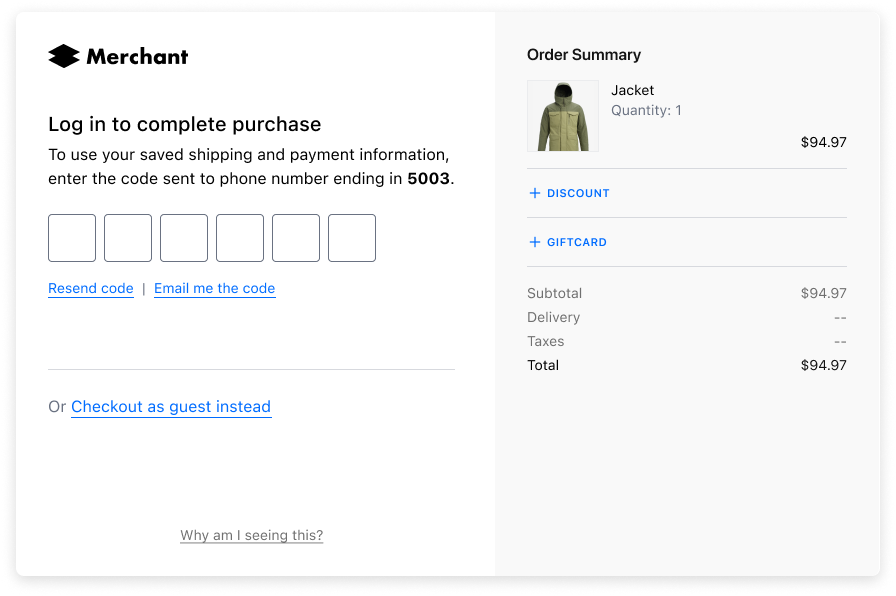
## How to log in to a merchant-specific store account [#how-to-log-in-to-a-merchant-specific-store-account]
Some merchants use Bolt's SSO Commerce authentication feature, which allows you, the shopper, to use Bolt Account credentials to access their store account.
1. Navigate to the store's website.
2. Select the **Log in** button.
3. Authenticate via email address.
1. Input your email address. A [One-Time Password (OTP)](https://help.boltapp.com/shoppers/security-privacy/one-time-code/) is sent to your email address to confirm your identity.
2. If you see the Google or Apple social authentication login buttons, you can click the one that applies to you and authenticate that way. Learn more about [social authentication](https://help.boltapp.com/shoppers/security-privacy/social-auth/).
4. Select **Continue**.
5. Enter the code sent to your email.
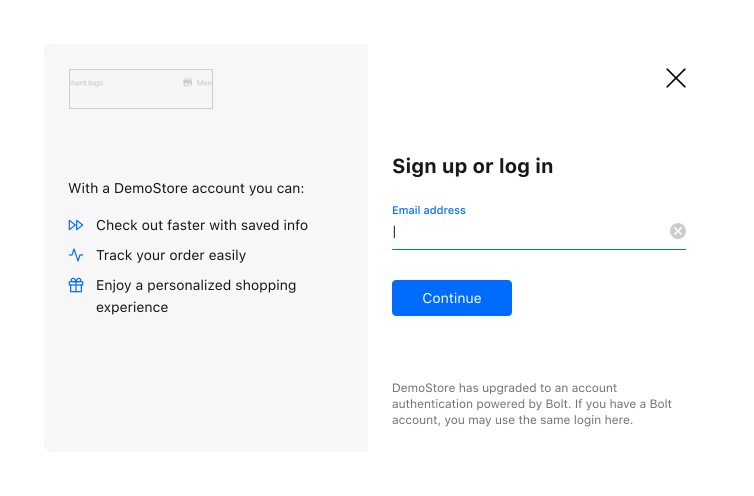
You are now logged into your merchant-specific store account.
Markdown: https://help.boltapp.com/llms/shoppers/shop-with-bolt.md
---
# Common questions
> Get answers to the most common questions about shopping with Bolt.
Source: https://help.boltapp.com/shoppers/faq
This section offers answers to frequently asked questions (FAQs) and provides information about Bolt, including how to create a Bolt Account and the measures Bolt takes to keep your information secure.
## Basics [#basics]
#### What is Bolt? [#what-is-bolt]
Bolt is a payment processor that partners with online merchants to offer a seamless checkout experience while ensuring your information is stored safely and securely. For more information, refer to Bolt For Shoppers.
#### How does Bolt work? [#how-does-bolt-work]
When shopping with a Bolt merchant, Bolt simplifies the checkout process by reducing the number of fields and steps required to complete your purchase. After your first transaction, future purchases are authenticated with a unique login code sent to your phone or email. No usernames or passwords are needed. As for your billing address information, it is already saved in your Bolt Shopper account, so you won’t need to enter it again.
If your billing information, such as your billing address, has changed, you can update it. Log in to your Shopper Dashboard. Go to **Wallet**, click your **credit card**, and update your information or add a new payment method.
#### How does buying from a Bolt merchant differ from other online merchants? [#how-does-buying-from-a-bolt-merchant-differ-from-other-online-merchants]
It doesn’t! Your shopping experience stays the same until checkout, which is faster and more secure with Bolt. All merchants who accept credit card payments use a payment processor, in this case, Bolt. The merchant provides the shopping experience, product or service, handles shipping, returns, exchanges, and refunds, and collects your payment. Bolt processes the payments and ensures the merchant gets paid. The only difference is a quicker checkout.
When you make your first purchase with a Bolt merchant, your info is saved to your Bolt Shopper account Bolt For Shoppers. For future checkouts, just enter your email and verify your identity with a one-time code. No need to re-enter your details.
#### How do I create a Bolt account? [#how-do-i-create-a-bolt-account]
You can create a Bolt account from the Shopper Dashboard, or when you check out with a participating merchant.
#### How does Bolt keep my information secure? [#how-does-bolt-keep-my-information-secure]
Bolt securely stores your payment and shipping information following industry-standard best practices. Additionally, Bolt uses advanced fraud detection technology to prevent unauthorized transactions using your credit card details.
For more information about our security measures, refer to Your Information in Bolt.
#### Can I use Bolt on my phone? [#can-i-use-bolt-on-my-phone]
We’ve optimized Bolt’s checkout process and Shopper Dashboard for desktop, tablet, and mobile, giving you the flexibility to shop and manage your account however you prefer!
## Shopper Tools [#shopper-tools]
#### Bolt One-Click Checkout [#bolt-one-click-checkout]
Our flagship product: a delightfully simple checkout experience.
When you enter the verification code to confirm your identity, we pull your saved address and payment information from your Bolt account to complete most of the checkout fields. All you have to do is click that checkout button.
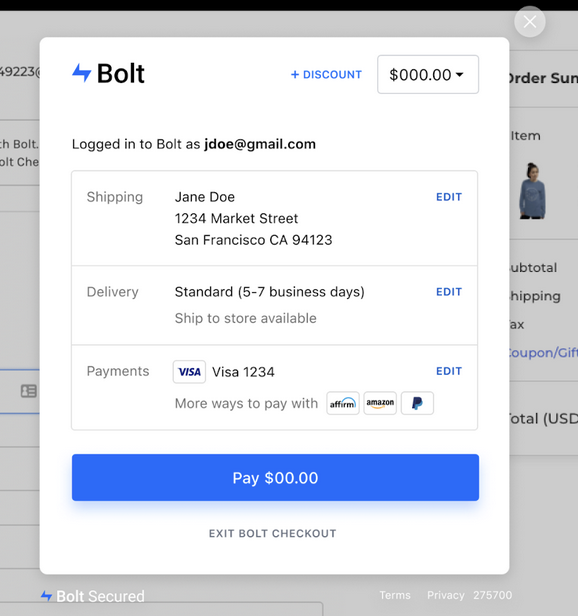
#### Shopper Dashboard [#shopper-dashboard]
Your Shopper Dashboard is mission control for all things Bolt, where you can take the following actions:
* Manage saved addresses and payment methods
* Manage account information like name and phone number
* View order history and details
## Account Details [#account-details]
#### How do I update my phone number? [#how-do-i-update-my-phone-number]
You can manage personal information, such as your phone number, in the Account Settings of the Shopper Dashboard.
#### How do I update my name? [#how-do-i-update-my-name]
You can manage personal information, such as your name, in the Account Settings of the Shopper Dashboard.
#### How do I update my shipping address? [#how-do-i-update-my-shipping-address]
You can manage your addresses from your Address Book in the Shopper Dashboard.
#### How do I update my payment methods? [#how-do-i-update-my-payment-methods]
You can manage your payment methods from your Wallet in the Shopper Dashboard.
#### Why can’t I update my billing address when placing an order? [#why-cant-i-update-my-billing-address-when-placing-an-order]
Bolt does not require a billing address when you place an order. Our team is able to verify your order based on factors other than a billing address, which means fewer fields for you to fill out during checkout.
If your billing information, such as your billing address, has changed, you can update it. Log in to your Shopper Dashboard. Go to **Wallet**, click your **credit card**, and update your information or add a new payment method.
#### Why can't I reset my password? [#why-cant-i-reset-my-password]
Bolt uses one-time codes via email or text to verify your identity. You do not need to create a username or password to access your Bolt account.
#### Why can’t I change my email address? [#why-cant-i-change-my-email-address]
For security reasons, shopper email addresses **cannot be changed or updated**. If you need to use a new email address, you’ll need to create a new Bolt Shopper account.
To do this, contact Bolt Support at [support@boltapp.com](mailto:support@boltapp.com) and provide your old email address. This allows Bolt to release the mobile number linked to your previous account so you can add it to the new one. Please note that your order history will remain with your old account and cannot be transferred.
#### Can I check out without creating a Bolt account? [#can-i-check-out-without-creating-a-bolt-account]
Yes! Simply choose **Checkout as a guest** on the payment page.
#### Why did my information auto-fill when I do not have a Bolt Shopper account? [#why-did-my-information-auto-fill-when-i-do-not-have-a-bolt-shopper-account]
Some Bolt merchants allow shoppers to make purchases with a single click using saved payment details, even if they haven’t created a Bolt Shopper account. This feature works similarly to a digital wallet and can be used on any website or app that supports Visa, Mastercard, American Express, Discover, debit cards, or prepaid cards.
Please note that this data is not stored by Bolt, but by a separate entity: your credit card provider.
For any questions or concerns about Click to Pay, please contact your card provider directly:
* **Visa** – Click here
* **Mastercard** – Click here
* **American Express** – Click here
* **Discover** – Click here
#### How do I delete my Bolt Shopper account? [#how-do-i-delete-my-bolt-shopper-account]
Log in to your Shopper Dashboard, go to **Account Settings**, and under **Privacy & Login**, click **Delete your account**.
## Orders [#orders]
#### How do I view information about recent orders? [#how-do-i-view-information-about-recent-orders]
Your order history and transaction details are accessible on the Shopper Dashboard.
Please note that orders are ultimately handled by the merchant. If you have questions about your order, such as shipping, changes, or returns, contact the merchant directly.
The merchant's contact information is available in the receipt you received via email and in the order details page.
#### How do I update the shipping address for a recent order? [#how-do-i-update-the-shipping-address-for-a-recent-order]
To make changes to an order that you have already placed, contact the merchant directly. Doing so ensures the merchant can fulfill your order in a timely manner and ship it to the correct location.
The merchant's contact information is available in the receipt you received via email and in the order details page.
#### How do I request a return, refund, or order cancellation? [#how-do-i-request-a-return-refund-or-order-cancellation]
Contact the merchant directly for inquiries regarding orders. The merchant can process your request and, if necessary, provide instructions for completing returns.
The merchant's contact information is available in the receipt you received via email and in the order details page.
Markdown: https://help.boltapp.com/llms/shoppers/faq.md
# Documentation: Reference
---
# Application Error Codes
> Application error codes for Merchant Callback API responses.
Source: https://help.boltapp.com/api-reference/error-codes
You may choose to pass these error codes back to Bolt in Merchant Callback API Responses to trigger appropriate messages for the shopper.
| Code # | Code | Text Prompt |
| ------ | ------------------------- | --------------------------------------------------------------------------------------- |
| 4001 | AppMerchantSettingsCreate | Failed to create merchant settings. |
| 4002 | AppMerchantSettingsLoad | Failed to load merchant settings. |
| 4003 | AppMerchantKeyCreate | N/A |
| 4004 | AppMerchantKeyLoad | Unable to find the entity by key. Please check the key in the request. |
| 4005 | AppInvalidJSON | Invalid JSON content. |
| 4006 | AppUnknownContentType | N/A |
| 4007 | AppFileUpload | Failed to upload the file. Please check the file contents and retry. |
| 4008 | AppNonceInvalid | The provided nonce value is invalid. Please check the value and retry. |
| 4009 | AppNonceExpired | The provided nonce value expired. Please retry the request by regenerating a new nonce. |
| 4010 | AppMerchantKeyUpdate | N/A |
| 4011 | AppFileInvalidName | Invalid filename provided. |
| 4012 | AppNotRightNow | N/A |
## Common API Error Codes [#common-api-error-codes]
| Code # | Definition |
| ------ | --------------------------------------------------------------- |
| 400 | Bad request. |
| 401 | Unauthorized user. |
| 403 | Forbidden by the server. |
| 404 | Resource not found. |
| 409 | Concurrent idempotent requests. |
| 429 | User sent too many requests and was rate limited by the server. |
| 500 | Internal server error. |
| 502 | Bad gateway. |
| 503 | Server was not ready to handle the request. |
| 504 | Gateway cannot get a response and timed out. |
## Authentication Error Codes [#authentication-error-codes]
| Code # | Code | Text Prompt |
| ------ | ------------------------------- | -------------------------------------------------------------------------------- |
| 1001 | AuthGuestSessionRequired | Authentication error. A guest session is required. |
| 1002 | AuthInvalidSessionType | Authentication error. The provided session type has no access to this resource. |
| 1003 | AuthInvalidSessionLevel | Authentication error. The provided session level has no access to this resource. |
| 1004 | AuthInvalidUserRole | Authentication error. Invalid user role. |
| 1005 | AuthInvalidMerchantKey | Authentication error. Invalid merchant key. |
| 1006 | AuthMerchantNotFound | Authentication error. Merchant not found. |
| 1007 | AuthInvalidNonce | Authentication error. Invalid nonce value. |
| 1009 | AuthInvalidSessionToken | Authentication error. Invalid session token. |
| 1010 | AuthUserNotFound | Authentication error. User not found. |
| 1011 | AuthMerchantKeyMerchantMismatch | Authentication error. Merchant key doesn't match merchant public id. |
| 1012 | AuthMerchantKeyDivisionMismatch | Authentication error. Merchant key doesn't match division public id. |
| 1013 | AuthUpdateExpirationFailed | N/A |
| 1014 | AuthInvalidTwilioSignature | Authentication error. Invalid twilio signature |
| 1015 | AuthUnauthorized | Authentication error. Authorization required. |
## Basic (General) Error Codes [#basic-general-error--codes]
| Code # | Code | Text Prompt |
| --------------- | --------------------------- | ------------------------------------------------------------------------------- |
| 1 | EmptyValue | A required field is empty. |
| 2 | InvalidAmount | A valid amount is required. |
| 3 | InvalidAutocapture | Transaction must match the configured autocapture setting. |
| 4 | InvalidCountry | A valid country name or country code must be provided. |
| 5 | InvalidCreditCardNumber | A valid credit card number must be provided. |
| 6 | InvalidCurrency | A valid currency code must be provided. |
| 7 | InvalidEmail | A valid email address must be provided. |
| 8 | InvalidFormat | Invalid field format. |
| 9 | InvalidLength | Invalid field length. |
| 10 | InvalidNumber | A valid number must be provided. |
| 11 | InvalidPassword | The provided password doesn’t match the required format. |
| 12 | InvalidPhone | A valid phone number must be provided. |
| 13 | InvalidPostalCode | A valid postal code must be provided. |
| 14 | InvalidURL | A valid URL string must be provided. |
| 15 | InvalidValue | A valid value must be provided. |
| 16 | NewLine | Unexpected new line character in input. |
| 17 | InvalidDate | A valid date value must be provided. |
| 18 | Forbidden | This action is forbidden. |
| 21 | AmountTooLow | The provided amount is lower than required. |
| 22 | AmountTooHigh | The provided amount is higher than required. |
| 24 | NotFound | The requested entity was not found. |
| 25 | MissingInputParameter | The input is missing a required parameter. |
| 26 | InvalidInputParameter | A parameter provided in the input is invalid. |
| 27 | InvalidSignature | Invalid signature. |
| 28 | ExpiredEntity | The entity has expired. |
| 29 | InactiveEntity | The entity is not active. |
| 30 | Unsupported | This feature is not supported. |
| 31 | ShippingCostTooHigh | The shipping cost is too high. |
| 32 | CodeAlreadyUsed | The code is already used. |
| 33 | NoApplicableItem | No applicable item found in the request. |
| 34 | AlreadyExists | The entity already exists. |
| 35 | RateLimited | Rate limit reached. Please retry after a while. |
| 36 | UserNotEligible | The user is not eligible for this action. |
| 37 | InvalidImageFormat | The format of the image is not valid |
| 38 | CantChangeRoleOfPrimaryUser | N/A |
| 39 | NonMerchantRole | N/A |
| 40 | InvalidRole | N/A |
| 41 | TooManyRequests | Too many requests |
| 42 | NonRetryableError | N/A |
| 43 | NoPoBoxAllowed | Shipment to PO Box is not allowed. |
| 44 | InvalidAddress | A valid address address must be provided. |
| 45 | TransactionNotAuthorized | Transaction is not in authorized state. Transaction may not have been approved. |
| 46 | InternalServerError | Internal error |
| 47 | BadGateway | N/A |
| 48 | NoShippingOptionAvailable | N/A |
| 49 | InvalidTokenType | N/A |
| 50 | BadRequest | N/A |
| 51 | BadResponse | N/A |
| 19 - Deprecated | ErrorWeakPassword | N/A |
| 20 - Deprecated | ServiceError | N/A |
| 23 - Deprecated | ErrorMutuallyExclusive | N/A |
### Create Order Error Codes [#create-order-error-codes]
Respond with specific errors for [order.create](/api-reference/merchant-callback-reference/order/order-create).
| Code | Code Name | Text Prompt |
| ------- | --------------------------- | ------------------------------------------------------------------------------------------ |
| 2001003 | CartHasExpired | Your session timed out due to inactivity. Please refresh your cart and try again. |
| 2001004 | ItemPriceHasBeenUpdated | Item details were out-of-date and have been updated, please try again. |
| 2001005 | OutOfInventory | An item in your cart is no longer available. Please refresh your cart and try again. |
| 2001006 | DiscountCannotApply | One or more items in the cart are not eligible for discount. Please refresh and try again. |
| 2001008 | ShippingPriceHasBeenUpdated | The shipping amount for your cart has changed. Please refresh your cart and try again. |
## Custom Checkbox Error Codes [#custom-checkbox-error-codes]
| Code # | Code | Text Prompt |
| ------ | --------------------------- | ------------------------------------------------------------ |
| 4013 | CustomCheckboxLimitReached | Merchant division cannot have more than 3 active Checkboxes. |
| 4014 | CustomCheckboxLookupFailed | Failed to fetch checkboxes for merchant division. |
| 4015 | CustomCheckboxAlreadyExists | Checkbox with supplied ID already exists. |
### Discount Error Codes [#discount-error-codes]
Respond with specific errors for [discounts.code.apply](/api-reference/merchant-callback-reference/discount/discounts-code-apply).
| Code | Code Name | Text Prompt |
| ---- | ----------------------------------- | ------------------------------------------------------------------------------------------ |
| 6200 | DiscountCodeInsufficientInformation | We need more information to apply the discount. Please continue to checkout. |
| 6201 | DiscountCodeInvalid | Discount code invalid. Please refresh and try again. |
| 6202 | DiscountCodeExpired | Discount code expired. Please refresh and try again. |
| 6203 | DiscountCodeNotAvailable | The discount code is not available. |
| 6204 | DiscountCodeLimitReached | The discount code has exceeded usage limit. |
| 6205 | DiscountCodeMinCartAmountRequired | The total cart amount is too low for this discount. |
| 6206 | DiscountCodeUniqueEmailRequired | The email address has already redeemed the discount. |
| 6207 | DiscountCodeItemsNotEligible | One or more items in the cart are not eligible for discount. Please refresh and try again. |
| 6208 | DiscountCodeItemQuantityTooLow | The cart does not have enough items to meet the discount requirement. |
## ErrorApplicationBase Error Codes [#errorapplicationbase-error-codes]
| Code # | Code | Text Prompt |
| ------- | ----------------------------------- | ----------- |
| 1000000 | ErrorAuthentication | N/A |
| 1000001 | ErrorInvalidId | N/A |
| 1000002 | ErrorInvalidIdentifier | N/A |
| 1000003 | ErrorProcessing | N/A |
| 1000004 | ErrorNotFound | N/A |
| 1000005 | ErrorInvalidState | N/A |
| 1000006 | ErrorPagination | N/A |
| 1000007 | ErrorMissingAuthenticationFactor | N/A |
| 1000008 | ErrorLockedOut | N/A |
| 1000009 | ErrorDeclined | N/A |
| 1000010 | ErrorInvalidReference | N/A |
| 1000011 | ErrorDeclinedInvalidAmount | N/A |
| 1000012 | ErrorDeclinedInvalidCvv | N/A |
| 1000013 | ErrorDeclinedInvalidNumber | N/A |
| 1000014 | ErrorDeclinedExpired | N/A |
| 1000015 | ErrorDeclinedCallIssuer | N/A |
| 1000016 | ErrorDeclinedInvalidMerchantForCard | N/A |
| 1000017 | ErrorInvalidWebhookType | N/A |
| 1000018 | ErrorDuplicateCreditCardTransaction | N/A |
| 1000019 | ErrorTransactionHasDisputes | N/A |
| 1000020 | ErrorRefundDeclined | N/A |
### Card Tokenization Error Codes [#card-tokenization-error-codes]
| Code | Description |
| ---- | ------------------------ |
| 1000 | Card number required |
| 1001 | Expiration required |
| 1002 | CVV required |
| 1003 | ZIP required |
| 1003 | Postal code required |
| 2000 | Invalid card number |
| 2001 | Invalid expiration |
| 2002 | Invalid CVV |
| 2003 | Invalid ZIP |
| 2003 | Invalid postal code |
| 3000 | Unsupported card network |
| 3001 | Card expired |
### Merchant Cart Error Codes [#merchant-cart-error-codes]
| Code | Code Name | Text Prompt |
| ---- | ---------------------------- | ----------------------------------------------------------------------------------------------------------------------------------------------------------------------------- |
| 6300 | MerchantCartUnknownError | An unknown error occurred when fetching the cart. |
| 6301 | MerchantCartOutOfStock | An item in your cart is no longer available. Please refresh your cart and try again. |
| 6302 | MerchantCartInvalidSize | The sizes for some of the items are invalid. |
| 6303 | MerchantCartInvalidQuantity | The quantities for some of the items are invalid. |
| 6304 | MerchantCartInvalidReference | The references for some of the items are invalid. |
| 6305 | MerchantCartInvalidAmount | An item in your cart has been updated. Please refresh your cart and try again. |
| 6306 | MerchantCartExpired | Your session timed out due to inactivity. Please refresh your cart and try again. |
| 6307 | MerchantOrderAlreadyExists | Your order may have been placed. Please check your email for an order confirmation. If you did not receive an email please refresh this page and retry checkout. |
### Shipping and Tax Error Codes [#shipping-and-tax-error-codes]
Respond with specific errors for [order.shipping\_and\_tax](/api-reference/merchant-callback-reference/order/order-shipping-and-tax).
| Code | Code Name | Text Prompt |
| ---- | --------------------------------- | ----------------------------------------- |
| 6100 | IntegrationInvalidAddress | Delivery is not available for this order. |
| 6101 | IntegrationNoPoBoxAllowed | Address with P.O. Box is not allowed. |
| 6103 | IntegrationCustomShippingTaxError | custom error message |
Markdown: https://help.boltapp.com/llms/api-reference/error-codes.md
---
# Examples
> Integration examples with synchronized language switchers across each page.
Source: https://help.boltapp.com/examples/overview
Browse examples by use case. Select your language once: all code blocks on the page update together.
## Create an order token [#create-an-order-token]
TypeScript
JavaScript
Python
cURL
```typescript
interface OrderTokenResponse {
token: string;
}
const apiKey = process.env.BOLT_API_KEY;
if (!apiKey) throw new Error("Missing BOLT_API_KEY");
const response = await fetch("https://api-sandbox.boltapp.com/v1/merchant/orders", {
method: "POST",
headers: {
"Content-Type": "application/json",
"X-API-Key": apiKey,
},
body: JSON.stringify({ cart: { total_amount: 1000, currency: "USD", items: [] } }),
});
const order = (await response.json()) as OrderTokenResponse;
```
```javascript
const order = await fetch('https://api-sandbox.boltapp.com/v1/merchant/orders', {
method: 'POST',
headers: {
'Content-Type': 'application/json',
'X-API-Key': process.env.BOLT_API_KEY,
},
body: JSON.stringify({ cart: { total_amount: 1000, currency: 'USD', items: [] } }),
}).then((r) => r.json());
```
```python
import os, requests
order = requests.post(
"https://api-sandbox.boltapp.com/v1/merchant/orders",
headers={"X-API-Key": os.environ["BOLT_API_KEY"]},
json={"cart": {"total_amount": 1000, "currency": "USD", "items": []}},
).json()
```
```bash
curl -X POST 'https://api-sandbox.boltapp.com/v1/merchant/orders' \
-H 'Content-Type: application/json' \
-H 'X-API-Key: YOUR_API_KEY' \
-d '{"cart": {"total_amount": 1000, "currency": "USD", "items": []}}'
```
## Authorize a payment [#authorize-a-payment]
TypeScript
JavaScript
Python
cURL
```typescript
const apiKey = process.env.BOLT_API_KEY;
if (!apiKey) throw new Error("Missing BOLT_API_KEY");
await fetch("https://api-sandbox.boltapp.com/v1/merchant/transactions/authorize", {
method: "POST",
headers: { "Content-Type": "application/json", "X-API-Key": apiKey },
body: JSON.stringify({ auto_capture: true }),
});
```
```javascript
await fetch('https://api-sandbox.boltapp.com/v1/merchant/transactions/authorize', {
method: 'POST',
headers: { 'Content-Type': 'application/json', 'X-API-Key': process.env.BOLT_API_KEY },
body: JSON.stringify({ auto_capture: true }),
});
```
```python
requests.post(
"https://api-sandbox.boltapp.com/v1/merchant/transactions/authorize",
headers={"X-API-Key": os.environ["BOLT_API_KEY"]},
json={"auto_capture": True},
)
```
```bash
curl -X POST 'https://api-sandbox.boltapp.com/v1/merchant/transactions/authorize' \
-H 'Content-Type: application/json' \
-H 'X-API-Key: YOUR_API_KEY' \
-d '{"auto_capture": true}'
```
## By platform [#by-platform]
| Platform | Guide |
| -------------- | ------------------------------------------- |
| Shopify | [Quickstart](/platforms/shopify) |
| BigCommerce | [Quickstart](/platforms/bigcommerce) |
| Direct API | [Quickstart](/platforms/direct-api) |
| Gaming (Unity) | [Gaming checkout](/gaming/guide/quickstart) |
Markdown: https://help.boltapp.com/llms/examples/overview.md
---
# Browse documentation
> Full index of Bolt Help: getting started, use cases, platforms, integration guides, gaming, shoppers, and API reference.
Source: https://help.boltapp.com/documentation/browse
Find every guide in Bolt Help. Jump to a section or open a page directly.
[Getting started](#browse-getting-started) · [Products](#browse-products) · [Use cases](#browse-use-cases) · [Platforms](#browse-platforms) · [Integration guides](#browse-integration-guides) · [Gaming](#browse-gaming) · [Merchant dashboard](#browse-merchant-dashboard) · [Shoppers](#browse-shoppers) · [Reference](#browse-reference)
## Getting started [#getting-started]
What Bolt does, audience paths, and browse by product.
Browse Bolt checkout products and add-ons.
Choose Managed Checkout, Embedded API, Checkout Everywhere, or Marketplace Connect.
API key, signing secret, and publishable key from the dashboard.
## Products [#products]
### Checkout options [#checkout-options]
Hosted checkout for your storefront.
Payment fields inside your custom UI.
Buy Now links outside your storefront.
### Product suite [#product-suite]
Checkout options and full product suite overview.
Checkout-native identity and authentication.
One-click passwordless sign-in.
Marketplace payments and seller onboarding.
Recurring billing with Bolt Subscriptions APIs.
All-in-one payment processing.
Composable APIs for custom checkout.
Fraud review and chargeback indemnification.
Stablecoin checkout and payouts.
Recognized shoppers for one-click checkout.
Processor choice and payment routing.
### Add-ons [#add-ons]
AI-powered checkout orchestration.
Transaction-level fraud signals.
Passwordless login with Bolt Accounts.
Confirmation, tracking, and SMS updates.
Floating cart and order widget.
Link store accounts to Bolt Accounts.
Recover abandoned checkouts.
Biometric login on mobile.
Checkout links and SDKs for games.
## Use cases [#use-cases]
Browse by business model.
Tokenization and enterprise checkout.
Mobile SDKs and embedded APIs.
Subscriptions and digital products.
Fraud review for high-risk categories.
Storefront checkout on supported platforms.
Recurring billing and composable APIs.
Fast launch for early-stage teams.
Founder program with credits and support.
## Platforms [#platforms]
How do I integrate Bolt with my storefront?
Bolt Checkout on Shopify: overview and setup path.
Managed Checkout scripts, theme asset, and checkout buttons.
Checkout links and Bolt app setup in Shopify Dev Dashboard.
Install Bolt on BigCommerce: overview.
Scripts, webhooks, and theme updates for BigCommerce.
End-to-end custom cart checkout with Bolt APIs.
## Integration guides [#integration-guides]
HMAC signature verification for inbound webhooks.
Embeddable Checkout API concepts and implementation.
Transaction and credit webhook events.
Retry behavior and failure notifications.
Bolt Checkout product overview for developers.
Seller onboarding with Connect APIs.
Subscriptions API implementation details.
Hosted checkout links outside your store.
Gaming checkout links and interactive ads APIs.
PCI-scoped card tokenization API.
Idempotent API requests with nonce keys.
Authorize now, capture at shipment for pre-orders.
## Gaming [#gaming]
In-game payments and checkout links for game studios.
Web checkout for gaming: overview and benefits.
Sandbox account, SDK, payment links, and webhooks in 15 minutes.
POST /v1/gaming/payment\_links API reference.
End-to-end checkout link flow.
Personalized in-game offers with ToffeePay.
Backend requirements for gaming webhooks.
GET payment link status.
Mark a payment link as consumed.
GET transaction details by reference.
Verify gaming webhook signatures.
### Unity [#unity]
Native Unity support for Bolt web checkout.
Install the Bolt Unity SDK.
Full-stack sample with Unity and a Node.js backend.
Open a payment link from Unity.
Subscribe to checkout lifecycle callbacks.
Return players to your game after checkout.
### JavaScript [#javascript]
Browser and web gaming SDK.
Install and open checkout with @boltpay/bolt-js.
## Merchant dashboard [#merchant-dashboard]
Hub for onboarding, transactions, fraud, and checkout configuration.
Onboard your business and complete payments setup.
Search, filter, and open transaction details.
Interpret risk scores and factors on each order.
## Shoppers [#shoppers]
Create an account, manage payment info, and track orders.
Log in with SMS or email codes. No password required.
FAQs about Bolt accounts, checkout, and security.
## Reference [#reference]
Credentials, environment variables, and your first API call.
API keys, signing secrets, OAuth, and Merchant Callback HMAC.
Sandbox vs production URLs, divisions, and env configuration.
HTTP status codes and error handling.
Application error codes for Merchant Callback responses.
Integration examples with synchronized language switchers.
Markdown: https://help.boltapp.com/llms/documentation/browse.md
---
# Release changelog
> A list of changes Bolt has made to its products and features.
Source: https://help.boltapp.com/releases
Changes to Bolt products, platform plugins, and dashboard features.
## New release changelog experience [#new-release-changelog-experience]
The [release changelog](/releases/) has been redesigned for faster browsing.
## What launched [#what-launched]
* Tab filters: **All**, **Product**, **Resources**, **Patches**, and **Announcements**
* Infinite scroll with paginated loading for long histories
* Archive cutoff: posts before July 1, 2026 are available via **Show Older Posts**
## Category guide [#category-guide]
* **Product**: feature releases, dashboard updates, and integration changes
* **Resources**: documentation and guide updates
* **Patches**: bug fixes and minor plugin corrections
* **Announcements**: launches, GA notices, and strategic updates
## Impact [#impact]
No API or product behavior changes. This update affects how release notes are organized and displayed.
## Self-service merchant onboarding [#self-service-merchant-onboarding]
Merchants can now create a Bolt account and start integrating without a sales call.
## What launched [#what-launched-1]
* Self-service signup at [merchant.boltapp.com/onboarding](https://merchant.boltapp.com/onboarding)
* Sandbox account creation with API key provisioning
* Platform selection and guided setup for common integrations
## Where to start [#where-to-start]
* [Create a merchant account](/dashboard/create-account): dashboard setup
* [Quickstart](/get-started/quickstart): first integration steps
* [API keys](https://help.boltapp.com/getting-started/api-keys): find credentials in the dashboard
## Impact [#impact-1]
Existing merchant accounts are unchanged. New merchants can onboard independently in sandbox.
## New boltapp.com/developers developer portal [#new-boltappcomdevelopers-developer-portal]
Bolt launched a dedicated developer portal at [boltapp.com/developers](https://boltapp.com/developers).
## What launched [#what-launched-2]
* Centralized API reference, integration guides, and SDK documentation
* Faster paths from overview to working API calls
* Links to Embeddable Checkout, Merchant API, and platform-specific guides
## Where to start [#where-to-start-1]
* [API quickstart](https://help.boltapp.com/api-reference/api-quickstart): authenticate and make your first request
* [API reference](https://help.boltapp.com/api-reference/api-quickstart): endpoint documentation
* [Postman collection](https://help.boltapp.com/developers/tools/postman-collection/): importable requests
## Impact [#impact-2]
No breaking API changes. Help content at help.boltapp.com remains the canonical integration reference.
## New Bolt Help documentation site [#new-bolt-help-documentation-site]
Bolt Help has a new documentation experience at [help.boltapp.com](https://help.boltapp.com).
## What launched [#what-launched-3]
* Reorganized navigation across **Get Started**, **Products**, **Platforms**, **API Reference**, and **Gaming**
* Mintlify-powered pages with improved search, code examples, and mobile-friendly layout
* Clearer paths for merchants and developers integrating Bolt Checkout, Embeddable Checkout, and Gaming SDKs
## Where to start [#where-to-start-2]
* [Quickstart](/get-started/quickstart): first integration steps
* [Documentation browse](https://help.boltapp.com/documentation/browse): full site map
* [Bolt Checkout](/products/checkout): product overview
## Impact [#impact-3]
No API or integration changes. Existing links and bookmarks continue to work through redirects.
## Renaming Bolt Ignite to Embeddable Checkout [#renaming-bolt-ignite-to-embeddable-checkout]
**Bolt Ignite** has been renamed to **Embeddable Checkout**.
## What changed [#what-changed]
1. The merchant documentation has been renamed and relocated:
* [Embeddable Checkout](https://help.boltapp.com/products/checkout/embeddable-checkout/)
2. API documentation has been updated:
* [Embeddable Checkout APIs (v3)](https://help.boltapp.com/api-embedded-v3/)
* [Embeddable Checkout APIs (Legacy)](https://help.boltapp.com/api-embedded/)
## Impact [#impact-4]
There are no functional, API, or integration changes. This update affects naming and documentation structure.
## SFRA Order Status Mappings Have Changed [#sfra-order-status-mappings-have-changed]
The New SFRA order statuses have changed to better reflect each order's state within the SFRA dashboard. See the table below for the new order status mappings.
| SFCC order status | SFCC payment status | SFCC Export Status | SFCC Confirmation Status | Bolt Status | Description | Previous SFCC order status |
| ----------------- | ------------------- | ------------------ | ------------------------ | ---------------------- | --------------------------------------------------------------------------------------------------- | -------------------------- |
| Created | Not Paid | Not Exported | | Pending | The order is created in Bolt but is under fraud review. Payment is not yet captured. | New / Open |
| Failed | Not Paid | Not Exported | | Rejected\_irreversible | The Bolt transaction is rejected for fraud. | Cancelled |
| Created | Not Paid | Not Exported | Not Confirmed | Rejected\_reversible | The transaction is suspected of being fraudulent, but the merchant may force override the decision. | New / Open |
See [SFRA Order Status Mapping](https://help.boltapp.com/platforms/salesforce/operations/) to view all order scenarios and their corresponding statuses.
## Abandoned Carts v2.0 [#abandoned-carts-v20]
Checkout merchants can now access the newest version of our Abandoned Carts product. Enhancements include:
* Items pre-populated in checkout
* Intelligent notification intervals
Merchants already using Abandoned Carts will have the opportunity for a temporary free trial. Reach out to your Bolt representative or to Bolt Support for more information.
[Learn more about Abandoned Carts.](/products/add-ons/abandoned-carts)
## New [#new]
* Added support for [WooCommerce High-Performance Order Storage](https://woo.com/document/high-performance-order-storage/).
## Improved [#improved]
* Fixed issue where a `null` or failed response from Bolt's server causes a page rendering error.
## Resources [#resources]
* See the items in this release [here](https://github.com/BoltApp/bolt-woocommerce/releases).
* See the repo changelog [here](https://github.com/BoltApp/bolt-woocommerce/blob/master/wp-assets/readme.txt).
* Learn how to implement Bolt's WooCommerce Plugin [here](https://help.boltapp.com/platforms/woocommerce/woocommerce-setup-guide/).
## New [#new-1]
* Added support for [WooCommerce FedEx Shipping](https://woocommerce.com/products/fedex-shipping-module/).
* Added support for [WooCommerce ShipperHQ](https://github.com/shipperhq/woocommerce-shipperhq).
## Improved [#improved-1]
* Fixed compatibility issues with multiple third-party plugins which we already support, including:
* [WooCommerce Google Analytics Pro](http://www.woocommerce.com/products/woocommerce-google-analytics-pro/)
* [RouteApp](https://wordpress.com/plugins/routeapp)
* [WooCommerce Smart Coupons](https://woocommerce.com/products/smart-coupons/)
* Fixed issue where `subscription` was showing as an undefined index.
* Fixed issue with Load Bolt `PaymentOnly` key on non-checkout page.
* Fixed issue where plugin attempts to `get()` session value before `WC()->session` is initiated, which returns `WC()->session` as `null` and causes errors for subsequent calls on `WC()->session`.
* Orders no longer duplicate when payment fails once.
## Resources [#resources-1]
* See the items in this release [here](https://github.com/BoltApp/bolt-woocommerce/releases).
* See the repo changelog [here](https://github.com/BoltApp/bolt-woocommerce/blob/master/wp-assets/readme.txt).
* Learn how to implement Bolt's WooCommerce Plugin [here](https://help.boltapp.com/platforms/woocommerce/woocommerce-setup-guide/).
## SFCC Composable Framework for Bolt [#sfcc-composable-framework-for-bolt]
Bolt has expanded our Bolt Checkout offering for our SFCC platform build to supprt SFCC Composable Storefronts.
Merchants using the [SFCC Composable Storefront](https://developer.salesforce.com/docs/commerce/pwa-kit-managed-runtime/guide) can now implement [SFCC for Bolt Checkout](https://help.boltapp.com/platforms/salesforce/sfcc-sfra-v2/) using our [SFCC Composable Framework implementation guide](https://help.boltapp.com/platforms/salesforce/sfcc-sfra-v2/sfcc-composable/).
## New [#new-2]
* Self-serve dashboard link generation and management.
* Self-serve QR code generation and download.
* Bulk link generation.
* Email alert options to keep you up to date on the bulk link generation process.
## Resources [#resources-2]
* Learn how to generate Checkout Links in the newly updated [article](https://help.boltapp.com/products/checkout-everywhere/checkout-links/).
## New [#new-3]
* Support added for Multicurrency stores.
## Improved [#improved-2]
* Fixes a bug where the inventory may decrease under some conditions.
## Resources [#resources-3]
* See the items in this release [here](https://github.com/BoltApp/bolt-magento2/releases/tag/2.27.4).
* See the repo changelog [here](https://github.com/BoltApp/bolt-magento2/blob/master/CHANGELOG.md#v2274-2023-11-02).
* Learn how to implement Bolt's M2 Plugin [here](https://help.boltapp.com/platforms/adobe/adobe-commerce-setup-guide/adobe-installation/).
## Passkeys in Bolt Embedded Accounts [#passkeys-in-bolt-embedded-accounts]
Bolt is expanding our **Passkeys** product to now be included in Bolt's Embedded Accounts package. Any Bolt merchants using our Accounts product will soon automatically have access to this feature.
Your Customer Success Manager will reach out soon to coordinate a smooth enablement of Passkeys into your stack.
[Read more about Passkeys here](/products/add-ons/passkeys).
## Google Pay for Bolt Payments [#google-pay-for-bolt-payments]
Bolt has enabled an integration for Google Pay for use with our Bolt Payments product. This connection can be implemented in the Merchant Dashboard.
Read more about [Google Pay](https://help.boltapp.com/integrations/alternative-payments/google-pay/) and [Bolt Payments](/products/payments).
## New [#new-4]
* Support added for Extended Warranty.
## Improved [#improved-3]
* Fixes a bug where the customer coupon code usage limit was not restored after failed payment.
* Fixes a bug where the Bolt mini cart button would not always render in the Fetch Cart flow under some conditions such as a slow internet connection.
## Resources [#resources-4]
* See the items in this release [here](https://github.com/BoltApp/bolt-magento2/releases/tag/2.27.3).
* See the repo changelog [here](https://github.com/BoltApp/bolt-magento2/blob/master/CHANGELOG.md#v2273-2023-10-12).
* Learn how to implement Bolt's M2 Plugin [here](https://help.boltapp.com/platforms/adobe/adobe-commerce-setup-guide/adobe-installation/).
## Dashboard Activity Log [#dashboard-activity-log]
The Dashboard Activity Log is now available to merchants in the **Admin > General** section of the dashboard.
Only Administrators, Developers, and Contractors can access the Activity Log. More information on roles can be found [in our Manage Users article](https://help.boltapp.com/dashboard/account/manage-users/).
The Dashboard Activity Log records a multitude of activities performed by users of your account, including any actions performed by Bolt, including but not limited to:
* changes to user roles,
* changes to Checkout settings, and
* changes to your account's business information.
[Read more about the Dashboard Activity Log](https://help.boltapp.com/dashboard/account/activity-log/).
## Product Recommendations for Custom Cart [#product-recommendations-for-custom-cart]
Product Recommendations display various product add-ons within the [Bolt Checkout](/products/checkout/) Modal, tailored to what you returned based on the shopper's current cart. Shoppers can select and add these extras to their cart, enhancing their shopping experience.
[Read more about the Product Recommendations](https://help.boltapp.com/dashboard/checkout-settings/addons-upsells/).
## Improved Merchant Onboarding Form [#improved-merchant-onboarding-form]
We've made improvements to our merchant onboarding process. This includes a new Onboarding Form that collects less information upfront and allows you to explore your dashboard and sandbox environment quickly!
Learn more about creating and configuring your new Merchant Account [here](https://merchant.boltapp.com/onboarding).
## Bolt Payment Set Up in Dashboard [#bolt-payment-set-up-in-dashboard]
The Dashboard now has pages where you can enter payment and other company information to set up and configure Bolt Payments.
Learn more about setting up Bolt Payments [here](https://help.boltapp.com/add-ons/bolt-payments/bolt-pay-setup/).
## Accounts Component Styling - Version 3 [#accounts-component-styling---version-3]
Merchants can now choose to use or upgrade their Accounts Payment Fields Component Styling from version 2 to version 3.
The newest styling methodology uses a pseudo class structure to build out targeted and specific styling for any and all Bolt Components on a page.
Bolt plans to utilize this styling methodology for other on-page components in the future. We highly recommend upgrading to this new styling to see the benefits of consistent styling across many components.
## Product Page Checkout for SFCC Embedded [#product-page-checkout-for-sfcc-embedded]
Bolt's [Product Page Checkout](https://help.boltapp.com/dashboard/checkout-settings/buttons/ppc/) feature is now available for merchants using SFCC Embedded.
This feature enables shoppers to check out directly from the product's landing page.
## Bolt SSO for SFCC Embedded [#bolt-sso-for-sfcc-embedded]
Bolt's SSO feature is now available for merchants using SFCC Embedded.
This feature enables shoppers to quickly log into their Bolt Account via your site.
## Passkeys in Bolt Checkout [#passkeys-in-bolt-checkout]
Bolt is expanding our **Passkeys** product to now be included in Bolt's Checkout package. Any Bolt merchants using [SSO](/products/add-ons/sso-commerce) or Bolt [Checkout](/products/checkout/) will automatically have access to this feature.
[Read more about Passkeys here](/products/add-ons/passkeys).
## Colorado Delivery Fee Feature Updates [#colorado-delivery-fee-feature-updates]
Bolt's Colorado Delivery Fee feature is now completely self-serve for BigCommerce, Custom Cart, Magento 2, and SFCC merchants.
Merchants can now log into their dashboard to enable and configure the fee.
[Read more about how to enable the Colorado Delivery Fee](https://help.boltapp.com/dashboard/checkout-settings/fees/).
Merchants should be aware that the Colorado Delivery Fee has increased from $0.27 to $0.28.
## Money Movement Statement Updates [#money-movement-statement-updates]
Merchants using Bolt Payments or Bolt Fraud can now export their money movement statements by month or by custom date range from the Disputes section of the dashboard.
[Read more about the disputes section of the dashboard.](https://help.boltapp.com/fraud/disputes/disputes-dashboard/)
[Read more about how to export disputes statements.](https://help.boltapp.com/fraud/disputes/dispute-statements/)
## Audit Log for Self-Service Disputes [#audit-log-for-self-service-disputes]
Merchants using Bolt Payments and Self-Service Disputes can now audit the actions taken in their Self-Service Disputes dashboard by exporting an audit log.
[Read more about how to export the audit log.](https://help.boltapp.com/fraud/disputes/ssd/audit-logs)
## Google Analytics 4 Support [#google-analytics-4-support]
Bolt now supports Google Analytics 4. Any merchants using Google Tag Manager should upgrade to Google Analytics 4. If you are already using Google Analytics 4, follow the listed instructions to ensure it is properly configured in the Merchant Dashboard:
* [Adobe Commerce merchants](https://help.boltapp.com/platforms/adobe/adobe-commerce-setup-guide/google-analytics/)
* [All other merchants](https://help.boltapp.com/products/checkout/checkout-analytics/)
## New [#new-5]
* Merchants can now create their own style variants of the Bolt Button for their Product Page checkout button.
* Support added for the Mageworx Donations suite.
* Support added for the Amasty Affiliate Plugin.
## Improved [#improved-4]
* Fixes a bug in the M2 Admin Portal that impacted the visibility of the sales order void button after order void in the M2.
* Fixes a bug in the M2 Admin Portal that prevented merchants from using different Bolt Divisions at the M2 Store level. Previously, this was only possible at the website level.
## Resources [#resources-5]
* See the items in this release [here](https://github.com/BoltApp/bolt-magento2/releases/tag/2.27.2).
* See the repo changelog [here](https://github.com/BoltApp/bolt-magento2/blob/master/CHANGELOG.md#v2272-2023-07-25).
* Learn how to implement Bolt's M2 Plugin [here](https://help.boltapp.com/platforms/adobe/adobe-commerce-setup-guide/adobe-installation/).
## Mobile Side Cart Updates [#mobile-side-cart-updates]
Bolt has release updates to its mobile side cart design. Shoppers checking out with merchants using [Bolt Checkout](/products/checkout/) will notice that they can view their cart directly below the checkout flow on any checkout step, rather than being taken to another page or opening up a modal over the checkout flow.
## Modular Embed.js Script Option [#modular-embedjs-script-option]
Bolt has released an updated `embed.js` script for merchants using our Account product and related add-ons.
This updated version of the script offers quality improvements such as:
* Increased performance.
* Compatibility with future components.
* More efficient load processes.
* Stable bundle sizing.
## Discount Display for Checkout for Magento 2 [#discount-display-for-checkout-for-magento-2]
Bolt merchants using Magento 2 can now enable Discount Display for their checkout. When enabled, shoppers can see pre-configured discount labels instead of just the discount code in the Bolt Checkout modal.
For example, if a merchant has configured a discount label in the Magento Admin dashboard as `10% off`, a shopper will see `10% off` instead of their inputted discount code of random letters and numbers.
Merchants must be using Bolt's Magento 2 API product with `Fetch Cart` enabled.
Read more about how to enable the Discount Display feature [here](https://help.boltapp.com/platforms/adobe/adobe-commerce-setup-guide/discount-display/).
## The New [#the-new]
Merchants using SSO Commerce can now allow their shoppers to log into their storefronts using Passkeys. Passkeys are a secure way to authenticate with biometrics, meaning a shopper can sign in using their face or fingerprint, instead of a password or one-time code.
[Learn more about SSO Commerce and Passkeys.](/products/add-ons/sso-commerce)
## Information for Shoppers [#information-for-shoppers]
Shoppers can **currently only manage Passkeys from a mobile device**. Passkeys will come to other devices soon.
[Learn more about creating and managing Passkeys.](https://help.boltapp.com/shoppers/account/passkeys/)
## The Improved [#the-improved]
In the rare event that a merchant's SSL certificate for Apple Pay expires, the Apple Pay button will immediately be removed from the Bolt Checkout to prevent broken shopper experiences.
[Learn more about how Bolt manages Apple Pay SSL certificates](https://help.boltapp.com/integrations/alternative-payments/apple-pay/#certificate-expiration).
## The New [#the-new-1]
Bolt Accounts now offers an additional way to detect a shopper's Bolt Account from the Authorization Modal called Email Detection.
## The Improved [#the-improved-1]
The previously sole way to detect an account, once called "Account Detection", is now called the "Account Detection API".
## The New [#the-new-2]
Bolt's APIs now support idempotency requests for all `PATCH` and `POST` endpoints. Bolt ensures requests are idempotent whenever an `Idempotency-Key: ` header is specified.
[Read more about idempotency keys](https://help.boltapp.com/developers/references/idempotency/) in the **Idempotent Requests** article.
## The New [#the-new-3]
Merchants using the Direct API or bespoke version of Bolt Accounts can now further customize their payment fields with new styling and argument options.
## Styles [#styles]
Bolt has added two new styling options:
* `inputPaddingSize`, which adjusts the spacing between input text and the border
* `borderStyle`, which customizes the border of input fields
## Arguments [#arguments]
Bolt has added a new argument called `showFieldMissingErrors`, which shows or hides errors when the user visits a required field but leaves it empty.
Additionally, the `expiryType` field has a new option called `separated-dropdown-numerical`, which will display separate dropdowns for the month and year of a card expiration date.
## The New [#the-new-4]
Shoppers of merchants using Bolt Accounts will see a new banner indicating their login status and giving them options to learn more about Bolt or to log out of their Bolt Account.
There is nothing a merchant needs to do to implement this, as long as they have properly implemented the login status component.
## The New [#the-new-5]
Shoppers of merchants using Bolt Accounts, who only have an email address associated with their Bolt Account, are now asked to enter and verify their phone number after they are correctly identified via their email address. This new step further secures their Bolt Account and provides an additional method for identity verification and account management.
There is nothing a merchant needs to do to implement this, as long as they have properly implemented the Authorization component.
## The New [#the-new-6]
Merchants using [Authorize.net](/integrations/payment-processors/authorize-net) for payment processing can now offer Google Pay as an alternative payment method (APM). Google Pay for Authorize.net is currently available to participating Beta merchants.
Learn how to [enable Google Pay with Bolt](https://help.boltapp.com/integrations/alternative-payments/google-pay/).
## Gift Cards Placement Experiment [#gift-cards-placement-experiment]
Bolt is seeking merchants to participate in an experiment optimizing checkout by moving the gift card fields to the payment step.
## Why optimize the gift card placement? [#why-optimize-the-gift-card-placement]
* Our hypothesis is shoppers think about using gift cards during the payment step, not earlier.
* Presenting the opportunity to enter gift cards during the payment step reduces checkout complexity.
* Moving gift cards to the payment step clearly separates them from discounts, making it easier for customers to use them.
* Gift cards at the payment step is the industry standard for ecommerce.
Want to learn more? Contact your CSM or reach out to [Bolt Support][1].
[1]: https://support.boltapp.com
## The New [#the-new-7]
We've updated the *Bolt for BigCommerce* plugin to optimize the order creation process behind the scenes.
Using BigCommerce's new payment API:
* You can expect fewer order creation errors.
* Orders are always marked as “Captured." In previous versions, payments were occasionally left uncaptured.
* Orders created via Bolt will appear as created by BigCommerce in the dashboard and no longer display the device the shopper used to create the order.
[bc backend creation](/images/bigcommerce-installation/bc-backend.png)
## Action Item [#action-item]
Update your Bolt plugin in the [BigCommerce Dashboard][1] to ensure checkout works as intended.
[1]: https://support.bigcommerce.com/s/article/How-do-I-access-and-install-the-new-single-click-apps-within-my-Bigcommerce-store-control-panel?language=en_US#updating
## The New [#the-new-8]
Bolt is A/B testing usage of the cardholder's CVV during checkout to investigate a potential increase in the rate of authorized transactions. Some logged-in users of [Checkout](/products/checkout/) may be prompted to enter this information when they select a saved payment method.
## The Improved [#the-improved-2]
Bolt has made various improvements to the Bolt Accounts OTP and Authorization Modals. These changes ensure clarity for shoppers, update styles, and promote the merchant's brand.
## New OTP Modal [#new-otp-modal]
## New Authorization Modal [#new-authorization-modal]
## Bug Fixes [#bug-fixes]
* Ensures plugin compatibility with [Magento Version 2.4.6.][1].
[1]: https://experienceleague.adobe.com/docs/commerce-operations/release/notes/adobe-commerce/2-4-6.html?lang=en
## The New [#the-new-9]
Bolt has released a new Merchant Dashboard design with an improved navigation that streamlines the Bolt workflow and includes several new features.
## Upgraded Features [#upgraded-features]
* With [Self-service Disputes][2], quickly take action on chargebacks and review the status of ongoing disputes.
* Bolt has introduced Alternative Payment Method [Google Pay][3], with more new ways to pay being added all the time.
* The revamped Transactions timeline allows you to see an at-a-glance view of orders.
* Added fraud protection allows merchants to block specific emails and IP addresses from transacting. Prevent known fraudsters from purchasing items on your site.
## Design [#design]
* The new navigation prioritizes workflow, grouping tasks intuitively to maximize productivity. Settings have been improved to work more predictably.
* Filtering and pagination is improved across the dashboard experience.
## Analytics [#analytics]
* Key data is consolidated and reports optimized to improve readability, increase user engagement and reduce cognitive load.
Additionally, Bolt has optimized the back-end code for our dashboard, making it faster and even more responsive. You can switch back to the old dashboard experience by clicking **Go to Legacy Dashboard** at the bottom of the new menu.
[2]: /fraud/disputes/disputes-dashboard/
[3]: /integrations/alternative-payments/google-pay/
## Maps in Checkout [#maps-in-checkout]
Bolt has released a new [Checkout Setting](https://help.boltapp.com/dashboard/checkout-settings/) that allows shoppers to view their address as they checkout. Learn more about this new Checkout Setting in the [Maps for Checkout](https://help.boltapp.com/dashboard/checkout-settings/maps/) article.
This feature is turned on by default. [Bolt Checkout](/products/checkout/) merchants should contact their Customer Success Manager to turn the setting off.
## The New [#the-new-10]
* Logic that calculates cart totals and sends cart information has been migrated to the Bolt backend. This gives Bolt engineers the freedom to easily debug and improve add-to-cart logic.
## Bug fixes [#bug-fixes-1]
* Fixes minor issue that caused Magento plugin to display an error when modifying certain products' inventory to "Out of Stock".
## The New [#the-new-11]
Bolt has renamed our core products to promote ensure clarity and distinction between our primary offerings.
| [**Checkout**](/products/checkout/) | [**Accounts**](/products/embeddable-checkout) |
| ------------------------------------------ | ------------------------------------------------------------------------------ |
| *Previously "Checkout".* | *Previously "Embedded Accounts" or "Embedded Checkout".* |
| An optimized end-to-end checkout solution. | Components that supercharge your branded checkout with a one-click experience. |
## The Improved [#the-improved-3]
Bolt is improving authorization rates by including the shopper's IP address in our approval processes. This applies to both guest and logged-in shoppers.
You must already be using Embedded Accounts.
## About this Functionality [#about-this-functionality]
* The [`/v1/account/exists` endpoint](https://help.boltapp.com/api-embedded/#tag/Account/operation/DetectAccount) will create a record of the shopper's valid email address and IP address. This data is retained only for the time strictly necessary to successfully authorize a transaction. It is then deleted from our servers. **If you wish to use this particular functionality, this endpoint must be called from the browser.**
* IPs are stored when a Shopper OAuth (login) session is created (either via our Authorization Modal or Auto Login component).
* The [`/v1/merchant/transactions/authorize` endpoint](https://help.boltapp.com/api-embedded/#tag/Transactions/operation/MerchantAuthorize) will retrieve the shopper's IP address using the email provided in the `user_identifier` field, if available.
* If you are using [Adyen](/integrations/payment-processors/adyen) as your payment processor, Bolt will securely pass the Shopper's IP directly to their service.
## How to Implement [#how-to-implement]
Most merchants have already set up their Accounts components to collect the needed information to implement this functionality. Check your configuration using the list below to ensure proper setup.
To implement this new functionality:
* [ ] When detecting shopper accounts, call the [`/v1/account/exists` endpoint](https://help.boltapp.com/api-embedded/#tag/Account/operation/DetectAccount) from the browser.
* [ ] Require shoppers to enter their emails during checkout, then pass that email value in an authentication call (using the Embedded API) to the `user_identifier` object as the `email` field.
* [ ] Provide [OAuth tokens](https://help.boltapp.com/developers/bolt-oauth/) in the same authentication call.
## The New [#the-new-12]
Simplify your dispute response workflow with Self-Service Disputes. You can manage and represent chargebacks by submitting evidence directly in the Merchant Dashboard.
Refer to our [Self-Service Disputes Guide](https://help.boltapp.com/fraud/disputes/ssd/) for more information.
## The Improved [#the-improved-4]
Bolt has removed the "Stay Logged In" Checkbox from all of our checkout modals and embedded account components. Instead, logged in sessions will be tracked and timed. Devices and browsers will remember a shopper's active Bolt session for about 10 days.
## Before [#before]
## After [#after]
## New [#new-6]
You can now add arbitrary or additional information to any of the accounts objects in either our [Bolt](/api-reference/api-quickstart) or [Embedded](https://help.boltapp.com/api-embedded/#tag/Account) APIs using the Metadata field.
Metadata is a key-value pair object that can be added to addresses, payment methods, or the account profile. The metadata field is not read or used by Bolt, and thus can be used to attach information that is helpful for you and not necessary for interacting with Bolt.
Read more about this new field and see examples in our [Embedded Metadata reference article](https://help.boltapp.com/developers/references/embedded-metadata/). Or, you can see it in action in our [Bolt](/api-reference/api-quickstart) or [Embedded](https://help.boltapp.com/api-embedded/#tag/Account) APIs.
## The New [#the-new-13]
* The plugin now supports [Wholesale for WooCommerce](https://woocommerce.com/products/wholesale-for-woocommerce/).
## Bug Fixes [#bug-fixes-2]
* Fixes issue where order statuses were not properly updated when payment was completed.
* Resolves issue where the plugin returned a `null` customer value when applying a coupon via the Bolt modal.
* Prevents issue where adding an item to a cart with a [cart fee][1] results in a checkout error.
* The plugin now correctly reflects Amazon Pay and Paypal order refunds as `In Progress`.
[1]: https://wordpress.org/plugins/woo-add-custom-fee/
## Bug Fixes [#bug-fixes-3]
* Fixes issue where shoppers could not add items to cart using Safari after logging in using the Bolt Shopper Assistant.
* Fixes intermittent issue where checkout with Apple Pay was interrupted when used in combination with certain payment providers.
## The New [#the-new-14]
When a card authorization is declined by the processor, merchants can now view the reason for the decline on the [transaction details view](/dashboard/investigate-transactions) in the Bolt Merchant Dashboard. This enhancement makes the decline codes human-readable and helps merchants understand next steps.
This enhancement is available to merchants using Bolt Payments, Adyen, Braintree, and Stripe.
## Embedded Components Localization [#embedded-components-localization]
Bolt's Embedded Components now supports automatic language detection and localization for the following languages:
* English (United States / United Kingdom)
* German (Germany)
* Spanish (Spain)
* French (Canadian)
* Dutch (Netherlands)
* Portuguese (Portugal)
Defaults to **English** if the detected language region is not supported.
## The New [#the-new-15]
The Adobe Quick Checkout plugin now supports device-based automatic login for users with Bolt accounts. See more information on [Adobe's Changelog](https://experienceleague.adobe.com/docs/commerce-merchant-services/quick-checkout/release-notes.html?lang=en). To enable this feature, update your Adobe Checkout plugin per the [documentation](https://experienceleague.adobe.com/docs/commerce-merchant-services/quick-checkout/getting-started/install.html?lang=en#upgrade-the-extension).
This feature requires you to use a supported version of M2. See [Adobe's Released Versions](https://experienceleague.adobe.com/docs/commerce-operations/release/versions.html?lang=en) to confirm.
## The New [#the-new-16]
Bolt now supports Google Pay as an alternative payment method for merchants using Braintree or Stripe for payment processing.
To offer Google Pay to your shoppers during checkout, learn how to [enable Google Pay with Bolt](https://help.boltapp.com/integrations/alternative-payments/google-pay/).
## The New [#the-new-17]
Merchants using Bolt Accounts can now use Account Linking to match and connect their store accounts with existing Bolt Accounts.
Read more in our [Account Linking](/products/add-ons/account-linking) article.
## Shopper Account: Logout of All Devices [#shopper-account-logout-of-all-devices]
Shoppers can now logout of all devices from their Bolt Account.
Read more in our [Logout of All Devices](https://help.boltapp.com/shoppers/account/logout-devices/) article in our Shopper help documentation.
## Shopper Account: Manage Store Permissions [#shopper-account-manage-store-permissions]
Shoppers can now remove stores from accessing their Bolt information from their Bolt Account.
Read more in our [Manage Store Permissions](https://help.boltapp.com/shoppers/account/manage-store-permissions/) article in our Shopper help documentation.
## The New [#the-new-18]
* Enables M2 for subscription functionality.
## Bug Fixes [#bug-fixes-4]
* Fixes intermittent issue where some logged-in users could not check out if Route was enabled.
* Merchants can now filter orders by specific Bolt payment method e.g., `bolt-visa`.
* Fixes intermittent issue where data may not send to third-party integrations.
## The New [#the-new-19]
Static Product Recommendations are now generally available with [Shopper Assistant][1] on storefronts. This feature allows merchants to select featured products to display to shoppers in a persistent widget on their storefront. To enable this feature, see [Set Up Shopper Assistant][2].
[1]: /add-ons/shopper-assistant/
[2]: /add-ons/shopper-assistant/installation/
## The New [#the-new-20]
* [Route Shipping insurance][1] is now supported for M2.
## Bug Fixes [#bug-fixes-5]
* Fixed issue with [Amasty Reward Points][2] that caused points to appear at checkout after being removed.
* Fixed issue that allowed discount codes to be applied after checkout reload in some rare instances.
[1]: /integrations/shipping/route/
[2]: https://amasty.com/reward-points-for-magento-2.html
## The New [#the-new-21]
* Amazon Pay transactions are now displayed in the dashboard.
## Bug Fixes [#bug-fixes-6]
* Fixes issue preventing international shoppers from checking out without a state/province.
## The New [#the-new-22]
Bolt now allows you to rotate API keys and your signing secret. It is best security practice to rotate these credentials on a routine basis. See [Key Rotation](https://help.boltapp.com/developers/references/environment-details#key-rotation) to learn more.
## The New [#the-new-23]
The [Shopper Assistant](/products/add-ons/shopper-assistant) is now available to merchants using Adobe Commerce.
## The Improved [#the-improved-5]
The following improvements to gift card functionality are now generally available:
* Gift cards are no longer grouped with discounts in checkout. This enables shoppers to apply a discount and pay with a gift card.
* Each applied gift card displays on its own line in the order summary, which helps shoppers understand if their gift card covered the total balance. This also creates more accurate ledger data.
## The New [#the-new-24]
The [Shopper Assistant](/products/add-ons/shopper-assistant) is now available to merchants using Adobe Commerce.
## The New [#the-new-25]
* Now supports [Free Gifts for WooCommerce](https://woocommerce.com/products/free-gifts-for-woocommerce/) plugin.
* Now supports [WooCommerce Dynamic Pricing](https://woocommerce.com/products/dynamic-pricing/) plugin.
## Bug Fixes [#bug-fixes-7]
* Fixes issue where WordPress administrator index page threw an error related to the Bolt plugin.
* Fixes `undefined` constant `BoltCheckout\id`.
* Fixes issue where negative fees were treated as discounts.
* Resolves issue where merchants could not sync order meta data between WooCommerce and [Route](https://wordpress.org/plugins/routeapp/).
## The New [#the-new-26]
* Route Shipping insurance is now supported for M2.
## Bug Fixes [#bug-fixes-8]
* Fixed issue with Amasty Rewards Points that caused points to appear at checkout after being removed.
* Fixed issue that allowed discount codes to be applied after checkout reload in some rare instances.
## The New [#the-new-27]
[Shopper Insights](https://help.boltapp.com/dashboard/analytics/store-insights) are now available in Beta within the [Redesigned Merchant Dashboard](https://help.boltapp.com/releases/2022-10-31). Shopper Insights provide more data about how products perform on your store and allow you to gain insight into shopper behavior.
## The Improved [#the-improved-6]
* If a merchant has accounts that are migrated from other merchant accounts, there is no longer a need to enable notifications to go out to the shopper about the shared accounts.
* We also updated the shopper login module with a new, sleek look that better explains what Bolt is and to create trust with shoppers.
GDPR shoppers will not be impacted by these changes.
Read more about [Global Consent Collection](https://help.boltapp.com/dashboard/checkout-settings/global-consent-collection/).
## The New [#the-new-28]
Bolt has released the Merchant Dashboard Redesign. We've reimagined the dashboard to showcase all the Bolt products and features you love, and included more actionable data about their store with **Store Insights**.
To switch to the new dashboard, login to Bolt and click **Switch to Beta** within the banner at the top. You can switch back to the old dashboard experience by clicking **Go to Legacy Dashboard** at the bottom of the new menu.
## The New [#the-new-29]
Bolt now offers device-based automatic login during checkout, which recognizes active sessions on verified devices to skip the authentication step. This feature is designed to reduce friction while keeping shoppers' data secure.
* **Verified device**: After a shopper successfully authenticates via one-time verification code, this device is now verified and eligible for automatic login during checkout via device token.
* **Unverified device**: When a shopper creates a Bolt account during checkout, they do not have to complete authentication via one-time verification code, so this device is considered unverified. Logging in during checkout on another device forces logout on this unverified device to protect shoppers' personal data.
## Limitations [#limitations]
This feature is not currently available to merchants who use SSO.
## The New [#the-new-30]
Bolt now offers merchants the ability to [route each type of checkout](https://help.boltapp.com/dashboard/checkout-settings/payment-type-routing/) to a different processing method depending on whether a shopper has a Bolt account. Experience Bolt Checkout where it works best for you: complete granular A/B testing with confidence, or retain full control over portions of the checkout experience.
## The Improved [#the-improved-7]
The Checkout Links construction process has been improved to provide more transparency into the checkout link structure, as well as enabling the creation of links at scale. Merchants still need to reach out to their customer success managers to enable and construct Checkout Links.
Read more about [Checkout Links](https://help.boltapp.com/products/checkout-everywhere/checkout-links/).
## The New [#the-new-31]
Bolt now offers merchants the ability to [route each type of checkout](https://help.boltapp.com/dashboard/checkout-settings/payment-type-routing/) to a different processing method depending on whether a shopper has a Bolt account. Experience Bolt Checkout where it works best for you: complete granular A/B testing with confidence, or retain full control over portions of the checkout experience.
## The New [#the-new-32]
When card authorization fails, shoppers now see targeted error messages that encourage them to complete checkout with another card or payment method, depending on the reason for failure and the payment methods offered by the merchant.
## The New [#the-new-33]
A [Postman Collection][1] for Bolt's APIs is now available. See [Bolt Postman Collection][2] for details.
[1]: https://www.postman.com/bolt-inc/workspace/bolt-public/overview
[2]: /developers/tools/postman-collection/
## The New [#the-new-34]
Merchants with custom cart implementations using Accounts can now invoke an analytics method that tracks checkout funnel events.
## The New [#the-new-35]
To help your shoppers better understand who to contact when they have questions, Bolt made a few updates to the following email types:
* On Hold transactions
* Rejected transactions
* Micro Authorizations
As a result, shoppers now have an improved email experience, including:
* Header titles clearly stating your business name + via Bolt
* Your support email address as the Reply To direction
* [noreply@boltapp.com](mailto:noreply@boltapp.com) as the sending address
* Direct links in the email about what Bolt is, to better inform your users
For more information on how Bolt manages emails, see the [Shopper Notifications][1] article.
[1]: /dashboard/checkout-settings/shopper-notifications/
## Authorize.net Transaction Syncing [#authorizenet-transaction-syncing]
Now generally available, Bolt ingests Authorize.net webhooks so that post-authorization actions are reflected in both the Bolt Merchant Dashboard and the Authorize.net dashboard.
This promotes data integrity for future reporting and keeps your systems in sync.
## The New [#the-new-36]
Bolt's [Shopper Assistant](https://help.boltapp.com/merchants/references/dashboard-features/shopper-assistant/) now displays a **Buy It Again tab** so shoppers can easily add recently purchased items to their cart.
## The New [#the-new-37]
[Checkout Links][1] is now generally available to all qualifying merchants. Reach out to your Bolt Customer Success Manager for more information and to enable this feature.
[1]: /products/checkout-everywhere/checkout-links/
## The New [#the-new-38]
Now generally available, Bolt's order confirmation and tracking pages support a branded, modern experience for shoppers.
For shoppers:
* [View orders][3]
* [Track orders][4]
For merchants:
* [Order confirmation page][1]
* [Order tracking page][2]
[1]: /add-ons/confirmation-page/
[2]: /add-ons/bolt-order-tracking/
[3]: /shoppers/orders/view-orders/
[4]: /shoppers/orders/track-orders/
## The New [#the-new-39]
When a shopper clicks an order within the [Shopper Assistant](https://help.boltapp.com/merchants/references/dashboard-features/shopper-assistant/), order information now displays directly in the widget instead of redirecting shoppers to the merchant's site.
Depending on the status, the order details page now prompts shoppers to take the following actions:
* **Track order**, if order is in progress
* **Reorder** the whole order, if order is complete
## The New [#the-new-40]
Merchants using [SSO Commerce](/products/add-ons/sso-commerce) will now see that their shoppers can log into their Bolt Accounts using their Google or Apple accounts, in lieu of OTP. This enables an **even faster authentication** through a secure authentication process. Merchants do not need to do anything to implement or enable this feature.
For more information, see our [Social Authentication help article for shoppers](https://help.boltapp.com/shoppers/security-privacy/social-auth).
## Authorize.net Transaction Syncing [#authorizenet-transaction-syncing-1]
Bolt now ingests Authorize.net webhooks so that post-authorization actions are reflected in both the Bolt Merchant Dashboard and the Authorize.net dashboard.
This promotes data integrity for future reporting and keeps your systems in sync.
## The New [#the-new-41]
Bolt's [Fraud Protection][1] is now available with embedded checkout to merchants who meet certain annual GMV qualifications.
[1]: /add-ons/bolt-fraud/
## The New [#the-new-42]
Bolt's [Shopper Assistant](https://help.boltapp.com/merchants/references/dashboard-features/shopper-assistant/) now displays a **Buy It Again tab** so shoppers can easily add recently purchased items to their cart.
## The New [#the-new-43]
Users who already have a shipping address or payment method saved through their merchant account are [converted to Bolt network accounts][1] upon login. With in-context notification during sign up, shoppers are notified of their new Bolt account when checking out.
This feature is now generally available.
[1]: /dashboard/checkout-settings/global-consent-collection/
## The New [#the-new-44]
When a shopper clicks an order within the [Shopper Assistant](https://help.boltapp.com/merchants/references/dashboard-features/shopper-assistant/), order information now displays directly in the widget instead of redirecting shoppers to the merchant's site.
Depending on the status, the order details page now prompts shoppers to take the following actions:
* **Track order**, if order is in progress
* **Reorder** the whole order, if order is complete
## The New [#the-new-45]
To align with industry practices and reduce friction, the shopper authentication process now involves fewer clicks with the following enhancements:
* Automatically detect & authenticate shoppers with an existing session
* After a shopper enters their email address, automatically proceed to the verification step
* Automatic login upon entering the verification code
This functionality is now available to merchants using any of the following:
* BigCommerce Accounts One-Click
* Accounts
## For Shoppers [#for-shoppers]
Bolt's [Shopper Assistant](https://help.boltapp.com/shoppers/assistant/log-in/) now includes a tab with your recently viewed items so you can pick up shopping right where you left off.
## For Merchants [#for-merchants]
The Recently Viewed widget in the [Shopper Assistant](https://help.boltapp.com/merchants/references/dashboard-features/shopper-assistant/) is now generally available. To get started, refer to [Set Up the Shopper Assistant](https://help.boltapp.com/merchants/guides/merchant-setup/dashboard/shopper-assistant/).
## Gift Card Enhancements - Beta [#gift-card-enhancements---beta]
Gift cards are no longer grouped with discounts in checkout. This enables shoppers to apply a discount and pay with a gift card.
Each applied gift card displays on its own line in the order summary, which helps shoppers understand if their gift card covered the total balance. This also creates more accurate ledger data.
## The New [#the-new-46]
Bolt's order confirmation and tracking pages now support a branded, modern experience for shoppers.
For shoppers:
* [View orders][3]
* [Track orders][4]
For merchants:
* [Order confirmation page][1]
* [Order tracking page][2]
[1]: /add-ons/confirmation-page/
[2]: /add-ons/bolt-order-tracking/
[3]: /shoppers/orders/view-orders/
[4]: /shoppers/orders/track-orders/
## The New [#the-new-47]
Merchants with this feature enabled can allow their shoppers to donate custom values to listed donations. Previously, shoppers could donate via prefixed round-up or percentage amounts.
## The Improved [#the-improved-8]
This feature is supported for Custom Carts.
Additionally, donations as a whole has moved from the Delivery step of the checkout process to the Payment step.
## Enable [#enable]
To implement Donations in your checkout, reach out to Bolt Support.
To learn more about this feature, go to our [Product Add-ons](https://help.boltapp.com/dashboard/checkout-settings/addons-upsells/#donations) article. To learn more about adding product add-ons into your checkout, see our [Managing Product Add-ons](https://help.boltapp.com/dashboard/checkout-settings/addons-upsells/) article.
## The New [#the-new-48]
Merchants using [SSO Commerce](/products/add-ons/sso-commerce) will now see that their shoppers can log into their Bolt Accounts using their Google or Apple accounts, in lieu of OTP. This enables an **even faster authentication** through faster and secure authentication. Merchants do not need to do anything to implement or enable this feature.
For more information, see our [Social Authentication help article for shoppers](https://help.boltapp.com/shoppers/security-privacy/social-auth).
## Set Default Address or Payment in Checkout [#set-default-address-or-payment-in-checkout]
Shoppers can now set a default address or payment method for their Bolt account during checkout.
## Global Consent Collection Enhancements [#global-consent-collection-enhancements]
Users who already have a shipping address or payment method saved through their merchant account are [converted to Bolt network accounts][1] upon login. With in-context notification during sign up, shoppers are notified of their new Bolt account when checking out.
[1]: /dashboard/checkout-settings/global-consent-collection/
## The New [#the-new-49]
Bolt's Fraud Protection is now available with embedded checkout to merchants who meet certain annual GMV qualifications.
[1]: /add-ons/bolt-fraud/
## The New [#the-new-50]
To align with industry practices and reduce friction, the shopper authentication process now involves fewer clicks with the following enhancements:
* Automatically detect & authenticate shoppers with an existing session
* After a shopper enters their email address, automatically proceed to the verification step
* Auto-login upon entering the verification code
## The New [#the-new-51]
* Plugin now compatible with Magento version 2.4.5 & PHP 8.1.
* [Amasty Extra Fee](https://amasty.com/magento-extra-fee.html) plugin now supported.
## Bug Fixes [#bug-fixes-9]
* Fixes intermittent issue with using multiple currencies at checkout.
* Discounts for bundle products now supported on Magento versions \< 2.4.4.
## The New [#the-new-52]
Bolt Shoppers can now recover their Bolt Accounts without reaching out to Bolt's support team.
For more information on recovering your Bolt Shopper Account, see [Account Recovery][1].
[1]: /shoppers/account/self-serv-account-recovery/
## The New [#the-new-53]
Bolt's [Shopper Assistant](/products/add-ons/shopper-assistant) is now available for merchants using BigCommerce Checkout or Adobe Commerce.
## The New [#the-new-54]
* WooCommerce now supports Single Sign-On for shoppers. See [WooCommerce Setup Guide](https://help.boltapp.com/platforms/woocommerce/woocommerce-setup-guide/) to set up SSO on your store.
* Added support for [WooCommerce Store Credit](https://woocommerce.com/products/store-credit/)
* Added support for [WooCommerce CheckoutWC Sidecart](https://www.checkoutwc.com/)
* Added [Advanced Shipment Tracking Plugin](https://wordpress.org/plugins/woo-advanced-shipment-tracking/) support
## Bug Fixes [#bug-fixes-10]
* Tax now properly calculates for tax-exempt merchants using [AvaTax](http://www.woocommerce.com/products/woocommerce-avatax/)
* Merchants can now track the `start_checkout` event using [Klaviyo](https://wordpress.org/plugins/klaviyo/)
## The New [#the-new-55]
Bolt's Adyen processor integration now supports standard webhook ingestion to notify you about [transaction events][2] and [chargeback events][3]. Refer to [Set Up Bolt for Adyen][1].
[1]: /integrations/payment-processors/adyen-setup/
[2]: https://docs.adyen.com/development-resources/webhooks/understand-notifications#transaction-events
[3]: https://docs.adyen.com/development-resources/webhooks/understand-notifications#dispute-events
## The New [#the-new-56]
Bolt now supports a gateway integration with CardConnect.
To [connect your CardConnect account to Bolt][1], add your gateway credentials in Payment Settings in the Bolt Merchant Dashboard.
[1]: /integrations/payment-processors/cardconnect/
## The New [#the-new-57]
The Yotpo loyalty integration is now available for Beta merchants. With Yotpo, customers can earn rewards for making purchases on a store. The Yotpo integration with Bolt lets customers view and redeem points at checkout to use as a discount toward their purchase.
For more information on connecting Yotpo with Bolt, see [Set Up Yotpo][1].
[1]: /developers/guides/integration-guides/yotpo
## The New [#the-new-58]
Bolt's [Shopper Assistant](/products/add-ons/shopper-assistant) now displays recently viewed products so shoppers can easily revisit and purchase these items.
## The New [#the-new-59]
Bolt's [Shopper Assistant](https://help.boltapp.com/merchants/references/dashboard-features/shopper-assistant/) now offers free shipping over a merchant-determined order total to help drive conversions.
## The New [#the-new-60]
Add the Bolt [Shopper Assistant](/products/add-ons/shopper-assistant), now generally available, to your storefront to offer shoppers a personalized experience and turn guest shoppers into logged-in shoppers.
Quickly [set up the Shopper Assistant](https://help.boltapp.com/add-ons/shopper-assistant/installation/) from the Merchant Dashboard.
## The New [#the-new-61]
Bolt's [Shopper Assistant](/products/add-ons/shopper-assistant) now offers free shipping over a merchant-determined order total to help drive conversions.
## The New [#the-new-62]
Bolt now offers [gift options](https://help.boltapp.com/dashboard/checkout-settings/gift-wrapping) at the item level for merchants who use Magento 2, BigCommerce, or custom cart implementations.
Gift options enable shoppers to do the following:
* When adding an item to the cart, select a gift option such as a gift message or gift wrapping
* Skip adding an invoice to a gift order
* Add different shipping and billing addresses
Gift options provide the following benefits to merchants:
* Offer gift options as a complimentary service or as an up-sell
* Choose which products are eligible for gift options
* Set gift wrapping costs at the item level
## The New [#the-new-63]
You can now create, configure, query and delete webhook endpoints using [Bolt's APIs][1]. Programmatically create hooks to receive information about Bolt events, such as transaction status.
[1]: https://help.boltapp.com/api-bolt/#tag/Webhooks
## The New [#the-new-64]
[Risk Assessment Scoring][1] is now available to merchants who use Fraud Protection.
[1]: /fraud/view-risk-scores/
## The New [#the-new-65]
The gateway integration with PayPal Payflow Pro is now generally available.
To [connect your PayPal Payflow Pro account to Bolt][1], add your gateway credentials in Payment Settings in the Bolt Merchant Dashboard.
[1]: /integrations/payment-processors/paypal-payflow-setup/
## The Removed [#the-removed]
Bolt no longer supports Internet Explorer, as Microsoft has discontinued the browser as of June 15th, 2022. Microsoft recommends switching to Microsoft Edge, as it has a backwards-compatibility feature called "IE Mode" to help onboard Internet Explorer users.
## The New [#the-new-66]
Bolt now supports a gateway integration with PayPal Payflow Pro to support your brand's global growth.
To [connect your PayPal Payflow Pro account to Bolt][1], add your gateway credentials in Payment Settings in the Bolt Merchant Dashboard.
[1]: /integrations/payment-processors/paypal-payflow-setup/
## The Improved [#the-improved-9]
* Users no longer need to add a `Bolt SSO JS block` to their Magento 2 theme when installing SSO Commerce. CSS and JavaScript are now injected programmatically.
## The Bug Fixes [#the-bug-fixes]
* Fixed issue that caused Bolt button not to load in the mini-cart and the checkout modal to timeout.
* Users can now check out with a fixed amount shipping discount.
* Fixed issue in order view that prevented users from filtering by Bolt Payments
* Merchants will now see fully refunded orders that have shipped with `Processing` status instead of `Closed`.
See [this guide](https://help.boltapp.com/platforms/adobe/adobe-commerce-setup-guide/adobe-installation/) to update your plugin.
## The Improved [#the-improved-10]
To help merchants reconcile transactions with their alternative payment method providers, Bolt updated the Affirm and Amazon Pay alternative payment method (APM) integrations to include unique transaction identifiers. Bolt now passes the Transaction Reference field as the external reference identifier for all Affirm and Amazon Pay transactions.
## The New [#the-new-67]
Merchants can now send customers to cart or checkout with a prepopulated product via [QR Code](https://help.boltapp.com/products/checkout-everywhere/checkout-links/#qr-codes). Use cases for this include turning awareness ads, billboards and product displays into conversions.
If you would like to participate in this Beta program, please reach out to our [support team](https://support.boltapp.com).
## The New [#the-new-68]
Bolt has released a feature (in beta) that enables merchants to make personalized recommendations and **Product Upsells** to their shoppers based on what is currently in their cart, shopping history, and browsing history.
This feature is currently only available for Custom Carts.
## Resources [#resources-6]
* [Product Recommendations](https://help.boltapp.com/dashboard/checkout-settings/addons-upsells/#cart-based-product-add-ons)
## The New [#the-new-69]
With Self-Service Disputes, Bolt introduces a way for merchants using Bolt Payments to upload documentation directly into the disputed transaction for Bolt to use during representment. For more information on how to complete this process, see [Self-Service Disputes Guide](https://help.boltapp.com/merchants/guides/best-practices/ssd/).
## Single-Identifier Verification in Checkout [#single-identifier-verification-in-checkout]
Single-identifier verification in checkout is now generally available.
## The New [#the-new-70]
* During checkout, the [Bolt one-time verification prompt][1] now appears after a returning shopper enters one of their identification methods (either phone number or email address).
* This removes a step from the logged-in checkout flow and helps shoppers who may have trouble remembering the right combination of identifiers associated with their account.
[1]: /shoppers/security-privacy/one-time-code/
## For Shoppers [#for-shoppers-1]
The Shopper Assistant brings you personalized experiences while shopping in a participating merchant's storefront.
When you [log in](https://help.boltapp.com/shoppers/assistant/log-in/), you get the VIP treatment with product recommendations, personalized insights, and exclusive offers.
## For Merchants [#for-merchants-1]
Add the Bolt [Shopper Assistant](/products/add-ons/shopper-assistant) to your storefront to offer shoppers a personalized experience and turn guest shoppers into logged-in shoppers.
Quickly [set up the Shopper Assistant](https://help.boltapp.com/add-ons/shopper-assistant/installation/) from the Merchant Dashboard.
## The New [#the-new-71]
* Bolt Accounts Merchants can now view and export monthly billing statements in the Merchant Dashboard. Go to the Billing tab to view or download your statements. *This feature does not apply to Bolt Checkout Merchants.*
Learn more about exporting billing statements [here](https://help.boltapp.com/merchants/guides/dashboard/exports/export-billing-statements).
## The New [#the-new-72]
* Merchants with brick-and-mortar stores can offer Bolt Checkout to their shoppers via [store associate ordering][1].
[1]: /dashboard/checkout-settings/store-associate-checkout/
## The New [#the-new-73]
* Integrate your Bolt account with [Sezzle][1] to offer shoppers this alternative payment method during checkout.
[1]: /merchants/guides/merchant-setup/checkout/lpms/sezzle/
## The New [#the-new-74]
* In the Shopper Dashboard, you can now use the [Wallet tab][1] to add, manage, and delete your saved payment methods.
[1]: /shoppers/account/wallet
## The New [#the-new-75]
[Risk Assessment Scoring][1] decouples risk scoring from indemnification to provide:
* Merchants with detailed insights into risk scoring for each credit card transaction
* A pathway to easily upgrade to full Fraud Protection
Risk Assessment Scoring is now available to merchants using Bolt One-Click for BigCommerce who do not use Fraud Protection.
[1]: /fraud/view-risk-scores/
## The New [#the-new-76]
This new feature will allow US-based merchants to offer their shoppers the opportunity to enable a Bolt shopper account, where they can enjoy the benefits of the Bolt Network. Merchants will see an increase in the percentage of cross-network transactions and checkout conversions.
## Resources [#resources-7]
* [Set Up Guide for Merchants](https://help.boltapp.com/dashboard/checkout-settings/global-consent-collection/)
* [Information for Shoppers](https://help.boltapp.com/shoppers/account/store-account/)
If you would like to participate in this Beta program, please reach out to [our support team](https://support.boltapp.com).
## Single-Identifier Verification in Checkout - Beta [#single-identifier-verification-in-checkout---beta]
*Single-identifier verification in checkout is available to participating Beta users.*
## The New [#the-new-77]
* During checkout, the [Bolt one-time verification prompt][1] now appears after a returning shopper enters one of their identification methods (either phone number or email address).
* This removes a step from the logged-in checkout flow and helps shoppers who may have trouble remembering the right combination of identifiers associated with their account.
[1]: /shoppers/security-privacy/one-time-code/
## The New [#the-new-78]
Bolt's embedded component library now includes a component that enables shoppers to update their payment method directly from a merchant's storefront account and save new card details or addresses back to their Bolt account for future use across the Bolt network.
## The New [#the-new-79]
* Shoppers can now [delete their own Bolt accounts](https://help.boltapp.com/shoppers/account/account-settings) via the Shopper Dashboard. Bolt's personal data deletion process is CCPA- & GDPR-compliant.
## The New [#the-new-80]
* To protect account security post-checkout, [Bolt SSO Commerce][2] does not log shoppers into newly created and unauthenticated storefront accounts.
* The account's personally identifiable information (PII) and payment methods are hidden until the shopper successfully performs authentication.
***
Merchants should ensure their storefronts support an unauthenticated post-checkout experience that does not expose PII. For more details, see [Set Up SSO Commerce for Adobe Commerce][1] and Set Up SSO Commerce for SFRA.
[1]: /platforms/adobe/adobe-commerce-setup-guide/sso/adobe-sso/#6-hide-pii-on-order-confirmation-page
[2]: /add-ons/sso-commerce/
## The Improved [#the-improved-11]
Bolt Checkout's address formatting, validation, and labels now support localization. This provides a better shopper experience for international participants of the Bolt Network.
## The New [#the-new-81]
* Integrate your Bolt account with [Sezzle][1] to offer shoppers this alternative payment method during checkout.
[1]: /merchants/guides/merchant-setup/checkout/lpms/sezzle/
## The New [#the-new-82]
Bolt now supports a gateway integration with Checkout.com to support your brand's global growth.
To [connect your Checkout.com processing account to Bolt][1], just add your gateway credentials in Payment Settings in the Bolt Merchant Dashboard.
[1]: /integrations/payment-processors/checkout-setup/
## The New [#the-new-83]
* Now uses WooCommerce native session instead of Bolt cart session
* *Requires enablement in the Bolt Admin Dashboard*
* Separate shipping and tax endpoints
* *Requires enablement in the Bolt Admin Dashboard*
* Added support for Bolt order management
* Added support for WooCommerce's Shipment Tracking plugin
* Added support for non-Bolt orders
* Added support for the following third party plugins:
* [Route](https://wordpress.org/plugins/routeapp/)
* [WooCommerce Side Cart](https://docs.xootix.com/side-cart-for-woocommerce/)
* [Discount Rules for WooCommerce v2](https://www.flycart.org/products/wordpress/woocommerce-discount-rules)
* [PW WooCommerce Gift Cards](https://www.pimwick.com/gift-cards/)
## The Bug Fixes [#the-bug-fixes-1]
* The callback function in the Bolt plugin is now only triggered for Bolt orders.
* Variation attributes of cart items are now consistent and complete.
See [this guide](https://help.boltapp.com/platforms/woocommerce/woocommerce-setup-guide/#update-bolt-plugin) to update your plugin.
## The New [#the-new-84]
Bolt has released **One-Click Checkout** for BigCommerce merchants. Adding Bolt to your checkout enables your shoppers to quickly move through the checkout experience with one click.
Bolt **integrates with your Payment Processor** as a gateway, so this processes requires that you authenticate your processor with Bolt.
Connect Bolt to your BigCommerce Account Now
## Features [#features]
* [One-Click Checkout for your Shoppers](https://www.boltapp.com/smb-one-click-checkout/)
* [Access to the Bolt Shopper Network](https://www.boltapp.com/network/)
## Resources [#resources-8]
* [Bolt App on the BigCommerce App Store](https://www.bigcommerce.com/apps/bolt/)
* [BigCommerce Documentation](https://support.bigcommerce.com/s/article/Connecting-with-Bolt-Payments?language=en_US#one-click)
## The New [#the-new-85]
* Merchants on Salesforce Commerce Cloud can leverage Bolt One-Click Checkout, along with order tracking indicating their shipped status.
## The New [#the-new-86]
A new and improved Payment Settings user interface in the Bolt Merchant Dashboard makes it simple to configure the [alternative payment methods][1] you offer to shoppers.
[1]: /merchants/guides/merchant-setup/checkout/lpms/
## The New [#the-new-87]
* A new and improved Payment Settings user interface in the Bolt Merchant Dashboard makes it quick to configure the [alternative payment methods][1] you offer to shoppers.
[1]: /merchants/guides/merchant-setup/checkout/lpms/
## The New [#the-new-88]
Risk Assessment Scoring is now available to participating Beta merchants!
## Risk Assessment Scoring [#risk-assessment-scoring]
[Risk Assessment Scoring][1] decouples risk scoring from indemnification to provide:
* Merchants with detailed insights into risk scoring for each credit card transaction
* A pathway to easily upgrade to full Fraud Protection
[1]: /fraud/view-risk-scores/
## The New [#the-new-89]
* Integrate your Bolt account with the [Checkout.com gateway][1], now available to participating Beta merchants.
[1]: /integrations/payment-processors/checkout-setup
## The Bug Fixes [#the-bug-fixes-2]
* (LEGACY) Resolved an issue where automated discounts with empty discount descriptions were showing as the name (set in discount name field) that merchants had set for the discount rule. Now, discount descriptions will show as the word "Discount", regardless of what the rule name was set as.
* (API) Added a new scope to Bolt's M2 Plugin API to enable use of Magento's `Magento\Sales\Model\Order` endpoint to set status during webhook handling.
* (API) Implemented integration to use Magento's GET invoice endpoint to support all invoice endpoints([`Magento_Sales::sales_invoice`](https://github.com/magento/magento2/commit/4b0eeb6a6d933c92416cd6eca48d720d48508d61)).
See [this guide](https://help.boltapp.com/platforms/adobe/adobe-commerce-setup-guide/adobe-installation/#update-plugin) to update your plugin.
## Announcement [#announcement]
Bolt is working on a new, API-based architecture and approach to our Magento 2 Plugin that takes advantage of Magento's native APIs. This change will reduce the potential for bugs, improves our rate of feature development, and demands less frequent plugin upgrades.
This new plugin is expected to become available in 2022, and will be accompanied by a migration guide to help merchants switch plugins. More details will follow as the release date for this new plugin approaches.
If you are interested in participating in our Beta program for this plugin, please reach out to your Bolt representative.
## The New [#the-new-90]
* Shoppers no longer switch between Magento Store accounts when [Bolt SSO](https://help.boltapp.com/platforms/adobe/adobe-commerce-setup-guide/sso/adobe-sso) is enabled on a store using the Legacy plugin.
## The Bug Fixes [#the-bug-fixes-3]
* Resolved an issue where shoppers were unable to place an order when applying a fixed-amount discount towards their cart total due to how the discount impacted shipping calculations.
* Resolved an issue where discounts applied to a cart displayed a generic nondescript `DISCOUNT` tag when missing an associated description. This caused confusion when multiple discounts were applied. Now, discounts applied to a cart display their discount name as the tag. (e.g., `BOGO2022`)
* Resolved an issue where refund (credit) grand totals were mismatched when compared to order grand totals.
See [this guide](https://help.boltapp.com/platforms/adobe/adobe-commerce-setup-guide/adobe-installation/#update-plugin) to update your plugin.
## The New [#the-new-91]
Two new exciting features for checkout are now available!
## Strikethrough Pricing [#strikethrough-pricing]
*Currently available for **Custom Carts** and carts on **Magento 2**.*
**[Strikethrough Pricing](https://help.boltapp.com/dashboard/checkout-settings/strikethrough-pricing/)** newly allows merchants to show the original price of an item (MSRP) alongside the sale price.
## Donations at Checkout [#donations-at-checkout]
*Currently available for **Bolt Checkout on BigCommerce**.*
**[Donations in Checkout](https://help.boltapp.com/dashboard/checkout-settings/addons-upsells/donations/)** allows shoppers to add a static amount or round up to an amount for donation at checkout.
## The New [#the-new-92]
Bolt Accounts is now available with two product offerings to enable merchants to fully customize the checkout experience:
* Accounts: Detect and authenticate shoppers in the Bolt network during checkout.
* Embedded One-Click Checkout: For both logged-in and guest checkout, your shoppers will enjoy a one-click checkout experience. Now available on Adobe Commerce.
## The Bug Fixes [#the-bug-fixes-4]
* Fixed checkout issue where coupons with a Discount Amount of `0` (set in your Magento 2 dashboard) blocked the application of the discount in the payment step of the checkout flow.
For example, coupons intended to grant free shipping to the shopper were not applied to the cart, as the discount amount was `0`. Shoppers who applied this coupon saw a "Discount Not Applied" error message and needed to go back to previous steps to apply this discount.
* Affected version: [M2 2.23.0](https://help.boltapp.com/releases/2021-09-02/)
You must [update your Magento 2 plugin](https://help.boltapp.com/platforms/adobe/adobe-commerce-setup-guide/adobe-installation/#update-plugin) to enable this fix.
## The Bug Fixes [#the-bug-fixes-5]
Updated the Bolt API `cart.create` endpoint to no longer block remote cart creation for items with `qty` of `1`.
## The New [#the-new-93]
* Updated order tracking logic in the M2 plugin to handle product identification more consistently for configurable products.
* Updated the M2's product info endpoint to return catalog rule pricing that impacts the specified product to help ensure item pricing as initially displayed reflects the pricing within the checkout flow.
## Magento 2 2.23.0 [#magento-2-2230]
This release repairs the previous release of M2 2.23 from June 30, 2021. Bolt recommends [installing the latest version of M2](https://help.boltapp.com/platforms/adobe/adobe-commerce-setup-guide/adobe-installation/#update-plugin) to see the benefits of this release.
## The New [#the-new-94]
* Simplified SSO Commerce enablement with new login and register pages.
* Added support for [Magento v2.4.3](https://devdocs.magento.com/guides/v2.4/release-notes/open-source-2-4-3.html).
* Added support for Route Shipping, a Checkout Integration that enables merchants to add Route directly from the Merchant Dashboard to Bolt Checkout without changing your theme or connect scripts of Bolt.
* Added support for multiple third-party module integrations:
* Mageworx Rewards
* Amasty Preorder
* Imagination Media Teamwork Gift Cards
* Teamworks Token
* Teamworks Store Credit
## The Improvements [#the-improvements]
Various improvements to the third-party module integrations for:
* Aheadworks Giftcards
* MW\_RewardPoints
## The Bug Fixes [#the-bug-fixes-6]
* Carts with a rule preventing discounts will no longer trigger a different discount to be applied to the cart.
***
## What Was Released in M2 2.22 [#what-was-released-in-m2-222]
##### The New [#the-new-95]
* Custom order notes are now supported using the field `customer_note`. Agents can access this field on the order from the Magento dashboard.
* A new endpoint for fetching product inventory is now available.
* Merchants can now choose to sync orders between Bolt and Magento post-purchase; reach out to your Customer Success Manager to activate this feature.
* The M2 plugin now supports the [Magecomp Extra Fee](https://marketplace.magento.com/magecomp-magento-2-extra-fee.html) extension.
##### The Improved [#the-improved-12]
* We've improved page loading speed by selectively postponing when `connect.js` is loaded.
##### The Bug Fixes [#the-bug-fixes-7]
* Resolved issue where billing addresses were considered invalid if they were created or changed on a native checkout page.
* Resolved issue where shoppers could occasionally get stuck on a loading screen during the Payment step based on the payment processor used by the merchant.
* Resolved issue where tax calculations would error out when the shopper's cart contained virtual goods and the merchant was using split shipping and tax endpoints.
* Resolved issue where calculating taxes on a cart threw the following error: `Unprocessable Entity: No such entity with cartId = ###`.
* Resolved issue where Bolt's V2 Checkout Button did not load correctly from the minicart.
***
## The New [#the-new-96]
* **Multi-Processor Support**: Previously, a merchant had to create a new account with Bolt to switch processors. Now, merchants do not need a new account to switch processors. This enables merchants to more easily negotiate better processing rates without worrying about impacts to their integrations and operations caused by setting up a new account.
* **Delivery Subtext**: Merchants can now add more context for delivery options by making use of a 60-character description (`description`) line beneath the shipping method, which also supports tooltips (`description_tooltips`). This feature is available through the Merchant Callback API for [Shipping](https://help.boltapp.com/api-merchant#operation/order.shipping) and [Tax](https://help.boltapp.com/api-merchant#operation/order.tax). You can read more about Delivery Subtext [here](https://help.boltapp.com/dashboard/checkout-settings/delivery-subtext/).
## The New [#the-new-97]
* [**Route Insurance**](https://help.boltapp.com/integrations/shipping/route/): We've made it easier to set up Route insurance as an addon in your checkout experience. To set up Route Insurance, toggle the setting to `enabled` from the **Product Add-Ons** list in **Settings** > Checkout **Settings**.
## The New [#the-new-98]
* [**Checkout Previews**](https://help.boltapp.com/dashboard/checkout-settings/checkout-settings/): We've begun consolidating checkout feature settings into a more user-friendly dashboard component that allows for previewing different iterations of the Bolt Checkout Modal based on key features for **shipping**, **delivery**, and **payment** settings (among others).
## Magento 2 2.22.0 [#magento-2-2220]
**RELEASE UPDATE**
This release has been temporarily retracted. Bolt has prevented further installations of this version of M2.
While we do not expect merchants who have have already installed this update to be impacted, you should reach out to a Bolt representative in the event of discrepancies or other issues.
## The New [#the-new-99]
* Custom order notes are now supported using the field `customer_note`. Agents can access this field on the order from the Magento dashboard.
* A new endpoint for fetching product inventory is now available.
* Merchants can now choose to sync orders between Bolt and Magento post-purchase; reach out to your Customer Success Manager to activate this feature.
* The M2 plugin now supports the [Magecomp Extra Fee](https://marketplace.magento.com/magecomp-magento-2-extra-fee.html) extension.
## The Improved [#the-improved-13]
* We've improved page loading speed by selectively postponing when `connect.js` is loaded.
## The Bug Fixes [#the-bug-fixes-8]
* Resolved issue where billing addresses were considered invalid if they were created or changed on a native checkout page.
* Resolved issue where shoppers could occasionally get stuck on a loading screen during the Payment step based on the payment processor used by the merchant.
* Resolved issue where tax calculations would error out when the shopper's cart contained virtual goods and the merchant was using split shipping and tax endpoints.
* Resolved issue where calculating taxes on a cart threw the following error: `Unprocessable Entity: No such entity with cartId = ###`.
* Resolved issue where Bolt's V2 Checkout Button did not load correctly from the minicart.
## The New [#the-new-100]
* **Checkout Modal**: Merchants now have the option to customize the copy of the account registration checkbox for Bolt accounts created from their storefronts.
* **Checkout Modal**: Merchants now have the option to hide the bulleted list of value propositions beneath the account registration checkbox.
* **Checkout Modal**: The Bolt Checkout modal now supports using a custom text field. This enables merchants to provide extra content, such as unique Terms & Conditions, to the checkout experience.
* **Checkout Modal**: The Guest Checkout flow now supports all of the following custom fields during the Shipping step:
* dropdowns
* checkboxes
* text fields
* **Checkout Modal**: Merchants now have the option to move Bolt's Terms & Conditions above the Pay button in the Bolt Checkout modal.
## The Improved [#the-improved-14]
* **Checkout Modal**: Bolt's Terms & Conditions that are displayed in the Checkout modal have been updated.
## The Improved [#the-improved-15]
* **API Resources**: We've moved our [API reference resources](/getting-started/choose-integration) underneath the Developers section to consolidate the links on the main help center navigation.
## The New [#the-new-101]
* **[Disputes Dashboard](https://help.boltapp.com/merchants/guides/dashboard/disputes/)**: Merchants can now view their disputes easily from the Bolt Merchant Dashboard and understand when the next required action must be taken.
* **[Dispute Statements](https://help.boltapp.com/fraud/disputes/dispute-statements/)**: Merchants can now download a `.CSV` file of their active disputes as a monthly statement that is aggregated daily. For a list of all detail fields included, see how [Dispute Statements](https://help.boltapp.com/fraud/disputes/dispute-statements/) reference article.
## GA: May Roundup [#ga-may-roundup]
* **[SSO Commerce](/products/add-ons/sso-commerce)**: Merchants can now enable a single-sign on experience for shoppers who are part of the Bolt Network (by having [Bolt Accounts](https://help.boltapp.com/shoppers/account/how-it-works/)). This allows shoppers to quickly access member portals to check orders and receive promotional benefits while seamlessly linking a user's local store account to their network account. SSO Commerce utilizes the same OTP login experience as our standard Bolt Account.
## The New [#the-new-102]
* The M2 plugin now supports the [Mage World Affiliate](https://www.mage-world.com/magento-2-affiliate-extension.html) extension.
* The M2 plugin now supports the [MageWorx Advanced Product Options Suite](https://www.mageworx.com/magento-2-advanced-product-options-suite.html).
## The Improved [#the-improved-16]
* Changes to product quantity in the cart have been improved to better handle scenarios where the shopper exits checkout before completion.
* Improved calculations for the amount, shipping, and tax totals for Mage World RewardPoints.
* Invoice printouts now include the payment processor, card type, and the card's last 4 digits.
## The Bug Fixes [#the-bug-fixes-9]
* Merchants with multiple storefronts no longer have to refresh their page for the correct publishable key to load while placing backoffice orders in the M2 console.
* Orders no longer occasionally move back to a `Pending Payment` status after a successful payment hook response.
## The Bug Fixes [#the-bug-fixes-10]
* Resolved an issue where shoppers were unable to add or remove YITH gift cards.
* Improved compatibility with third party modules by verifying that the `WC()->session` is properly initialized when callback functions are invoked. This resolves the error `Uncaught Error: Call to a member function get() on null`.
## The New [#the-new-103]
* This plugin now supports [Zonos custom shipping](https://zonos.com/)
* This plugin now supports the [Custom Shipping Price module](https://marketplace.magento.com/mageside-module-custom-shipping-price.html) by Mageside
## The Improved [#the-improved-17]
* We’ve optimized the way Bolt checkout handles store credit and rewards points.
* We’ve improved how shopping sessions with [cart persistence](https://docs.magento.com/user-guide/sales/cart-persistent-workflow.html) are handled when this Magento feature is enabled.
## The Bug Fixes [#the-bug-fixes-11]
* Resolved issue where shoppers were unable to apply free shipping coupons during checkout.
* Resolved issue where shoppers were unable to purchase digital products where selecting a product option was required (for example, an ebook where selecting “Special Edition” or “Standard” is required).
## The New [#the-new-104]
* The Overview tab in the Merchant Dashboard has been replaced by a more robust [Merchant Analytics](https://help.boltapp.com/dashboard/analytics/) dashboard. This dashboard includes analytics for transactions, funding, payments, risk, and more.
* [Alternative Payment Methods](https://help.boltapp.com/merchants/guides/merchant-setup/checkout/lpms/) are now available in the logged-in checkout flow. As a merchant, you can ensure all of your customers (both logged-in and guest checkout users) can select from a variety of top APMs to complete their purchases. Bolt Account shoppers can select from `Affirm`, `Afterpay`, `Amazon Pay`, and` PayPal` as a payment method during checkout.
* Merchants using a custom (direct API) integration can now dynamically hide Alternative Payment Methods using rules and conditions. This builds off of Bolt's [Dynamic Customizations](https://help.boltapp.com/developers/references/dynamic-customizations/). To enable this feature, reach out to your Customer Success Manager.
## The New [#the-new-105]
* WooCommerce [Dynamic Pricing](https://docs.woocommerce.com/document/woocommerce-dynamic-pricing/) is now supported. Dynamic Pricing lets you define pricing rules based on products, order totals, roles, and product categories.
* WooCommerce [Extra Shipping Options add-on](https://aceplugins.com/plugin/extra-shipping-options-woocommerce/) is now supported. With WooCommerce Extra Shipping Options, you can add a variety of fields and options to shipping rates with conditional logic.
* WooCommerce [Conditional Shipping and Payments](https://woocommerce.com/products/conditional-shipping-and-payments/) is now supported. Conditional Shipping and Payments allows you to conditionally disable any shipping or payment option on your WooCommerce store.
* WooCommerce [Discount Rules](https://wordpress.org/plugins/woo-discount-rules/) are now supported. This plugin helps you to create any type of bulk discounts, dynamic pricing, advanced discounts, percentage discounts, product based discounts, tiered discounts for your products.
* [WooCommerce AvaTax](https://woocommerce.com/products/woocommerce-avatax/) is now supported. With Avatax, you can use Avalara’s tax codes to automatically calculate the appropriate tax for each order based on your store address and the customer address.
* Custom Fields are now supported.
## The Improved [#the-improved-18]
* Improved the stability of WooCommerce Store Credit
## The Bug Fixes [#the-bug-fixes-12]
* Resolved issue where shoppers were unable to edit item quantity in cart when the cart's quantity is greater than the number of items stocked.
* Resolved issue where removing items from the cart when a threshold discount is applied causes an error.
* Resolved issue where the UPS API was unable to recognize region codes sent by the Bolt plugin.
## The New [#the-new-106]
* Product addons are now supported for M2.
* The Universal API is now supported for M2.
## The Improved [#the-improved-19]
* Custom fields (dropdowns, checkboxes) have been refactored for better performance in the future.
## The Bug Fixes [#the-bug-fixes-13]
* Resolved issue with tax calculations where fixed discounts on the whole cart caused the final calculation to throw the error `cart tax mismatched`.
* Resolved issue where the mini cart occasionally displayed items after a shopper has checked out and is on the order success page.
## The Improved [#the-improved-20]
* Code improvements for Amasty Gift Card support.
* Code improvements for Magento Gift Card module.
* The M2 plugin now supports the default **Edit Order** functionality in Magento Admin. This enables merchants to edit orders from the Magento Admin Console.
## The Bug Fixes [#the-bug-fixes-14]
* Fixed JavaScript console error: cannot read property 'prefill' of undefined.
## The New [#the-new-107]
* Canadian addresses are now supported when [P.O. Box Restrictions][1] are enabled and you are using Lob. This enables merchants to validate and auto-correct Canadian addresses input by shoppers.
## The Improved [#the-improved-21]
* Long item names are now truncated (instead of cut off) in the shopping cart. Shoppers can read the item's full name by hovering over it in the cart. This enables shoppers to checkout more confidently, especially when a product has many variants.
* The Discount code input field now uses the `$primary-action-color` used by the checkout modal instead of the default Bolt blue. This allows more consistent theming for merchants.
[1]: /dashboard/checkout-settings/address-verification/
## GA: Merchant Editable Allowlist [#ga-merchant-editable-allowlist]
Merchant can now use the [**Allowlist**][1] to manage an email roster of trusted shoppers from the Bolt Merchant Dashboard. This feature enables merchants to accept orders from known customers, bypassing Bolt's fraud analysis and indemnification.
[1]: /fraud/edit-allowlist/
## GA: Amazon Pay Indemnification [#ga-amazon-pay-indemnification]
Where applicable, Bolt merchants can now take advantage of Amazon Pay's in-house indemnification feature.
## The Improved [#the-improved-22]
* The order grid in Magento Commerce now prioritizes displaying credit card details over payment processor information.
## The Bug Fixes [#the-bug-fixes-15]
* Resolved issue where the order grid in Magento Commerce would freeze when no order records matched the user's defined filtering criteria.
## The New [#the-new-108]
* Merchants can now recognize Apple Pay orders from their Payment Information as `Bolt-Applepay` in the Magento Admin console.
## The Improved [#the-improved-23]
* We added an optional feature switch that updates orders with failed payment hooks to a `canceled` status instead of deleting them. This can be useful for merchants that use ERP systems. For activation, reach out to your customer success manager
* Now you can see the cart type and last four digits when reviewing orders from all processors.
* Discounts got a small refresh in the way their information is displayed.
* We did some refactoring for our payment-only checkout flow.
## The Bug Fixes [#the-bug-fixes-16]
* There was a very unlikely (but still possible) chance that changes to Mirsavit credit applied to the cart did not update, so we made sure it will update every time.
## GA: reCAPTCHA for Bolt Checkout [#ga-recaptcha-for-bolt-checkout]
We've added reCAPTCHA functionality to Bolt Checkout. Merchants can now view reCAPTCHA scores from the Bolt Merchant Dashboard and define score thresholds. These thresholds screen orders placed by shoppers to determine if a shopper is a human or a bot. Orders scored below the defined threshold cannot be completed; instead, the shopper is prompted to retry placing the order.
## BigCommerce Native Integration [#bigcommerce-native-integration]
Bolt has created a new integration built into the BigCommerce checkout SDK, which improves the transaction flow and other processes.
## The New [#the-new-109]
* Create manual orders directly from BigC using Bolt's Direct Payment API
* Merchants can now accept Apple Pay.
* Merchants can now refund, void and capture transactions using an API Flow that improves visibility and is less error prone.
## The Discontinued [#the-discontinued]
* Deprecated `BoltDummyOrder` usage from cartridge.
## The New [#the-new-110]
* Merchants can now selectively display [Product Page Checkout][1] for their most popular single-purchase products by using the `bolt_ppc` attribute.
## The Improved [#the-improved-24]
* We got more flexible with refunding Paypal transactions by supporting an `in-progress` status for those days when merchants have insufficient funds.
* Mirsavit rewards points weren't interacting with shipping and tax the way we wanted it to. So we changed that.
## The Bug Fixes [#the-bug-fixes-17]
* We found a back-office bug that was preventing discounts for internal orders from being applied in the checkout modal. So we told that bug to *back off*.
[1]: /dashboard/checkout-settings/buttons/ppc/
## The New [#the-new-111]
* **Order Re-Reviews**: Merchants can submit re-review requests from the transaction details view for rejected transactions when certain conditions are met.
[1]: /dashboard/checkout-settings/addons-upsells/
## The New [#the-new-112]
* Shoppers can now add --- or remove --- suggested [Product Addons][1] to their cart before checkout.
## The Bug Fixes [#the-bug-fixes-18]
* Shoppers couldn't apply Aheadworks store credit to their cart. So we fixed that.
* Merchants should have no more trouble accepting Amasty gift cards for orders.
[1]: /dashboard/checkout-settings/addons-upsells/
## WooCommerce 2.13.1 [#woocommerce-2131]
* **Fixed**: Resolved issue where errors would display incorrect messaging to end-users.
## Magento Commerce 2.15.0 Release [#magento-commerce-2150-release]
* **Improvement**: Product Page Checkout now supports cart item grouping (itemGroup)
* **Improvement**: Bolt now clears the cached shipping and tax information when the shipping method is changed
* **Fixed**: Resolved compatibility issues with MageWorld Reward
## Salesforce SFRA 20.5 Release [#salesforce-sfra--205-release]
* **Added**: Ability to Ship to Store
* **Added**: new endpoint(GetOrderToken) to support Mobile Devices
## WooCommerce 2.13.0 Release [#woocommerce-2130-release]
* **Improved**: Updated discount description format
* **Fixed**: Compatibility issue with YITH WooCommerce Gift Cards Premium
* **Fixed**: Resolved an issue that can cause Bolt checkout button to not display
* **Fixed**: Resolved a cart amount mismatch issue when store credit of Smart Coupons is applied from WooC native checkout page
* **Fixed**: Resolved an issue can cause cart loading error when cart item property value is too long
## Magento Commerce 2.14.0 Release [#magento-commerce-2140-release]
* **Added**: Shoppers can now add multiple discounts and remove discounts in Bolt Checkout (Magento discounts only).
* **Improvement**: The `display_id` now displays just the `order_id` value in the merchant dashboard and user emails.
## Salesforce SFRA 20.3.0 Release [#salesforce-sfra-2030-release]
* **Added**: Discount code usability in the Bolt Checkout modal.
* **Added**: Split shipping & tax support.
* **Added**: Support for Bolt's v2 webhooks.
## GA: Cart Grouping [#ga-cart-grouping]
* **[Cart Grouping][1]:** Merchants can label items through the Merchant Callback API to enable visual grouping in Bolt Checkout. This can be used to quickly communicate shipping or delivery dates for batches of items in a shopper's cart.
[1]: /dashboard/checkout-settings/cart-groups/
## Magento 1 2.9.0 Release [#magento-1-290-release]
* **Improvement**: Merchants can now identify transactions purchased using Paypal or other payment methods within the M1 dashboard.
* **Improvement**: Enhanced compatibility with PHP 5.4
* **Fixed**: Resolved issue with multi-environment on M1 that prevented voids from being issued on a given store.
## Magento Commerce 2.13.0 Release [#magento-commerce-2130-release]
* **Improvement**: Improved back-end components related to the checkout experience.
* **Added**: Support for the Mageplaza plugin's shipping restriction
## WooCommerce 2.12.0 Release [#woocommerce-2120-release]
* **Fixed**: Resolved issue where products with properties that exceeded 1024 characters would not render in the checkout modal.
* **Fixed**: Resolved issue where product add-ons with variants (such as color) could not be removed from a shopper’s cart.
## Magento Commerce 2.11.0 Release [#magento-commerce-2110-release]
* **Improvement**: Addressed performance edge-cases related to quickly closing store pages and cart modals.
* **Improvement**: Addressed performance edge-cases related to slow browsers and slow site loading.
## GA: Rejected Order Insights [#ga-rejected-order-insights]
* **Rejected Order Insights**: Merchants can now view the top 3 rejection reasons Bolt identified when flagging an order as a fraud risk. This can be viewed by opening a transaction from the Merchant Dashboard.
## Magento Commerce 2.11.0 Release [#magento-commerce-2110-release-1]
* **Improvement**: Addressed performance edge-cases related to quickly closing store pages and cart modals.
* **Improvement**: Addressed performance edge-cases related to slow browsers and slow site loading.
## Magento Commerce 2.10.0 Release [#magento-commerce-2100-release]
* **Improvement**: The M2 Bolt Plugin now supports Amasty’s latest gift card extension.
* **Improvement**: The M2 Bolt Plugin now supports the Aheadworks gift card extension.
* **Improvement**: Recharged orders handled in the back office now generate offline invoices and move to a Processing status.
* **Fixed**: Resolved issue where the checkout modal was not re-validating discount offerings when changes were made to the cart’s item quantity.
* **Fixed**: Resolved issue where shoppers were unable to checkout after removing a discount code.
* **Fixed**: Resolved issue with applying discount codes to orders made through the virtual terminal.
* **Fixed**: Resolved issue where virtual goods with tax added could not be purchased.
* **Fixed**: Resolved issue where the Gift designator for a purchase was not being communicated to the Admin console.
## Salesforce CC SiteGenesis 20.2.0 Release [#salesforce-cc-sitegenesis-2020-release]
* **Added**: SFRA now supports Bolt's pre-authorization workflow.
* **Added**: SFRA now supports custom checkboxes.
## WooCommerce 2.11.0 Release [#woocommerce-2110-release]
* **Fixed**: Resolved issue with exception handling when the Merchant’s API key is not set.
* **Fixed**: Resolved issue where Bolt’s cart javascript would interfere with existing actions/triggers on WooCommerce, causing the checkout button to not display.
* **Improvement**: Added split shipping and tax API functionality.
## Salesforce CC SFRA 20.2.0 Release [#salesforce-cc-sfra--2020-release]
* **Added**: SFRA now supports Bolt's pre-authorization workflow.
* **Added**: Merchants can now implement the faster Checkout Button V2.
## Magento Commerce 2.9.0 Release [#magento-commerce-290-release]
* **Fixed**: Resolved issue where the Bolt plugin modified M2 email invoice settings. Now M2 settings for emailed invoices are properly respected.
* **Fixed**: Resolved issue for Plugin Versions 2.7.0 & 2.8.0 where merchants were unable to issue refunds via their admin console or API.
* **Improvement**: Captures are now saved in Payment Information immediately instead of upon invoice creation.
* **Improvement**: Improved order handling for orders paid completely with gift cards, store credit, or reward points.
## Product Page Checkout [#product-page-checkout]
* **Fixed**: Resolved issue where Product Page Checkout would not load if the MiniCart was disabled.
* **Fixed**: Resolved issue where product names using special characters, such as a single quote, would prevent success with Product Page Checkout.
## GA: Account Login Via Email Code [#ga-account-login-via-email-code]
* **[Added][1]**: Previously, via an SMS code was the only way to log in to your Bolt Account. Now users can log in using a code sent to the email address associated with their account.
[1]: /shoppers/checkout/shop-with-bolt/
## Magento Commerce 2.8.1 Release [#magento-commerce-281-release]
* **Fixed**: Resolved Product Page Checkout Javascript errors experienced on M2 platform version 2.3.5
* **Fixed**: Resolved issue with M2 Community editions where shoppers were unable to complete checkout if their initial payment information failed -- even after correcting payment information or providing another credit card.
## WooCommerce 2.10.0 Release [#woocommerce-2100-release]
* **Fixed**: Resolved issue with placing back-office orders for shoppers without a Bolt account.
* **Fixed**: Resolved issue with displaying APM/PayPal transactions within the WooCommerce Dashboard.
## Magento 1 2.8.0 Release [#magento-1-280-release]
* **Added**: Merchants are now notified automatically within the Magento Admin console when a new version of the Bolt plugin becomes available.
## Magento Commerce 2.8.0 Release [#magento-commerce-280-release]
* **Improvement**: Shipping and Tax calculations are now performed through separate API calls. Reach out to your Customer Success Manager to split your Shipping and Tax calculations.
* **Added**: Custom API URL validation for the Merchant Sandbox
## GA: Checkboxes & Notices Update [#ga-checkboxes--notices-update]
* **Added**: Merchants can now add links to custom checkboxes and notices displayed in Bolt checkout.
* **Added**: Merchants can now mark checkboxes as required.
## The New [#the-new-113]
* Bolt's Fraud Protection offering is now available to merchants using Bolt Accounts in their checkout experience.
## Shoppers [#shoppers]
Bolt's checkout experience enables you to [ship items in your cart to multiple destinations][1].
## Merchants [#merchants]
Set up [Complex Shipping][2] to enable your shoppers to set multiple shipping addresses for the items in their cart.
[1]: /shoppers/checkout/complex-shipping/
[2]: /dashboard/checkout-settings/complex-shipping/
Markdown: https://help.boltapp.com/llms/releases.md
# Documentation: Support
---
# Support
> Get help from Bolt via Discord or submit a support ticket.
Source: https://help.boltapp.com/support
Need help integrating Bolt or using the dashboard? Choose the option that works best for you.
## Discord (recommended) [#discord-recommended]
For the fastest response, join our Discord community. The Bolt team monitors the server for integration questions and troubleshooting.
Ask questions and get help from the Bolt team and community.
## Submit a ticket [#submit-a-ticket]
For non-urgent requests, submit a support form. We receive your message in our internal chat and will follow up by email.
Open the support form in a new tab. Include your merchant ID and a brief description of the issue.
Markdown: https://help.boltapp.com/llms/support.md
# Documentation: Use cases
---
# See all use cases
> Browse Bolt by business model: enterprise, SaaS, ecommerce, startups, digital goods, and high-risk merchants.
Source: https://help.boltapp.com/use-cases
Pick the path that matches your business. Each page links to products, platform guides, and APIs.
## By business model [#by-business-model]
Large merchants, tokenization, and existing processor relationships.
Mobile apps, gaming SDKs, and embedded checkout APIs.
Subscriptions, memberships, and instant-delivery products.
High-risk categories with fraud review and payment flexibility.
Storefront checkout for Shopify, BigCommerce, and custom carts.
Recurring billing and composable checkout APIs.
Fast launch paths and founder programs.
Credits, connections, and checkout for early-stage founders.
## Integration paths [#integration-paths]
These guides focus on a specific integration job. They complement the business-model pages above.
Replace your storefront checkout with Bolt Checkout.
Add Bolt payments and accounts to your custom UI.
Recurring billing with hosted checkout links.
Marketplace payments and seller onboarding.
Onboard sellers with Bolt Connect.
[Browse the product suite](/products)
Markdown: https://help.boltapp.com/llms/use-cases.md
---
# Scale checkout for enterprise merchants
> Access the Bolt shopper network, tokenization, and checkout without replacing your payment processor.
Source: https://help.boltapp.com/use-cases/enterprise
**Bolt for Enterprise** helps large merchants add network checkout, identity, and fraud tools while keeping existing payment infrastructure and compliance workflows.
## Who this is for [#who-this-is-for]
Enterprise and mid-market merchants with established PSP relationships, complex ERP integrations, or requirements to retain their current processor.
## What you can do [#what-you-can-do]
* Access the [User Network](/products/user-network) without a full payment migration
* Tokenize cards with the [Tokenizer API](/api-reference/guides/tokenizer) (TaaS)
* Add [Fully Managed Fraud](/products/add-ons/fraud-protection) on top of existing flows
* Deploy [Checkout](/products/checkout) or [Embeddable Checkout](/products/embeddable-checkout) by division
The product quickstarts use Bolt Payments sandbox. If you must retain an existing processor, confirm [processor compatibility](/integrations/payment-processors) and the supported integration with Bolt first.
## Get started [#get-started]
| Task | Link |
| ---------------------------------- | -------------------------------------------------- |
| Tokenization without switching PSP | [Tokenizer guide](/api-reference/guides/tokenizer) |
| Hosted checkout on your platform | [Checkout](/products/checkout) |
| Custom UI integration | [Checkout OS](/products/checkout-os) |
| Contact enterprise sales | [sales@boltapp.com](mailto:sales@boltapp.com) |
## Related [#related]
* [Custom Payments](/products/custom-payments)
* [Bolt ID](/products/bolt-id)
* [Choose an integration](/getting-started/choose-integration)
Markdown: https://help.boltapp.com/llms/use-cases/enterprise.md
---
# Add checkout to mobile apps and games
> SDKs and APIs for in-app payments, gaming checkout links, and embedded Bolt checkout in your UI.
Source: https://help.boltapp.com/use-cases/app-developers
**Bolt for App Developers** gives you checkout links, mobile SDKs, and composable APIs so payments work inside apps and games without rebuilding PCI infrastructure.
## Who this is for [#who-this-is-for]
Mobile app teams, game studios, and developers embedding checkout in web views or native clients.
## What you can do [#what-you-can-do]
* Launch [gaming checkout links](/gaming/guide/quickstart) with Unity or JavaScript SDKs
* Embed payment fields with [Embeddable Checkout](/products/embeddable-checkout)
* Compose flows with [Checkout OS](/products/checkout-os) APIs
* Verify purchases with [webhooks](/api-reference/guides/webhooks)
## Get started [#get-started]
| Task | Link |
| -------------------- | ---------------------------------------------------------------------- |
| Gaming quickstart | [Gaming quickstart](/gaming/guide/quickstart) |
| Unity SDK | [Unity overview](/gaming/platforms/unity/intro/overview) |
| JavaScript SDK | [JavaScript quickstart](/gaming/platforms/javascript/intro/quickstart) |
| Embeddable API guide | [Embeddable checkout guide](/api-reference/guides/embeddable-checkout) |
## Related [#related]
* [Bolt for Digital Goods](/use-cases/digital-goods)
* [Checkout Everywhere](/products/checkout-everywhere)
* [API keys](/getting-started/api-keys)
Markdown: https://help.boltapp.com/llms/use-cases/app-developers.md
---
# Sell digital goods and subscriptions
> Hosted subscription checkout links, instant delivery workflows, and recurring billing APIs.
Source: https://help.boltapp.com/use-cases/digital-goods
**Bolt for Digital Goods** covers memberships, licenses, and subscription products sold through hosted checkout links or custom billing flows.
## Who this is for [#who-this-is-for]
Merchants selling software, content, memberships, or other instantly delivered products without physical fulfillment.
## What you can do [#what-you-can-do]
* Create subscription products with the [Subscriptions API](/api-reference/guides/subscriptions)
* Send shoppers hosted checkout links for each plan
* For one-time digital purchases, follow the [Embedded API quickstart](/products/embeddable-checkout), which demonstrates a $10.00 digital item. Confirm your product eligibility with Bolt and implement fulfillment in your app.
* Manage renewals and transactions in the Merchant Dashboard
## Get started [#get-started]
| Task | Link |
| ------------------------------ | ---------------------------------------------------------- |
| Subscriptions product overview | [Subscriptions](/products/subscriptions) |
| Gaming digital goods | [Gaming introduction](/gaming/guide/bolt-introduction) |
| API reference | [Subscriptions guide](/api-reference/guides/subscriptions) |
## Related [#related]
* [Bolt for SaaS](/use-cases/saas)
* [Bolt for App Developers](/use-cases/app-developers)
* [Checkout OS](/products/checkout-os)
Markdown: https://help.boltapp.com/llms/use-cases/digital-goods.md
---
# Process payments in high-risk categories
> Fraud review, chargeback indemnification, and payment routing for regulated or high-risk merchant categories.
Source: https://help.boltapp.com/use-cases/high-risk
**Bolt for High Risk** combines [Fully Managed Fraud](/products/add-ons/fraud-protection), flexible [Custom Payments](/products/custom-payments), and network identity to help high-risk merchants convert safely.
## Who this is for [#who-this-is-for]
Merchants in regulated, high-chargeback, or hard-to-place categories who need outsourced fraud review and resilient payment routing.
## What you can do [#what-you-can-do]
* Outsource fraud review with chargeback indemnification
* Route payments with [Checkout 2.0](/products/add-ons/checkout-2) smart processor selection
* Layer [Risk Assessment Scoring](/products/add-ons/risk-assessment-scoring) on gateway integrations
* Review risk in the [Merchant Dashboard](https://merchant.boltapp.com)
## Get started [#get-started]
| Task | Link |
| ------------------------ | --------------------------------------------------------- |
| Fraud product overview | [Fully Managed Fraud](/products/add-ons/fraud-protection) |
| Risk scores in dashboard | [View risk scores](/dashboard/risk-scores) |
| Payment configuration | [Custom Payments](/products/custom-payments) |
| Contact sales | [sales@boltapp.com](mailto:sales@boltapp.com) |
## Related [#related]
* [Bolt for Enterprise](/use-cases/enterprise)
* [Bolt Payments](/products/payments)
* [Disputes (legacy)](https://help.boltapp.com/fraud/disputes/)
Markdown: https://help.boltapp.com/llms/use-cases/high-risk.md
---
# Launch Bolt on your ecommerce store
> Replace storefront checkout on Shopify, BigCommerce, Adobe, SFCC, WooCommerce, or a custom cart.
Source: https://help.boltapp.com/use-cases/ecommerce
**Bolt for Ecommerce** is the fastest path to one-click checkout, network shopper recognition, and fraud review on a traditional online store.
## Who this is for [#who-this-is-for]
Online retailers on supported ecommerce platforms or custom carts who want Bolt to host checkout instead of building their own.
## What you can do [#what-you-can-do]
* Replace checkout with [Checkout](/products/checkout)
* Recover carts with [Abandoned Carts](/products/add-ons/abandoned-carts)
* Add passwordless login with [Check-In](/products/check-in) and [SSO Commerce](/products/add-ons/sso-commerce)
* Sell off-site with [Checkout Everywhere](/products/checkout-everywhere)
## Get started [#get-started]
1. [Create a merchant account](https://merchant.boltapp.com/onboarding/get-started)
2. Connect your [payment processor](https://help.boltapp.com/integrations/payment-processors/)
3. Choose your guide from [Platform setup](#platform-setup)
4. Run a test order and confirm it in **Transactions**
## Platform setup [#platform-setup]
| Platform | Guide |
| ------------------------- | ----------------------------------------------------- |
| Shopify | [Shopify quickstart](/platforms/shopify) |
| BigCommerce | [BigCommerce quickstart](/platforms/bigcommerce) |
| Adobe Commerce | [Adobe Commerce integration](/platforms/adobe) |
| Salesforce Commerce Cloud | [SFCC integration](/platforms/salesforce) |
| WooCommerce | [WooCommerce integration](/platforms/woocommerce) |
| Volusion | [Volusion integration](/platforms/volusion) |
| Custom app | [Managed Checkout Quickstart](/products/checkout) |
| Direct API | [Client integration reference](/platforms/direct-api) |
## Related [#related]
* [Accept payments](/products/checkout)
* [User Network](/products/user-network)
* [Choose an integration](/getting-started/choose-integration)
Markdown: https://help.boltapp.com/llms/use-cases/ecommerce.md
---
# Bill subscribers with Bolt for SaaS
> Composable checkout APIs, subscription billing, and identity for software companies.
Source: https://help.boltapp.com/use-cases/saas
**Bolt for SaaS** gives software companies modular checkout: identity, payments, fraud, and subscriptions without draining engineering on billing infrastructure.
## Who this is for [#who-this-is-for]
SaaS and subscription businesses building custom checkout, upgrade flows, or in-app billing on top of Bolt APIs.
## What you can do [#what-you-can-do]
* Compose checkout with [Checkout OS](/products/checkout-os)
* Manage plans and renewals with [Subscriptions](/products/subscriptions)
* Authenticate users with [Bolt ID](/products/bolt-id) and [Embeddable Checkout](/products/embeddable-checkout)
* Configure [Custom Payments](/products/custom-payments) for your processor model
## Get started [#get-started]
| Task | Link |
| ---------------------- | ---------------------------------------------------------------------- |
| Checkout OS overview | [Checkout OS](/products/checkout-os) |
| Subscriptions API | [Subscriptions guide](/api-reference/guides/subscriptions) |
| Embeddable integration | [Embeddable checkout guide](/api-reference/guides/embeddable-checkout) |
| API quickstart | [API quickstart](/api-reference/api-quickstart) |
## Related [#related]
* [Bolt for Digital Goods](/use-cases/digital-goods)
* [Bolt for App Developers](/use-cases/app-developers)
* [Bolt for Startups](/use-cases/startups)
Markdown: https://help.boltapp.com/llms/use-cases/saas.md
---
# Launch faster with Bolt for Startups
> Quick integration paths, sandbox testing, and founder programs to get checkout live without a large payments team.
Source: https://help.boltapp.com/use-cases/startups
**Bolt for Startups** helps early-stage teams ship checkout quickly: sandbox APIs, platform plugins, and programs that reduce upfront integration cost.
## Who this is for [#who-this-is-for]
Founders and small teams launching their first store, app, or marketplace who need production-ready checkout without a dedicated payments engineer.
## What you can do [#what-you-can-do]
* Start in sandbox with [API keys](/getting-started/api-keys)
* Pick a path with [Choose an integration](/getting-started/choose-integration)
* Join [Bolt Activate](/use-cases/bolt-activate) for credits and founder support
* Scale into [Checkout OS](/products/checkout-os) or [Connect](/products/connect) as you grow
## Get started [#get-started]
1. [Create a merchant account](https://merchant.boltapp.com/onboarding/get-started)
2. Read [Choose an integration](/getting-started/choose-integration)
3. Follow the quickstart for your platform or API
4. Apply for [Bolt Activate](/use-cases/bolt-activate) if you qualify
## Related [#related]
* [Bolt for Ecommerce](/use-cases/ecommerce)
* [Bolt for SaaS](/use-cases/saas)
* [Bolt for App Developers](/use-cases/app-developers)
Markdown: https://help.boltapp.com/llms/use-cases/startups.md
---
# Join Bolt Activate for founders
> Credits, connections, and checkout infrastructure for early-stage founders building the next wave of commerce.
Source: https://help.boltapp.com/use-cases/bolt-activate
**Bolt Activate** backs early-stage founders with tools, credits, and network access so you can launch checkout and scale without legacy payment overhead.
## Who this is for [#who-this-is-for]
Startup founders building new commerce experiences who want Bolt infrastructure, community exposure, and program benefits from day one.
## What you get [#what-you-get]
* Checkout and identity infrastructure ready to integrate
* Program credits and founder support (eligibility varies)
* Connections to operators, investors, and the Bolt builder community
* Spotlight opportunities on Bolt channels for standout founders
## Get started [#get-started]
1. Review the [Bolt Activate program](https://www.boltapp.com/activate)
2. [Create a merchant account](https://merchant.boltapp.com/onboarding/get-started) or sandbox account
3. Follow [Bolt for Startups](/use-cases/startups) to pick your integration path
4. Apply through the Activate page or contact [sales@boltapp.com](mailto:sales@boltapp.com)
## Related [#related]
* [Bolt for Startups](/use-cases/startups)
* [The Bolt Platform](/products)
* [Choose an integration](/getting-started/choose-integration)
Markdown: https://help.boltapp.com/llms/use-cases/bolt-activate.md
# API Reference: Introduction
---
# API Quickstart
> Configure credentials, environment variables, and make your first sandbox API call.
Source: https://help.boltapp.com/api-reference/api-quickstart
Use the Bolt API to create orders, authorize payments, manage shopper accounts, and receive webhooks. Your server makes **outbound** REST calls to Bolt; Bolt makes **inbound** callbacks to your server for cart, shipping, and tax.
## Prerequisites [#prerequisites]
* A [Bolt merchant account](https://merchant.boltapp.com/onboarding/get-started)
* Access to the [sandbox Merchant Dashboard](https://merchant-sandbox.boltapp.com)
## Get credentials [#get-credentials]
Copy these values from **Administration → API** in your dashboard:
| Key | Use |
| ------------------- | ------------------------------------------------------------------------------- |
| **API key** | Server-side outbound API calls (`X-API-Key` header) |
| **Signing secret** | Verify inbound webhooks and Merchant Callback requests |
| **Publishable key** | Client-side SDK initialization (checkout modal, Connect, embeddable components) |
Sandbox and production each have separate keys. See [API keys](/getting-started/api-keys) for dashboard screenshots and key rotation.
## Configure your environment [#configure-your-environment]
Store credentials in environment variables. Never commit keys to source control. For production, set `BOLT_ENV=production` and `BOLT_API_BASE_URL=https://api.boltapp.com` with production keys.
.env
TypeScript
JavaScript
Python
```bash
BOLT_ENV=sandbox
BOLT_API_BASE_URL=https://api-sandbox.boltapp.com
BOLT_API_KEY=your_sandbox_api_key
BOLT_SIGNING_SECRET=your_sandbox_signing_secret
BOLT_PUBLISHABLE_KEY=your_sandbox_publishable_key
```
```typescript
type BoltEnv = "sandbox" | "production";
const env: BoltEnv = (process.env.BOLT_ENV as BoltEnv) ?? "sandbox";
const baseUrl: string =
process.env.BOLT_API_BASE_URL ??
(env === "production"
? "https://api.boltapp.com"
: "https://api-sandbox.boltapp.com");
function required(name: string): string {
const value = process.env[name];
if (!value) throw new Error(`Missing environment variable ${name}`);
return value;
}
const apiKey = required("BOLT_API_KEY");
const signingSecret = required("BOLT_SIGNING_SECRET");
const publishableKey = required("BOLT_PUBLISHABLE_KEY");
```
```javascript
const env = process.env.BOLT_ENV ?? "sandbox";
const baseUrl =
process.env.BOLT_API_BASE_URL ??
(env === "production"
? "https://api.boltapp.com"
: "https://api-sandbox.boltapp.com");
const apiKey = process.env.BOLT_API_KEY;
const signingSecret = process.env.BOLT_SIGNING_SECRET;
const publishableKey = process.env.BOLT_PUBLISHABLE_KEY;
```
```python
import os
env = os.environ.get("BOLT_ENV", "sandbox")
base_url = os.environ.get(
"BOLT_API_BASE_URL",
"https://api.boltapp.com" if env == "production" else "https://api-sandbox.boltapp.com",
)
api_key = os.environ["BOLT_API_KEY"]
signing_secret = os.environ["BOLT_SIGNING_SECRET"]
publishable_key = os.environ["BOLT_PUBLISHABLE_KEY"]
```
Never use sandbox keys against `api.boltapp.com` or production keys against `api-sandbox.boltapp.com`. A key from the other environment is rejected as invalid: `403` with error code `1005`.
See [Environments](/api-reference/environments) for CDN URLs, divisions, and approved domains.
## Make your first request [#make-your-first-request]
List recent transactions in sandbox to confirm your API key and base URL are correct.
TypeScript
JavaScript
Python
cURL
```typescript
interface TransactionsResponse {
transactions: Array<{ reference: string; status: string }>;
}
const response = await fetch(`${baseUrl}/v1/merchant/transactions`, {
headers: {
"X-API-Key": apiKey,
"Content-Type": "application/json",
},
});
if (!response.ok) throw new Error(`Request failed: ${response.status}`);
const data = (await response.json()) as TransactionsResponse;
```
```javascript
const response = await fetch(`${baseUrl}/v1/merchant/transactions`, {
headers: {
"X-API-Key": apiKey,
"Content-Type": "application/json",
},
});
const data = await response.json();
```
```python
import requests
response = requests.get(
f"{base_url}/v1/merchant/transactions",
headers={"X-API-Key": api_key, "Content-Type": "application/json"},
)
data = response.json()
```
```bash
curl "https://api-sandbox.boltapp.com/v1/merchant/transactions" \
-H "X-API-Key: YOUR_API_KEY" \
-H "Content-Type: application/json"
```
**Expected result:** HTTP `200` with a JSON response.
If you receive `403` with error code `1005`, a key reached Bolt and was rejected: confirm you are using the **API key** (not the publishable key) and the matching sandbox base URL. That code does not distinguish an invalid key from one whose merchant is no longer active.
If you receive `401` with error code `1015`, no `X-API-Key` header reached Bolt, and this endpoint fell back to checking for a session instead. Check that your client is sending the header. Not every endpoint behaves this way: `POST /v1/merchant/orders` answers a missing key with `403` and `1005`, the same as an invalid one.
See [Authentication](/api-reference/authentication) for inbound HMAC verification, OAuth, and required headers.
## How the docs are organized [#how-the-docs-are-organized]
| Section | What it covers |
| --------------------------------------------------------------- | ----------------------------------------------------------------- |
| [Integration guides](/api-reference/guides/embeddable-checkout) | Use-case entry points: checkout, Connect, subscriptions, gaming |
| [Merchant Callback](/api-reference/merchant-callback/overview) | Endpoints **Bolt calls on your server** (cart, shipping, tax) |
| [Endpoints](/api-reference/endpoints/orders/createordertoken) | Outbound REST resources: orders, transactions, accounts, webhooks |
## Response codes [#response-codes]
| Status | Meaning |
| ------ | ----------------------------------------------------------------------------------------------------------------------------------------------------------------------------------------------------- |
| `200` | Success |
| `400` | Invalid parameters. `/v1/` endpoints return `422` for these instead |
| `401` | Authentication failed. Returned by `/v3/` endpoints, by `/v1/subscriptions/` endpoints as error code `63`, and by some `/v1/merchant/` endpoints as error code `1015` |
| `403` | `X-API-Key` was rejected on a `/v1/merchant/` endpoint (error code `1005`). On any version, an OAuth token without the required scope, or a resource you do not have permission for (error code `18`) |
| `404` | Resource not found |
| `422` | Validation error on a `/v1/` endpoint; `/v3/` returns `400` |
| `429` | Rate limited |
| `5xx` | Bolt server error |
A rejected API key does not return the same status everywhere. `/v1/merchant/` endpoints return `403` with error code `1005`, `/v1/subscriptions/` endpoints return `401` with error code `63`, and `/v3/` endpoints return `401`. Read the error code rather than the status when you need to tell failures apart, because `403` covers two different things: a request that never authenticated, and one that authenticated and was refused on permissions. `1005` is the API key, `1012` is the publishable key, `1015` is a failed session check, `63` is an unspecified authentication failure, and `18` is a permission or scope problem. `/v3/` responses carry no numeric code; read their `.tag` field instead.
See [Errors](/api-reference/errors) for Bolt-specific error codes.
## Related [#related]
* [Authentication](/api-reference/authentication)
* [Environments](/api-reference/environments)
* [Test cards](/getting-started/test-cards)
* [Postman collection](https://help.boltapp.com/developers/tools/postman-collection/)
* [Webhooks guide](/api-reference/guides/webhooks)
Markdown: https://help.boltapp.com/llms/api-reference/api-quickstart.md
---
# Authentication
> API keys, signing secrets, OAuth, and Merchant Callback HMAC verification.
Source: https://help.boltapp.com/api-reference/authentication
Authenticate every outbound request to Bolt with your division's credentials from the [Merchant Dashboard](https://merchant.boltapp.com).
## Key types [#key-types]
| Key | Where to use | How |
| ------------------- | ------------------------ | ------------------------------------------------------------------------------ |
| **API key** | Your backend server | `X-API-Key` header on outbound REST calls |
| **Signing secret** | Your backend server | Verify `X-Bolt-Hmac-Sha256` on inbound webhooks and Merchant Callback requests |
| **Publishable key** | Storefront / client SDKs | Initialize Bolt Connect, checkout modal, or embeddable components |
Each division has its own keys. Sandbox and production credentials are separate: see [Environments](/api-reference/environments).
## Outbound API calls [#outbound-api-calls]
Server-side requests require your **API key** in the `X-API-Key` header and `Content-Type: application/json` for JSON bodies.
Some endpoints also accept `X-Nonce`: a unique value per request (a UUID works well). Check the endpoint reference if your call fails validation.
TypeScript
JavaScript
Python
cURL
```typescript
const baseUrl: string =
process.env.BOLT_API_BASE_URL ?? "https://api-sandbox.boltapp.com";
const apiKey = process.env.BOLT_API_KEY;
if (!apiKey) throw new Error("Missing BOLT_API_KEY");
const response = await fetch(`${baseUrl}/v1/merchant/orders`, {
method: "POST",
headers: {
"Content-Type": "application/json",
"X-API-Key": apiKey,
},
body: JSON.stringify({ cart }),
});
```
```javascript
const baseUrl = process.env.BOLT_API_BASE_URL ?? "https://api-sandbox.boltapp.com";
const response = await fetch(`${baseUrl}/v1/merchant/orders`, {
method: "POST",
headers: {
"Content-Type": "application/json",
"X-API-Key": process.env.BOLT_API_KEY,
},
body: JSON.stringify({ cart }),
});
```
```python
import os
import requests
base_url = os.environ.get("BOLT_API_BASE_URL", "https://api-sandbox.boltapp.com")
requests.post(
f"{base_url}/v1/merchant/orders",
headers={
"Content-Type": "application/json",
"X-API-Key": os.environ["BOLT_API_KEY"],
},
json={"cart": cart},
)
```
```bash
curl -X POST 'https://api-sandbox.boltapp.com/v1/merchant/orders' \
-H 'Content-Type: application/json' \
-H 'X-API-Key: YOUR_API_KEY' \
-d '{"cart": {...}}'
```
Use your **publishable key** only in client-side SDK initialization: never in server-side API calls.
## Merchant Callback (inbound) [#merchant-callback-inbound]
When Bolt calls your server, verify the `X-Bolt-Hmac-Sha256` header using your **signing secret**. See [Verify webhooks](/api-reference/guides/verify-webhooks).
## OAuth (shopper accounts) [#oauth-shopper-accounts]
Third-party apps use the OAuth 2.0 authorization code flow to access Bolt Account data. See [Bolt OAuth](https://help.boltapp.com/developers/bolt-oauth/).
## Key rotation [#key-rotation]
Bolt supports rotating API keys and signing secrets without downtime. See [API keys](/getting-started/api-keys) for dashboard steps.
## Related [#related]
* [API Quickstart](/api-reference/api-quickstart)
* [Environments](/api-reference/environments)
* [API keys guide](/getting-started/api-keys)
Markdown: https://help.boltapp.com/llms/api-reference/authentication.md
---
# Environments
> Sandbox and production URLs for API, CDN, and Merchant Dashboard.
Source: https://help.boltapp.com/api-reference/environments
Bolt provides separate **sandbox** and **production** environments. Each has its own Merchant Dashboard, API keys, and divisions.
## URLs [#urls]
| Type | Sandbox | Production |
| ------------------ | -------------------------------------------------------------------- | ---------------------------------------------------- |
| API | `https://api-sandbox.boltapp.com` | `https://api.boltapp.com` |
| CDN (Connect) | `https://connect-sandbox.boltapp.com` | `https://connect.boltapp.com` |
| Merchant dashboard | [merchant-sandbox.boltapp.com](https://merchant-sandbox.boltapp.com) | [merchant.boltapp.com](https://merchant.boltapp.com) |
| Shopper dashboard | [account-sandbox.boltapp.com](https://account-sandbox.boltapp.com) | [account.boltapp.com](https://account.boltapp.com) |
All transactions that flow through Bolt checkout appear in the Merchant Dashboard for the matching environment.
## Configure environment variables [#configure-environment-variables]
Set `BOLT_ENV` and derive the API base URL in your application:
.env
TypeScript
JavaScript
Python
```bash
# Sandbox
BOLT_ENV=sandbox
BOLT_API_BASE_URL=https://api-sandbox.boltapp.com
# Production
# BOLT_ENV=production
# BOLT_API_BASE_URL=https://api.boltapp.com
```
```typescript
type BoltEnv = "sandbox" | "production";
const env: BoltEnv = (process.env.BOLT_ENV as BoltEnv) ?? "sandbox";
const baseUrl: string =
process.env.BOLT_API_BASE_URL ??
(env === "production"
? "https://api.boltapp.com"
: "https://api-sandbox.boltapp.com");
```
```javascript
const env = process.env.BOLT_ENV ?? "sandbox";
const baseUrl =
process.env.BOLT_API_BASE_URL ??
(env === "production"
? "https://api.boltapp.com"
: "https://api-sandbox.boltapp.com");
```
```python
import os
env = os.environ.get("BOLT_ENV", "sandbox")
base_url = os.environ.get(
"BOLT_API_BASE_URL",
"https://api.boltapp.com" if env == "production" else "https://api-sandbox.boltapp.com",
)
```
Sandbox and production keys are separate. Never point `https://api.boltapp.com` at sandbox credentials or `https://api-sandbox.boltapp.com` at production credentials.
## Divisions [#divisions]
A merchant account can have one or many **divisions**: separately configured checkout instances (e.g. storefront vs back office). Each division has its own publishable key and webhook URLs.
Common divisions include Pay by Link and Back Office.
Collaborating with many developers across multiple sandboxes **does not require** multiple divisions. Add each URL to your [Trusted Domains](https://help.boltapp.com/dashboard/account/trusted-domains/) list.
## Account types [#account-types]
Merchant account types are tied to payment processors. Switching processors requires a new Bolt merchant account aligned with the new processor.
## Related [#related]
* [API Quickstart](/api-reference/api-quickstart)
* [Authentication](/api-reference/authentication)
* [API keys](/getting-started/api-keys)
Markdown: https://help.boltapp.com/llms/api-reference/environments.md
---
# Configuration endpoints
> Read division identifiers, register callback URLs, and find sandbox testing endpoints.
Source: https://help.boltapp.com/api-reference/configuration
Use the published Bolt API to read division identifiers and configure callback URLs. Authenticate with your API key:
```bash title="cURL"
curl 'https://api-sandbox.boltapp.com/v1/merchant/callbacks?division_id=YOUR_DIVISION_PUBLIC_ID' \
-H 'X-API-Key: YOUR_API_KEY'
```
| Endpoint | Purpose | Auth |
| ----------------------------------------------------------------------- | ------------------------------------------------------------------------- | --------------------------------- |
| `GET /v1/merchant/callbacks` | List configured callback URLs | API key |
| `POST /v1/merchant/callbacks` | Set callback URLs (OAuth redirect, cart update, and more) | API key |
| `GET /v1/merchant/identifiers` | List merchant and division public IDs and publishable keys | API key |
| `GET` / `POST /v1/webhooks`, `GET` / `DELETE /v1/webhooks/{webhook_id}` | Webhook endpoint management; see [Receive webhooks](/developers/webhooks) | API key |
| `POST /v1/testing/shopper/create` | Create a test shopper account (sandbox only) | API key; publishable key optional |
| `GET /v1/testing/card_token` | Token for the universal test card (sandbox only) | API key |
All examples use the sandbox host. The [Bolt API OpenAPI spec](https://assets.boltapp.com/external-api-references/bolt.yml) defines these operations under **Configuration**, **Webhooks**, and **Testing**.
## Manage callback URLs [#manage-callback-urls]
Reads and writes the callback URLs Bolt uses to reach your server and to redirect shoppers.
`GET` takes `division_id` (your Division Public ID) as a query parameter and returns `{"callback_urls": [{"type": ..., "url": ...}]}`.
`POST` stores or overrides only the URL types present in the request and leaves the rest untouched. All the writes in one request happen in a single transaction. Expected result: HTTP 200 with an empty body.
Accepted `type` values:
`oauth_redirect`, `oauth_logout`, `get_account`, `create_order`, `universal_merchant_api`, `shipping`, `tax`, `update_cart`, `debug`, `remote_api`, `product_info`, `support_page`, `account_page`, `mobile_app_domain`, `validate_additional_account_data`, `terms_of_service`, `privacy_policy`, `base_domain`, `confirmation_redirect`.
Combined shipping and tax is not on that list. Bolt keeps that URL on the division itself rather than alongside the other callbacks, so set it from the **Merchant Callbacks** card in the dashboard. Sending `shipping_and_tax` to this endpoint returns HTTP 400 with `Must provide a valid url value`.
The published reference lists HTTP 400 for invalid input, HTTP 403 for authorization errors, and HTTP 422 for POST input-validation failures. Check the required `division_id`, `callback_urls`, and each entry's `type` and `url`. A `division_id` that does not exist, or that belongs to another merchant, returns HTTP 404 on both `GET` and `POST`, even though the published reference does not list that status.
The dashboard equivalent is the **Merchant Callbacks** card under **Administration > Developers > API**. Available callback types depend on the division's platform and integration configuration.
Setting a URL does not enable the corresponding capability. The Universal Merchant API is stricter than that: if the division does not have the feature, `POST` rejects the request with HTTP 400 and says that `universal_merchant_api` is not enabled on the division. That check runs before anything is stored, so no other callback URL in the same request is written either. Ask Bolt to enable the feature first.
## Read merchant identifiers [#read-merchant-identifiers]
Returns your merchant public ID, your signing secret, and every division's public ID and publishable key. Useful for scripting multi-division setups and confirming which key belongs to which division.
```bash title="cURL"
curl 'https://api-sandbox.boltapp.com/v1/merchant/identifiers' \
-H 'X-API-Key: YOUR_API_KEY'
```
Expected result: HTTP 200 with `merchant_id`, `signing_secret`, and `merchant_divisions`, an array of `division_id` and `publishable_key`. Each `publishable_key` is the full three-part value (merchant ID, division ID, then the key itself) that client SDKs expect. Treat the whole response as a secret: it contains your signing secret.
## Sandbox testing helpers [#sandbox-testing-helpers]
Use these helpers in sandbox:
* `POST /v1/testing/shopper/create` creates a disposable Bolt shopper account for automated checkout tests. Authenticate with `X-API-Key` and send the request fields specified in the API reference. `X-Publishable-Key` is optional: when you send it, the response also includes an `oauth_code` for the new shopper.
* `GET /v1/testing/card_token` returns a token for Bolt's universal test card `4111 1111 1111 1004`, along with `expiry`, `last4`, `bin`, and `network`. Per the API reference the token must be used within 15 minutes of creation.
For test card numbers you can type into checkout directly, see [Test cards](/getting-started/test-cards).
## Related [#related]
* [Authentication](/api-reference/authentication)
* [Environments](/api-reference/environments)
* [Receive webhooks](/developers/webhooks)
Markdown: https://help.boltapp.com/llms/api-reference/configuration.md
---
# Errors
> HTTP status codes and Bolt error handling for API integrations.
Source: https://help.boltapp.com/api-reference/errors
Bolt uses standard HTTP status codes. Error responses include a JSON body with details when validation fails.
## Common status codes [#common-status-codes]
| Status | Action |
| ------ | ------------------------------------------------------------------------------------------------------------------------------------------------------------------------------------------------------------------------------ |
| `400` | Fix request parameters |
| `401` | Send the `X-API-Key` header. On `/v1/merchant/` this status means none arrived and the endpoint fell back to a session check (code `1015`); on `/v1/subscriptions/` and `/v3/` it also covers a key that was sent and rejected |
| `403` | Check the key, not the signature. On `/v1/merchant/` the `X-API-Key` was rejected (code `1005`); otherwise you lack permission or scope (code `18`) |
| `404` | Confirm resource ID and environment |
| `422` | Review field-level validation errors. Inbound HMAC signature failures also arrive here, as code `27` |
| `429` | Back off and retry with exponential delay |
| `5xx` | Retry; contact support if persistent |
Which status a missing `X-API-Key` produces depends on the endpoint, not only on the path prefix: `POST /v1/merchant/orders` answers `403` with `1005`, the same as an invalid key. See [Response codes](/api-reference/api-quickstart#response-codes) for the cases that differ.
## Idempotency [#idempotency]
Use idempotency keys on payment and order mutations where supported. See [Idempotency reference](https://help.boltapp.com/developers/references/idempotency/).
## Full error catalog [#full-error-catalog]
See [Bolt error codes](https://help.boltapp.com/developers/error-codes/) for the complete list.
Markdown: https://help.boltapp.com/llms/api-reference/errors.md
# API Reference: Merchant Callback
---
# Merchant Callbacks
> Choose and implement the synchronous callbacks Bolt Checkout needs from your backend.
Source: https://help.boltapp.com/api-reference/merchant-callback/overview
Merchant Callbacks let Bolt ask your backend for information while checkout is in progress. Use this page to choose the events your Custom Cart flow needs, then implement each event against its reference schema.
This page covers the Universal Merchant API. Plugin integrations use their platform's callback handlers and can use a different format; read [Handle merchant callbacks](/api-reference/merchant-callback/how-bolt-calls-you) to confirm which one your division uses.
These are synchronous checkout requests. They are different from [transaction webhooks](/custom-cart/transaction-webhooks), which notify your backend about transaction changes asynchronously.
Generated server SDKs do not implement these inbound handlers. Your application must verify each request and return data from your cart, shipping, tax, discount, or order system. The Python SDK can register the handler URLs in the next server-integration task.
## Choose the events you need [#choose-the-events-you-need]
| Event | Job | Use it when |
| --------------------------------------------------------------------------------------------------- | ---------------------------------------------------------------- | ------------------------------------------------------------------------------------------------------ |
| [`order.create`](/api-reference/merchant-callback-reference/order/order-create) | Create or validate the order in your system before authorization | Your backend creates the merchant order during Bolt checkout |
| [`order.shipping`](/api-reference/merchant-callback-reference/order/order-shipping) | Return shipping options | Checkout needs delivery choices from your backend |
| [`order.tax`](/api-reference/merchant-callback-reference/order/order-tax) | Return tax after a shipping choice | Your backend calculates tax separately from shipping |
| [`order.shipping_and_tax`](/api-reference/merchant-callback-reference/order/order-shipping-and-tax) | Return shipping and tax together | Your division exposes the combined callback |
| [`cart.update`](/api-reference/merchant-callback/cart-update) | Return updated cart totals | Your integration is configured to recalculate the cart after item, discount, gift-card, or fee changes |
| [`discounts.code.apply`](/api-reference/merchant-callback-reference/discount/discounts-code-apply) | Validate a discount and return its value | Checkout accepts merchant discount codes |
For delivery, implement either the separate shipping and tax events or the combined event exposed for your division. Do not implement both paths unless your Bolt configuration requires both.
## Implement the callback surface [#implement-the-callback-surface]
1. Read [Universal callback conventions](/api-reference/merchant-callback/conventions) for the shared request envelope, response envelope, amount formats, failure behavior, and HMAC verification.
2. Implement the events selected above using each event's request and response schema.
3. Verify `X-Bolt-Hmac-Sha256` against the raw request body before parsing it.
4. Return the matching `{ event, status, data }` envelope with HTTP 200 on success. To reject `order.create`, see [When your endpoint fails](/api-reference/merchant-callback/conventions#when-your-endpoint-fails).
5. Expose the endpoints over public HTTPS so Bolt can reach them.
6. [Register the callback URLs](/platforms/how-to-integrate/set-up-hook-urls/) for the same division as your publishable key, or set them with the [Configuration endpoints](/api-reference/configuration).
If you use one Universal API URL, route each request using its top-level `event` value. If you use separate URLs, each Universal handler still receives and returns the same envelope. Plugin callbacks follow their own contract.
## Test the callbacks [#test-the-callbacks]
Run a sandbox checkout and confirm the events needed for your cart arrive:
1. Enter a shipping address and confirm the expected shipping or combined event returns the available delivery choices.
2. Select a delivery choice and confirm tax and the displayed total update correctly.
3. Apply a discount, if supported, and confirm the response changes the cart as expected.
4. Submit payment and confirm `order.create` reaches your server when that event is part of your flow.
Log the event name, response status, and latency during testing. Do not log signing secrets or sensitive shopper data.
Use [Custom Cart troubleshooting](/custom-cart/troubleshooting) if checkout does not receive the expected response.
Markdown: https://help.boltapp.com/llms/api-reference/merchant-callback/overview.md
---
# Universal callback conventions
> The envelope, failure behavior, amount encoding, and request verification for Universal Merchant API events.
Source: https://help.boltapp.com/api-reference/merchant-callback/conventions
This page describes Universal Merchant API callbacks. Plugin integrations can use a different format; see [Handle merchant callbacks](/api-reference/merchant-callback/how-bolt-calls-you).
## The request envelope [#the-request-envelope]
The Universal Merchant API sends events as an envelope of `event` and `data`, and the payload for that event sits inside `data`:
```json title="Request"
{
"event": "order.shipping",
"data": {
"shipping_address": { "postal_code": "94105", "country_code": "US" },
"cart": { "total_amount": 41200, "currency": "USD" }
}
}
```
In this flow, the envelope applies to both the universal URL and event-specific URLs. Plugin callback contracts are separate.
Use the exact event name from the request. For example, the discount event is `discounts.code.apply`, not `discount.code.apply`. See [Merchant Callbacks](/api-reference/merchant-callback/overview) to choose events and open their references.
## The response envelope [#the-response-envelope]
Your response uses the same envelope. Echo the `event` you are answering, set a `status`, and put the body inside `data`:
```json title="Response"
{
"event": "order.shipping",
"status": "success",
"data": {
"shipping_options": [
{ "service": "Standard", "cost": 500, "reference": "std", "signature": "std-v1" }
]
}
}
```
Follow the contract for the event you are handling:
| Field | Rule |
| -------- | -------------------------------------------------------------------------------------------------------------------------------------------------------------- |
| `data` | Required for success payloads in this flow. Error responses follow the event-specific schema. |
| `event` | Echo the event you were sent; validation differs by callback. |
| `status` | Either `success` or `failure`. Set it accurately: some events, `discounts.code.apply` among them, reject a `failure` payload even when the HTTP status is 200. |
In the Universal Merchant API flow, a flat response such as `{"status": "success", "display_id": "..."}` is rejected. HTTP 200 does not make it succeed, because Bolt looks for the body inside `data` and finds nothing there.
## When your endpoint fails [#when-your-endpoint-fails]
Abnormal `order.create` failures can allow payment processing to continue, depending on the division's error-handling settings. Timeout handling is configured separately. This behavior does not apply to every callback: a missing updated order-create payload fails a cart update.
Monitor callback failures and reconcile payments with orders. Do not assume a successful payment proves your server created its order.
To reject `order.create`, return HTTP 422 with `status: failure` and the documented error code. Do not return HTTP 200 for a deliberate decline. For other callbacks, follow the event-specific error status and schema:
| Event | Failure field | Shape |
| ------------------------------------------------------------------------------- | ------------- | -------------------------------------------------------------------------------------------------- |
| `order.create` | `errors` | An array, read as a deliberate decline. Stops the payment regardless of the division setting above |
| `order.shipping`, `order.tax`, `order.shipping_and_tax`, `discounts.code.apply` | `error` | A single object of `code` and `message` |
```json title="order.create"
{
"event": "order.create",
"status": "failure",
"errors": [
{ "code": 2001005, "data": [{ "reason": "Item out of stock" }] }
]
}
```
```json title="Every other event"
{
"event": "discounts.code.apply",
"status": "failure",
"error": {
"code": 2319,
"message": "Order total must be more than $100 to apply this discount."
}
}
```
The `cart.update` response also uses an `errors` array. See [cart.update](/api-reference/merchant-callback/cart-update).
See [error codes](/api-reference/error-codes) for the codes to use.
## Amounts and currency [#amounts-and-currency]
The same field name can be a number or an object depending on which event you are handling. The rule is that events carrying a full cart snapshot use the expanded form, and events carrying a working cart use plain integers:
| Event | `total_amount` | `currency` |
| -------------------------------------- | -------------------------------------------------------------- | --------------------------------------------- |
| `order.shipping`, `order.tax` | `41200` | `"USD"` |
| `order.create`, `discounts.code.apply` | `{"amount": 41200, "currency": "USD", "currency_symbol": "$"}` | `{"currency": "USD", "currency_symbol": "$"}` |
Amounts are always in the currency's minor units, so `41200` is $412.00.
Type your inbound carts per event rather than sharing one cart model across all of them. Reusing a single strict model is the most common cause of a callback returning an error on one event while working on the others.
## Address field names [#address-field-names]
Contact details on an address use different property names depending on which event delivered
the address:
| Event | Address | Phone | Email |
| ----------------------------- | --------------------------------------------------------- | -------------- | --------------- |
| `order.shipping`, `order.tax` | `shipping_address` | `phone` | `email` |
| `order.create` | `billing_address` and each `shipments[].shipping_address` | `phone_number` | `email_address` |
Everything else about the address is the same in both, including `street_address1`, `locality`,
`region`, `postal_code`, and `country_code`. `region` is the field the callback spec defines, and
it is usually the full state or province name, such as `California`; that is what Bolt checkout
sends. Do not reject a short form, though: the spec describes the field only as "a state,
province, or similar region type", and a code such as `CA` is valid in it.
Addresses can also carry a derived `region_code` such as `CA`, but that one is best effort. When
Bolt cannot map the region to a code, `order.create` omits the key entirely, while
`order.shipping` and `order.tax` still send the key with an empty value. **Do not test it with
`=== null`**: on the shipping and tax callbacks the unmapped case is normally an empty string, so
a null check silently misses it. Read `region`, and treat `region_code` as a key that may be
present and empty.
An `order.create` payload therefore carries the `_number` and `_address` spellings on every
address in it, while the shipping and tax callbacks carry the short ones:
```json title="order.create"
{
"event": "order.create",
"data": {
"order": {
"cart": {
"billing_address": {
"street_address1": "268 Bush Street",
"locality": "San Francisco",
"region": "California",
"postal_code": "94104",
"country_code": "US",
"phone_number": "+14155550199",
"email_address": "jane@example.com"
}
}
}
}
}
```
As with amounts, type your inbound addresses per event rather than sharing one address model.
A parser written against `order.shipping` reads null contact details on `order.create`, which
is easy to miss because every other field still populates.
## Delivery option signatures [#delivery-option-signatures]
Shipping options, pickup options, and ship to store options all carry a `signature` field. Despite the name it is not a cryptographic value and Bolt does not verify it. It forms part of the cache key for the tax result attached to an option.
Give each option a value that is stable for as long as the option means the same thing, and change it whenever the option changes in a way that should invalidate its tax. Omitting it disables tax caching for that option rather than failing the request.
## Verifying the request came from Bolt [#verifying-the-request-came-from-bolt]
Every callback is signed. Compute the base64 encoded HMAC SHA-256 of the raw request body using your signing secret, then compare it to the `X-Bolt-Hmac-Sha256` header:
TypeScript
JavaScript
Python
PHP
```typescript
import { createHmac, timingSafeEqual } from "node:crypto";
export function isFromBolt(
rawBody: Buffer,
headerValue: string,
signingSecret: string,
): boolean {
const expected = createHmac("sha256", signingSecret).update(rawBody).digest("base64");
const a = Buffer.from(expected);
const b = Buffer.from(headerValue);
// timingSafeEqual throws unless both buffers are the same length.
return a.length === b.length && timingSafeEqual(a, b);
}
```
```javascript
const { createHmac, timingSafeEqual } = require("node:crypto");
function isFromBolt(rawBody, headerValue, signingSecret) {
const expected = createHmac("sha256", signingSecret).update(rawBody).digest("base64");
const a = Buffer.from(expected);
const b = Buffer.from(headerValue);
// timingSafeEqual throws unless both buffers are the same length.
return a.length === b.length && timingSafeEqual(a, b);
}
```
```python
import base64, hashlib, hmac
def is_from_bolt(raw_body: bytes, header_value: str, signing_secret: str) -> bool:
digest = hmac.new(signing_secret.encode(), raw_body, hashlib.sha256).digest()
expected = base64.b64encode(digest).decode()
return hmac.compare_digest(expected, header_value)
```
```php
Sign the raw body exactly as received. Parsing and re-serializing the JSON first changes the bytes and the signature will not match.
Two cases differ:
* **`GET` endpoints**, such as the OAuth login callback, sign the query string rather than a body.
* **While a signing secret is being rotated**, Bolt also sends `X-Bolt-Hmac-Sha256-Pending`, holding the same body signed with the incoming secret. Accept the request if either header matches, so that verification keeps working across the rotation.
## Related tasks [#related-tasks]
* [Choose and implement Merchant Callbacks](/api-reference/merchant-callback/overview)
* [Register Merchant Callback URLs](/platforms/how-to-integrate/set-up-hook-urls/)
Markdown: https://help.boltapp.com/llms/api-reference/merchant-callback/conventions.md
---
# Handle merchant callbacks
> Choose the request and response format required by your Bolt integration.
Source: https://help.boltapp.com/api-reference/merchant-callback/how-bolt-calls-you
A callback asks your server for information used during checkout. A webhook reports an event that already happened. Confirm your division's integration type before implementing a callback handler.
## Which URL Bolt calls [#which-url-bolt-calls]
In the Universal Merchant API flow, Bolt can use an event-specific URL or fall back to the division's Universal Merchant API URL. Dispatch requests using the top-level `event` field. Register the URLs needed by your integration under **Administration > Developers > API**.
Plugin integrations use their platform's callback handlers. For example, the plugin `cart.update` flow requires the specific update-cart URL; it does not use the universal fallback.
A stored Universal Merchant API URL alone is not proof that the division uses the universal format. Confirm the configured integration with Bolt if you are unsure.
## Request formats [#request-formats]
Universal requests wrap the event body in `data`. A cart-update request has this structure:
```json
{
"event": "cart.update",
"data": {
"type": "cart.update",
"order_reference": "order_1001",
"discount_codes_to_add": ["SAVE20"]
}
}
```
Plugin cart-update requests carry those body fields at the root. See [cart.update](/api-reference/merchant-callback/cart-update) for response requirements and [Universal callback conventions](/api-reference/merchant-callback/conventions) for other events.
## The response envelope depends on your integration type [#the-response-envelope-depends-on-your-integration-type]
For Universal Merchant API callbacks, include the event and put the callback-specific response in `data`:
```json
{
"event": "cart.update",
"status": "success",
"data": {
"order_create": {
"cart": {
"order_reference": "order_1001",
"currency": "USD",
"total_amount": 800,
"items": [
{ "reference": "item_1", "name": "Download", "quantity": 1,
"unit_price": 1000, "total_amount": 1000, "type": "digital" }
],
"discounts": [
{ "amount": 200, "code": "SAVE20", "description": "20 percent off",
"reference": "SAVE20", "discount_category": "coupon" }
]
}
}
}
}
```
For the plugin cart-update format, place `order_create` at the root alongside `status`, without the `data` wrapper. Preserve the fields required by your platform and cart.
An HTTP 200 response does not establish that the payload is valid. Check the event-specific contract instead of trying different envelopes until one appears to work.
## Verify incoming requests [#verify-incoming-requests]
Verify the base64-encoded HMAC-SHA256 signature in `X-Bolt-Hmac-Sha256` using the signing secret and the exact raw request body. Use a constant-time comparison. For GET callbacks, check the query-string signing rules in [Callback conventions](/api-reference/merchant-callback/conventions#verifying-the-request-came-from-bolt).
During signing-secret rotation, validate the active or pending signature against its corresponding secret. See [Verify webhooks](/api-reference/guides/verify-webhooks) for implementation examples.
## Handle failures [#handle-failures]
Failure behavior depends on the callback and division settings. A missing `order_create` fails a cart update. Some abnormal `order.create` failures can allow payment processing to continue, so monitor your handler and reconcile orders with payments.
Use the error shape documented for each event. See [Callback failure behavior](/api-reference/merchant-callback/conventions#when-your-endpoint-fails).
If a request fails or never arrives, check the callback URL and inbound traffic rules. Contact [support](/support) with the environment, division public ID, timestamp, order reference, and redacted request and response. Never send API keys or signing secrets.
Markdown: https://help.boltapp.com/llms/api-reference/merchant-callback/how-bolt-calls-you.md
---
# cart.update
> Return updated cart totals for integrations configured to use cart-update callbacks.
Source: https://help.boltapp.com/api-reference/merchant-callback/cart-update
Bolt uses `cart.update` when the integration needs your server to recalculate a cart after supported item, discount, gift-card, or fee changes. Discount routing depends on the division configuration; some single-code flows use discount validation instead.
## Before implementing [#before-implementing]
Confirm whether the division uses the Universal Merchant API or a plugin callback format. See [Handle merchant callbacks](/api-reference/merchant-callback/how-bolt-calls-you). A plugin integration's update-cart handler requires its specific callback URL.
## Request [#request]
The Universal Merchant API request wraps the update in `data`:
```json
{
"event": "cart.update",
"data": {
"type": "cart.update",
"order_reference": "order_1001",
"discount_codes_to_add": ["SAVE20"],
"discount_codes_to_remove": [],
"add_items": [],
"remove_items": []
}
}
```
Plugin requests carry the body fields at the root. Use `order_reference` to load the cart. Handle absent or empty change arrays. When discount codes are supplied, read `discount_codes_to_add`, not a singular `discount_code` field.
## Response [#response]
Return `status: success` with an updated `order_create` in the envelope your integration requires. The [callback-format example](/api-reference/merchant-callback/how-bolt-calls-you#the-response-envelope-depends-on-your-integration-type) shows a complete digital-item calculation.
Preserve unchanged cart information while updating totals and discounts. Required fields depend on the order contract; `channel` is optional and does not explain a missing `order_create` error.
```javascript title="JavaScript"
const updatedOrderCreate = {
...originalOrderCreate,
cart: {
...originalOrderCreate.cart,
total_amount: discountedTotal,
discounts: updatedDiscounts,
},
};
```
This snippet updates an existing order-create object; its inputs come from your stored cart and pricing calculation. Amounts use the currency's minor units.
If you accept a code, include that code and its discount in the returned cart. An unchanged cart does not communicate that the code was applied. For a rejected update, use `status: failure` and the callback's `errors` array.
## Troubleshooting [#troubleshooting]
| Symptom | Check |
| ----------------------------------------------- | ----------------------------------------------------------------------------- |
| No request arrives | Verify the configured flow, callback URL, DNS, TLS, and inbound traffic rules |
| Discount code is absent in your handler | Read `discount_codes_to_add` from the correct request envelope |
| Bolt reports missing updated order-create input | Verify `order_create` exists at the location required by your integration |
| Checkout rejects an accepted code | Confirm the returned discounts contain the requested code and adjusted totals |
| Signature verification fails | Verify the raw body against the correct active or pending secret |
Do not diagnose missing optional metadata or `channel` from an error that names a missing `order_create` object. Inspect the actual response body and integration format.
If a request fails or never arrives, check the callback URL and inbound traffic rules. Contact [support](/support) with the environment, division public ID, timestamp, order reference, and redacted request and response. Never send API keys or signing secrets.
Markdown: https://help.boltapp.com/llms/api-reference/merchant-callback/cart-update.md
# API Reference: Gaming
---
# Gaming API guide
> Integrate Bolt Gaming checkout links and interactive ads.
Source: https://help.boltapp.com/api-reference/guides/gaming
Bolt Gaming APIs power checkout links, payment status, and interactive ad offers for game studios.
Sandbox account, SDK install, and first payment link.
Install, checkout, events, and deep links for Unity games.
Open checkout links from web games and SPAs.
Personalized offers with ToffeePay co-branding.
Create, check, and consume payment links.
Validate webhook authenticity on your server.
Full Gaming documentation lives under the [Gaming](/gaming/guide/bolt-introduction) tab. OpenAPI endpoints for gaming are included in the main [Bolt API](/api-reference/api-quickstart) reference where applicable.
Markdown: https://help.boltapp.com/llms/api-reference/guides/gaming.md
---
# Create Payment Link
> Create a hosted checkout link for an in-game item.
Source: https://help.boltapp.com/gaming/guide/bolt-api/create-payment-link
**Method**: `POST`
**Path**: `/v1/gaming/payment_links`
**Environments**
* Sandbox: [https://api-sandbox.boltapp.com](https://api-sandbox.boltapp.com)
* Production: [https://api.boltapp.com](https://api.boltapp.com)
## Header Parameters [#header-parameters]
| Parameter | Type | Required | Description |
| ------------------- | -------- | -------- | ------------------------------------------------------------------------------------------------ |
| `X-API-KEY` | `string` | ✅ | Your secret API key. Used to authenticate server-to-server requests. |
| `X-PUBLISHABLE-KEY` | `string` | ✅ | Your publishable API key. Identifies your merchant account in client-facing and server requests. |
## Body Parameters [#body-parameters]
| Parameter | Type | Required | Description |
| --------------------- | ---------------- | -------- | ----------------------------------------------------------------------------- |
| `game_id` | `string` | ❌ | Identifier for the game. |
| `user_id` | `string` | ❌ | Your platform’s user ID. |
| `redirect_url` | `string` | ❌ | URL or deep link to redirect the shopper after checkout. |
| **item (object)** | | ✅ | Product shown on the hosted checkout. |
| `item.name` | `string` | ✅ | Item name (e.g., “Gems Pack”). |
| `item.price` | `integer` | ✅ | Price in **minor units** (e.g., 699 = $6.99). |
| `item.currency` | `string` | ✅ | ISO 4217 currency code (e.g., USD). |
| `item.image_url` | `string` | ✅ | Public URL of the item image. |
| **metadata (object)** | `object` or JSON | ❌ | Arbitrary key/value pairs to store with the payment link. Must be valid JSON. |
```bash title="Request"
curl --location 'https://api-sandbox.boltapp.com/v1/gaming/payment_links' \
--header 'X-API-KEY: YOUR_API_KEY' \
--header 'X-PUBLISHABLE-KEY: YOUR_PUBLISHABLE_KEY' \
--header 'Content-Type: application/json' \
--data '{
"game_id": "YOUR_GAME_ID",
"user_id": "USER_ID",
"redirect_url": "bubble-merge://bolt-webcheckout/success",
"item": {
"price": 699,
"name": "Gems Pack",
"image_url": "https://yourcdn.com/image.png",
"currency": "USD"
},
"metadata": {
"beamable_id": "9876543210",
"greeting": "Hello World!"
}
}'
```
```json title="Response"
{
"id": "CyzZV9Zh45t2rLE3ubG75x",
"link": "https://abcdefake.c-sandbox.boltapp.com/o?order_token=ee1e2917aacf9e2f5059ae00ea7acbae6e2ea2a8226df4b146dd94e44ca8bc5c&payment_link_id=CyzZV9Zh45t2rLE3ubG75x&publishable_key=THF7DjHcgSO8.P4WwM-oR233w.f3a8f6a469e053bebdbee21f59e13100748822ad89ba5f8808ff3fd3959d026b"
}
```
Markdown: https://help.boltapp.com/llms/gaming/guide/bolt-api/create-payment-link.md
---
# Check Payment Link Status
> Retrieve the status and properties of a payment link.
Source: https://help.boltapp.com/gaming/guide/bolt-api/check-payment-link
**Method**: `GET`
**Path**: `/v1/gaming/payment_links/\{PAYMENT_LINK_ID}`
**Environments**
* Sandbox: [https://api-sandbox.boltapp.com](https://api-sandbox.boltapp.com)
* Production: [https://api.boltapp.com](https://api.boltapp.com)
## Header Parameters [#header-parameters]
| Parameter | Type | Required | Description |
| ------------------- | -------- | -------- | ------------------------------------------------------------------------------------------------ |
| `X-API-KEY` | `string` | ✅ | Your secret API key. Used to authenticate server-to-server requests. |
| `X-PUBLISHABLE-KEY` | `string` | ✅ | Your publishable API key. Identifies your merchant account in client-facing and server requests. |
## Path Parameters [#path-parameters]
| Parameter | Type | Required | Description |
| ----------------- | -------- | -------- | --------------------------------------------------------------- |
| `PAYMENT_LINK_ID` | `string` | ✅ | The payment link generated by the **Create Payment Link** call. |
```bash title="Request"
curl --request GET \
--url https://api-sandbox.boltapp.com/v1/gaming/payment_links/{PAYMENT_LINK_ID} \
--header 'X-API-KEY: YOUR_API_KEY' \
--header 'X-PUBLISHABLE-KEY: YOUR_PUBLISHABLE_KEY'
```
```json title="Response"
{
"transaction": {
"reference": "FQFQ-4VVR-BBBX",
"status": "authorized"
},
"payment_link_properties": {
"id": "9qpT4pVhkniHLzGapsAxz6",
"link": "https://abcdefake.c-sandbox.boltapp.com/o?order_token=819c220124dfe16f63066f77378e3a544b42d230597eff401214627ec67e2734&payment_link_id=9qpT4pVhkniHLzGapsAxz6&publishable_key=THF7DjHcgSO8.P4WwM-oR233w.f3a8f6a469e053bebdbee21f59e13100748822ad89ba5f8808ff3fd3959d026b",
"user_id": "0987654321",
"game_id": "1234567890",
"item": {
"name": "Gems Pack",
"price": 699,
"currency": "USD"
},
"redirect_url": "bubble-merge://bolt-webcheckout/success",
"metadata": "{\"beamable_id\":\"9876543210\",\"greeting\":\"Hello World!\"}",
"expiration": "2025-01-01T00:00:00Z"
}
}
```
Markdown: https://help.boltapp.com/llms/gaming/guide/bolt-api/check-payment-link.md
---
# Consume Payment Link
> Mark a payment link as consumed.
Source: https://help.boltapp.com/gaming/guide/bolt-api/consume-payment-link
**Method**: `PUT`
**Path**: `/v1/gaming/payment_links/consume/\{PAYMENT_LINK_ID}`
**Environments**
* Sandbox: [https://api-sandbox.boltapp.com](https://api-sandbox.boltapp.com)
* Production: [https://api.boltapp.com](https://api.boltapp.com)
## Header Parameters [#header-parameters]
| Parameter | Type | Required | Description |
| ------------------- | -------- | -------- | ------------------------------------------------------------------------------------------------ |
| `X-API-KEY` | `string` | ✅ | Your secret API key. Used to authenticate server-to-server requests. |
| `X-PUBLISHABLE-KEY` | `string` | ✅ | Your publishable API key. Identifies your merchant account in client-facing and server requests. |
## Path Parameters [#path-parameters]
| Parameter | Type | Required | Description |
| ----------------- | -------- | -------- | --------------------------------------------------------------- |
| `PAYMENT_LINK_ID` | `string` | ✅ | The payment link generated by the **Create Payment Link** call. |
```bash title="Request"
curl --location --request PUT 'https://api-sandbox.boltapp.com/v1/gaming/payment_links/consume/{PAYMENT_LINK_ID}' \
--header 'Content-Type: application/json' \
--header 'X-PUBLISHABLE-KEY: YOUR_PUBLISHABLE_KEY' \
--header 'X-API-KEY: YOUR_API_KEY'
```
```json title="Response"
{
"id": "Qm87j28deGVcKWgdpQqfdu"
}
```
Markdown: https://help.boltapp.com/llms/gaming/guide/bolt-api/consume-payment-link.md
---
# Check Transaction Status
> Retrieve status and main transaction details.
Source: https://help.boltapp.com/gaming/guide/bolt-api/check-transaction
**Method**: `GET`
**Path**: `/v1/merchant/transactions/\{TRANSACTION_REFERENCE}`
**Environments**
* Sandbox: [https://api-sandbox.boltapp.com](https://api-sandbox.boltapp.com)
* Production: [https://api.boltapp.com](https://api.boltapp.com)
## Header Parameters [#header-parameters]
| Parameter | Type | Required | Description |
| ------------------- | -------- | -------- | ------------------------------------------------------------------------------------------------ |
| `X-API-KEY` | `string` | ✅ | Your secret API key. Used to authenticate server-to-server requests. |
| `X-PUBLISHABLE-KEY` | `string` | ✅ | Your publishable API key. Identifies your merchant account in client-facing and server requests. |
## Path Parameters [#path-parameters]
| Parameter | Type | Required | Description |
| ----------------------- | -------- | -------- | ------------------------------------------------------------------------------------------------------------------ |
| `TRANSACTION_REFERENCE` | `string` | ✅ | The value can be parsed from the Bolt Webhook payload or from the response when getting a **Payment Link Status**. |
```bash title="Request"
curl --request GET \
--url https://api-sandbox.boltapp.com/v1/merchant/transactions/{TRANSACTION_REFERENCE} \
--header 'X-API-KEY: YOUR_API_KEY' \
--header 'X-PUBLISHABLE-KEY: YOUR_PUBLISHABLE_KEY'
```
```json title="Response"
{
"id": "TAnpy5j1P4ZFh",
"type": "cc_payment",
"processor": "vantiv",
"date": 1754337075868,
"reference": "FQFQ-4VVR-BBBX",
"status": "authorized",
"from_consumer": {
"id": "CA2N5iwQNedJs",
"first_name": "Geezer",
"last_name": "Paranoia",
"phones": [
{
"id": "",
"number": "+1 9495551212",
"country_code": "1",
"status": "",
"priority": ""
}
],
"emails": [
{
"id": "",
"address": "geezer@abcdefake.com",
"status": "",
"priority": ""
}
],
"email_verified": false,
"platform_account_status": "none"
},
"to_consumer": {
"id": "CAg1XZ8ZXd96S",
"first_name": "Dandy",
"last_name": "Lion",
"emails": [
{
"id": "EA9MNcgiFLU8s",
"address": "awesome-email@example.com",
"status": "active",
"priority": "primary"
}
],
"email_verified": false,
"platform_account_status": "none"
},
"from_credit_card": {
"id": "CAgx4AqNrxJEt",
"last4": "1111",
"bin": "411111",
"expiration": 1867017600000,
"network": "visa",
"token_type": "bolt",
"priority": "listed",
"display_network": "Visa",
"icon_asset_path": "img/issuer-logos/visa.png",
"status": "active",
"card_type": "shopper_saved_card",
"funded_with_crypto": false
},
"amount": {
"amount": 699,
"currency": "USD",
"currency_symbol": "$"
},
"authorization": {
"auth": "83997343162598572",
"avs_response": "00",
"cvv_response": "M",
"external_transaction_id": "185715589506716",
"reason": "none",
"status": "succeeded"
},
"captures": null,
"merchant_division": {
"id": "{MERCHANT_DIVISION_ID}",
"merchant_id": "{MERCHANT_ID}",
"public_id": "P4WwM-oR233w",
"description": "ABCDE Fake, LLC",
"display_name": "ABCDE Fake, LLC",
"status": "active",
"platform": "tipser",
"hook_url": "https://api.dev.tipser.com/v5/payments/bolt/webhooks?country=US&payment_processor=SoR",
"hook_type": "bolt",
"is_universal_merchant_api": true,
"is_webhooks_v2": true,
"shipping_url": "",
"tax_url": "",
"universal_merchant_api_url": "http://merchantproxy.sandbox:8000/v1/merchantproxy/cart/P4WwM-oR233w",
"debug_url": "http://merchantproxy.sandbox:8000/v1/merchantproxy/cart/P4WwM-oR233w",
"plugin_config_url": "http://merchantproxy.sandbox:8000/v1/merchantproxy/cart/P4WwM-oR233w",
"product_info_url": "http://merchantproxy.sandbox:8000/v1/merchantproxy/cart/P4WwM-oR233w",
"confirmation_redirect_url": ""
},
"merchant": {
"created_at": "2025-08-04T19:25:14.097966Z",
"description": "ABCDE Fake, LLC",
"processor": "vantiv",
"operational_processors": [
{
"processor": "vantiv",
"status": "primary"
}
],
"public_id": "THF7DjHcgSO8",
"time_zone": "US/Pacific",
"onboarding_status": "NEW_MERCHANT"
},
"transaction_properties": {
"avs_result": "00 - zip5_match_address_match",
"cvv_result": "M - match"
},
"indemnification_decision": "not_indemnified",
"indemnification_reason": "risk_assessment_only",
"risk_score": 0,
"risk_review_status": "",
"splits": [
{
"amount": {
"amount": 653,
"currency": "USD",
"currency_symbol": "$"
},
"type": "net"
},
{
"amount": {
"amount": 45,
"currency": "USD",
"currency_symbol": "$"
},
"type": "processing_fee"
},
{
"amount": {
"amount": 0,
"currency": "USD",
"currency_symbol": "$"
},
"type": "bolt_fee"
},
{
"amount": {
"amount": 0,
"currency": "USD",
"currency_symbol": "$"
},
"type": "network_fee"
},
{
"amount": {
"amount": 1,
"currency": "USD",
"currency_symbol": "$"
},
"type": "platform_fee"
},
{
"amount": {
"amount": 0,
"currency": "USD",
"currency_symbol": "$"
},
"type": "virtual_terminal_fee"
},
{
"amount": {
"amount": 0,
"currency": "USD",
"currency_symbol": "$"
},
"type": "international_card_fee"
},
{
"amount": {
"amount": 0,
"currency": "USD",
"currency_symbol": "$"
},
"type": "currency_conversion_fee"
}
],
"review_ticket": {
"request_deadline": 1754625075868
},
"adjust_transactions": [],
"auth_verification_status": "",
"void_cause": "",
"chargeback_details": {
"reason": "",
"reason_code": "",
"chargeback_amt": {
"amount": 0,
"currency": "",
"currency_symbol": ""
},
"chargeback_fee": {
"amount": 0,
"currency": "",
"currency_symbol": ""
},
"net_amt": {
"amount": 0,
"currency": "",
"currency_symbol": ""
},
"representment_result": ""
},
"order": {
"token": "819c220124dfe16f63066f77378e3a544b42d230597eff401214627ec67e2734",
"cart": {
"order_reference": "9qpT4pVhkniHLzGapsAxz6",
"display_id": "9qpT4pVhkniHLzGapsAxz6",
"currency": {
"currency": "USD",
"currency_symbol": "$"
},
"subtotal_amount": null,
"total_amount": {
"amount": 699,
"currency": "USD",
"currency_symbol": "$"
},
"tax_amount": {
"amount": 0,
"currency": "USD",
"currency_symbol": "$"
},
"discount_amount": {
"amount": 0,
"currency": "USD",
"currency_symbol": "$"
},
"items": [
{
"reference": "",
"name": "Gems Pack",
"total_amount": {
"amount": 699,
"currency": "USD",
"currency_symbol": "$"
},
"unit_price": {
"amount": 699,
"currency": "USD",
"currency_symbol": "$"
},
"quantity": 1,
"type": "physical",
"taxable": true,
"properties": [],
"shipment_type": "door_delivery"
}
]
},
"external_data": {}
},
"refunded_amount": {
"amount": 0,
"currency": "USD",
"currency_symbol": "$"
},
"refund_transactions": [],
"refund_transaction_ids": [],
"source_transaction": null,
"timeline": [
{
"date": 1754337077058,
"type": "note",
"note": "Authorized Order",
"consumer": {
"id": "CAmC9JYEhZUmr",
"first_name": "Geezer",
"last_name": "Paranoia"
},
"visibility": "merchant"
},
{
"date": 1754337075916,
"type": "note",
"note": "Created Order",
"consumer": {
"id": "CAmC9JYEhZUmr",
"first_name": "Geezer",
"last_name": "Paranoia"
},
"visibility": "merchant"
}
],
"customer_list_status": {
"auto_approved": false,
"block_listed": false
},
"address_change_request_metadata": {
"can_change_shipping_address": false
}
}
```
Markdown: https://help.boltapp.com/llms/gaming/guide/bolt-api/check-transaction.md
# AI Agents: Onboarding
---
# AI Onboarding
> Everything you need to onboard your AI agent to Bolt: documentation access, skills, and integration prompts.
Source: https://help.boltapp.com/ai-agents/introduction
Use these resources to give an AI coding tool access to Bolt documentation, integration prompts, and API guardrails.
How to load Bolt documentation into your agent's context.
Search and read these pages from any MCP client.
Agent skills for API verification, checkout, and gaming integrations.
Ready-made prompts for checkout, webhooks, and gaming.
## Documentation index [#documentation-index]
Point your tool to [https://help.boltapp.com/llms.txt](https://help.boltapp.com/llms.txt) to discover the documentation set. [Docs for agents](/ai-agents/docs-for-agents) covers the Cursor source, the published skill files, and the OpenAPI specs.
## When your agent calls Bolt APIs [#when-your-agent-calls-bolt-apis]
Reading the documentation does not require merchant credentials. If your agent will make sandbox API calls, create a [Bolt merchant account](https://merchant.boltapp.com/onboarding/get-started) and retrieve credentials from the dashboard.
Keep credentials in environment variables or your tool's secret storage, not in prompts. See [API keys](/getting-started/api-keys) for API key, signing secret, and publishable key usage.
Verify endpoints against the [OpenAPI spec](https://assets.boltapp.com/external-api-references/bolt.yml). Do not invent request shapes or response fields.
## Environments [#environments]
Use sandbox credentials and URLs for development. [Environments](/api-reference/environments) lists the matching API, CDN, and dashboard URLs for sandbox and production.
## Related [#related]
* [Choose an integration](/getting-started/choose-integration)
* [Browse all documentation](/documentation/browse)
* [AI agent FAQ](/ai-agents/faq)
Markdown: https://help.boltapp.com/llms/ai-agents/introduction.md
---
# Docs for agents
> Give your AI agent Bolt documentation through llms.txt, per-page Markdown, the agent skills, and the published OpenAPI specs.
Source: https://help.boltapp.com/ai-agents/docs-for-agents
Give your AI coding agent access to Bolt Help without copying pages manually.
To have an agent search as it works rather than load an index up front, connect the [MCP server](/ai-agents/mcp-server) instead.
## Documentation index [#documentation-index]
`llms.txt` indexes the documentation set and links each page as Markdown. The two landing pages and anything marked coming soon are left out, because a hero panel copies as a list of links and an unshipped subject would send an agent to write against an API that is not there. Point your agent at the index so it can find the right page before answering.
```text title="Documentation index"
https://help.boltapp.com/llms.txt
```
Example prompt:
```text title="Example prompt"
Read the Bolt documentation index at https://help.boltapp.com/llms.txt, then open the pages you need before implementing checkout.
```
## Full corpus [#full-corpus]
Every prose page as one file, for an agent you want to prime in a single fetch rather than send looking through an index.
```text title="Full corpus"
https://help.boltapp.com/llms-full.txt
```
The file's header states its current page count and size, measured when it is built, so check that against your model's context window before loading the whole thing. The API reference is not included: it is generated from OpenAPI specs and is several times the size of everything else. Use the index and the per-page Markdown below for endpoints.
## Page Markdown [#page-markdown]
Every page is also published as Markdown at its own URL: prefix the path with `/llms` and add `.md`. Endpoint pages carry the OpenAPI definition of that endpoint, with every schema it references included.
```text title="Page Markdown"
https://help.boltapp.com/llms/api-reference/guides/verify-webhooks.md
https://help.boltapp.com/llms/api-reference/endpoints/transactions/authorizetransaction.md
```
Each page carries a **Copy Page** button for the same text, and **View As Markdown**, an **Open In** menu for assistant links and editor prompts, and **MCP** connection instructions.
## Cursor @Docs [#cursor-docs]
In Cursor, add Bolt Help as a custom documentation source:
1. Type `@Docs`, then select **Add new doc**.
2. Paste `https://help.boltapp.com/llms.txt`.
3. Reference `@Bolt` in chat while you integrate.
## Skills [#skills]
Agent skills carry Bolt-specific instructions and are published as plain markdown:
```text title="Skill URL"
https://help.boltapp.com/skills/bolt-api-verify/SKILL.md
```
See [Skills](/ai-agents/skills) for the full list and how to install them into a project.
## OpenAPI specs [#openapi-specs]
Have your agent verify every API example against the live specs:
| API | Spec URL |
| --------------- | ------------------------------------------------------------------ |
| Bolt (outbound) | `https://assets.boltapp.com/external-api-references/bolt.yml` |
| Embeddable v1 | `https://assets.boltapp.com/external-api-references/embedded.yml` |
| Tokenizer | `https://assets.boltapp.com/external-api-references/tokenizer.yml` |
## Related [#related]
* [AI onboarding](/ai-agents/introduction)
* [FAQ](/ai-agents/faq)
Markdown: https://help.boltapp.com/llms/ai-agents/docs-for-agents.md
---
# Bolt MCP server
> Connect an agent to Bolt Help over MCP to search and read documentation on demand.
Source: https://help.boltapp.com/ai-agents/mcp-server
Model Context Protocol (MCP) lets an agent search and read documentation as it works, instead of loading the whole site into its context. The Bolt documentation server answers keyword searches and returns individual pages as Markdown.
## Endpoint [#endpoint]
```text title="Endpoint"
https://help.boltapp.com/mcp
```
No authentication. This server reads published documentation and nothing else, so there is no key to configure and no account to connect.
This is not the merchant MCP server, which reads a merchant's own Bolt account over OAuth. The two are separate, and this one cannot see account data.
## Tools [#tools]
| Tool | Input | Returns |
| ------------------- | ---------------------------------------------- | ---------------------------------------------------------- |
| `search_docs` | `query`, optional `limit` (1 to 25, default 8) | Ranked pages with title, path, description, and an excerpt |
| `get_doc_page` | `path`, such as `/getting-started/api-keys` | The full page as Markdown |
| `list_doc_sections` | None | The documentation sections and their browse anchors |
`search_docs` covers guides and the API reference. An endpoint page returned by `get_doc_page` carries the OpenAPI definition of that endpoint, with every schema it references included.
## Set up your client [#set-up-your-client]
Terminal
.cursor/mcp.json
.vscode/mcp.json
```bash
claude mcp add --transport http bolt-docs https://help.boltapp.com/mcp
```
```json
{
"mcpServers": {
"bolt-docs": {
"url": "https://help.boltapp.com/mcp"
}
}
}
```
```json
{
"servers": {
"bolt-docs": {
"type": "http",
"url": "https://help.boltapp.com/mcp"
}
}
}
```
In Claude Code, run the command above and confirm with `claude mcp list`. In Cursor and VS Code, save the file in your project and reload the window, then check that `bolt-docs` lists three tools.
For Claude desktop and web, add it under **Settings**, **Connectors**, **Add custom connector**, and paste the endpoint.
In ChatGPT, remote MCP servers are apps, and adding one requires developer mode. Give ChatGPT the trailing slash, `https://help.boltapp.com/mcp/`: ChatGPT reads the server's tools once when you create the app, and that one read is the request least able to tell you it followed a redirect. Who can add an app depends on the plan:
| Plan | Who can add the app |
| ------------------ | ------------------------------------------------------------------------------------------------------------------------------------------------- |
| Business | Admins and owners only, under **Workspace settings**, **Apps**, **Create** |
| Enterprise and Edu | Whoever an admin has granted developer mode, under **Settings**, **Apps**, **Advanced settings**, or **Workspace settings**, **Apps**, **Create** |
| Pro | Any Pro user, in developer mode, for read and fetch actions only. Full MCP support is Business and Enterprise or Edu only |
After you add the app, select it from the tools menu or @-mention it in a prompt when you want an answer from current Bolt documentation. Deep research can use the app for read and fetch actions: the server's tools do not need to be named `search` and `fetch`. See [developer mode and MCP apps in ChatGPT](https://help.openai.com/en/articles/12584461-developer-mode-and-mcp-apps-in-chatgpt).
## Verify the connection [#verify-the-connection]
Ask your agent to search rather than guess:
```text title="Example prompt"
Use the bolt-docs MCP server to find how to verify a Bolt webhook signature, then open the page it returns.
```
A working connection returns the webhook verification page. If the agent answers from memory instead, the server is not connected: check that your client lists three tools under `bolt-docs`.
## Keep the path [#keep-the-path]
The endpoint path is `/mcp`, and a bare `https://help.boltapp.com` does not serve MCP. A request to `/mcp` is redirected to `/mcp/`, which every client tested here follows without losing the request. If your client reports a redirect it will not follow, configure `https://help.boltapp.com/mcp/` instead.
## Other ways to load documentation [#other-ways-to-load-documentation]
An MCP server suits an agent that searches as it works. For an agent you want to prime up front, [llms-full.txt](https://help.boltapp.com/llms-full.txt) is every prose page in one file, and [Docs for agents](/ai-agents/docs-for-agents) covers that alongside the `llms.txt` index, per-page Markdown, and the published OpenAPI specs.
## Related [#related]
* [Docs for agents](/ai-agents/docs-for-agents)
* [Skills](/ai-agents/skills)
* [Integration prompts](/ai-agents/integration-prompts)
Markdown: https://help.boltapp.com/llms/ai-agents/mcp-server.md
# AI Agents: Build with AI
---
# Skills for agents
> Install Bolt agent skills to verify API calls, implement checkout, and integrate gaming payment links.
Source: https://help.boltapp.com/ai-agents/skills
Skills give your AI coding agent specialized instructions for Bolt integrations. Install them into your project so the agent verifies API calls against OpenAPI specs instead of guessing.
## Available skills [#available-skills]
| Skill | What it does |
| -------------------- | --------------------------------------------------------------------------------------- |
| **bolt-api-verify** | Cross-check endpoints, auth headers, env vars, and request bodies against OpenAPI specs |
| **bolt-gaming-docs** | Gaming payment links, Unity and JavaScript SDKs, webhooks, and interactive ads |
Skill files are hosted on Bolt Help. Fetch them by URL.
## Install in your project [#install-in-your-project]
Download a skill into the shared `.agents/skills/` directory:
```bash title="Terminal"
mkdir -p .agents/skills/bolt-api-verify
curl -fsSL https://help.boltapp.com/skills/bolt-api-verify/SKILL.md \
-o .agents/skills/bolt-api-verify/SKILL.md
```
Repeat for `bolt-gaming-docs`:
```bash title="Terminal"
mkdir -p .agents/skills/bolt-gaming-docs
curl -fsSL https://help.boltapp.com/skills/bolt-gaming-docs/SKILL.md \
-o .agents/skills/bolt-gaming-docs/SKILL.md
```
Add a link to each installed skill in your project's `AGENTS.md`, with a short
note explaining when to read it. For example:
```markdown title="Markdown"
Before editing Bolt API requests, read
[bolt-api-verify](.agents/skills/bolt-api-verify/SKILL.md).
```
Expected result: the skill file exists and your agent can read it. Skill discovery
varies by provider. If it is not automatic, ask the agent to read `AGENTS.md` and
the linked skill before starting. The same Markdown and YAML instructions work
without provider-specific rule copies.
## When to use each skill [#when-to-use-each-skill]
**bolt-api-verify**: Before writing or reviewing Bolt API code. Confirms paths and payloads against `https://assets.boltapp.com/external-api-references/bolt.yml`. Marks unknown behavior as BLOCKED instead of inventing fields.
**bolt-gaming-docs**: When integrating in-game checkout links, Unity or JavaScript SDKs, or gaming webhooks. Points to canonical guides under [Gaming](/gaming/guide/quickstart) and verifies gaming endpoints in the OpenAPI spec.
## Related [#related]
* [Integration prompts](/ai-agents/integration-prompts)
* [MCP server](/ai-agents/mcp-server): search and read these pages from your agent
Markdown: https://help.boltapp.com/llms/ai-agents/skills.md
---
# Integration prompts
> Copy-paste agent prompts for Bolt checkout, embeddable payments, webhooks, and gaming payment links.
Source: https://help.boltapp.com/ai-agents/integration-prompts
Copy a prompt into Cursor, Claude Code, or your agent harness. Each prompt links to canonical docs and OpenAPI specs.
## Accept payments (managed checkout) [#accept-payments-managed-checkout]
You are integrating Managed Checkout into an existing web app with Bolt Payments sandbox.
1. Read [https://help.boltapp.com/products/checkout](https://help.boltapp.com/products/checkout)
2. Follow the single flow in the quickstart. Use platform alternatives only when the user selects one.
3. Use sandbox API base `https://api-sandbox.boltapp.com` for all test calls
4. Use endpoint-specific authentication from the spec; keep API keys on the server.
5. Verify order creation against [https://assets.boltapp.com/external-api-references/bolt.yml](https://assets.boltapp.com/external-api-references/bolt.yml): POST /v1/merchant/orders
6. Verify the payment and matching app order, then run [https://help.boltapp.com/products/checkout-test-plan](https://help.boltapp.com/products/checkout-test-plan). Report unrun cases as Not run.
Do not invent fields. Mark anything not in the spec as BLOCKED.
## Embeddable checkout [#embeddable-checkout]
You are adding Bolt payment fields to a custom checkout UI.
1. Read [https://help.boltapp.com/products/embeddable-checkout](https://help.boltapp.com/products/embeddable-checkout) and [https://help.boltapp.com/api-reference/guides/embeddable-checkout](https://help.boltapp.com/api-reference/guides/embeddable-checkout)
2. Default to Embeddable API v1: verify against [https://assets.boltapp.com/external-api-references/embedded.yml](https://assets.boltapp.com/external-api-references/embedded.yml)
3. Load connect.js from connect-sandbox.boltapp.com in sandbox
4. Use publishable key client-side; API key server-side only
5. Verify the payment and matching app order, then run [https://help.boltapp.com/products/embedded-api-test-plan](https://help.boltapp.com/products/embedded-api-test-plan).
Do not promote v3 unless explicitly requested.
## Checkout Everywhere [#checkout-everywhere]
Follow [https://help.boltapp.com/products/checkout-everywhere](https://help.boltapp.com/products/checkout-everywhere) using its BigCommerce sandbox flow. Verify the same product through the link and QR code, then reconcile the Bolt payment and store order. Run [https://help.boltapp.com/products/checkout-everywhere-test-plan](https://help.boltapp.com/products/checkout-everywhere-test-plan). Other platforms use their own setup guides; do not mix instructions across stores.
## Marketplace Connect [#marketplace-connect]
Follow [https://help.boltapp.com/products/connect](https://help.boltapp.com/products/connect) for one seller and one sandbox payment. Preserve server-owned seller identity and verify the matching order. Run [https://help.boltapp.com/products/connect-test-plan](https://help.boltapp.com/products/connect-test-plan). Payment completion does not prove payout settlement. Flag unavailable account enablement instead of substituting another flow.
## Verify webhooks [#verify-webhooks]
You are implementing Bolt webhook signature verification.
1. Read [https://help.boltapp.com/api-reference/guides/verify-webhooks/](https://help.boltapp.com/api-reference/guides/verify-webhooks/)
2. Use signing secret from Merchant Dashboard → Administration → API
3. Verify HMAC on inbound requests before processing payload
4. Reject invalid signatures. For valid events, use the documented acknowledgement and durable processing flow.
5. Expected result: forged requests rejected; valid webhooks update order state
For cart, shipping, and tax callbacks Bolt calls on your server, see [Merchant Callback](/api-reference/merchant-callback/overview).
## Gaming payment links [#gaming-payment-links]
You are integrating in-game checkout links.
1. Read [https://help.boltapp.com/gaming/guide/quickstart/](https://help.boltapp.com/gaming/guide/quickstart/)
2. Create sandbox merchant account at merchant-sandbox.boltapp.com
3. Verify the payment-link request against [https://help.boltapp.com/gaming/guide/bolt-api/create-payment-link/](https://help.boltapp.com/gaming/guide/bolt-api/create-payment-link/). Gaming endpoints are not in the published general OpenAPI specs.
4. Handle webhooks per [https://help.boltapp.com/gaming/guide/bolt-webhooks/validate-authenticity/](https://help.boltapp.com/gaming/guide/bolt-webhooks/validate-authenticity/)
5. Verify the payment on the server and grant the correct reward once. Identify any missing app-owned persistence or retry logic before claiming completion.
Use Unity C# or JavaScript SDK labels consistently in CodeGroups.
## Related [#related]
* [FAQ](/ai-agents/faq)
* [Docs for agents](/ai-agents/docs-for-agents)
Markdown: https://help.boltapp.com/llms/ai-agents/integration-prompts.md
---
# FAQ for AI agents
> Answers to common Bolt integration questions for developers and AI coding tools.
Source: https://help.boltapp.com/ai-agents/faq
## How do I get Bolt API keys? [#how-do-i-get-bolt-api-keys]
Create a [merchant account](https://merchant.boltapp.com/onboarding/get-started), then open **Administration → API** in the dashboard. You need an API key (server), signing secret (webhook verification), and publishable key (client-side). See [API keys](/getting-started/api-keys).
## What is the difference between sandbox and production? [#what-is-the-difference-between-sandbox-and-production]
Sandbox uses `api-sandbox.boltapp.com` and [merchant-sandbox.boltapp.com](https://merchant-sandbox.boltapp.com). Production uses `api.boltapp.com` and [merchant.boltapp.com](https://merchant.boltapp.com). Keys and transactions do not cross environments. See [Environments](/api-reference/environments).
## How do I integrate Bolt checkout with Shopify? [#how-do-i-integrate-bolt-checkout-with-shopify]
Start with the [Shopify platform guide](/platforms/shopify), then follow [Shopify theme installation](/platforms/shopify-installation) to install Managed Checkout in the theme. For checkout links, see [Checkout Everywhere](/platforms/shopify-checkout-everywhere).
## How do I integrate Bolt with BigCommerce? [#how-do-i-integrate-bolt-with-bigcommerce]
Install the Bolt app from BigCommerce, then follow [BigCommerce installation](/platforms/bigcommerce-full) for scripts, webhooks, and theme updates.
## What is Embeddable Checkout vs Bolt Checkout? [#what-is-embeddable-checkout-vs-bolt-checkout]
**Bolt Checkout** replaces your full checkout page on supported platforms. **Embeddable Checkout** adds Bolt payment fields and shopper accounts inside your custom UI. Compare [Bolt Checkout](/products/checkout) and [Embeddable Checkout](/products/embeddable-checkout).
## How do I verify Bolt webhooks? [#how-do-i-verify-bolt-webhooks]
Use your signing secret to verify the HMAC signature on every inbound request before processing. See [Verify webhooks](/api-reference/guides/verify-webhooks).
## How do I test payments without charging real cards? [#how-do-i-test-payments-without-charging-real-cards]
Use sandbox with [test cards](/getting-started/test-cards). All transactions appear in the sandbox merchant dashboard.
## How do Bolt payment links work for games? [#how-do-bolt-payment-links-work-for-games]
Your server creates a link via `POST /v1/gaming/payment_links`. The shopper completes checkout in a browser; you receive a webhook on success. Start at [Gaming quickstart](/gaming/guide/quickstart).
## How do I onboard marketplace sellers with Bolt Connect? [#how-do-i-onboard-marketplace-sellers-with-bolt-connect]
Use Bolt Connect to onboard sellers and split payments. See [Bolt Connect](/products/connect) and [Marketplace onboarding](/api-reference/guides/connect-onboarding).
## What authentication headers does the Bolt API require? [#what-authentication-headers-does-the-bolt-api-require]
Use the authentication headers defined for the endpoint. Include `X-Nonce` only when that endpoint requires it. Client-side SDK initialization uses the publishable key. See [Authentication](/api-reference/authentication).
## How do AI coding tools read Bolt documentation? [#how-do-ai-coding-tools-read-bolt-documentation]
Connect the [MCP server](/ai-agents/mcp-server) at `https://help.boltapp.com/mcp` to search and read pages on demand. To prime an agent up front instead, use [llms.txt](https://help.boltapp.com/llms.txt) to index the set, [llms-full.txt](https://help.boltapp.com/llms-full.txt) for every prose page in one file, and the per-page Markdown at `/llms/.md`. See [Docs for agents](/ai-agents/docs-for-agents) and the published [skills](/ai-agents/skills).
## Where is the Bolt OpenAPI spec? [#where-is-the-bolt-openapi-spec]
Main spec: `https://assets.boltapp.com/external-api-references/bolt.yml`. Embeddable v1: `embedded.yml`. Tokenizer: `tokenizer.yml`.
## What should I do when a Bolt API call returns 401 or 422? [#what-should-i-do-when-a-bolt-api-call-returns-401-or-422]
**401**: Check API key and environment (sandbox vs production). Do not retry without fixing credentials. **422**: Fix request parameters per the OpenAPI schema; do not retry the same payload. See [Errors](/api-reference/errors).
## Related [#related]
* [AI onboarding](/ai-agents/introduction)
* [Browse all documentation](/documentation/browse)
Markdown: https://help.boltapp.com/llms/ai-agents/faq.md